

Running an accounting practice is mostly an exercise in managing competing priorities.
You’re juggling deadlines while waiting for client information and trying to distribute work across team members with slightly different skill sets and availability.
With so many moving parts, the last thing you need is to be struggling with Karbon (or any Karbon alternatives) that should help organize your firm and facilitate decision-making.
That’s why it’s hard to fault anyone who is:
- Finding it hard to get enough value from Karbon.
- Reluctant to implement Karbon because it feels too complex.
Despite its workflow and email management capabilities, Karbon only works when it matches the way your team approaches work.
If you’re struggling to implement or navigate Karbon, rest assured that there’s an accounting practice management tool (or two) out there that aligns naturally with how you currently manage your clients, collaboration, and day-to-day accounting operations.
This article provides a detailed review of the best Karbon alternatives to help you choose an accounting practice management software solution that makes your staff more efficient and profitable.
A Quick Overview of Karbon
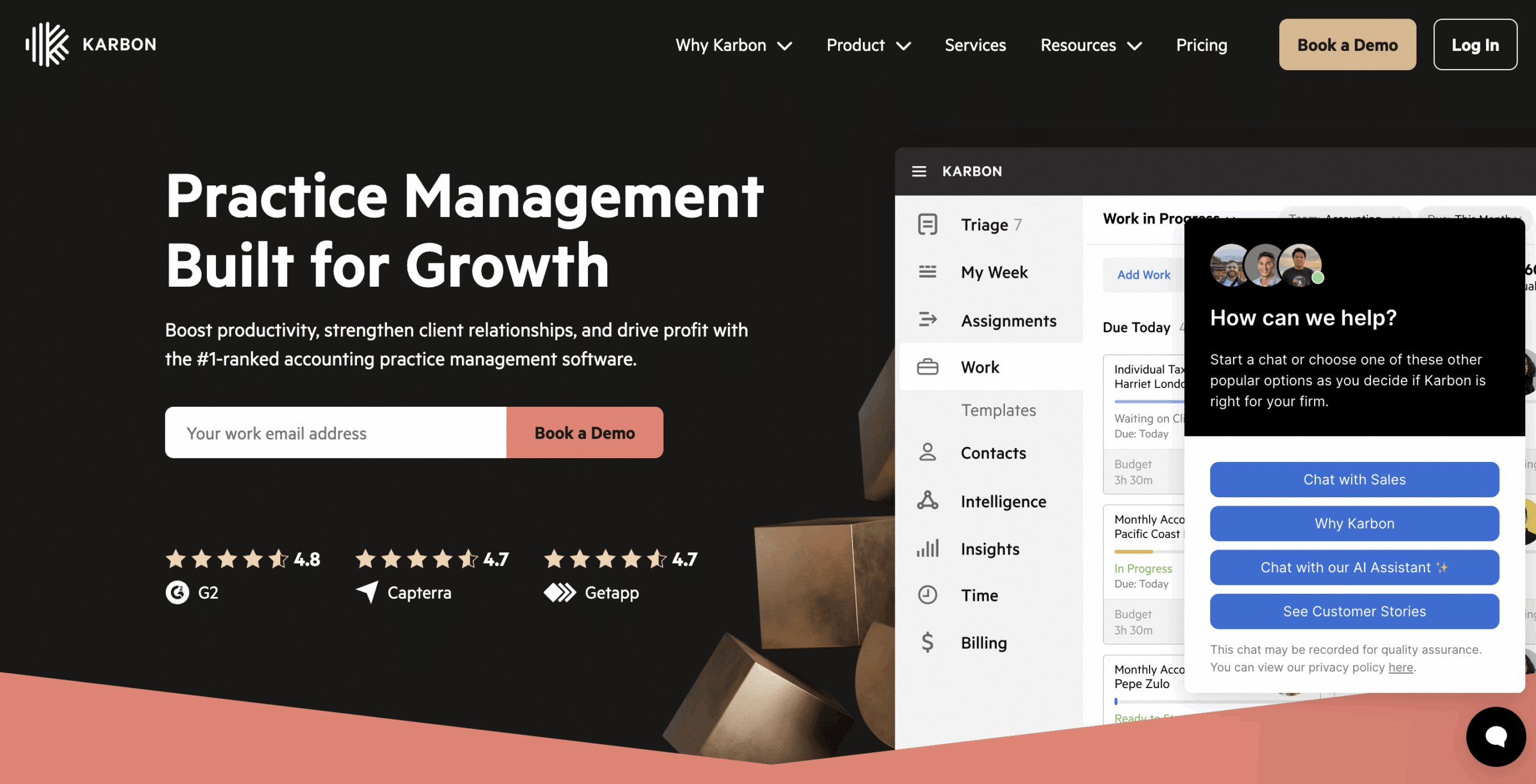
Karbon is a cloud-based practice management software that helps accounting firms manage deadlines, reduce manual tasks, and gain visibility across clients, projects, and staff.
It centralizes accounting operations for remote and hybrid teams and eliminates the back-and-forth that slows down client service.
Its features are grouped into:
Project Management
- My Week: Organizes each team member’s tasks, priorities, and emails into a single action plan.
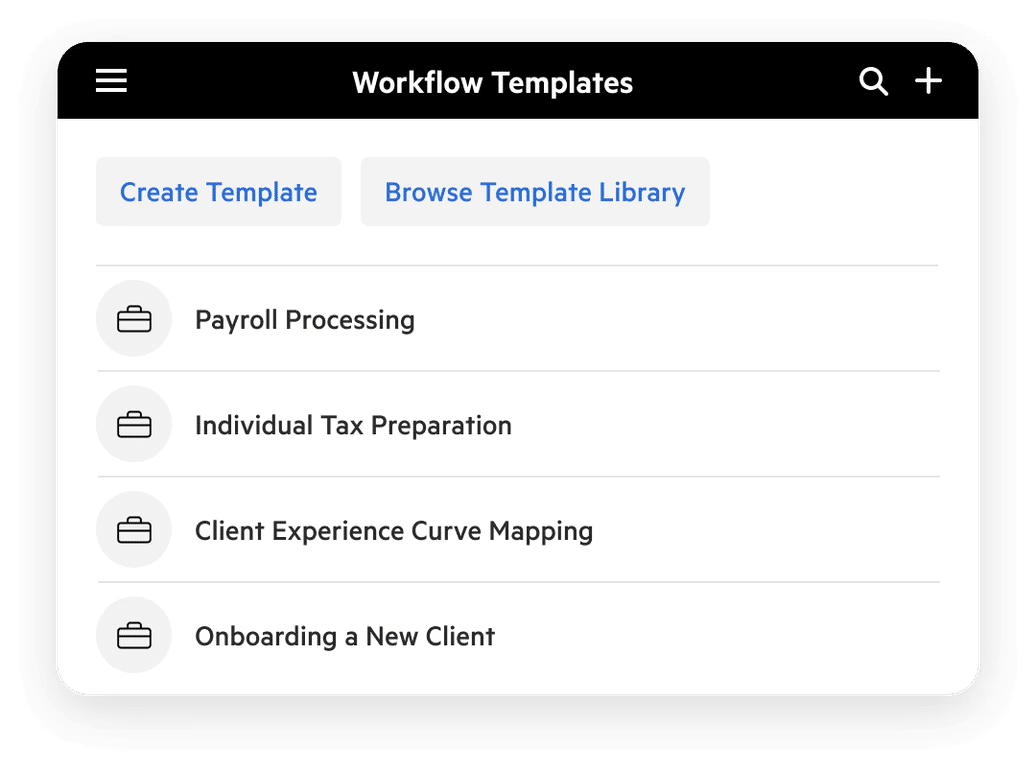
- Work Templates: Standardizes recurring processes through customizable workflow templates.
- Global Search: Allows users to instantly search across all emails, documents, jobs, and contacts.
- Work Scheduler: Sets recurring work to repeat automatically based on predefined schedules.
- AI Smart Suggestions: Improves productivity with AI-generated summaries, recommendations, and shortcuts.
Workflow Automation
- Work Templates: Repeatable workflows ensure consistency across jobs.
- Automators: Builds task dependencies and triggers automated workflow steps.
- Work Scheduler: Automates recurring workflow creation.
- Auto-reminders: Automatically follow up with clients for missing documents.
Email Management
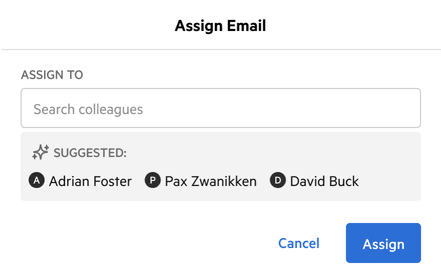
- Triage: Processes and assigns emails efficiently across team inboxes.
- Email Comments: Karbon allows internal discussions directly inside a client email.
- AI Drafts and Quick Replies: Speeds up communication with AI-generated summaries and responses.
- Create Emails from Tasks: Let tasks automatically trigger client communication.
Client Management
- Client Portal: Supports document sharing and client task management.
- AI Client Summaries: Compiles emails, notes, work, and billing into a brief overview.
- Auto-reminders: Reduce manual client follow-up.
- Client Groups: Organizes related contacts under one structure.
- Document Storage: Automatically stores all client files within their account.
Team Collaboration
- Integrated Email: Brings every email into the same collaborative workspace.
- Mentions: Notifies specific users or groups to speed up communication.
- Email Actions and Email Comments: Supports assigning, discussing, and linking emails to tasks.
- Checklists and Notes: Keeps teams aligned with structured responsibilities and internal discussions.
Pricing
- Team Plan: $59/month per user
- Business Plan: $79/ month per user
- Enterprise Plan: Custom pricing
Why Consider Alternatives to Karbon?
a. Complex interface and workflow system
Many small and mid-sized firms struggle to maximize Karbon due to a knowledge gap in new workflows, communication patterns, and email synchronization.
As Karbon continues to update its features and functionalities, users occasionally lose track of the location of certain features or how new capabilities fit into their existing processes.
This requires firms to constantly learn new best practices, which competes with billable work for time and attention.
The initial implementation does take some time, and there’s definitely a learning curve when first setting up workflows. While the platform is powerful, it can feel overwhelming at first with so many features. Some integrations could also be a bit smoother, especially when trying to connect all of our existing systems."
Kaitlyn E.b. It can be hard to implement and learn
Many small and mid-sized firms struggle to get the most out of Karbon because of the ongoing learning curve around new workflows, communication patterns, and email-management features.
As Karbon continues to release updates and expand its functionality, users sometimes lose track of where certain features live or how new capabilities fit into their existing processes.
This creates a need for constant retraining and process adjustments, which often compete directly with billable client work.
c. Limited Workflow features
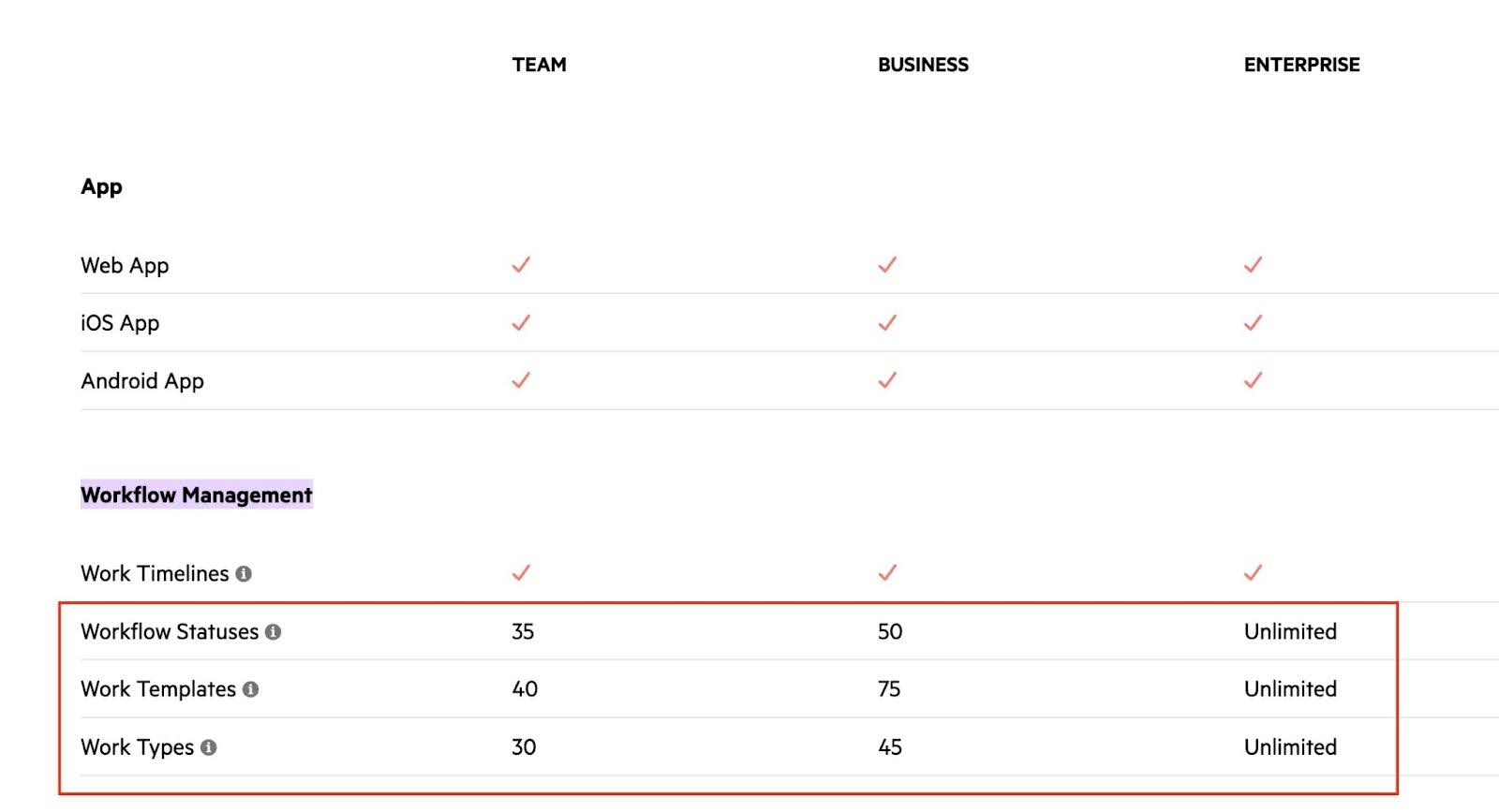
While Karbon does offer workflow capabilities, several important features are locked behind higher-tier plans. Most of Karbon’s advanced workflow functions are only available to Enterprise-level users.
Firms on the Team or Business plans face limits on the number of workflow templates, automations, and status reports they can use.
These restrictions reduce the visibility, automation, and standardization that firms can achieve across multiple services or team members.
d. Limitations on Client Records and Segmentation
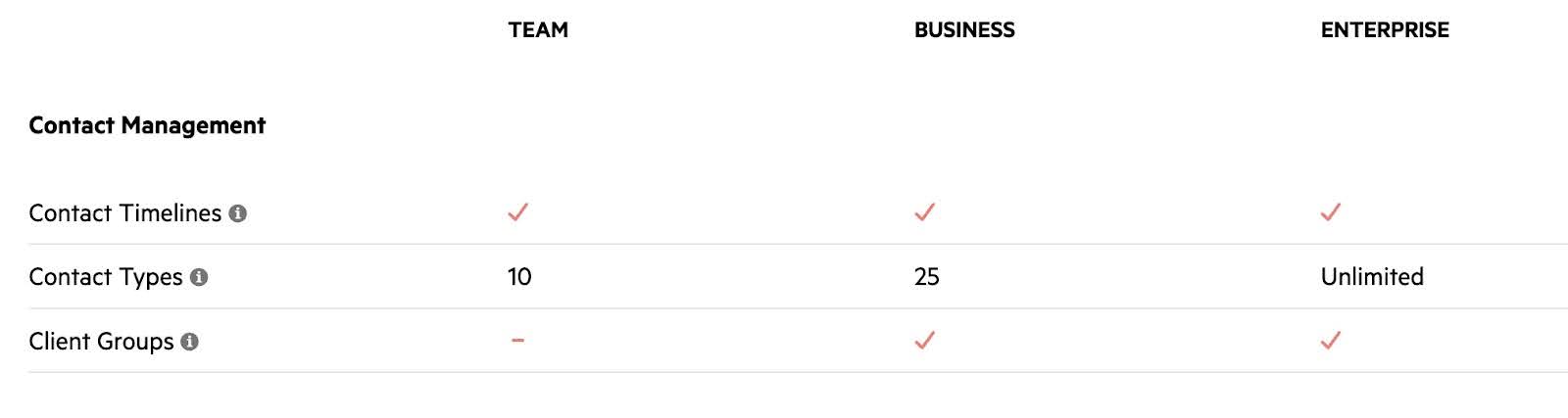
Karbon’s tiered client-management system restricts how firms organize and maintain their client relationships.
Firms on the Team plan are limited to 1,000 contacts and 10 contact types; the Business plan increases this to 2,000 contacts and 25 contact types. The Team plan also prevents users from segmenting clients using the client group feature.
For firms on these lower tiers, exceeding these limits requires deleting older or inactive client records to make room for new ones. While upgrading would remove these limits, that may increase operating costs beyond what many small and mid-sized firms can afford.
e. New and Limited proposals & engagement letters feature
Karbon launched its Engagements feature in early 2026, but many users have continued to rely on integration with third-party proposal tools to create and send proposals and engagement letters due to its limited customization and UI glitches.
f. Inability to manage uncategorized transactions
Bookkeeping teams constantly deal with uncategorized or miscategorized transactions, and managing these efficiently is critical to maintaining smooth workflows.
Unlike Financial Cents, which offers a Month end close system for collaborating directly on uncategorized transactions, Karbon lacks native support for this task.
This forces users to export transactions to Excel, chase clients for clarification, and manually re-enter data into their general ledger software.
This extra work increases the time spent on routine bookkeeping and forces teams to jump between Karbon and accounting systems like QuickBooks Online.
Sam S., CPA
Brianna Goodman
Angela Brewer
The 8 Best Taxdome Alternatives to Consider
1. Financial Cents
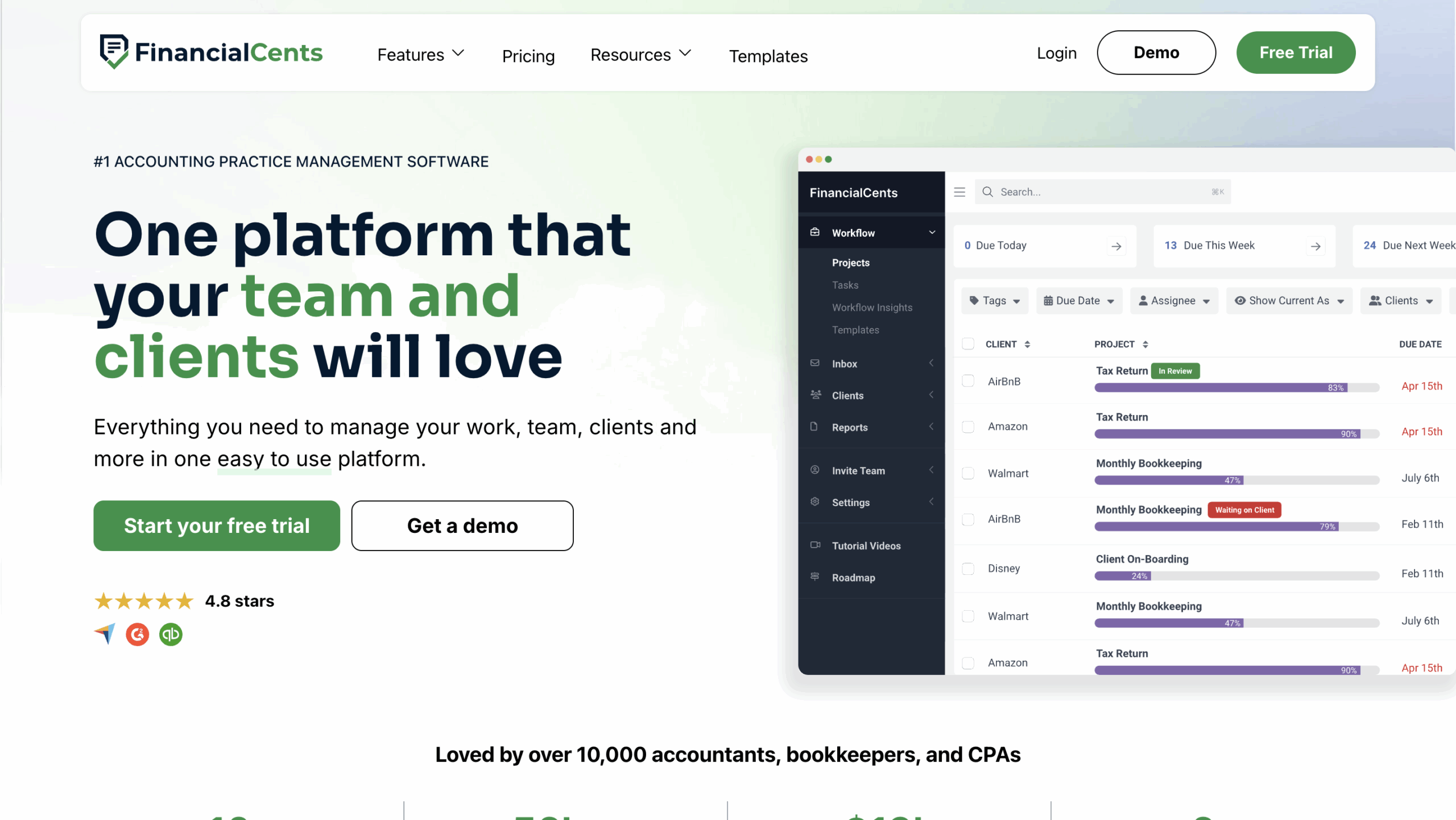
Financial Cents is the all-in-one practice management platform of choice for accounting, tax, and bookkeeping firms that are tired of bloated and complicated software.
It gives you complete visibility into every information, client engagement, and team workload, ensuring no deadline falls through the cracks.
Its intuitive interface makes it easy for accounting teams to adopt it in days. This saves the average team member 56 hours per month, which they reinvest into advisory work and client relationships.
Financial Cents’ features are grouped into:
Workflow Management
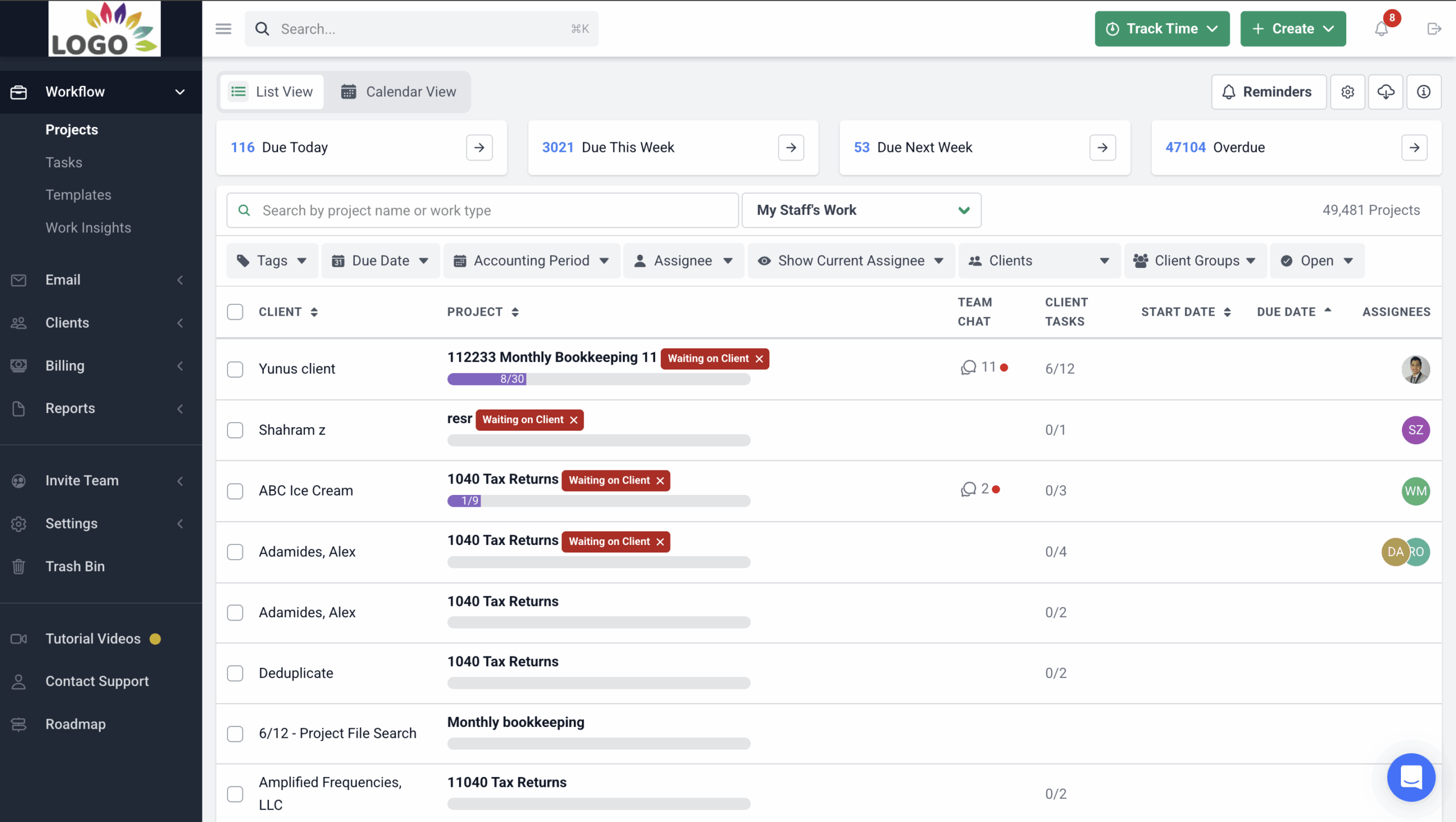
- Workflow Filters: Provide instant visibility into client engagements and team workload by displaying tasks and information by client, employee, due date, etc.
- Internal File Sharing: Attach and share documents within projects and clients to ensure the team always has the files they need to complete work on time.
- Workflow Templates: Financial Cents provides industry best-practice templates (and allows you to build your own) to standardize your processes.
- Due Date: Tracks project deadlines to help your team understand priority and maintain accountability.
Workflow Automation
- Recurring Work: Schedule recurring projects so Financial Cents automatically creates future copies.
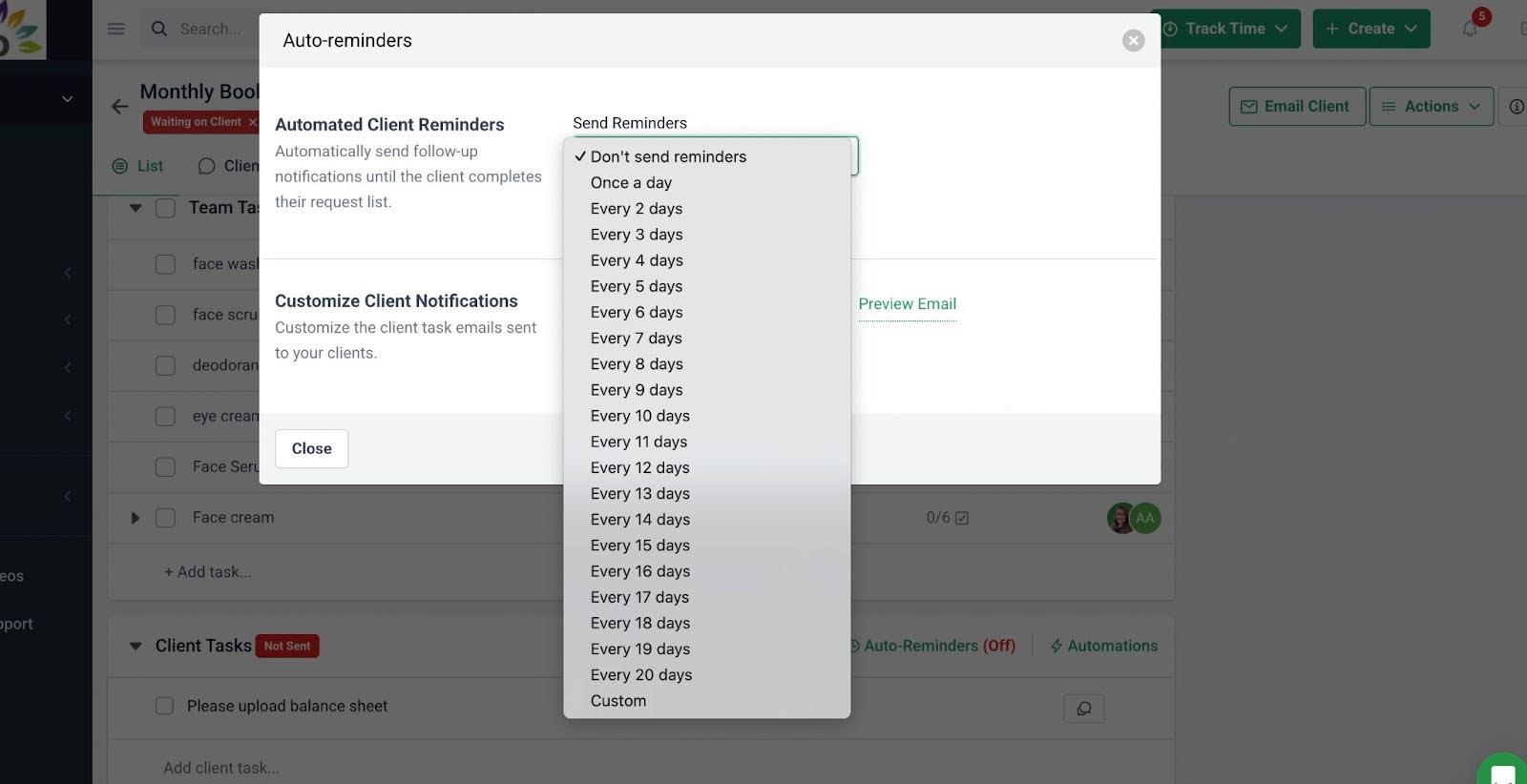
- Client Reminders: Reduce client chasing with automated reminders for missing information, document requests, or deadlines.
- Task Dependencies: Automatically notify team members when their portion of the work is ready to begin.
- Work Status Updates: Automatically update clients on the status of their work as certain steps are completed.
- Email Updates: Trigger automated emails to clients based on changes or actions taken inside the workflow.
Team Collaboration
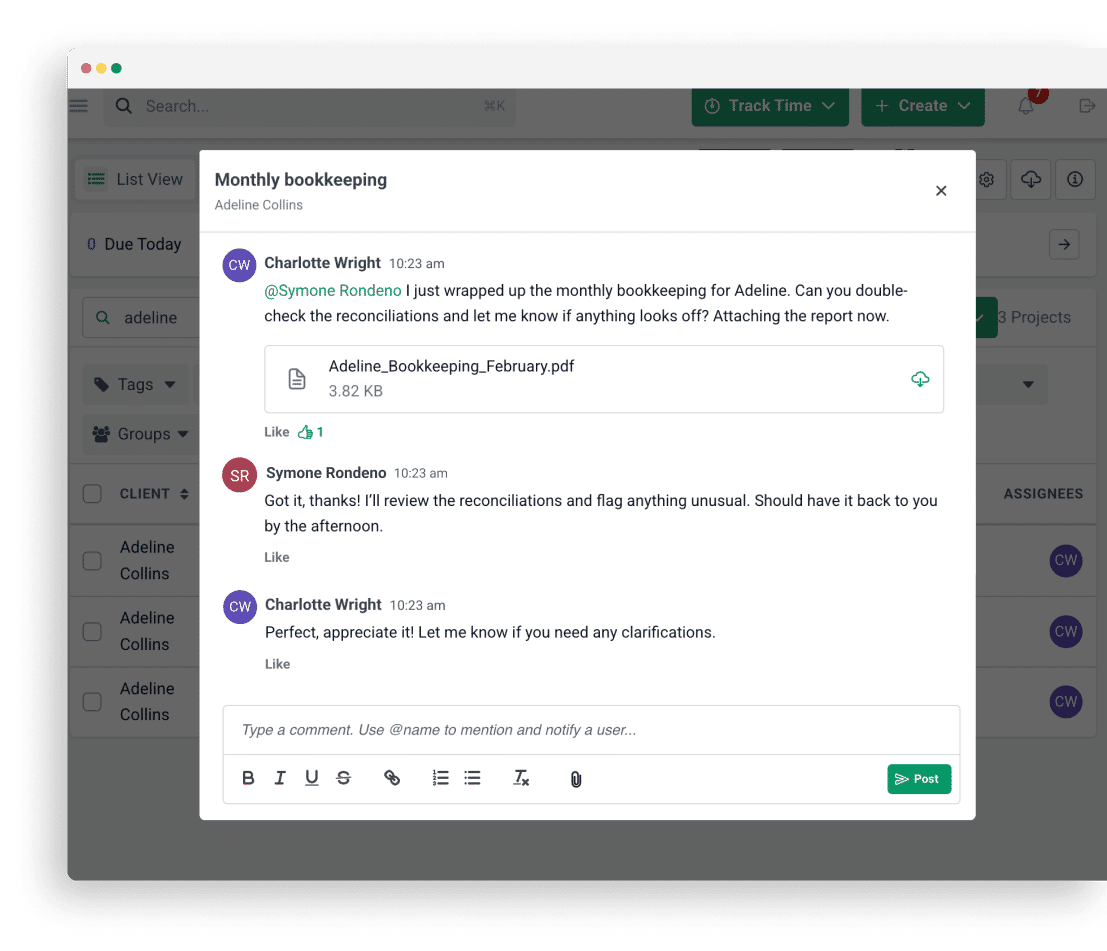
- @Mentions: Tag teammates on tasks, emails, or client records to keep everyone aligned and informed.
- Shared Inbox: Centralized inbox to manage client emails and prevent missed messages.
- Client Notes: Allows team members to document their meetings or interactions with clients to carry everyone along.
CRM & Client Database
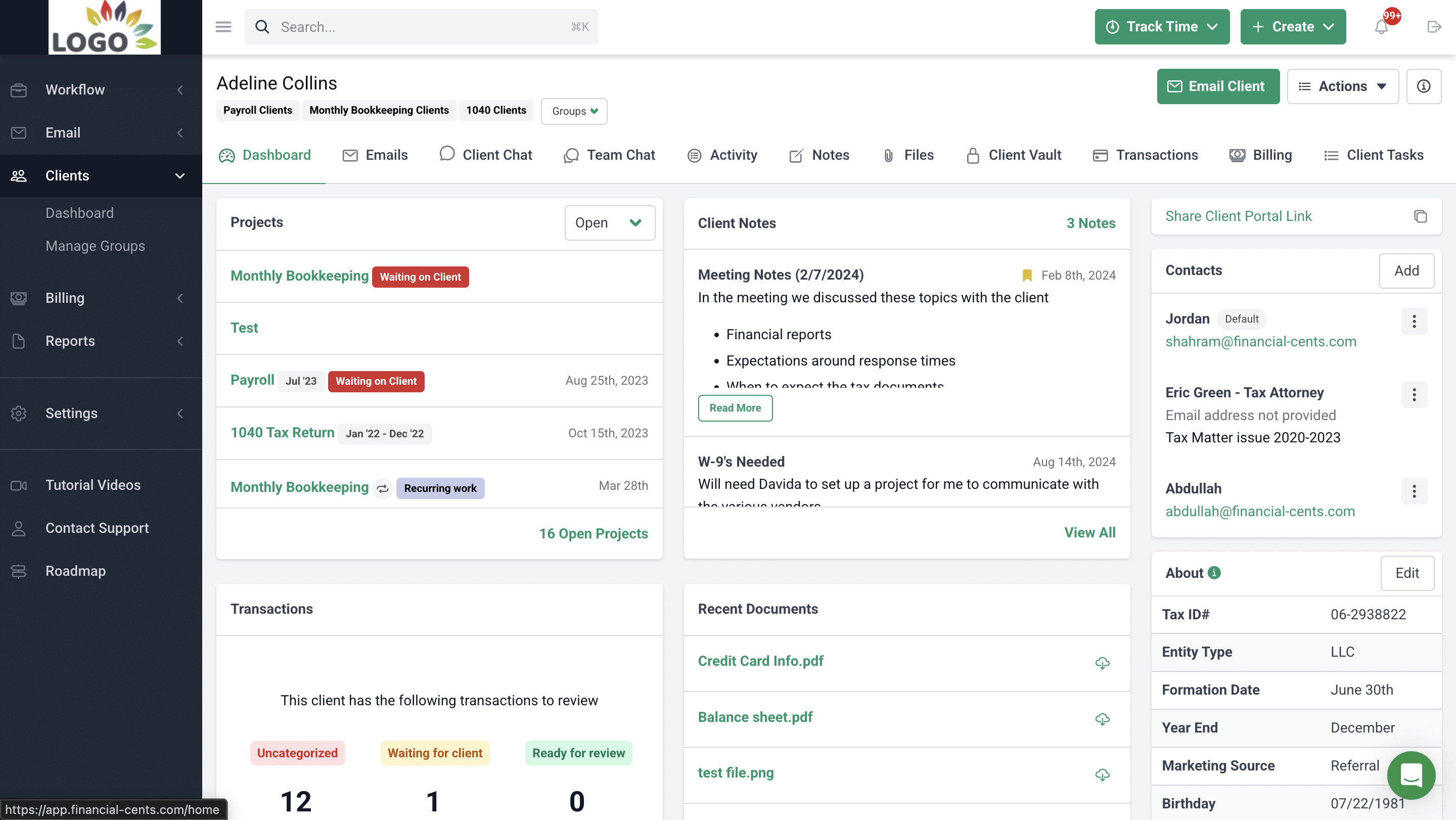
- Client Audit Trail: See all client interactions in a single timeline.
- Custom Fields: Add custom data fields to personalize and filter client records.
- Client Vault: Store client passwords and other sensitive data securely.
- Client Groups: Group clients by entity type, service, or ownership.
- Client Profiles: Centralized view of all client details, documents, tasks, and communication.
Client Portal
- Passwordless Login: Clients don’t need passwords to access their portal. Magic ling technology ensures secure access.
- Auto-Reminders: Automatically remind clients about outstanding items.
- SMS Reminders: Financial Cents can notify your clients by text message.
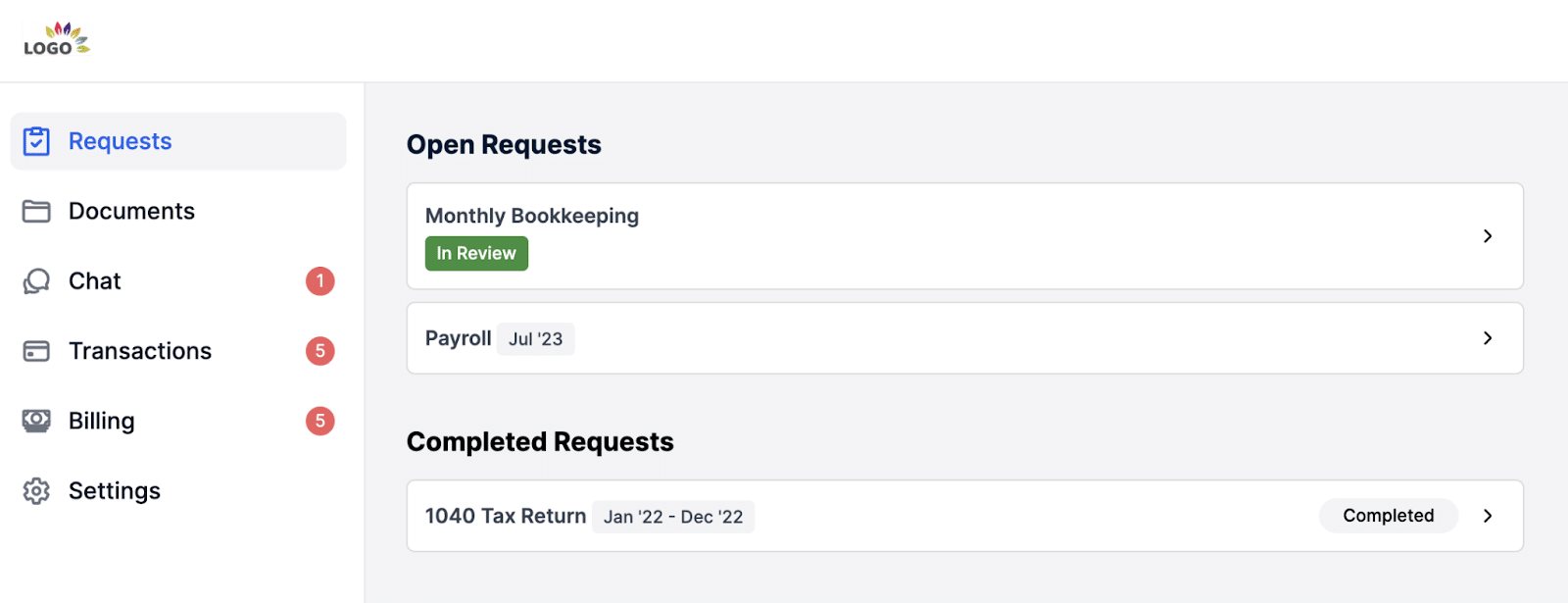
The client portal is divided into:
-
- Client Tasks and Requests: Request client information and files in a structured, trackable format.
- Folder Sharing: Keep client documents centralized and accessible.
- Client Chat: Chat securely with clients in one place.
- Month-End Close (MEC): Erroneous transactions in your client’s QBO records are shared for clarification and correction in the Financial Cents client portal.
- Billing and Proposals: Clients can pay invoices directly through the portal.
Email Integration
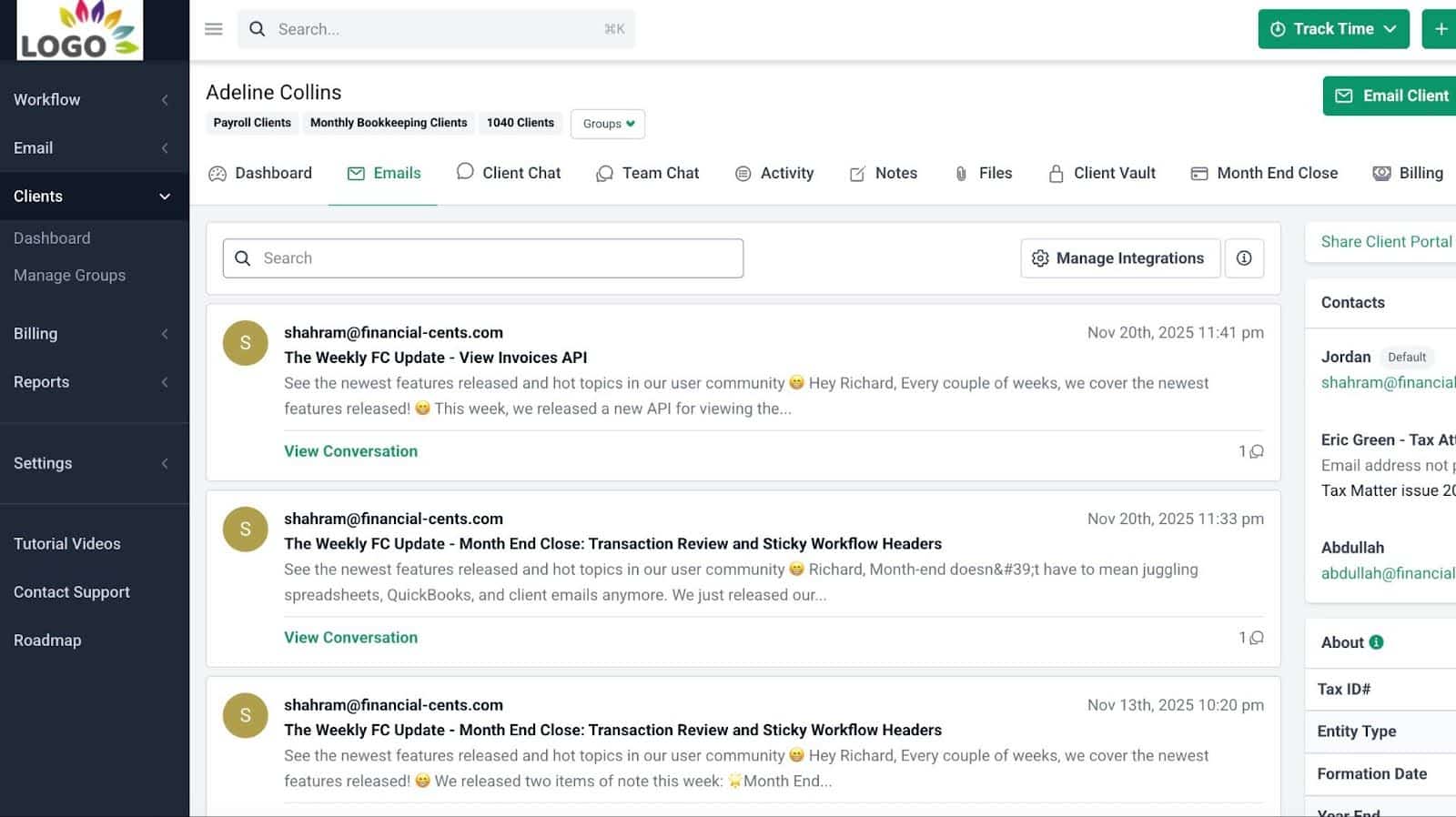
- Focused Client Inbox: A dedicated folder for only client emails that helps your team find client emails faster.
- Turn Emails into Tasks: Convert client emails into workflow items with a single click for better tracking and accountability.
- Pin Emails to Work: Attach important client emails directly to projects for easy access.
- Email directly from Financial Cents: Communicate with clients without switching tabs or systems.
- Two-Way Sync: Syncs seamlessly with Gmail and Outlook so your team never has to manage multiple inboxes. Plus, emails sent and read from Financial Cents reflect in Gmail or Outlook.
Capacity Management
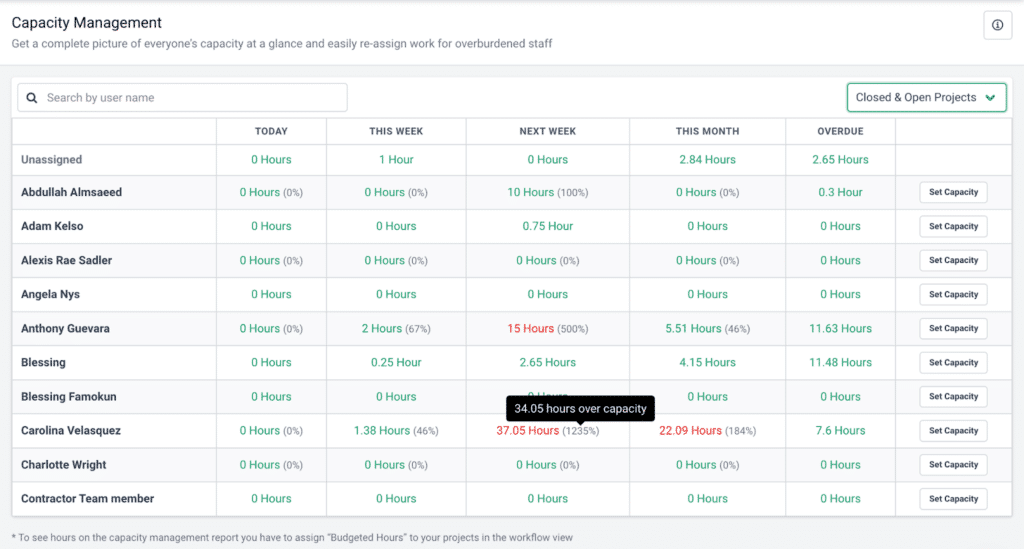
- Capacity Dashboard: Shows your entire team’s workload at a glance to quickly understand who is over- or under capacity.
- Workload Forecasting: Uses historical trends to identify when to hire, reassign work, or adjust service offerings.
- Task Reassignment: Redistribute work when a team member is overloaded or unavailable.
- Automated Task Assignments: Automatically assign tasks to team members based on availability and workloads.
- Custom Workload Views: Filter capacity by team members, workflows, due dates, or client groups.
Time Tracking
- Start/Stop Timer: Run timers while you work to accurately capture billable and non-billable hours.
- Manual Time Entries: You also have the option to manually log time directly to clients or workflows.
- Billable vs. Non-Billable Tracking: Identifies time waste to improve efficiency.
- Time Budgets & Estimates: Set time expectations for work and track actuals to identify overruns.
- Billable Rates: Assign rates to team members or clients for accurate billing.
Document Management
- DMS Integrations: Integrate with external document management systems to auto-create folders and backup files.
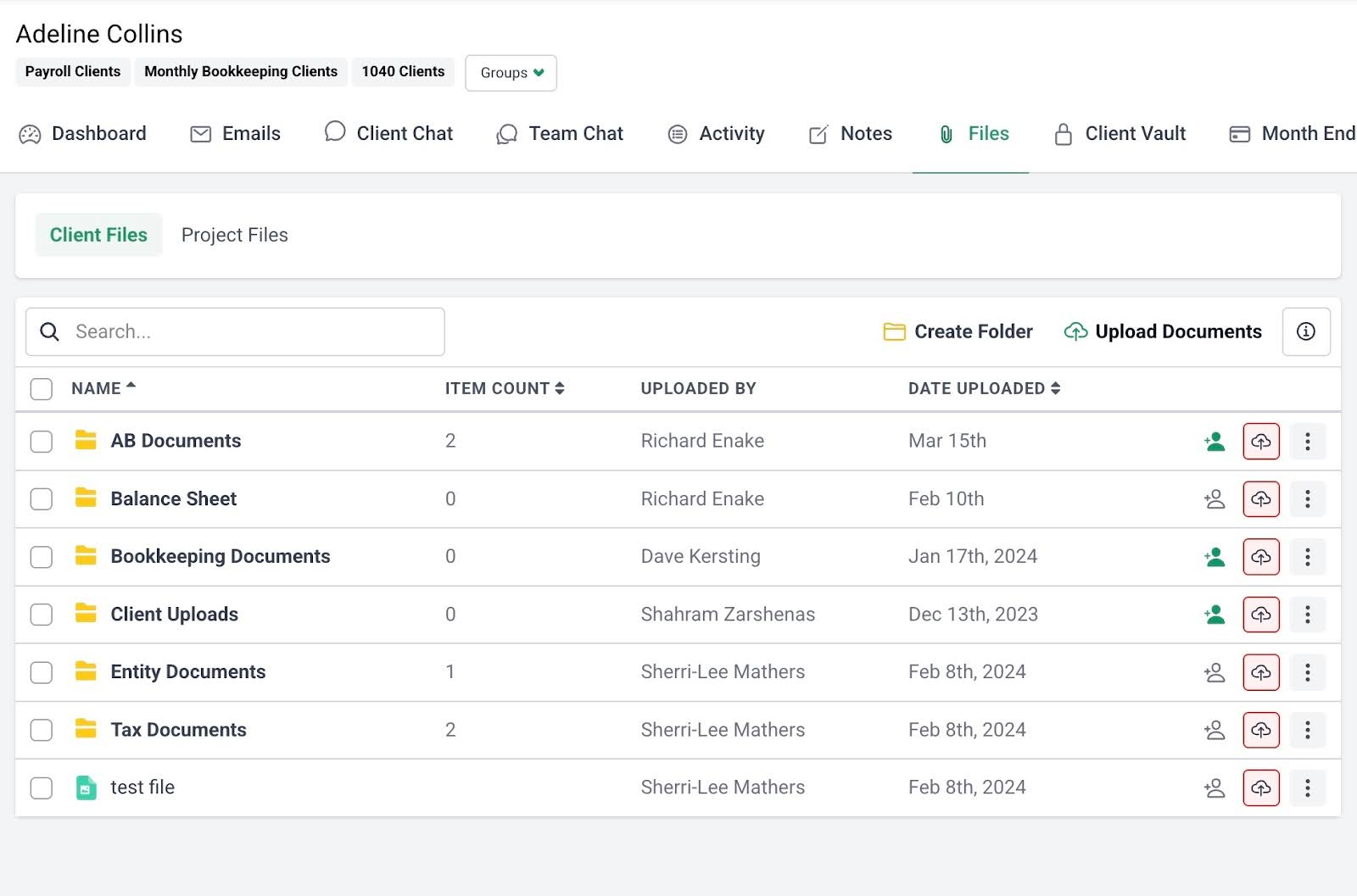
- Document Organization: Customize folders and subfolders for easy document retrieval.
- Search Functionality: Quickly find documents using keywords or file names.
- Real-Time Notifications: Get notifications when clients or team members upload or update files.
- Multi-Country Data Storage: Financial Cents users can choose where to store their clients data between the U.S., U.K., Australia and Canada. This helps them to comply with relevant data residency laws.
E-Signature
- Signature Requests: Collect client signatures on tax returns, proposals, and documents.
- Automatic Notifications: Get notified when documents are signed.
- Centralized Storage: Signed documents automatically save in Financial Cents’ DMS.
Billing & Payments
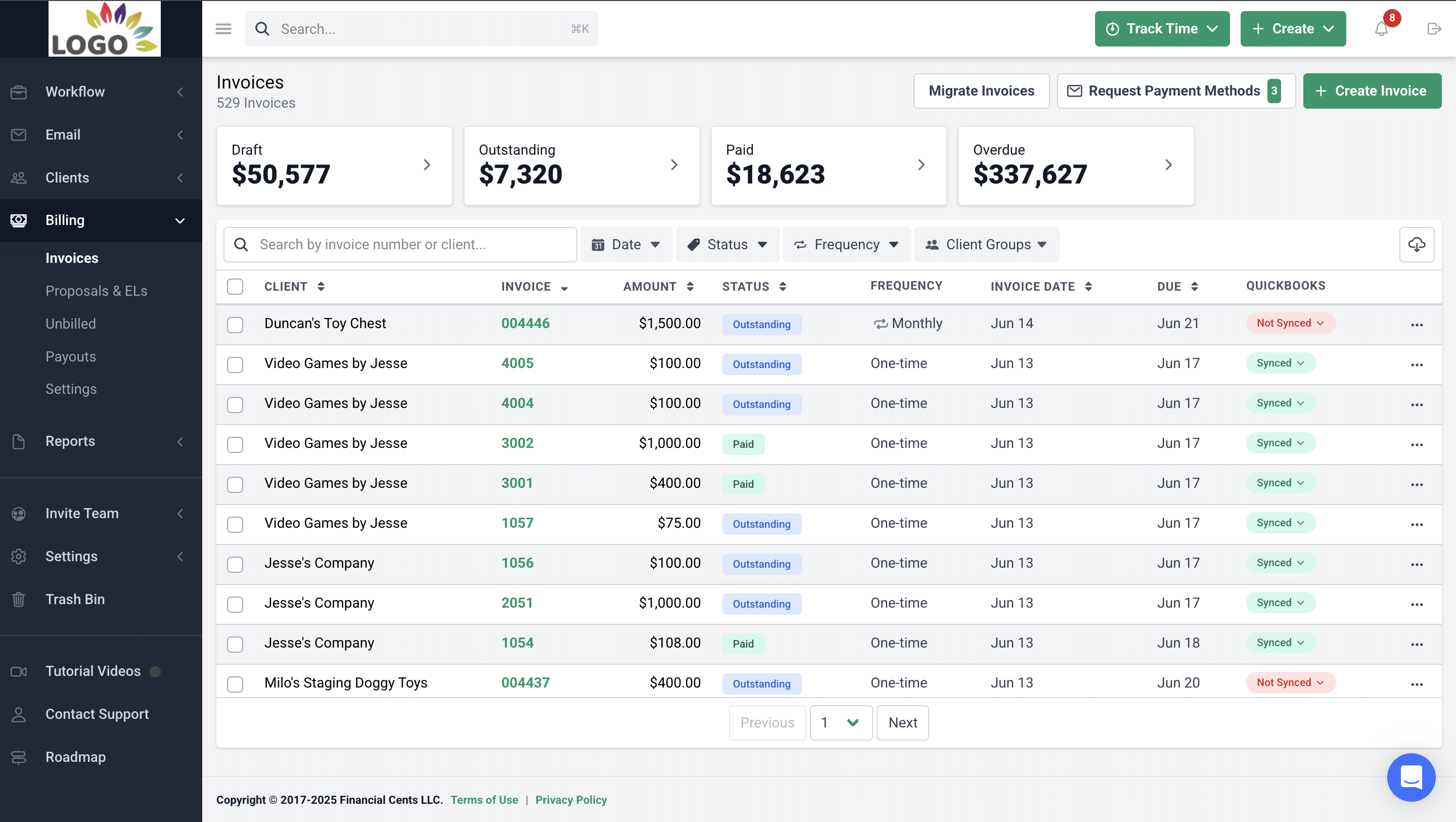
- One-Time and Recurring Invoices: Bill clients effortlessly with automated invoice creation.
- QBO Sync: All invoices and payments sync directly to QuickBooks Online.
- Pass Card Fees to Clients: Transfers processing fees to clients.
- Automated Payments & Reminders: Reduce AR with auto-charge and automated payment reminders.
Budgeting & Reporting
- Realization Reports: Identify your most profitable clients, team members, and service areas.
- Budget Reports: See which clients or projects are under or over budget.
- Time Tracking Reports: Understand how your firm is spending time across all services.
- Client Uploads Report: View all client document uploads in a single dashboard.
- Work Insights: Analyze workflow efficiency and identify bottlenecks.
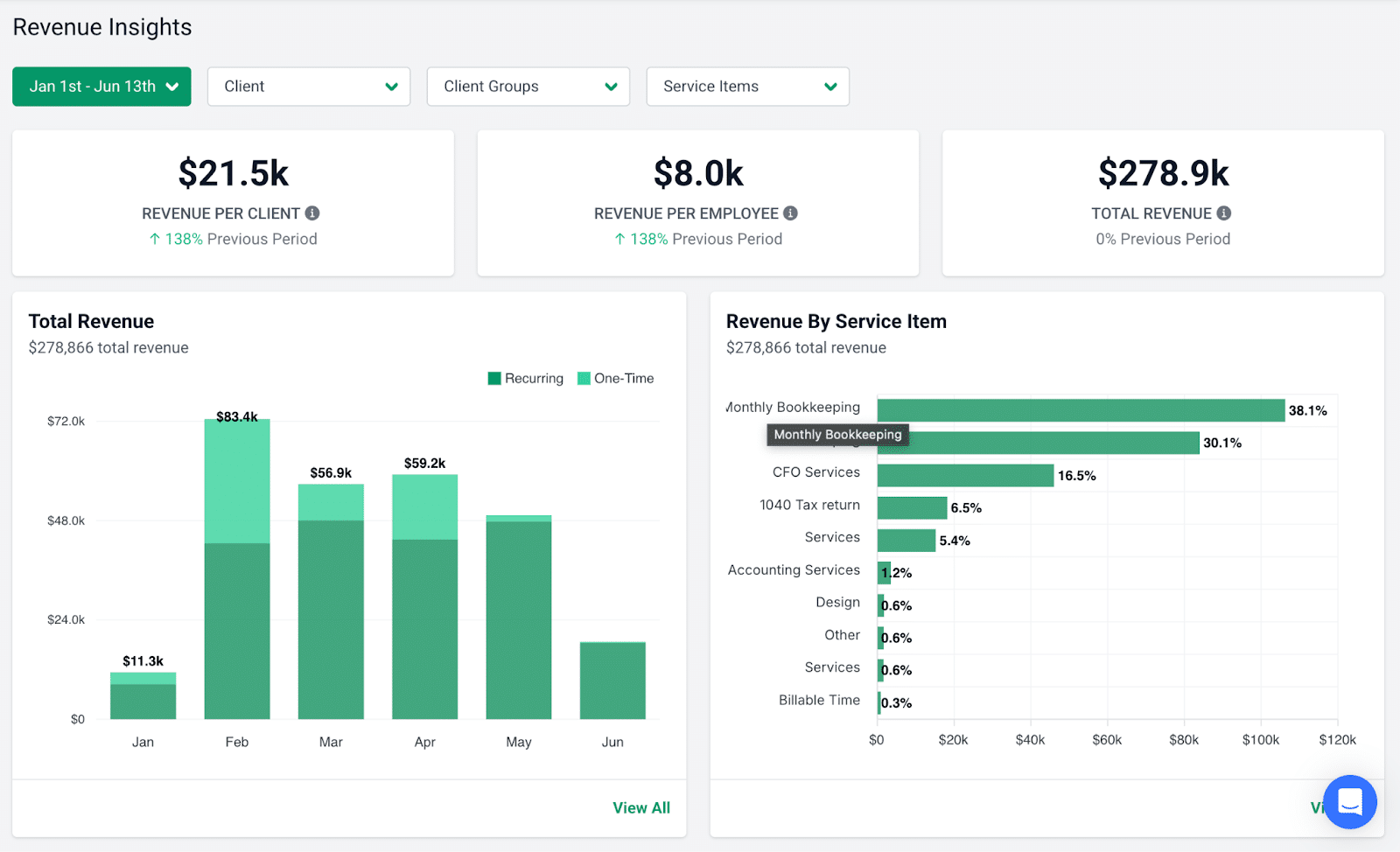
- Revenue Insights: Spot revenue trends and top-performing service lines.
- Capacity Management Reports: Analyze staffing needs and workload distribution.
- Utilization Reports: Measure utilization across clients, employees, and departments.
| Pros | Cons |
|
|
Why You Should Consider Financial Cents
Financial Cents’ all-in-one platform eliminates the complexity and steep learning curve of tools like Karbon.
The ease of implementation, extensive automations, and secure portals reduce administrative time and enable accounting teams to meet deadlines faster, while the time, billing, and payments features ensure they get paid adequately.
Reviews
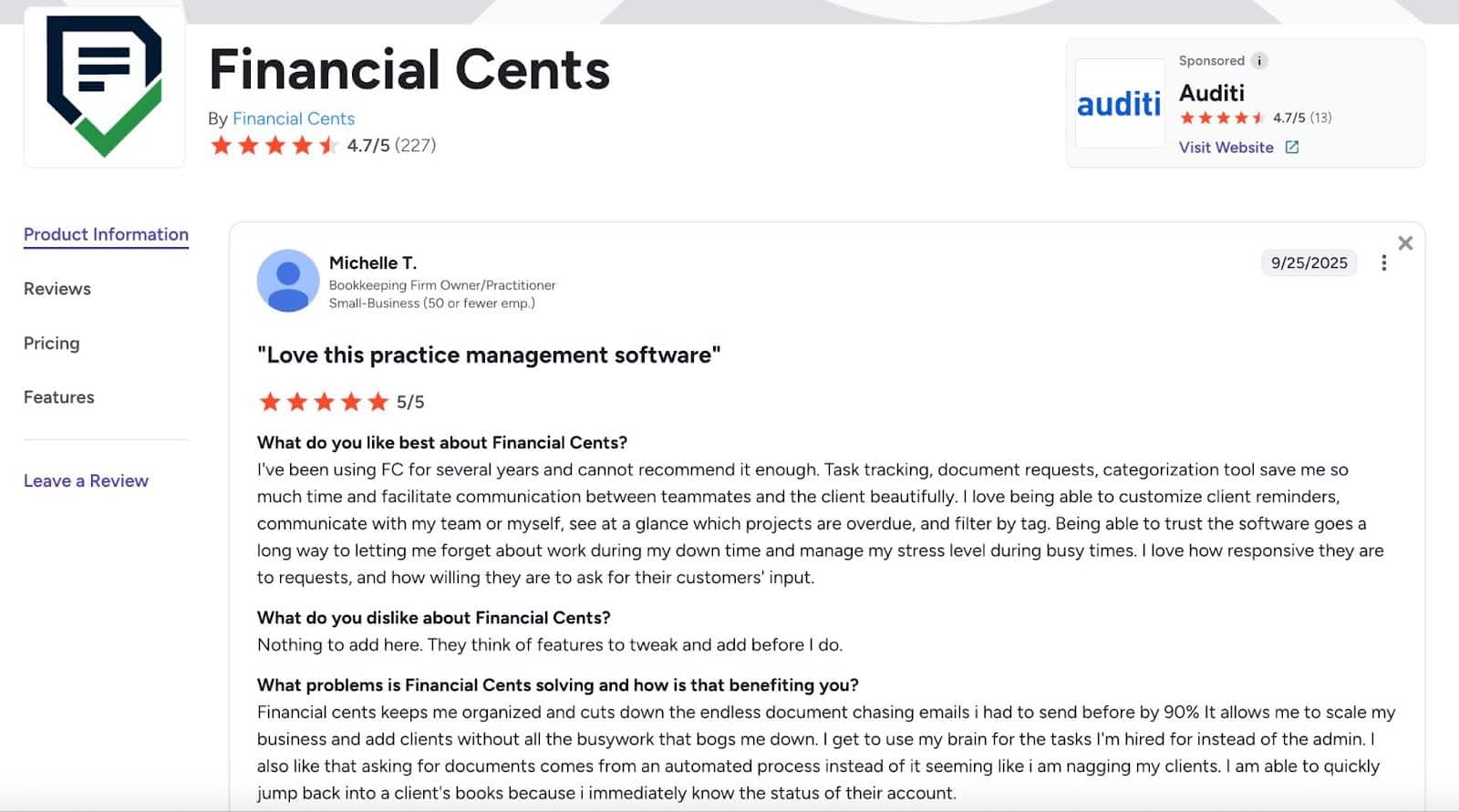
Financial Cents is rated:
Pricing
- Solo Plan; $19/month
- Team plan: $49/month per team member
- Scale plan: $69/month per team member
- Enterprise: Custom
Should You Use Karbon or Financial Cents?
Firm owners who prioritize ease of use, automation, strong client collaboration, and affordability chose Financial Cents. Implementation takes hours, rather than weeks. Its fixed pricing model makes it more scalable for growing firms.
Financial Cents also has strong proposals, uncategorized transactions, and month-end close features, and provides unlimited capacity to scale projects.
Firms that need intensive email management, enterprise-level communication workflows, and deeper AI-driven analytics chose Karbon. Its complex review process, heavy internal routing needs, and triage system make it ideal for enterprise-level teams.
Side-by-side comparison: Financial Cents vs Karbon
Want to explore how Financial Cents can help you manage your firm without the unnecessary complexities? Book a Free Demo.
2. Canopy
Canopy provides accounting firms, especially those offering tax services, with client management, document workflows, and IRS integrations to manage projects, automate repetitive tasks, and meet compliance requirements.
Its AI-powered practice management features promise to help “unclunk” accounting firms.
Canopy’s features are grouped into:
Workflow Management & Automation
- Workflow Templates: Reusable workflows that use conditions and automation rules to trigger actions such as sending emails, updating statuses, or creating subtasks.
- Client Reminders: Automated reminders that ensure clients receive timely follow-ups without manually nudging them.
- Recurring Tasks: Set tasks to recur automatically based on due dates or the completion of prior cycles.
- Automation Triggers: Trigger actions, like creating new tasks, emailing clients, and assigning team members, whenever activities occur within a workflow.
Client Management
- Client, Contact, and Group Lists: Organize clients, contacts, and multi-entity relationships with customizable fields.
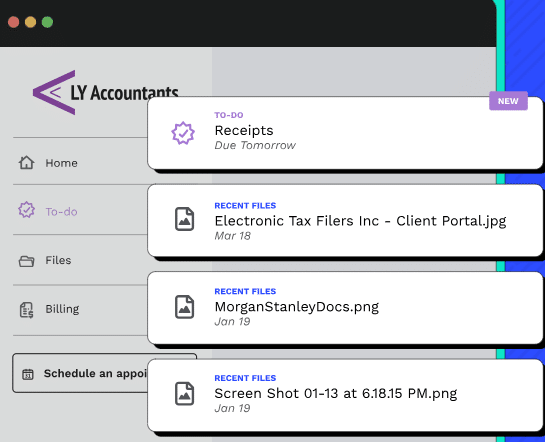
- Client Records: Centralize client information in one place, including notes, emails, billing, tasks, and history.
- Bulk Actions: Make bulk updates across filtered client segments.
- Global Inbox: Manage all email communication from within Canopy, syncing inboxes and attaching messages to client records for firm-wide collaboration.
- AI Email Generator: Draft professional emails automatically with one click to speed up client communication.
Document Management
- Secure Link: Allows you to send files to clients or team members using secure, expiring links.
- Upload Files via a Secure Link: Clients can also upload documents directly through secure links.
- Send Engagements & Proposals with a Secure Link: Deliver engagement letters through secure links.
Time & Billing
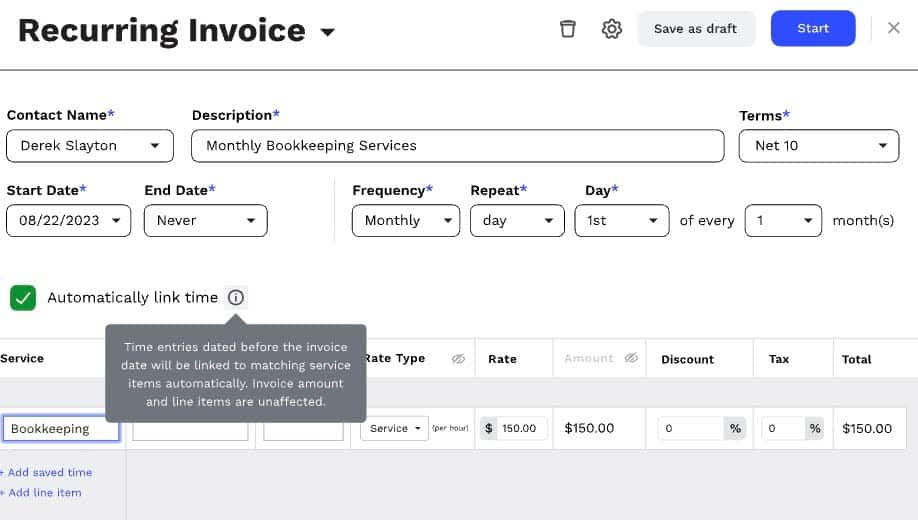
- Customizable Rates: Bill clients by employee, service type, or time.
- Work in Progress (WIP): Captures unbilled work, service totals, and revenue potential in invoicing.
- Automated Late Fees: Automatically apply late fees to past-due invoices to encourage quicker payments.
- Multiple Payment Methods: Collect ACH and credit card payments through Canopy’s integrated payment provider.
Transcript & Notices
- IRS-Integrated Transcript Access: Pull IRS transcripts, automate ongoing retrievals, and review all data in one table.
- IRS Notice Workflows: Use annually updated, pre-built notice workflows to respond quickly to IRS notices.
| Pros | Cons |
|
|
Why You Should Consider Canopy
Canopy is best suited for firms that offer IRS representation, tax resolution, or compliance-intensive services. Its IRS transcript tools, secure file-sharing options, and flexible CRM are most valuable in firms where tax workflows dominate day-to-day work.
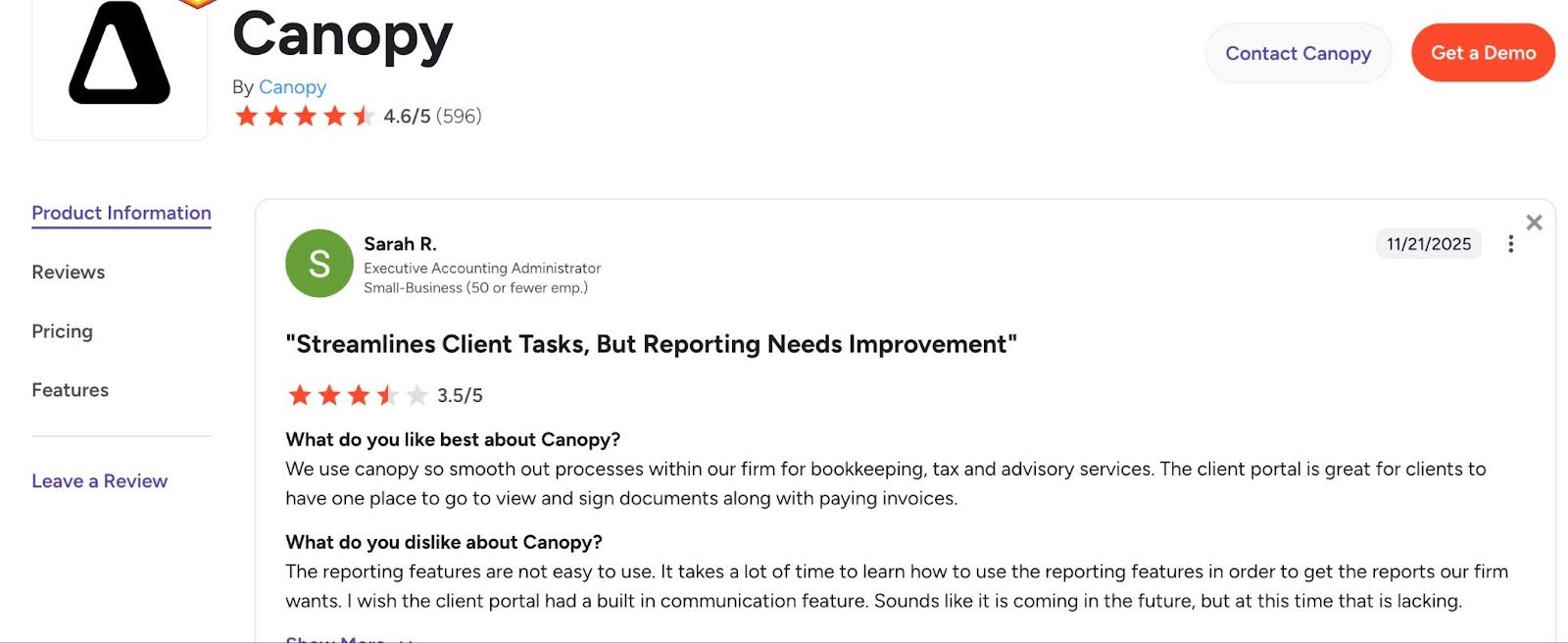
Reviews
Canopy is rated:
Pricing
- Client Engagement: $150/month
- Workflow: $32/month per user
- Time & Billing: $22/month per user
Should Accounting Firms Use Karbon or Canopy?
Canopy’s modular structure also gives you the freedom to expand into advisory, billing, or workflow tools without purchasing an entire suite upfront. Canopy allows you to start with client management or document management and add modules like workflow, billing, or transcripts only when you need them.
Karbon acts like a project management layer built directly on top of your email, making it excellent for firms where inboxes drive the bulk of work.
Related: Financial Cents vs Canopy
3. TaxDome

TaxDome is an accounting practice management software with a powerful client portal, strong document management, and integrated CRM features.
Most of its users are tax firms that rely on its tax organizers and other client-facing tools to automate client data collection and simplify client collaboration during the busy season.
TaxDome’s features are grouped into:
Workflow Management & Automation
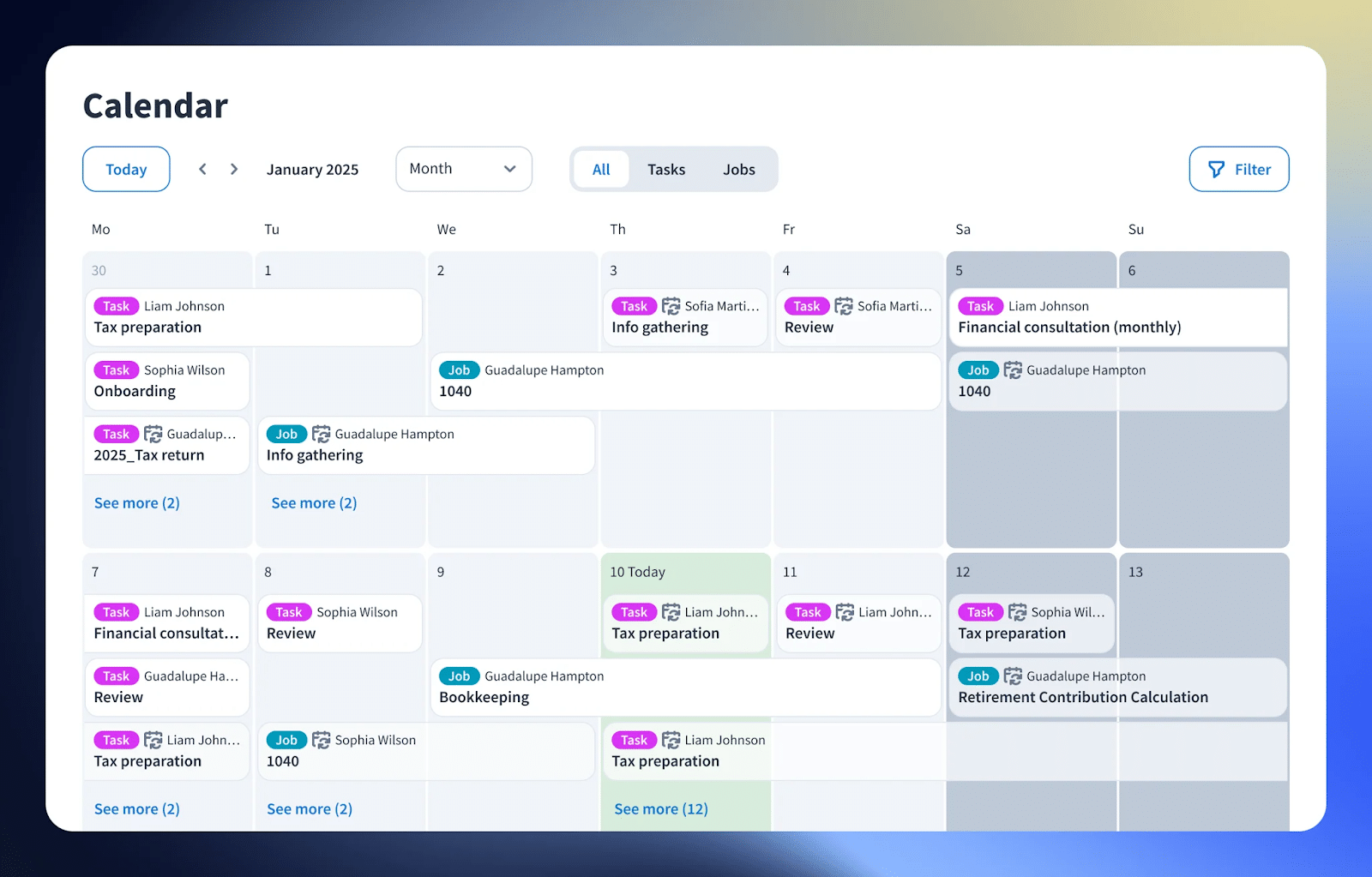
- Insights dashboard: Centralizes deadlines, workloads, and bottlenecks in one planning hub.
- Timeline calendar: Visualizes every project and deadline for better capacity planning.
- Automated client emails: Keep clients updated without manual follow-up, improving turnaround times.
Team Collaboration
- Team productivity insights: Shows workload and performance metrics to manage team output.
- Role-based access controls: Customize permissions to protect sensitive information and streamline responsibilities.
- Wiki: Enables firms to document procedures and maintain consistent service delivery.
- @mentions: Quickly loop teammates into tasks or files.
CRM
- Client profiles: Houses communication, documents, tasks, billing, and notes in one place.
- Automated onboarding workflows: Captures client info, triggers tasks, and sends engagement letters automatically.
- Custom fields & unlimited contacts: Supports multi-entity and multi-contact structures.
- Automated reminders: Keep clients on track for tasks, organizers, or document uploads.
Tax Organizers
- Auto-assigned tags: Organizers can automatically assign tags based on client responses.
- Automated onboarding flows: Collect client data + signed engagement letters with minimal manual work.
- Custom templates: Build organizers for individual, business, or bookkeeping clients.
Document Management
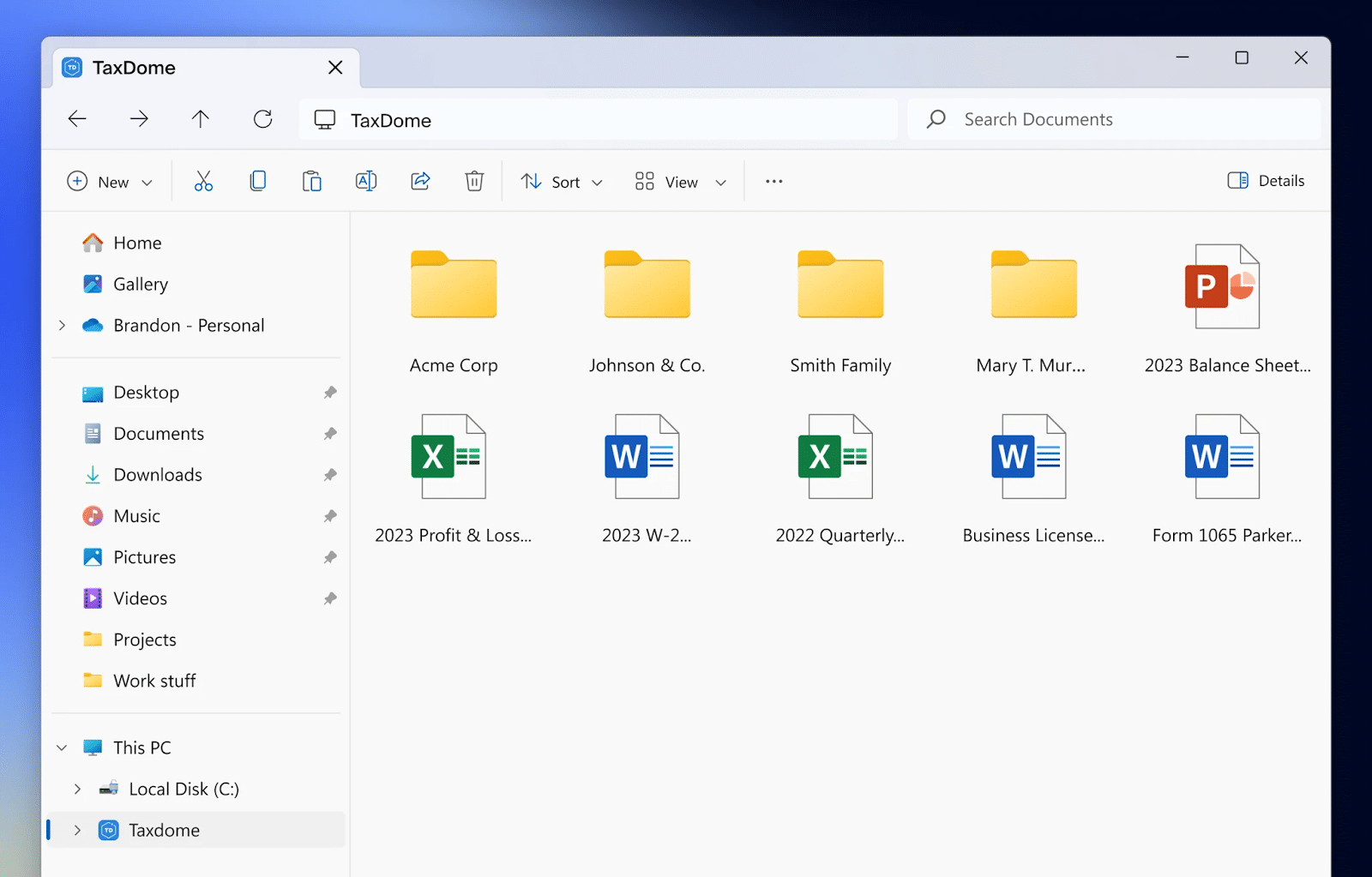
- Unlimited storage: Centralize all firm and client files without extra fees.
- Virtual drive: TaxDome allows direct upload from a computer.
- Print-to-TaxDome: Print documents directly from tax software like Drake, UltraTax, etc.
- Folder uploads: Keep documents organized by client and service.
E-Signature
- Built-in templates for forms: Simplify common tax compliance workflows.
- Low-cost KBA: Much cheaper than DocuSign or Adobe Sign.
- Fast signature requests: Upload tax forms and request signatures in under 30 seconds.
- Recurring payment approvals: Clients can e-sign to authorize automated recurring billing.
Time & Billing
- Recurring billing: Reduces admin work and improves collection rates.
- Customizable invoices: Professional invoices that you can edit to suit your specific client engagements.
- Integrated payments: TaxDome accepts ACH, cards, SEPA, and eCheck.
- WIP visibility: View unbilled work and convert to invoices with one click.
| Pros | Cons |
|
|
Why You Should Consider TaxDome
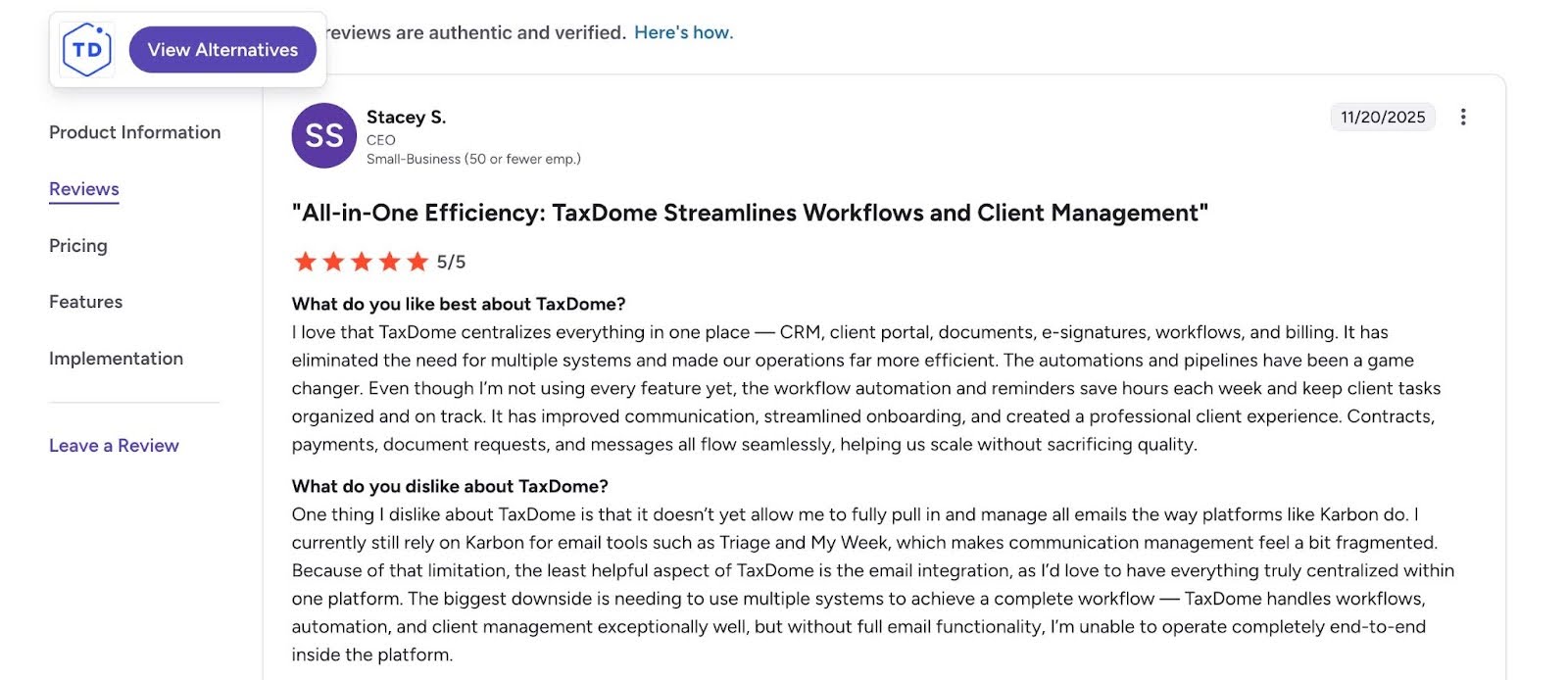
TaxDome places a high emphasis on client-facing workflows, secure document exchange, organizers, and e-signatures. Its flat pricing, unlimited storage, and integrated accounting CRM make it a strong value for firms handling large client volumes or complex document workflows.
Reviews
TaxDome is rated:
Pricing
TaxDome costs:
Pricing
- Essentials: $700/year (3 year plan)
- Pro: $900/year, per seat (3 year plan)
- Business: 1100/year, per seat (3 year plan)
Should You Use Karbon or TaxDome?
If your priority is powerful client portals and robust document management, Taxdome might be better for you. But if you value a more effective team collaboration and advanced email operations, Karbon is better.
Read this in-depth comparison review Karbon Vs TaxDome
Related: Financial Cents vs Taxdome
4. Jetpack Workflow
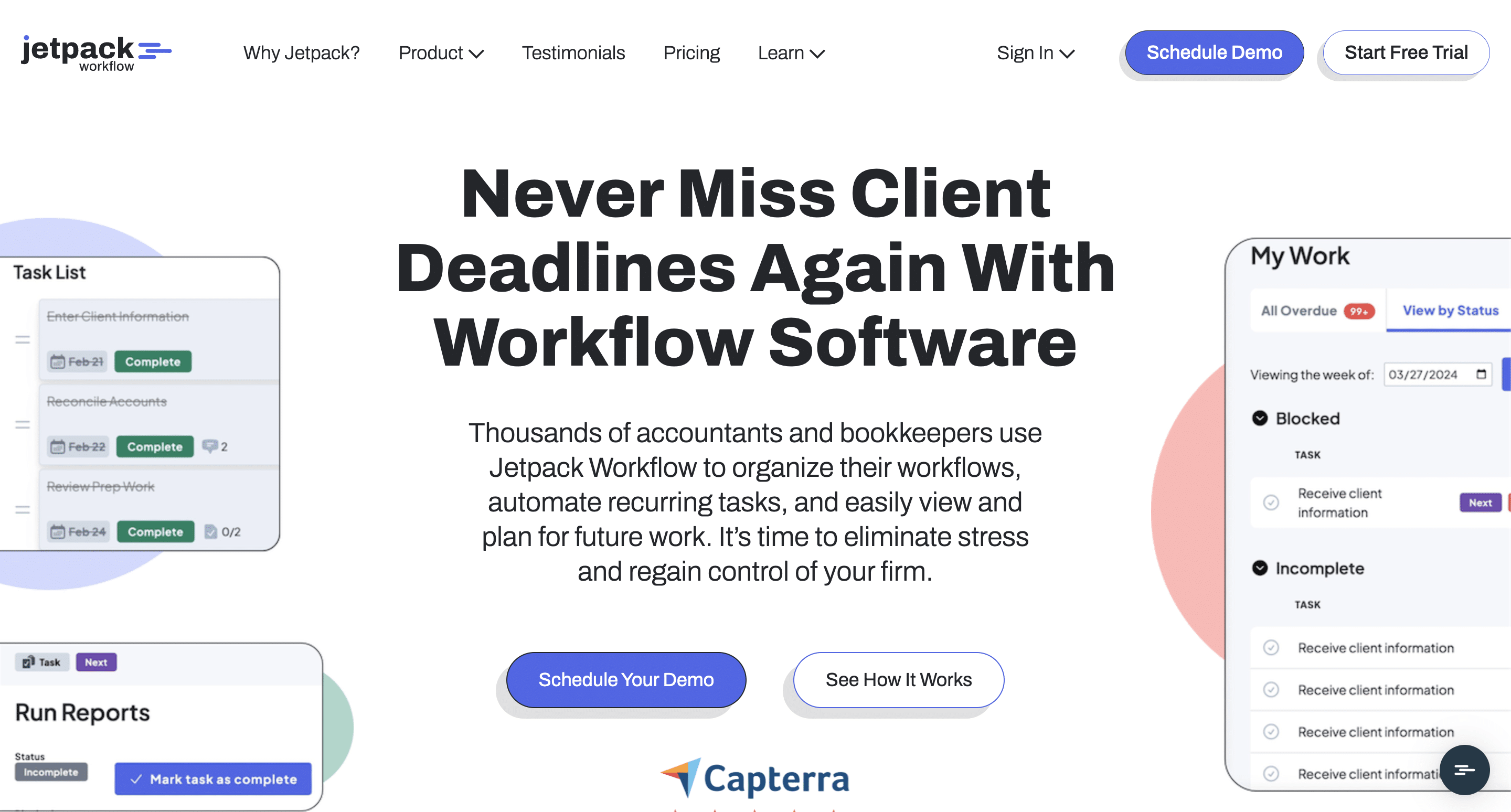
Jetpack Workflow is a workflow management software for smaller accounting firms that focuses on standardizing processes, automating recurring tasks, and tracking deadlines to prevent oversights and enable firm growth.
Its features are particularly suited for firms emphasizing workflow accountability over full CRM or billing features.
Jetpack’s features are grouped into:
Project and Task Management
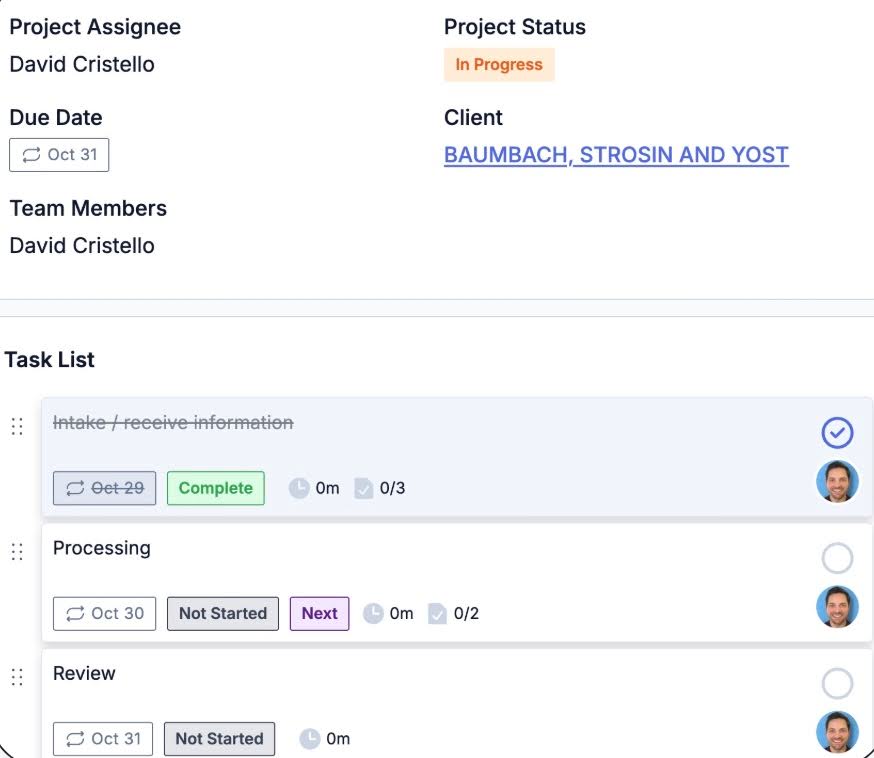
- Workflow Dashboard: displays all client work in one view to enable teams to stay on top of deadlines.
- Planning Tab: Compare workloads across clients, staff, and periods to gauge capacity.
- Labels: Use color-coded tags to monitor project stages at a glance.
- Workflow Templates: Access a template library to standardize recurring accounting processes.
Team Collaboration
- Notes: Leave context inside any job or client profile.
- Mentions: Tag teammates to notify them of updates or handoffs.
Workflow Automation
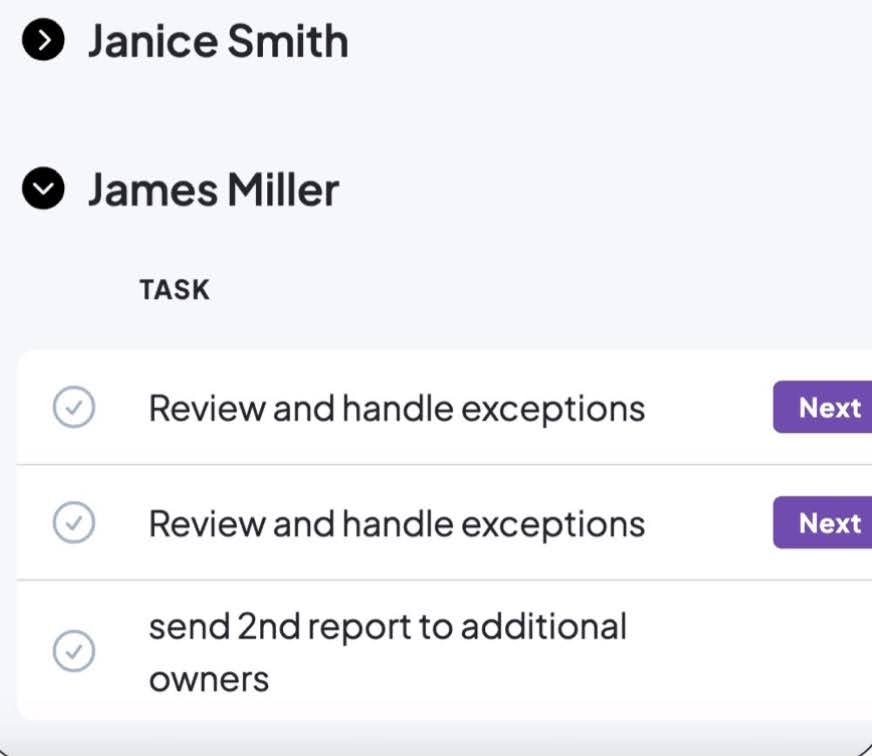
- Recurring Projects: Schedule jobs to repeat daily, weekly, or monthly.
- Task Dependencies: Ensure tasks occur in the correct order by blocking steps until the previous ones are completed.
| Pros | Cons |
|
|
Why You Should Consider Jetpack Workflow
Jetpack Workflow focuses on task management, providing features that reduce workflow delays, especially during peak accounting periods.
Reviews
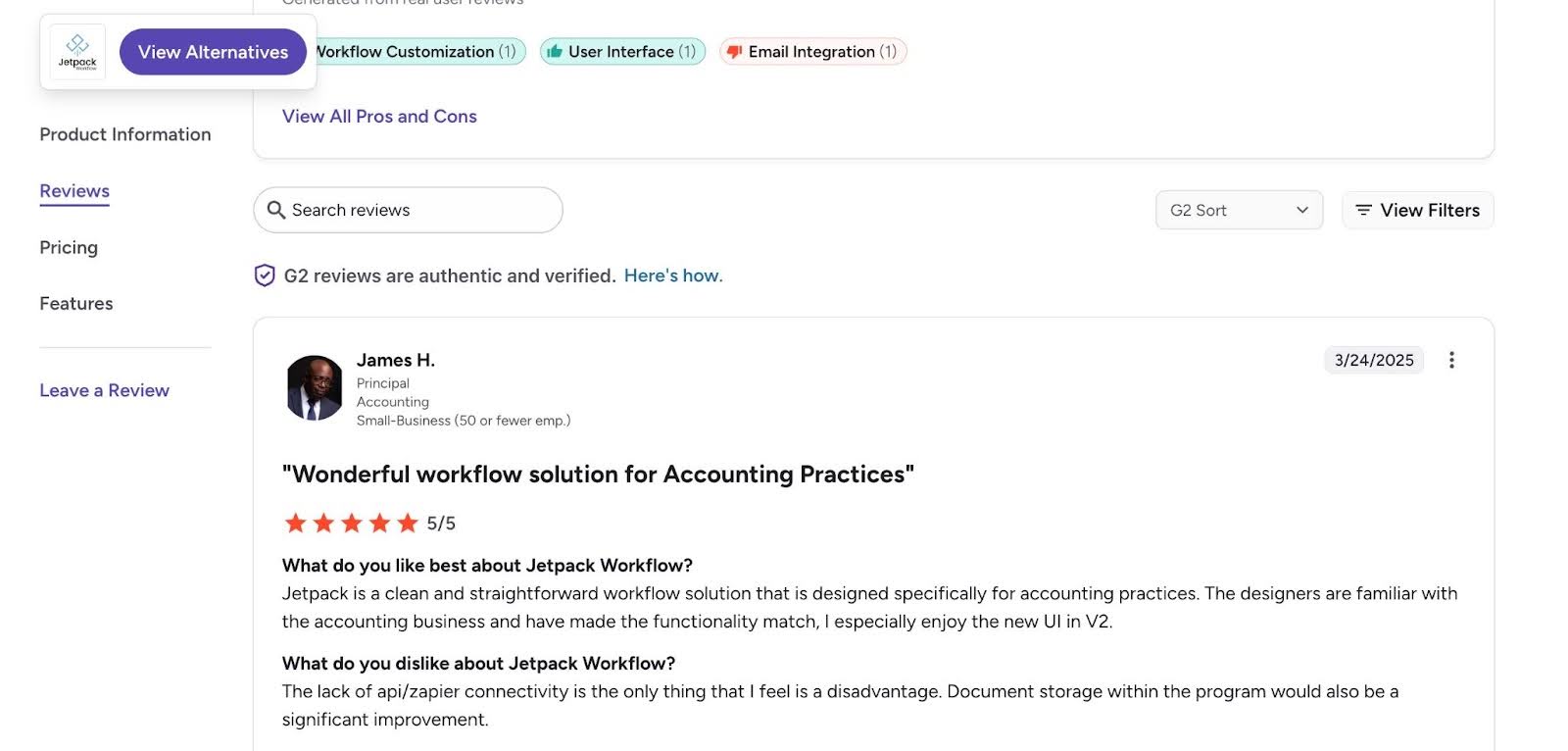
Jetpack is rated:
Pricing
Starter Yearly: $40/month per user
Should You Use Karbon or Jetpack Workflow?
Jetpack is a better choice if your team values simplicity, lower pricing, and quick onboarding over advanced collaboration or automation. Karbon is better for firms with complex workflows and client-facing tasks.
5. Pixie
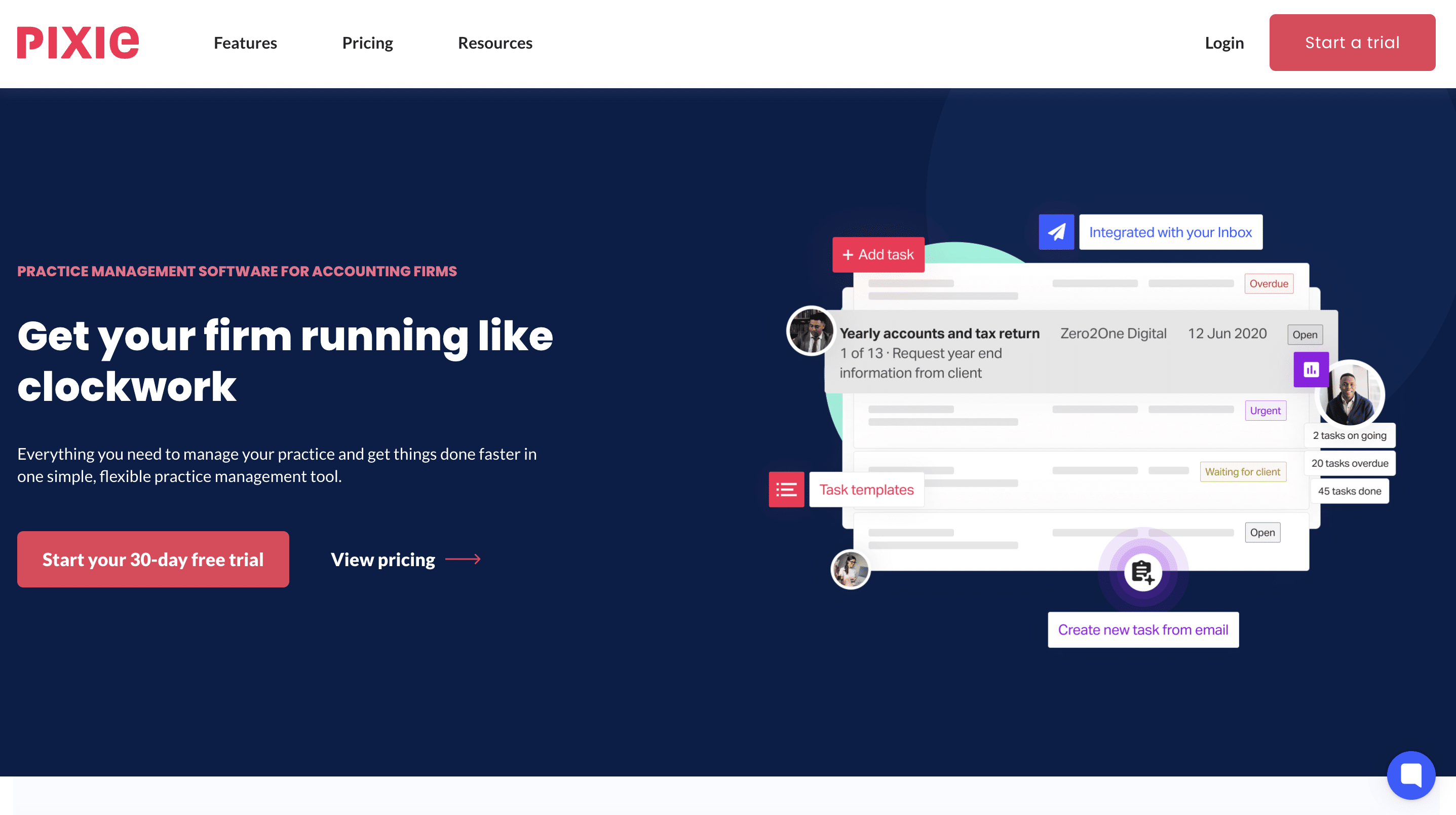
Pixie’s simple practice management platform offers accounting and bookkeeping firms the features they need to manage clients and complete accounting tasks.
Its ease of use and implementation make it valuable for solo and small firms, especially in the UK.
Pixie’s features are grouped into:
Task Management
- To-do list: Pixie generates and prioritizes daily tasks so you always know what’s most urgent.
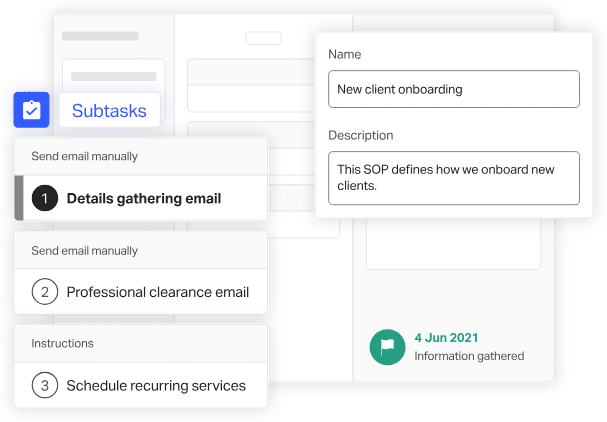
- Process documentation: Turn tasks into step-by-step processes using instructions, checklists, links, images, or embedded training videos.
- Task templates: Save repeating tasks as templates and reuse or automate them as recurring workflows.
CRM
- Automated record updates: Sync with Companies House to import and update client details automatically.
- Unified records: Emails, files, and notes are auto-saved to client profiles for full visibility.
- Custom fields: Add unlimited fields (dates, numbers, reference info) to tailor your CRM to firm needs.
- Bulk actions: Send emails, launch workflows, update fields, or assign checklists to multiple clients at once.
Automation
- Automatic recurring tasks: Auto-generate recurring workflows based on your defined schedule.
- Auto-email workflows: Add templated emails to workflows for reminders, info requests, or job-completion follow-ups.
- Automatic client record updates: Emails and documents automatically attach to relevant client files.
- Companies House integration: Import client data during onboarding without manual entry.
Recurring Tasks
- Template-based recurring workflows: Turn routine tasks into templates and automate their recurrence.
- Auto-created to-dos: Pixie handles all recurring task generation automatically.
- Standardized processes: Add checklists, steps, and supporting media to ensure consistency.
Email Integration
- Prioritized client emails: Client messages appear at the top of your inbox automatically.
- Turn emails into tasks: Convert messages into actionable tasks with one click.
- Secure attachments: Send encrypted files or request uploads through the document portal (GDPR-compliant).

| Pros | Cons |
|
|
Why You Should Consider Pixie
Pixie is designed for small accounting or bookkeeping firms that need simple workflows, basic automation, and minimal setup without complexity.
Reviews
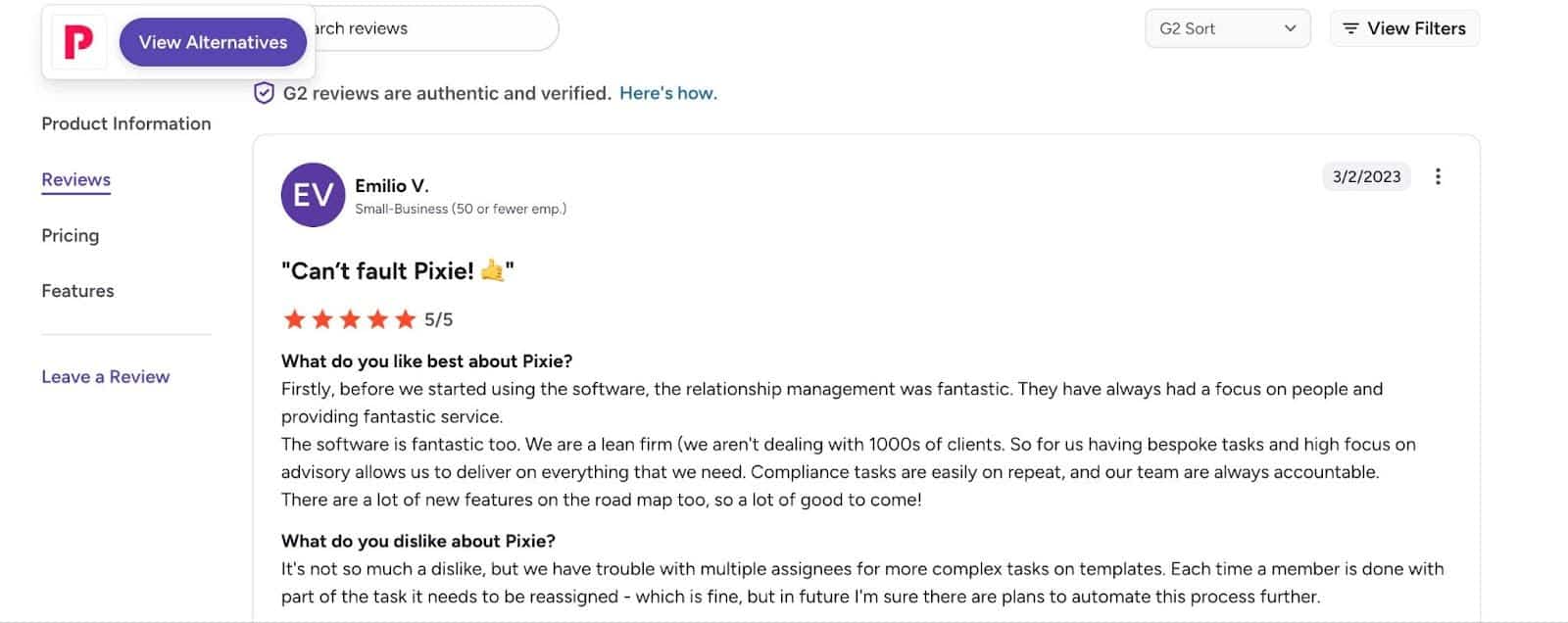
Pixie is rated 4.8 on both Capterra and G2
Pricing
- $129 per month for teams with fewer than 250 clients
- $199 per month for Teams with 251-500 clients
- $329 per month for teams with 501-1000 clients
Should You Use Karbon or Pixie?
In addition to the easy automation, Pixie’s flat pricing model enables firms to pay for the number of clients they’re managing. Plus, firms wouldn’t have to bother about paying for their seasonal hires.
If you’re a larger firm needing deep collaboration and advanced workflow automation, Pixie might be too restrictive.
6. Aero Workflow

Aero Workflow is another straightforward workflow management software that helps bookkeeping, CAS, and accounting firms manage tasks, templates, and team workload.
It emphasizes SOP-driven workflows for bookkeeping and CAS teams, which makes it ideal for firms that rely heavily on documented processes.
Aero’s features are grouped into:
Templates and SOP Management
- Prebuilt accounting templates: Aero includes ready-made workflows for bookkeeping, reconciliation, and month-end close.
- Customizable checklists: Tailor templates to each client or service line with due dates, priorities, and billing details.
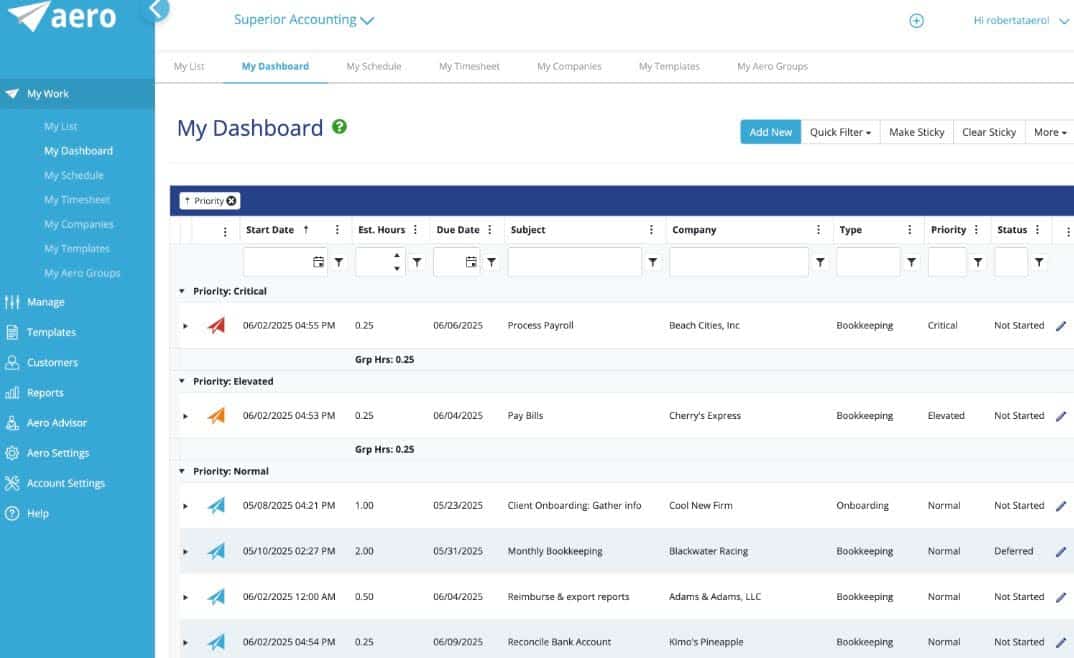
- Dashboard: Each team member gets a personalized dashboard showing tasks, deadlines, and priorities, while managers get insight into bottlenecks.
Practice Management
- Workflow visibility: See what’s completed, overdue, or upcoming across clients and staff.
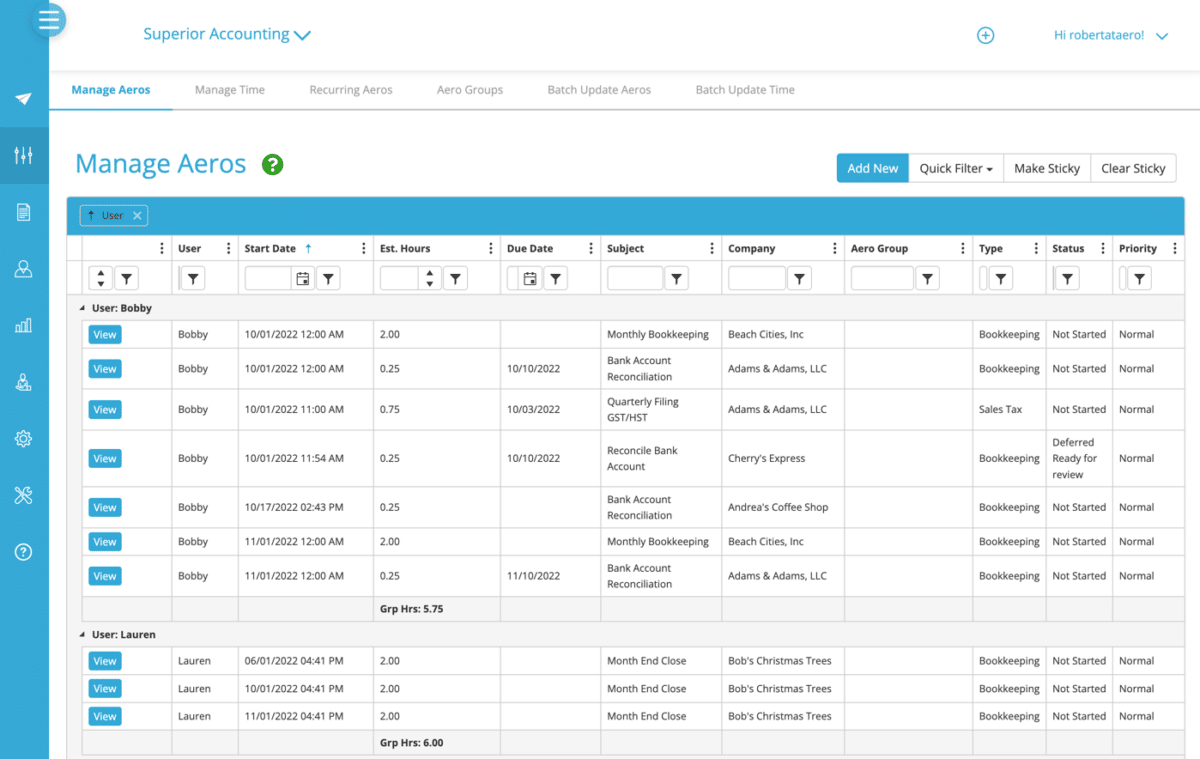
- Recurring task scheduling: Automate client-specific recurring workflows and one-off projects with reminders and statuses built in.
- Deadline assurance: Due date tracking ensures nothing slips, especially for recurring CAS and bookkeeping cycles.
Time Tracking
- Integrated time tracking: Track time by task, client, or user directly inside workflows.
- QuickBooks sync: Optional syncing pushes time entries into QBO or QuickBooks Time for smoother billing and payroll.
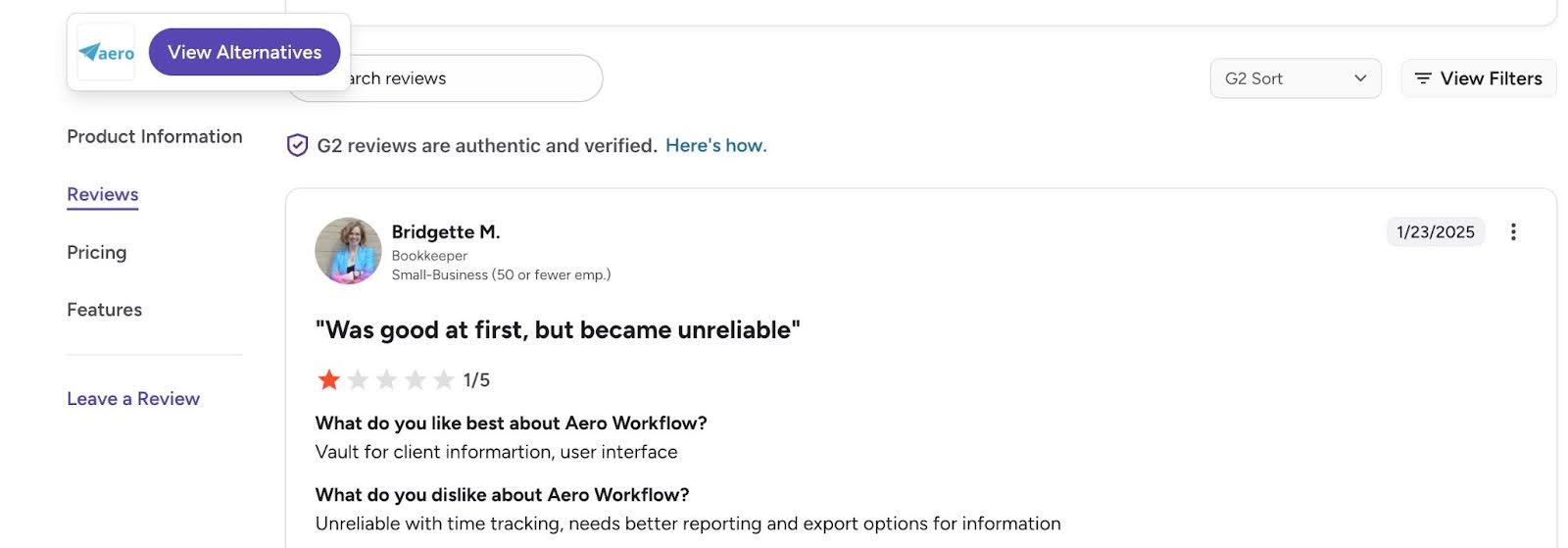
- Accurate reporting: Helps firms understand effort, improve pricing, and monitor staff utilization.
Work Assignment
- Smart task assignment: Assign tasks with clear priorities and deadlines so the right person handles the right work.
- Visibility for managers: Easily identify overdue tasks or stuck workflows and intervene early.
| Pros | Cons |
|
|
Why You Should Consider Aero Workflow
Aero Workflow is an effective tool for firms with operations that rely on strict SOPs, checklists, and repeatable bookkeeping processes.
Its depth of checklists enables bookkeeping teams to improve consistency and efficiency across client engagements.
Reviews
Aero Workflow is rated:
Pricing
- Startup: $135/month
- Growth: $250/month
- Scaling: $365/month
Should You Use Karbon or Aero Workflow?
Aero Workflows bookkeeping templates make it a better fit for SOP-heavy bookkeeping firms handling strict compliance processes. Karbon is better for multi-service firms that need a modern user interface and efficient collaboration across teams.
7. Senta

Senta is a UK-based practice management system with strong CRM capabilities and workflow automation.
These customizable workflow and client management tools empower accounting practices in the UK and Ireland to help clients meet regulatory requirements.
Senta’s features are grouped into:
Workflow and Task Management
- Workflow creation: Set up one-off or recurring jobs for VAT, accounts, or any service.
- Task allocation: Assign tasks to staff, practice managers, or clients efficiently.
- Customizable processes: Modify services, jobs, and tasks to match your firm’s workflow.
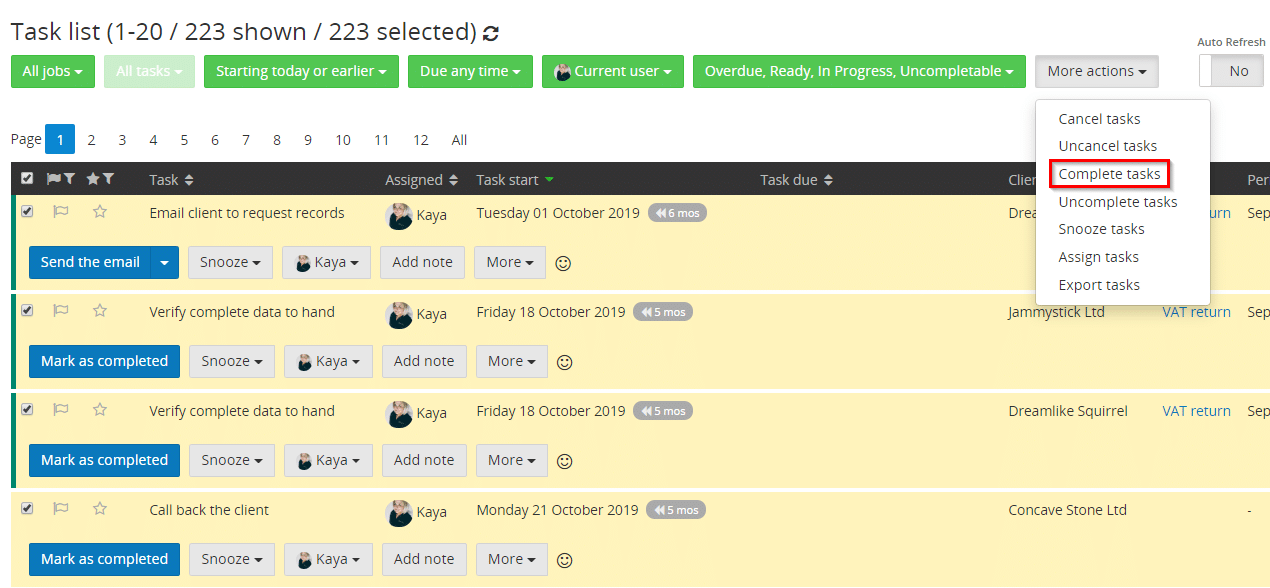
- Notifications & tracking: Never miss a deadline; Senta alerts users to overdue or pending tasks.
CRM
- Complete client records: Capture client take-on forms, ongoing work, and full communication history in one place.
- Automated communications: Schedule emails to chase approvals, information, or sign-offs so deadlines aren’t missed.
- Customizable CRM: Add or remove forms, emails, and fields to match your practice’s requirements.
- Saved lists & searches: Quickly access client or prospect segments for reporting or task management.
Document Management
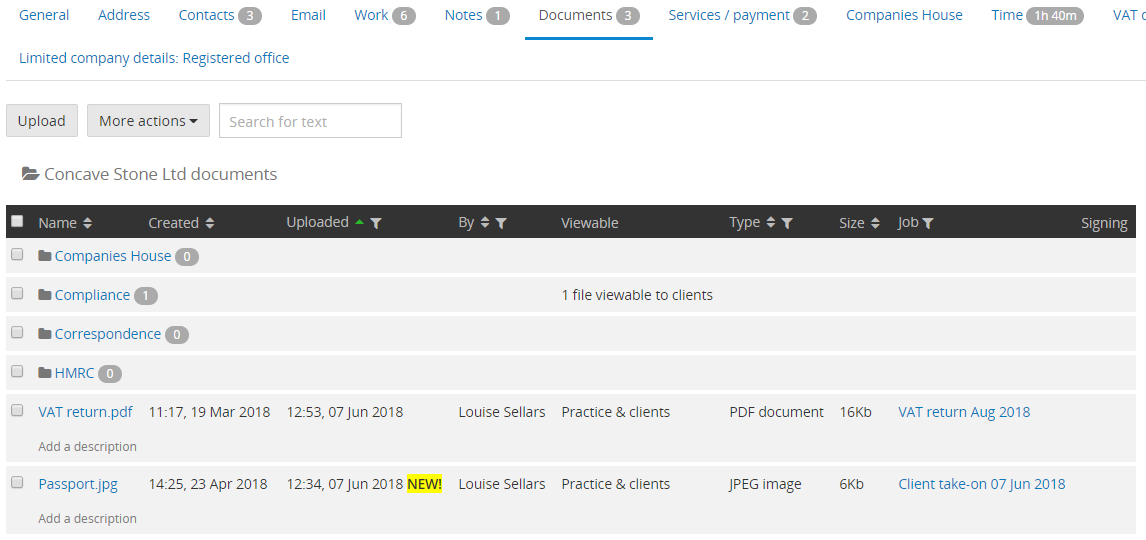
- Client portal: Secure, user-friendly interface with unlimited storage for sensitive documents.
- Document exchange: Reduce compliance risks through secure uploads and transfers.
- Reminders for uploads: Prompt staff and clients to upload documents via automated workflows.
Insights & Reporting
- Navigation alerts: See pending tasks, incoming messages, and emails awaiting action.
- Performance tracking: Monitor team productivity, task completion, and outstanding work.
- Production board: Manage workloads, identify bottlenecks, and reassign tasks with drag-and-drop functionality.
| Pros | Cons |
|
|
Why You Should Consider Senta
Senta is ideal for a UK-focused firm that wants a tool that allows you to personalize workflows and client communications without the complexity of larger practice management tools. You should consider Senta.
Reviews
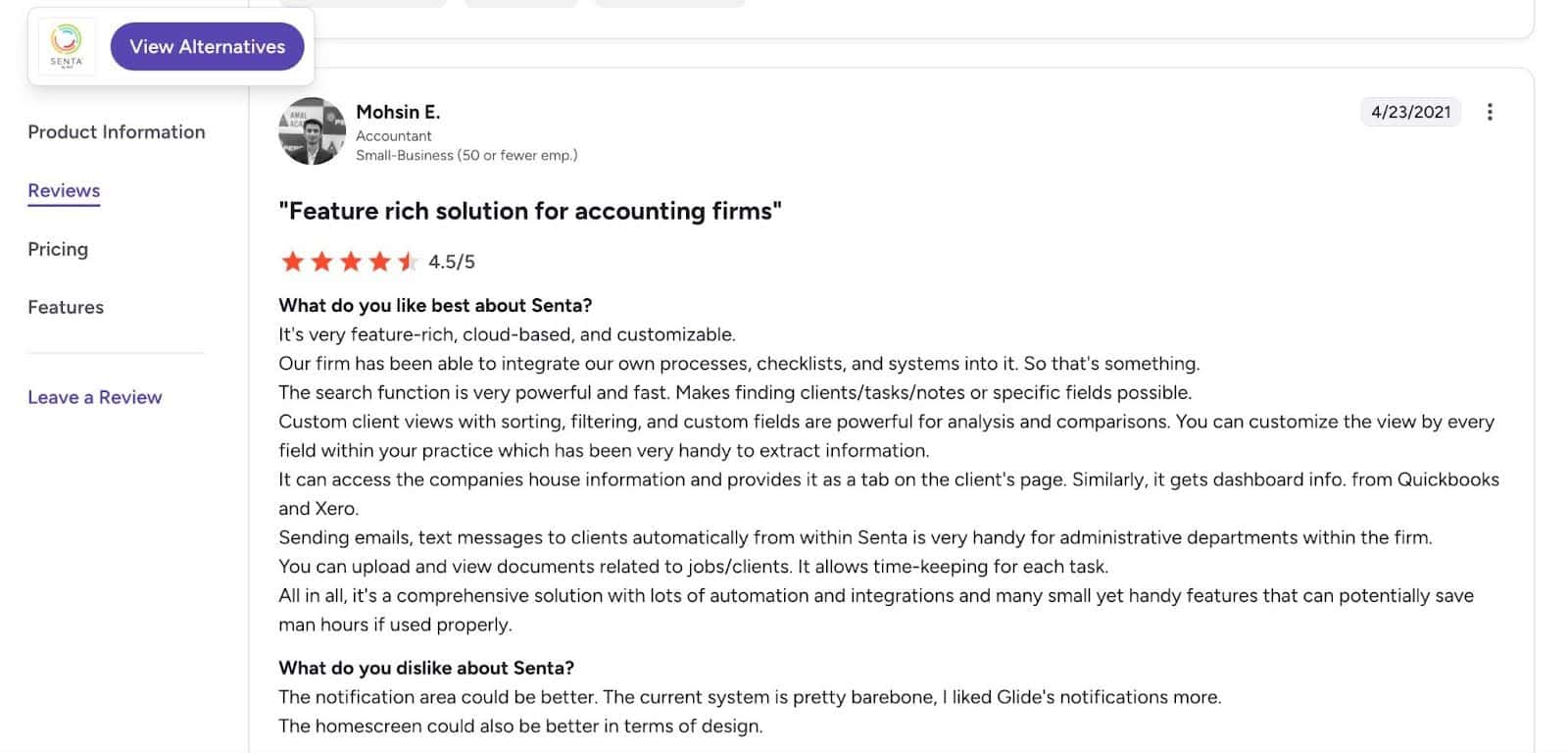
Senta is rated:
Pricing
- $28/month per user
Should You Use Karbon or Senta?
If you like the ability to customize your Senta CRM and automation to UK-based clients without the trouble of manual workarounds, Senta is a better fit.
Karbon is more suited to firms with distributed, international teams that prioritize seamless email integration, AI-driven insights for profitability, and broad ecosystem flexibility.
8. BrightManager
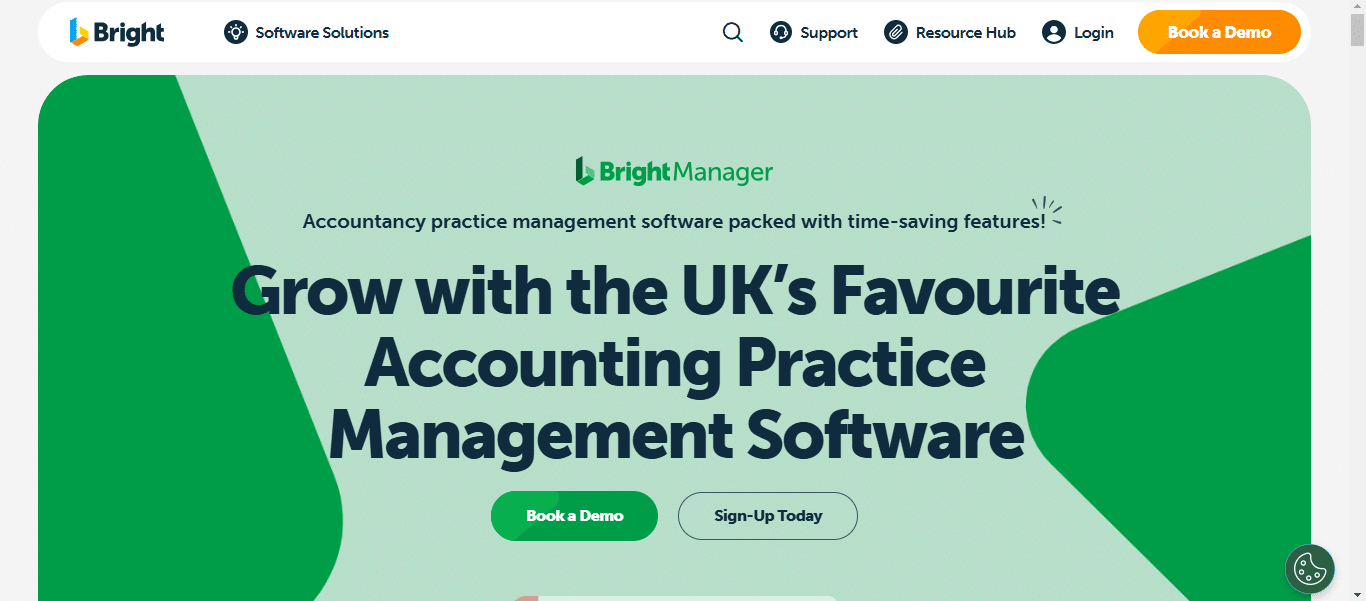
BrightManager is another UK-focused practice management software that provides workflow, CRM, and document management features for small and mid-sized accounting firms.
Its features are designed with GDPR and payroll legislation in mind, and that makes compliance much easier.
BrightManager’s features are grouped into:
Workflow & Automation
- Automated client emails and texts: Automatically request records, tax payments, and other client information to avoid chasing clients.
- Task management: Generate task lists automatically based on compliance deadlines, create workflow templates, assign tasks and subtasks, track progress, and customize task lists for your practice.
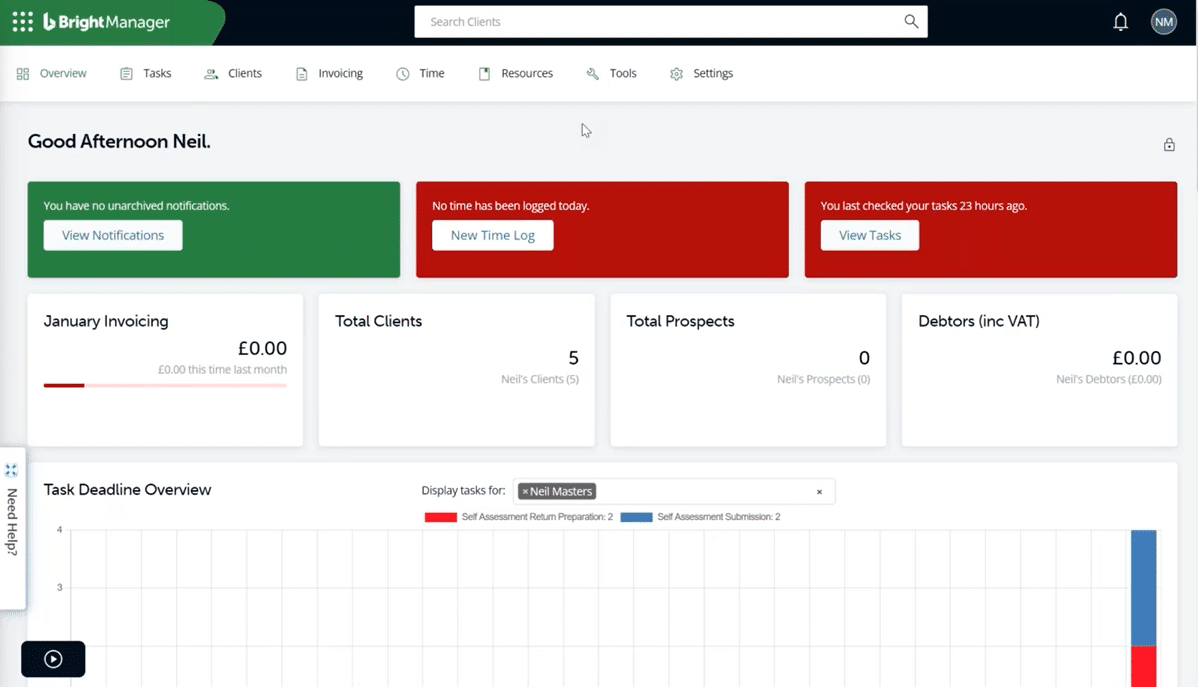
- Built-in notifications: Receive instant alerts when clients sign documents, upload files, or when new tasks are assigned.
Accounting CRM
- Client timeline: Maintain a detailed audit trail of all client interactions, including document uploads, form completions, and emails.
- Email templates: Access over 40 pre-written, customizable email templates covering all common client communications.
- Email management: View and filter all emails forwarded into BrightManager, ensuring nothing is missed.
Document Management & Client Portal
- Client portal: Share documents and request e-signatures via a GDPR-compliant portal that doubles as an internal filing system.
- Custom forms: Build and share custom forms with clients. BrightManager automatically chases incomplete forms, ensuring timely responses.
Time Tracking & Billing
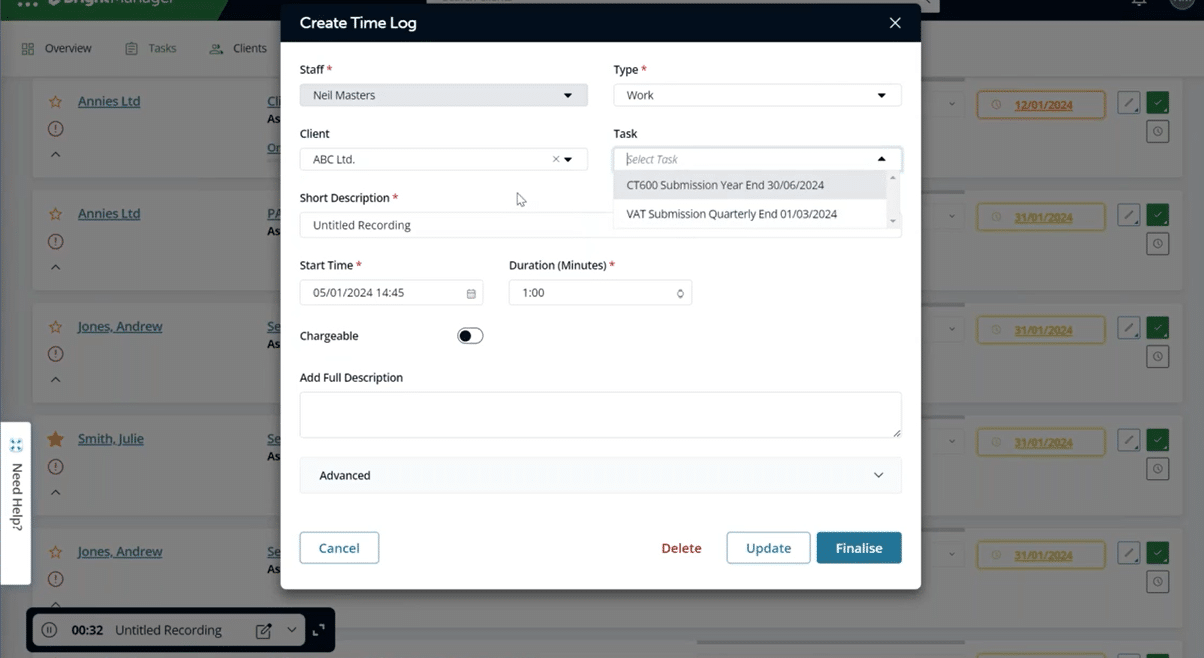
- Time tracking: Monitor productivity, track chargeable vs. non-chargeable work, and identify bottlenecks.
- Work in Progress: Generate invoices directly from tracked work and keep oversight of team performance and profitability.
| Pros | Cons |
|
|
Why You Should Consider BrightManager
BrightManager’s interface is visually appealing, which helps usability. It also has a strong client portal that simplifies client collaboration.
Reviews
BrightManager is rated:
Pricing
- Standard: £33.60/month per user
- Enterprise (12+ users): custom
Should You Use Karbon or BrightManager?
Small UK firms looking for simple workflows, compliance automation, and client collaboration might be better off with BrightManager.
Karbon suits larger practices needing advanced AI insights, seamless global integrations, and visibility across distributed teams.
What features Should You Compare in a Practice Management Tool (Vs Karbon)
i. Workflow & task automation
Workflow management and automation ensure every client engagement follows a consistent process, and help teams complete tasks faster without relying on memory or spreadsheets.
ii. Client portal & secure document exchange
Teams often miss clients’ messages when all conversations happen in the email inbox, where every other email is.
Accounting client portal centralizes client collaboration for clients and team members to respond to messages more securely and improvement your email management.
iii. Proposals & Engagement Letters
Built-in proposal and engagement letters feature shorten onboarding cycles, clarify service scopes, and automate billing and payment collection in one platform, freeing your team members to focus on meeting client deliverables.
Relying on third-party tools increases financial and administrative costs.
iv. Team collaboration & communication
Team members get stuck when the information they need to complete a task is tucked away in their teammate’s inbox.
Team collaboration features eliminate such workflow bottlenecks by centralizing all work-related information and communication for every assignee to find what they need anytime, anywhere.
v. Pricing flexibility
Accounting practice management tools use different pricing models (per user, per feature, per client, and flat fee), and their advantages and disadvantages depend on individual firms.
But the more options a tool has, the greater flexibility you’ll have to adapt it to your firm’s evolving needs.
vi. Integrations
The right integrations get your practice management software to sync data with as many tools in your tech stack as possible.
It prevents data silos, human errors, and double data entry, which leads to poor client service.
vii. Reporting and capacity management
The reporting feature provides the metrics that show the state of your firm, so that you can adjust your workflows, staff workloads, and client collaboration where necessary.
For example, the Financial Cents capacity management report shows the hours of work your team members are currently assigned to help firm owners and managers understand who has room for more work.
viii. Ease of setup & implementation
Practice management software should be easy to implement and navigate.
If your team can migrate data, build workflows, and get teams using the system within days rather than weeks, you’re far more likely to achieve adoption.
ix. Month-End Close
The Month-End Close feature streamlines your month-end workflow by enabling firms providing bookkeeping services to review, correct, and sync changes with the client’s financial records in the general ledger (all from their practice management platform.
For example, Financial Cents’ Month-End Close feature uses a two-way sync to enable firms to track client transactions, identify discrepancies or missing data, and collaborate with clients to clarify them inside Financial Cents.
Once corrections are made, the updated financial data syncs back into the client’s QuickBooks Online records automatically.
How to Choose the Right Alternative for Your Firm
-
List your must-have vs nice-to-have features, assign weights, and trial 2-3 tools
The first step in choosing the right system is to clearly define your must-have features versus your nice-to-haves because a feature that’s essential for one firm may be less relevant to another.
Rank your essential features and take advantage of free trials to see how the software fits your actual processes.
-
Consider migration cost
Some platforms charge onboarding or migration fees, while others provide migration support at no additional cost.
Understanding what your vendor offers is key to avoiding hidden costs and ensuring a transition that won’t interrupt client deliverables.
-
Check ratings and reviews
Past and current users consistently share their experiences on platforms like Capterra and G2, and these insights are one of the most reliable ways to evaluate a practice management tool before you commit your resources.
Checking these out can help you avoid mistakes that other firm owners have already made, helping you choose a system that can grow with your firm.
-
Customer Support responsiveness
Look out for reliable support channels such as live chat and email. These will help your firm troubleshoot issues quickly, keep projects moving, and avoid downtime that disrupts client work.
-
Onboarding and self-help resources
Strong onboarding and self-help resources shorten the learning curve and help your team see the value of practice management software as quickly as possible.
A well-structured help center, clear documentation, video tutorials, templates, and walkthroughs can eliminate the need to call the support team too often.
-
A Strong and supportive community
Financial Cents is a good example of this. Its Facebook User Group has 3,000+ active members. Users consistently share real-world advice, workflow templates, and onboarding tips within minutes of posting.
There’s also the Next Level Firm Roundtable, where practitioners discuss workflow setups, best practices, and operational challenges in live monthly sessions. These sessions help firms understand how other firm owners structure their processes and adapt the tool for different service lines.
-
Long-term scalability
It’s critical to look beyond the present and evaluate whether a tool will still fit your firm in the future.
As you take on more clients, hire additional team members, and expand your service lines, your workflows will become more complex.
A scalable system should be able to support that growth without forcing you into constant workarounds or a new software solution altogether.
Implementation & Migration Tips
-
Audit current workflows, documents, and tools
Before moving into a new practice management system, take time to map your existing processes, such as how you manage tasks, communicate with clients, organize documents, and handle recurring work.
This makes it easier to identify manual steps and outdated habits that shouldn’t follow you into the new software.
By auditing and refining these accounting workflows upfront, you ensure the new tool is configured around your ideal processes, not your old ones, leading to smoother implementation, better team adoption, and long-term efficiency.
-
Choose one tool and run a pilot project
Test the software with a few team members and clients to uncover workflow issues early, make adjustments quickly, and ensure the tool meets your needs.
That way, if the pilot reveals significant problems, you can reconsider your choice without disrupting the entire firm.
-
Communicate with your team and clients about change
Engage your team throughout the transition and clearly explain the reasons for switching to a new system.
Involving both senior and junior team members in this process can help uncover hidden workarounds and ensure a smoother transition for everyone.
You also need to provide clients with guidance on how to use the new portal and how interactions with your firm might change.
-
Set KPIs: adoption rate, task completion time, and client satisfaction
Measuring the right performance indicators ensures your practice management software is actually improving your operations.
Key metrics to track include team adoption rate, task completion time, reduction in overdue tasks, client portal usage, etc.
These metrics will help you identify bottlenecks and understand where your processes need improvement.
-
Encourage continuous improvement: refine templates, add automations, etc.
The value of a practice management tool increases when your team actively looks for ways to improve processes.
Small, incremental adjustments, such as updating templates and expanding automations, save time, make tasks simpler, and reduce errors in client services.
This ensures your system evolves alongside your firm, keeping operations efficient and scalable.
Why Many Firms Ultimately Switch to Financial Cents
The demands of running a modern accounting, tax, or bookkeeping firm have made it nearly impossible to rely on spreadsheets, sticky notes, and other manual systems. That’s why many teams adopt tools like Karbon in the first place.
But Karbon can feel too complex for firms that want simplicity. It also has a steeper learning curve than many firms expect. Some firms have also realized that Karbon’s workflow design doesn’t quite align with how their teams naturally manage work.
For firms already stretched thin, this misalignment is enough to push them toward alternatives.
For Dawn Brolin, CFE, CPA, the major challenge was client management:
Part of the reason I moved to Financial Cents was client information. Storing client information in Karbon took a lot of work. It was not customizable, and that was a nightmare. We could not store information (such as EIN and incorporation date) in our previous practice management solution."
Dawn Brolin CFE, CPA,, Founder of Powerful AccountingThey moved because they needed faster onboarding, clearer visibility, and a tool the entire team could use without constant guidance.
That pattern is not peculiar to the Powerful Accounting team. Thousands of accounting firms choose Financial Cents for its ability to bring tasks, clients, documents, and team communication into a single platform.
This centralization reduces the mental load of managing the firm and provides real-time visibility into workloads, bottlenecks, and deadlines, making growth more consistent and predictable.
If you’re ready to see how Financial Cents enables you to do this, click here to start your 14-day Free Trial.






Thanks for the article!