

The Financial Cents MCP: Bring your accounting firm’s data into your AI assistant.
Connect your accounting, bookkeeping, or tax firm’s Financial Cents account to Claude, ChatGPT, Gemini, and other AI tools over the Model Context Protocol (MCP). Ask about overdue work, unpaid invoices, or missing tax documents, and let your AI take action, like logging time or creating tasks, scoped to one account, authorized by you, and revocable anytime.
Connect your AI assistantAvailable on the Financial Cents Scale plan.
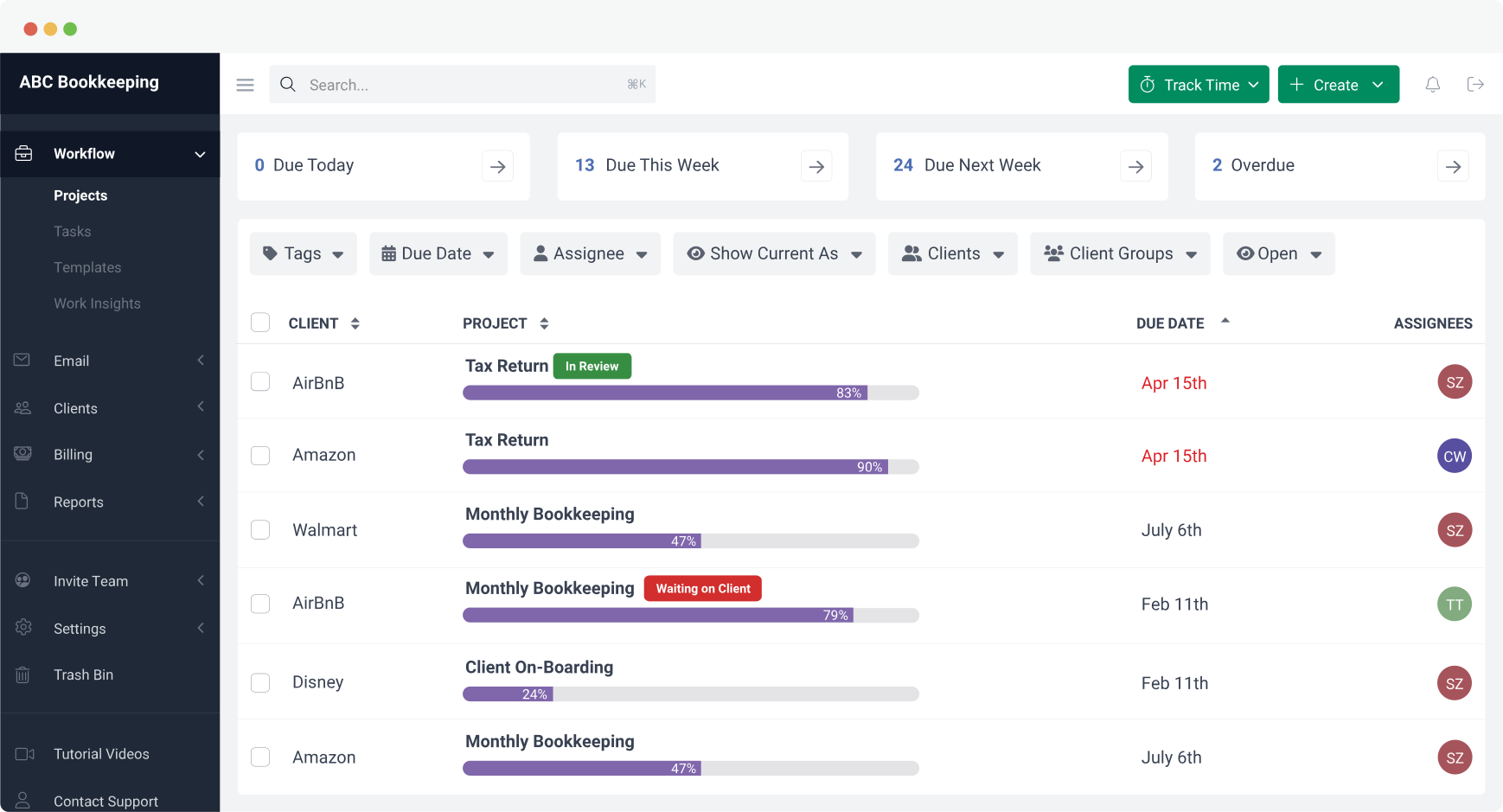
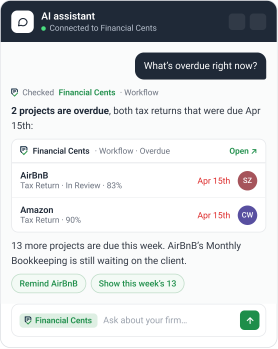
The Financial Cents MCP server connects your accounting, bookkeeping, or tax firm’s Financial Cents account to AI assistants like Claude, ChatGPT, and Gemini using the Model Context Protocol (MCP). Once connected, you can ask your AI assistant questions about your firm, “What’s overdue this week?” or “Which invoices are still unpaid?”, and have it take action, like logging time or creating tasks. It’s built for the way firms actually work: client engagements, recurring bookkeeping, tax-season document collection, and billing. The connection is scoped to a single firm account, governed by your permissions, and revocable in one click. Available on the Financial Cents Scale plan.
Your firm’s data, in the AI tools you already use
You shouldn’t have to copy data out of your practice management software to get value from AI. The Financial Cents MCP lets your AI assistant read and update your firm’s data directly, securely and under your control, so you can ask plain-English questions and trigger real work without leaving your assistant.
It takes the manual busywork out of the in-between moments: instead of opening the app, clicking through screens, and hunting for the one number you need, you just ask. That streamlines the repetitive status-checking, time logging, and client follow-ups that eat up a firm’s day, so your team spends less time switching tabs and more time on client work.
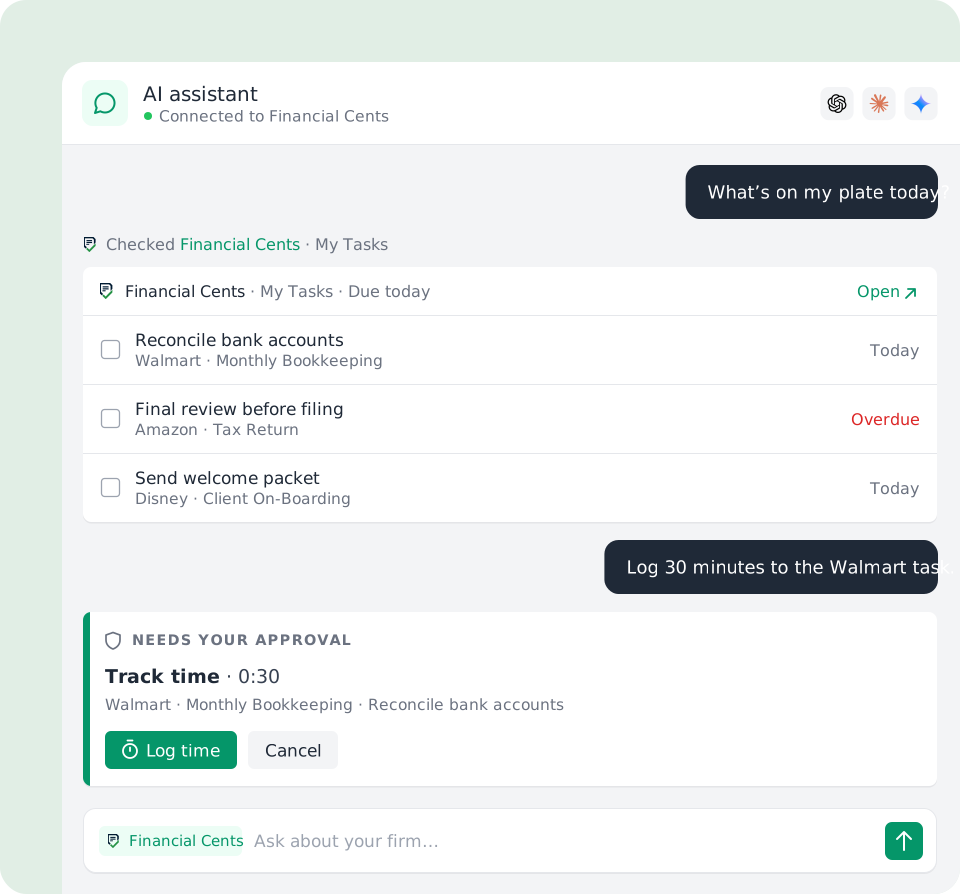
- Ask: “What’s overdue this week?” · “Which invoices are still unpaid?” · “What’s on my plate today?”
- Act: log time, create tasks, upload a file to a project, send a client message.
How accounting, bookkeeping, and tax firms use the MCP
Every example below maps to something the MCP can actually do in your account, and runs within your own permissions.
For bookkeeping firms
Keep recurring work and client document chasing moving without digging through the app.
“What’s the status of this month’s close across all my clients?”
Check project and task progress at a glance.
“Create this month’s recurring bookkeeping tasks for Acme LLC.”
Spin up the work from your AI assistant.
“Which clients still owe me their bank statements?” then “Send them a reminder.”
Find outstanding client requests and send a client message.
“Log 30 minutes to the monthly bookkeeping task for Riverside Co.”
Capture time the moment the work happens.

For tax firms
Survive document season with fewer tabs open.
“Which tax clients haven’t uploaded their documents yet?”
Surface missing files before you start a return.
“Create a follow-up task for everyone still missing a W-2.”
Turn a gap into assigned work.
“Which 1040 proposals are still awaiting signature?”
Track proposals without leaving your assistant.
“Upload this signed form to the client’s project.”
File documents straight into the engagement.

For accounting and CAS firms (and owners)
See the whole firm and act on it in plain English.
“What’s overdue this week, and who’s it assigned to?”
Spot slipping work across every engagement.
“Which invoices are still unpaid, and what’s our total outstanding?”
Check AR and payments in seconds.
“How much unbilled time do we have for Johnson & Co?”
Catch leaky billing before it adds up.
“Who’s handling the Johnson account?”
Look up team members and tags.
“Add a new service item for monthly CAS.”
Manage your services list on the fly.

You stay in control: your AI assistant confirms before it makes any change, nothing is ever deleted, and the connection only sees what your own permissions allow.
What your firm gets
Less manual busywork
Skip the clicking and tab-switching. Ask for the status, number, or list you need and get it in seconds.
Streamlined routine tasks
Handle the repetitive parts of your day, logging time, creating follow-up tasks, chasing documents, in plain English.
Fits your existing processes
The MCP works against the clients, projects, and workflows you already run in Financial Cents. Nothing new to set up or maintain.
Time back for client work
Cut the minutes lost to status-checking and data-hunting across a full book of clients, and spend them on advisory and relationships instead.
Your AI, your data
Bring your firm’s real numbers into the assistant your team already uses, instead of pasting data around.
The MCP streamlines the manual lookups and quick actions around your work. For hands-off recurring work, auto-creating monthly engagements, sending reminder sequences, pair it with Financial Cents’ built-in workflow automation.

What the Financial Cents MCP can do
Connected AI clients can, within your own permissions:
- View and update clients, projects, team tasks, and time
- View invoices, payments, proposals, and files
- Upload files to projects, clients, and client requests
- Read and send client chat
- Look up team members and tags; create and update service items
We’re continually expanding what the MCP can do.
Note: Deletes are intentionally not available over the MCP. Your AI client asks you to confirm before it makes any change.
Is the Financial Cents MCP secure?
Security is built into how the connection works. You stay in control the whole way through, and no API keys are copied or pasted.
One account per connection
Each token is bound to a single firm at the moment you approve it. A connection can never read another firm’s data, even if you belong to several.
Your permissions apply
Every tool call runs through the same authorization checks as the app. A connection can only see and do what you already can.
No credentials shared
Authentication uses OAuth 2.1 with PKCE. Your password never reaches the AI client.
Audited and rate limited
Every tool call is recorded, and requests are rate limited to protect your account.
Writes confirm in your AI client
Your assistant prompts before any change. Deletes aren’t available at all.
Revoke in one click
Remove the token under Settings → API and the connection stops working immediately.
A note on prompt injection: AI assistants act on the content they read. When you combine this connector with other tools, treat anything your assistant summarizes as unverified until you check it in Financial Cents, and review actions before approving them, especially anything financial.
Works with Claude, ChatGPT, Gemini, Cursor, and more
The MCP uses a single server URL and a standard OAuth consent screen, so any AI client that supports remote MCP can connect.
Server URL: https://app.financial-cents.com/mcp
Transport: Streamable HTTP · Auth: OAuth 2.1 with PKCE
Claude is the shortest path, nothing to install, no command line (Web, Desktop, Mobile, and Cowork). ChatGPT, Cursor, Claude Code, and VS Code are supported too, and any other client that implements the MCP authorization spec works, including Gemini CLI, Zed, Windsurf, JetBrains & Junie, Warp, Raycast, LM Studio, Codex CLI, Amp, OpenCode, and Cline & Roo Code. Clients that only speak to local MCP servers can connect through a bridge (mcp-remote) covered in the setup guide.

How to connect
Make sure you’re on the Scale plan
And signed in to Financial Cents.
Open your AI client’s connector settings
In Claude: Customize → Connectors → Add custom connector.
Paste the server URL
https://app.financial-cents.com/mcp. No client ID or secret needed.
Sign in to Financial Cents and approve
Approve the consent screen and pick the one firm account to bind the connection to.
Turn the connector on in your chat
Then start asking.

Full, client-by-client steps (Claude, ChatGPT, Cursor, VS Code, and more) are in the setup guide.
If MCP isn’t available on your consent screen yet, contact our support team to enable it for your firm.
Put your firm’s data to work in your AI assistant.
Frequently asked questions
It’s a Model Context Protocol (MCP) server that connects your Financial Cents account to AI assistants like Claude, ChatGPT, and Cursor. Once connected, your AI assistant can read and update your firm’s data, answering questions and taking actions, scoped to one account and governed by your permissions.
Firms use it to ask their AI assistant about live work and act on it: check this month’s bookkeeping close across clients, find tax clients who haven’t uploaded documents yet, see what’s overdue and who it’s assigned to, check unpaid invoices and outstanding AR, log time, create follow-up tasks, send a client a message, and upload files to an engagement, all within your own permissions, and with your assistant confirming before any change.
The Financial Cents MCP is available on the Scale plan.
Any client that supports remote MCP. Claude is the easiest (Web, Desktop, Mobile, Cowork); ChatGPT, Cursor, Claude Code, and VS Code also work, as do Gemini CLI, Zed, Windsurf, JetBrains & Junie, Warp, Raycast, LM Studio, Codex CLI, Amp, OpenCode, and Cline & Roo Code. All use the same server URL: https://app.financial-cents.com/mcp.
Yes. Gemini CLI, and any other client that supports remote MCP, can connect using the same server URL, https://app.financial-cents.com/mcp. Add the URL to your Gemini settings and complete the OAuth sign-in to Financial Cents.
It can view and update clients, projects, tasks, and time; view invoices, payments, proposals, and files; upload files to projects, clients, and client requests; read and send client chat; and look up team members and tags and manage service items, all within your own permissions. Deletes are not available.
Yes. The connection is bound to one firm account, runs through your existing permissions, uses OAuth 2.1 with PKCE (your password is never shared with the AI client), is audited and rate limited, and can be revoked in one click. Your AI client confirms before making any change.
No. You sign in on Financial Cents’ own domain and approve a token. The AI client never receives your credentials, and no API keys are copied around.
No. Each connection is permanently bound to the single account you pick on the consent screen.
Go to Settings → API → MCP, find the connected client, and choose Revoke. The connection stops working immediately.
Follow the setup guide. If MCP isn’t showing on your consent screen yet, contact support to enable it for your firm.