


AI File Organizer for Accounting Firms
Meet the AI File Routing Agent
Clients upload documents to a task. Financial Cents’ AI File Routing agent reads each file and suggests the right folder in that client’s existing Client Files. Your team can approve or change the suggestion, or let the agent file a copy automatically when it’s confident. The original stays on the task.
Proudly built for small firms — and designed to grow with you.
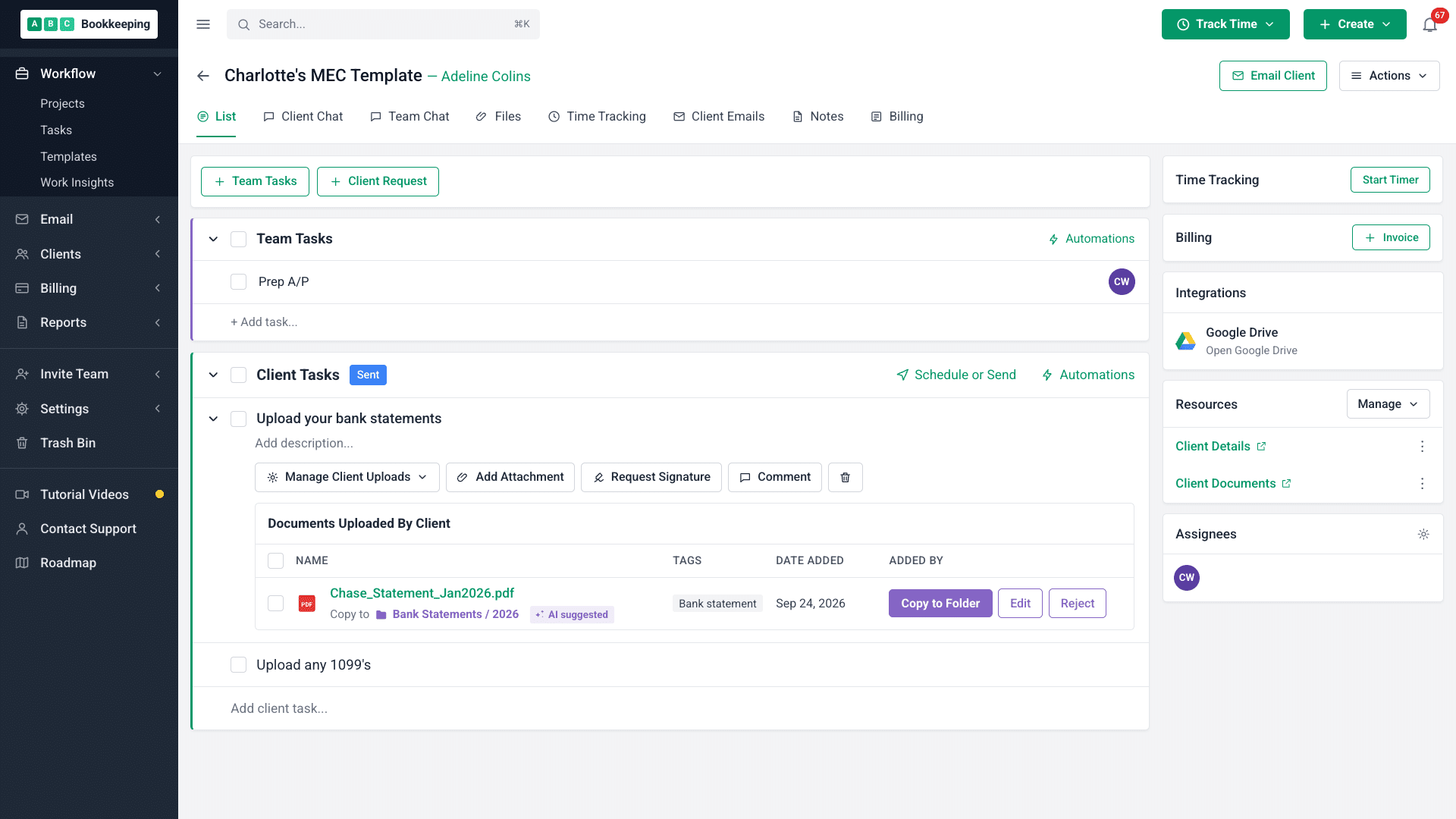
Financial Cents organizes files as clients submit them for accounting, bookkeeping, and tax work. When a client uploads a document to a Client Task, the AI File Routing agent reads its contents, looks at that client’s existing folder structure, and uses project context to suggest the best-fit folder, including the relevant year or period. It files a copy only within that same client’s Client Files. Your team can accept, change, or reject the suggestion, or allow automatic filing when the agent is confident. It does not create folders or move the original from the task.
Why accounting firms need an AI file Organizer
Files clients upload to a task stay on the task. They don’t land in the client’s organized Client Files on their own. Someone on your team has to open each upload, work out what it is, choose the right client folder, and copy it there by hand. Across many clients and recurring projects, that manual filing adds up and gives documents more chances to remain unfiled or land in the wrong folder.
The AI File Routing agent helps close that gap. It reads the upload and uses the client’s existing folder structure to suggest where a copy belongs. There are no filing rules to write or per-client folder setups to create for the agent.
How AI File Routing Agent works in Financial Cents
The validator runs automatically whenever a client uploads a file to a client task. This easy-to-use AI tool:
A client uploads a file to a Client Task. That’s the trigger.
The agent reads the file itself, not just its name, to identify what it is, even when the upload is named scan_001.pdf.
It looks at that client’s existing folders at the moment of upload and picks the one best-fit folder.
It uses project context to choose the right year or period folder — for example, the correct tax-year folder for a 1040.
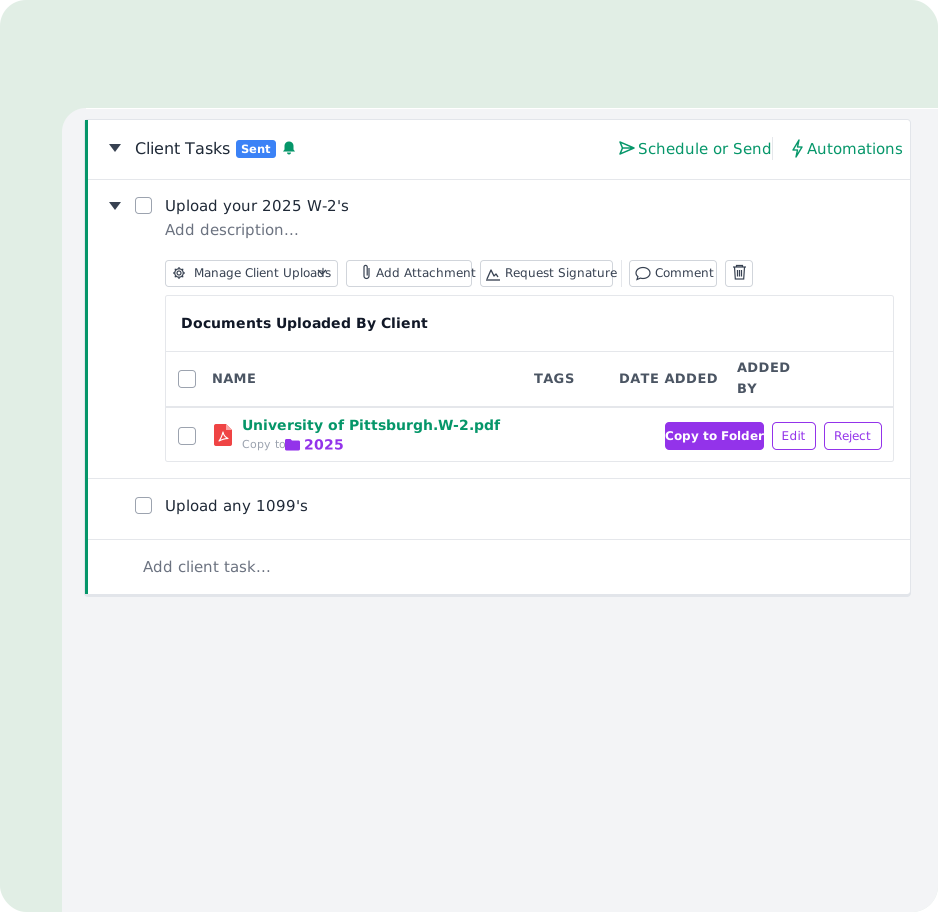
It files a copy in that folder. The original stays on the task.
You see where it went: the file shows “Copied to [folder],” and clicking the folder takes you straight there.

Built for accounting, bookkeeping, and tax documents
Whether a client uploads a bank statement for month-end close, a receipt for bookkeeping, or a tax form for a return, the agent reads the document and uses that client’s existing folders and project context to suggest where a copy belongs. A file named scan_001.pdf can still be identified from its contents. Your firm’s folder structure stays intact.
Two modes: you decide how much control to keep
Built with firm-level guardrails
Same client, always.
The agent only ever files into that same client’s folders, never another client’s.
It never creates folders.
It only uses folders that already exist in that client’s Client Files.
It files a copy.
It doesn’t move or delete the original, which stays on the task.
It won’t guess.
When there’s no good-fit folder, it says so and leaves the file for you to place.
You can always fix it.
If a copy lands in the wrong folder, just move it.
Note: Because Client Files folders can be shared with clients, a filed copy may become visible to a client. Keep that in mind when you turn on Just Do It.

Better together with AI File Renaming
File Routing works hand in hand with the Accounting AI File Renaming agent: renaming decides what a file is called, routing decides where it goes. When both are on, your team reviews the name first, then the folder, in the same place, so a messy scan_001.png comes out named to your convention and filed in the right client folder in one pass.
It’s part of Financial Cents’ set of AI agents for document work, alongside AI File Renaming and the AI File Validator. Explore all of Financial Cents’ AI features.
See where every file went
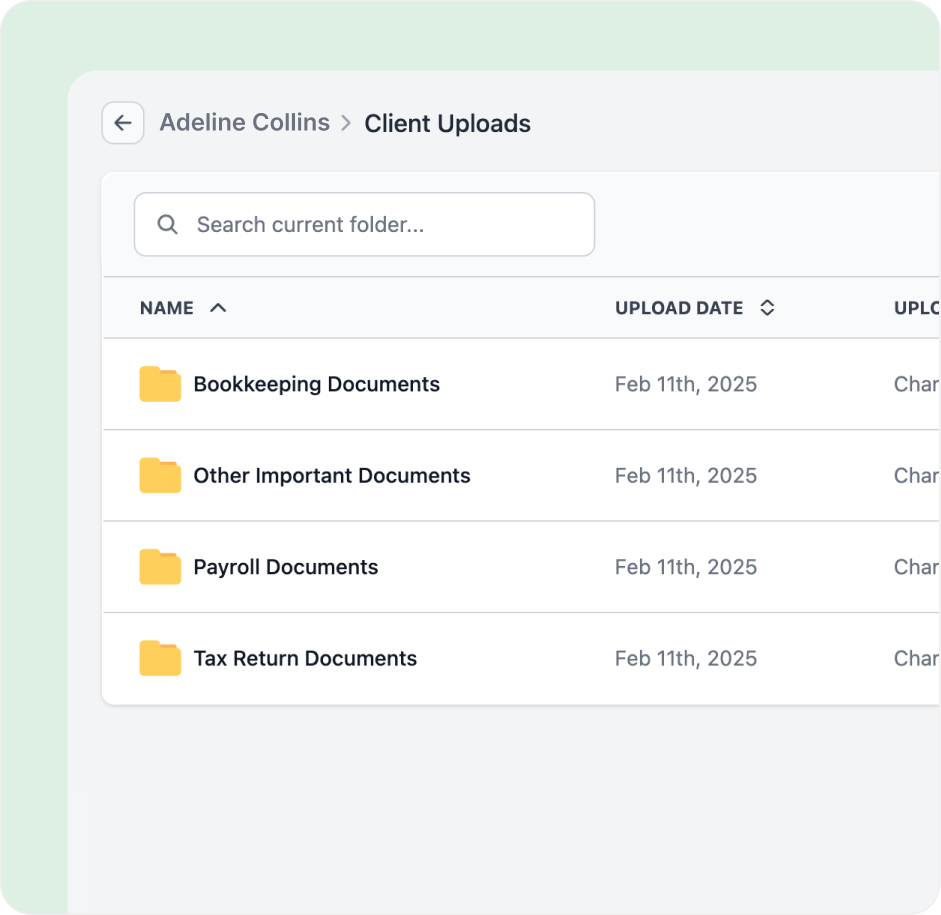
Routed files show up wherever client uploads already appear, on the task, in the Project Files tab, in the Client Uploads report, and in the file preview, each marked “Copied to [folder]” with a click-through to the folder. Every file shows where it went, so nothing disappears into a black box.
Secure by design
Financial Cents is SOC 2 certified, uses TLS 1.3 encryption in transit and encryption at rest, and processes documents inside the same secure platform trusted by over 10,000 accountants, bookkeepers, and CPAs. Your clients’ documents never leave your firm’s control.
Read more on our security page
Frequently asked questions
Financial Cents’ AI File Routing agent organizes documents clients upload to Client Tasks. It reads each file, considers that client’s existing folders and project context, then files a copy in the best-fit folder after your approval or automatically when it’s confident.
It reads the file’s contents (not just its name) and looks at how that client’s folders are already organized at the moment of upload, then picks the single best-fit folder. It uses project context, like the accounting period, to choose the right year or period folder, such as the correct tax-year folder for a 1040.
No. It files a copy into the client folder; the original stays on the task.
No. It only ever files within that same client’s folders, and it only uses folders that already exist, it never creates new ones.
Three jobs, one document workflow: the AI File Validator checks the upload is the right file, AI File Renaming gives it the right name, and AI File Routing puts it in the right folder.
It tells you instead of guessing, and your team can file the document manually as they do today.
No. It starts in Always Ask, where you accept, change, or reject each suggested folder. You can switch to Just Do It under Settings → Manage AI Agents whenever you’re ready, and turn it off at any time.
Just move it to the right one. Every routed file shows “Copied to [folder]” with a click-through, so it’s easy to find and fix.
No. AI File Routing currently covers files clients upload to Client Tasks. It does not reorganize existing Client Files or route files uploaded directly to Client Files, files uploaded by your team, or chat and email attachments.
AI File Routing is available on all plans and is on by default in Always Ask for accounts with AI Agents enabled. You can adjust it anytime under Settings → Manage AI Agents.
Your clients upload. Financial Cents files.
Stop hand-filing documents clients upload to tasks. Let the AI File Routing agent suggest the right folder and file a copy.