


Financial Cents & Google Drive integration
Keep your client files in sync across Google Drive and Financial Cents automatically. Every file your team needs, documents, tax returns, working papers, stays current in both places without the manual juggling.
 4.8 stars




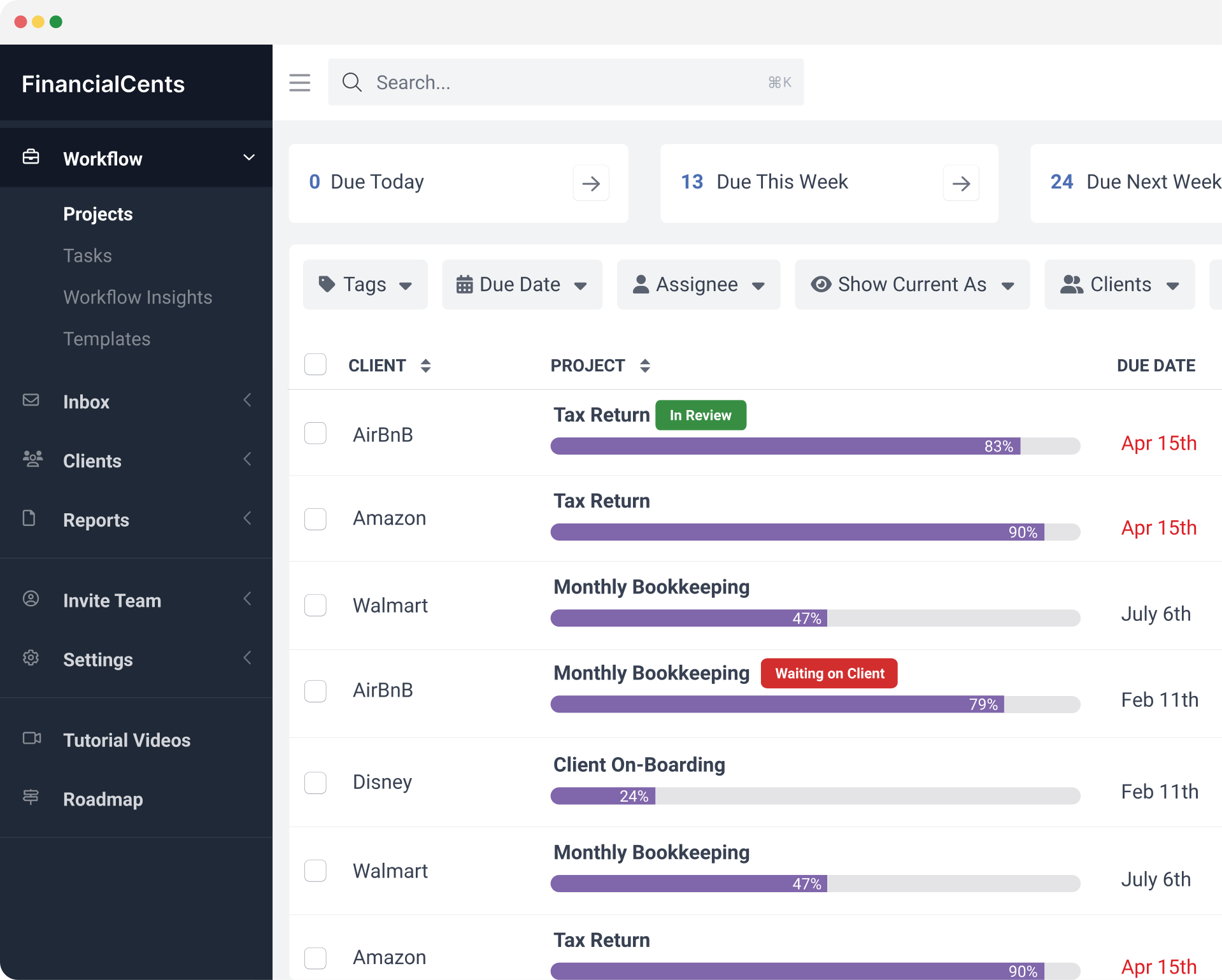

Key features of the Financial Cents’ Google Drive integration
Two-way file sync
Files added, edited, or removed in one system update automatically in the other. Your team always sees the latest version, no matter where they open it.
Auto-create client folders
Add a new client in Financial Cents and a matching folder appears in Google Drive automatically. Onboarding starts organized from day one.
Preview and edit in place
Preview files right inside Financial Cents. Open them in Google Drive to make edits, then come back to find those changes already saved.
Print tax returns directly in
With the Google Drive desktop app, print returns from your tax software straight into the client’s folder, and watch them land in Financial Cents.
Two-way sync that just works
Add a document in Financial Cents, and it shows up in Google Drive. Edit a spreadsheet in Google Drive, and Financial Cents reflects the change. Both systems stay aligned without anyone copy-pasting or re-uploading.
Enable Edit, Create, and Delete permissions during setup and the sync works in both directions automatically. Your team sees the same version of every document, whether they open it from Financial Cents or Google Drive.

Match clients in a few clicks
Point the integration at your root folder in Google Drive and Financial Cents will auto-match clients to their folders by exact name. For anything that doesn’t match, pick the right folder from a dropdown or create a new one with a single click. Skip automatic matching entirely and only new files will sync going forward—your existing documents stay exactly where they are.
Experience how effortless document management becomes when your tech stack works together.
Start a free trialLearn more about Google Drive
Google Drive is a cloud storage and collaboration platform used by millions of teams around the world. It stores documents, spreadsheets, presentations, PDFs, and any other file format you throw at it, with real-time editing and sharing built in. Your firm’s files stay safe, accessible from anywhere, and ready to collaborate on with clients and teammates.

For Financial Cents + Google Drive users who aren’t yet connected
The Google Drive integration removes the manual file juggling between your two systems. If you’re using both platforms separately, you’re doing more work than you need to.
Here’s what you unlock when you connect:
- Two-way sync that keeps every file current in both systems without extra steps
- Automatic folder creation for new clients so setup never gets skipped
- A single place to find every client document across your firm
- Printing from tax software straight into Financial Cents via the Google Drive desktop app
- Fewer duplicated files, fewer version conflicts, less context-switching for your team
Works with the tax software your firm already uses
Install the Google Drive desktop app and your Drive folders show up as local folders on your computer. That means you can print or save returns from Drake Tax, UltraTax, Lacerte, ProSeries, ProConnect, TaxAct, and CCH Axcess directly into the right client’s folder, and watch them appear in Financial Cents automatically.
Frequently asked questions about the Google Drive integration
The Google Drive two-way sync is part of the Scale Plan. You can upgrade anytime from your Financial Cents settings.
Yes. During the Google sign-in step, check the box that lets Financial Cents edit, create, and delete files. If you skip that step, only the one-way connection works, the full two-way sync will not. If your sync is not working after setup, disconnect and reconnect, making sure to check the box that time.
Automatic matching requires an exact name match between the client in Financial Cents and the folder in Google Drive. If names differ at all—& vs. “and”, extra spaces, punctuation. Use the dropdown to pick the right folder manually, or click to create a new folder on the spot.
For most firms the initial sync wraps up in under 10 minutes. Large accounts with thousands of files may take longer, if the syncing indicator is still showing after an hour, reach out to support.
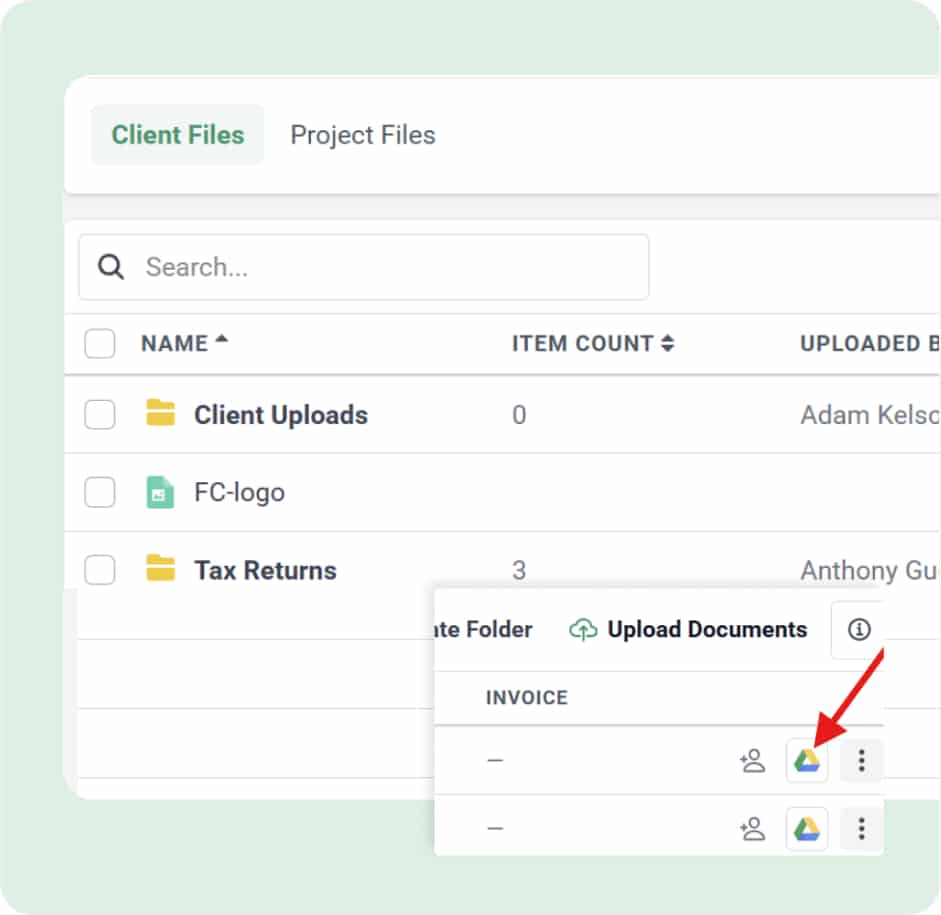
You can preview any file by clicking on its name. To edit, click the Google Drive icon next to the file to open it in Drive, your edits sync back to Financial Cents automatically. Google-native formats (Docs, Sheets, Slides) are editable right away; PDFs and similar formats need to be converted in Drive first.
Yes. Install the Google Drive desktop app and your client folders show up as local folders on your computer. From there you can print or save returns from Drake Tax, UltraTax, Lacerte, ProSeries, ProConnect, CCH Axcess, and TaxAct straight into the client’s folder, and the file will sync into Financial Cents automatically.
With two-way sync active, deleting a file in one system removes it from the other. Anything deleted sits in Google Drive’s trash for 30 days, where it can still be restored.
All your files stay in place, nothing is deleted from either system. Syncing simply stops. Financial Cents also remembers your client-to-folder links, so if you reconnect later you won’t have to redo the matching.
See other integrations
Connect Financial Cents with your favorite tools to automate workflows, reduce manual data entry, and keep your team in sync.


Financial Cents MCP
Connect your firm’s data to Claude, ChatGPT, Gemini, Cursor, and other AI tools over the Model Context Protocol.


OneDrive and SharePoint
Keep client files in sync with two-way OneDrive or SharePoint sync, right inside Financial Cents

DrakeTax
Store and access your Drake Tax files through Google Drive, directly from Financial Cents.

UltraTax
Keep UltraTax documents organized through Google Drive, accessible from any client in Financial Cents.

Lacerte
Access and share Lacerte files through Google Drive without leaving your Financial Cents workflow.

ProSeries
Manage ProSeries client documents through Google Drive, linked directly to your Financial Cents projects.

ProConnect
Connect ProConnect files to Financial Cents through Google Drive for a smoother tax workflow.

TaxAct
Store TaxAct client files through Google Drive and access them from within Financial Cents.

CCH Axcess
Keep CCH Axcess documents within reach through Google Drive, right inside Financial Cents.

Abacor
Publish meeting notes, transcripts, and action items from client calls directly into Financial Cents timelines — without lifting a finger.

Ping
Capture action items from client conversations and push them straight into Financial Cents as tasks, with meeting notes auto-synced to the right client record.

Ignition
Connect proposals, payments, and projects effortlessly with the Ignition integration, keeping everything in sync automatically.
QuickBooks Online
Import clients, link employees, and sync time logs effortlessly with QuickBooks Online.

Gmail
Import and send emails directly from within FC, keeping your communications in one place.
Outlook
Seamlessly sync your Outlook emails to manage all your client communications from FC.

Adobe Sign
Send e-signature requests and track their progress without leaving your project workspace

SmartVault
Link client vaults directly to their profiles for secure and streamlined document management.

OneDrive
Integrate your OneDrive to upload and download from within Financial Cents

Anchor
Create a new client & project in Financial Cents when a proposal is signed.

Zapier
Integrate Financial Cents with over 5,000 other apps to keep data in sync across your tech stack