


Financial Cents & OneDrive and SharePoint integration
Keep your client files in sync across OneDrive or SharePoint and Financial Cents automatically. Every file your team needs, documents, tax returns, and working papers stays current in both places without the manual juggling.
 4.8 stars




 +
+

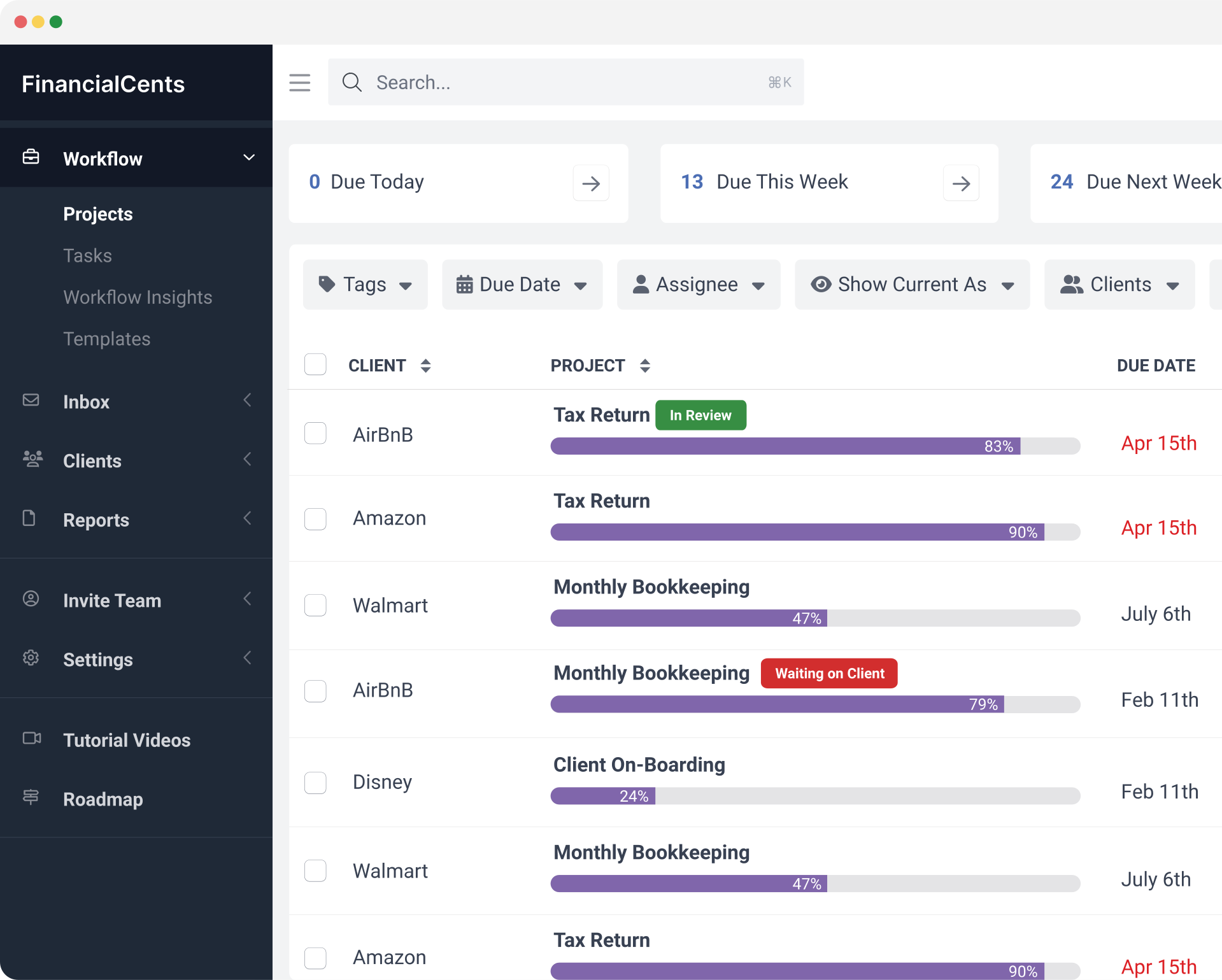
One integration, both Microsoft storage options. Connect your firm’s OneDrive or SharePoint document library to Financial Cents with automatic two-way sync, available on the Scale plan. Add, edit, rename, move, or delete a file in either system and the change appears in the other. Your team always works from the latest version of every client document, whether they open it in Microsoft or in Financial Cents.
Key features of the Financial Cents OneDrive and SharePoint integration
Two-way file sync
Files added, edited, renamed, moved, or removed in one system update automatically in the other. Your team always sees the latest version, no matter where they open it.
Auto-create client folders
Turn on the setting and adding a new client in Financial Cents creates a matching folder in OneDrive or SharePoint automatically, so onboarding starts organized from day one. (Folder creation runs one direction: new folders made in Microsoft don’t create clients back in Financial Cents.)
Open and edit in OneDrive or SharePoint
Every synced file and folder has a button to open it directly in OneDrive or SharePoint, so you can edit in place with Word, Excel, or PowerPoint online. Prefer a quick look? Click the file name to preview it right inside Financial Cents.
Print tax returns into Financial Cents
With the OneDrive desktop app, print returns from your tax software straight into the client’s folder — OneDrive or a synced SharePoint library — and watch them land in Financial Cents.
Two-way sync that just works
Add a document in Financial Cents, and it shows up in OneDrive or SharePoint. Edit it there, and Financial Cents reflects the change. Both systems stay aligned without anyone copy-pasting or re-uploading.
Every file carries a sync indicator, so you’re never guessing: spinning means it’s syncing, the drive icon means it’s done, and a red icon tells you something needs attention. Need one client refreshed right now? Hit Sync Client Folder on that client instead of resyncing the whole account.

OneDrive or SharePoint: which should you connect?
The integration behaves identically either way, so pick based on where your firm already keeps client files.
However, if you don’t use either and you’re looking to pick one as your primary DMS, here’s a breakdown:
OneDrive is personal storage tied to one account. It works with a personal Microsoft account (@outlook.com, @hotmail.com) or a Microsoft 365 work account. It’s the simpler choice for solo practitioners and small teams.
SharePoint is your firm’s shared document library. It requires a Microsoft 365 work account. It’s the right pick when multiple team members already work out of the same library and you want file ownership sitting with the firm rather than an individual.

Match clients in a few clicks
Connect from Settings → Integrations, sign in with your Microsoft account, and pick the OneDrive or SharePoint folder where your client folders live. Financial Cents then walks you through a quick mapping exercise: any clients and folders whose names match are linked automatically, and anything that doesn’t auto-match you can map manually from a dropdown. You can also link a client to a folder right from the client profile.
Run Sync Mapped Clients to backfill existing files in both directions, or skip it and only new files will sync going forward — your existing documents stay exactly where they are.
I love that I can manage documents, passwords, client communications, set up recurring or non-recurring templates with recurring monthly tasks for each client.”
Angeliese W, Owner and Founder (Capterra)
Experience how effortless document management becomes when your tech stack works together.
Start a free trialLearn more about OneDrive and SharePoint
OneDrive and SharePoint are Microsoft’s cloud storage platforms, used by individuals and teams around the world to store and access documents, spreadsheets, PDFs, and any other file format from anywhere. OneDrive holds files under a single account; SharePoint holds them in a shared library the whole firm works from. Connecting either one to Financial Cents means your firm’s files stay organized, current, and accessible right alongside the client work they belong to.

For Financial Cents + OneDrive and SharePoint users who aren’t yet connected
If you’re using both platforms separately, you’re doing more work than you need to. The OneDrive and SharePoint integration removes the manual file juggling between your two systems.
Here’s what you unlock when you connect:
- Two-way sync that keeps every file current in both systems without extra steps
- Automatic folder creation for new clients so setup never gets skipped
- One shared SharePoint library your whole team pulls from, if that’s how your firm is set up
- A single place to find every client document across your firm
- Printing from tax software straight into Financial Cents via the OneDrive desktop app
- Fewer duplicated files, fewer version conflicts, less context-switching for your team
Works with the tax software your firm already uses
Install the OneDrive desktop app and your folders show up as local folders on your computer, OneDrive files or any SharePoint library you’ve synced. That means you can print or save returns from Drake Tax, UltraTax, Lacerte, ProSeries, ProConnect, TaxAct, and CCH Axcess directly into the right client’s folder, and watch them appear in Financial Cents automatically.
Frequently asked questions about the OneDrive and SharePoint integration
The OneDrive and SharePoint two-way sync is part of the Scale plan. You can upgrade anytime from your Financial Cents settings.
Nothing, functionally — the sync, folder matching, and editing all work the same. OneDrive is storage tied to one account and works with a personal Microsoft account or a work account. SharePoint is your firm’s shared document library and needs a Microsoft 365 work or school account. Pick whichever one already holds your client files.
Sometimes. Financial Cents asks Microsoft for read and write access to your files, and some organizations require an admin to approve that consent before the connection goes through. If you hit an approval screen, send it to whoever manages your Microsoft 365 tenant.
When you connect from Settings → Integrations, Financial Cents auto-matches clients to folders with the same name. Anything that doesn’t match exactly, you can map manually from a dropdown, or link from the client profile.
Disconnecting stops the sync; no files are deleted from either system. Financial Cents remembers your client-to-folder links, so if you reconnect with the same account you won’t have to redo the matching. Unlinking an individual client works the same way — the files stay, but you’ll need to remap that client to resume syncing.
Both options are available. Run Sync Mapped Clients to backfill existing files in both directions, or skip it and only new files will sync from that point forward.
Yes. Click the OneDrive or SharePoint button on any file or folder to open it directly and edit it. Anything Office Online can edit — Word, Excel, PowerPoint — opens straight into the editor. Files it can’t edit, like scanned PDFs, need to be converted first. You can also click a file name to preview it inside Financial Cents.
Yes. Install the OneDrive desktop app so your client folders appear as local folders on your computer, then print or save returns from Drake Tax, UltraTax, Lacerte, ProSeries, ProConnect, TaxAct, and CCH Axcess into the client’s folder, and the file syncs into Financial Cents automatically.
Each client links to one drive account, so a given client’s files live in one place. If your client folders sit in different OneDrive or SharePoint locations, you can reconnect and remap to pull them in. Auto-create folders can only be switched on for one account across all your drive integrations.
Setup requires the Manage Integrations permission in Financial Cents, which sits with the Owner by default. Team members without it can still see synced files and run a single-client sync.
See other integrations
Connect Financial Cents with your favorite tools to automate workflows, reduce manual data entry, and keep your team in sync.


Financial Cents MCP
Connect your firm’s data to Claude, ChatGPT, Gemini, Cursor, and other AI tools over the Model Context Protocol.

Google Drive
Upload and download files between Google Drive and Financial Cents with ease.

DrakeTax
Store and access your Drake Tax files through Google Drive, directly from Financial Cents.

UltraTax
Keep UltraTax documents organized through Google Drive, accessible from any client in Financial Cents.

Lacerte
Access and share Lacerte files through Google Drive without leaving your Financial Cents workflow.

ProSeries
Manage ProSeries client documents through Google Drive, linked directly to your Financial Cents projects.

ProConnect
Connect ProConnect files to Financial Cents through Google Drive for a smoother tax workflow.

TaxAct
Store TaxAct client files through Google Drive and access them from within Financial Cents.

CCH Axcess
Keep CCH Axcess documents within reach through Google Drive, right inside Financial Cents.

Abacor
Publish meeting notes, transcripts, and action items from client calls directly into Financial Cents timelines — without lifting a finger.

Ping
Capture action items from client conversations and push them straight into Financial Cents as tasks, with meeting notes auto-synced to the right client record.

Ignition
Connect proposals, payments, and projects effortlessly with the Ignition integration, keeping everything in sync automatically.
QuickBooks Online
Import clients, link employees, and sync time logs effortlessly with QuickBooks Online.

Gmail
Import and send emails directly from within FC, keeping your communications in one place.

Outlook
Seamlessly sync your Outlook emails to manage all your client communications from FC.

SmartVault
Link client vaults directly to their profiles for secure and streamlined document management.

OneDrive
Integrate your OneDrive to upload and download from within Financial Cents

Anchor
Create a new client & project in Financial Cents when a proposal is signed.

Zapier
Integrate Financial Cents with over 5,000 other apps to keep data in sync across your tech stack