
It’s been a few years since ChatGPT’s release, and accounting and bookkeeping firms have become more comfortable using generative AI. They now use AI for daily accounting tasks such as drafting client emails, summarizing documents, writing SOPs and creating marketing content. In fact, Ramp’s AI Index, which tracks AI spending across more than 70,000 U.S. businesses, reported that overall AI adoption reached 50.6% in April 2026.
The market has also expanded beyond ChatGPT, OpenAI’s AI assistant. Claude, Anthropic’s assistant, has become a major alternative. The same Ramp report found that, for the first time, more U.S. businesses paid for Anthropic (34.4%) than OpenAI (32.3%).
Claude’s growing adoption reflects broader accounting trends, as firms increasingly use AI and automation to handle routine work, analyze information, and support client service.
So what is it about Claude, and why are so many businesses, accounting firms included, turning to it? This piece covers that. We also show what Claude can do, how to set it up, which accounting workflows it handles well, and how Claude compares with ChatGPT.
TL;DR
- Claude is a general-purpose AI assistant from Anthropic with three ways to work: Chat for individual tasks and analysis, Cowork for multi-step work across files and connected tools, and Code for coding and technical automation.
- Claude is useful for summarizing documents and reports, categorizing transactions against your rules, extracting data from statements, and drafting first drafts of client communications and other content.
- Don’t let Claude make final accounting decisions, change accounting records, or post unreviewed entries. Always have a human in the loop.
- Neither Claude nor ChatGPT is automatically the better choice. Test both against the workflows, integrations and controls that matter to your firm.
- Claude for accountants can reduce repetitive work, but it works best alongside the system your firm already uses to manage client work like Financial Cents.
What is Claude for Accounting?
Claude is a general-purpose AI assistant that you can also use for specific accounting tasks. You prompt it in plain English, much like you would brief a junior team member, and it does the work. You don’t need formulas or complex setup to get started.
Note: Claude doesn’t know your books. It doesn’t automatically have a client’s transaction history, your firm’s accounting rules, your chart of accounts or the reasoning behind how you handled a transaction last month. You need to provide the relevant context and detailed instructions for useful output. But you still need to review the result before using it in your accounting work.
How to Use Claude for Accounting
Here’s what you need to know about using Claude for accounting. We cover the three Claude interfaces, how to use them, how to get started, and real workflows firms run that you can implement too.
The Three Claude Interfaces
Claude gives you three main ways to work: Chat, Cowork and Code. Think of them as three levels, from asking Claude to help with a single task, to handing it a larger multi-step job, to building custom tools for more complex needs.
Level 1: Claude Chat
This is the entry point for most people and the simplest place to start, too. In the app or browser, you give Claude a prompt, upload the relevant files or data and ask it to analyze, summarize or draft something. For most firms, that covers most of what they need.
Claude Chat works best for one-off, well-defined tasks involving manual steps. But when you need Claude to work across multiple files and tools or complete several steps without manual copy and paste, it might be time to move up to Claude Cowork.
Level 2: Claude Cowork
Cowork handles more involved, multi-step tasks. It can work with files and connected tools such as Gmail, Google Drive, and Google Calendar, so you don’t have to copy and paste each piece of information multiple times as you would in Chat.
It’s best for tasks where you need Claude to access and work across several folders or tools automatically. But if you want to build a custom solution or process with code, Claude Code is the better option.
Level 3: Claude Code
Code is the most technical of the three. It helps developers write and run code, work with files and data, run tests and automate technical workflows from the command line.
It isn’t necessary for most accounting firms, though, unless you have a specific process that requires custom software or automation and a technical team member or developer.
Here’s how they compare at a glance:
| Interface | Best for | Setup | Example accounting task |
|---|---|---|---|
| Claude Chat | Individual tasks and analysis | No setup | Upload a P&L and ask Claude to summarize significant month-over-month changes |
| Claude Cowork | Multi-step work across files and connected tools | Some setup | Review a client email thread, find the relevant files in Drive, and draft replies for review |
| Claude Code | Coding, data processing, and technical automation | Advanced, developer setup | Build a script that reformats a bank’s exports the same way every time |
Getting Started With Claude
If you’re new to Claude, here are five things to keep in mind.
Pick One Low-Risk Task First
Don’t start with a complex task that could affect a client’s books. Choose something where an incorrect output has limited consequences, such as drafting an email or summarizing a document. Then once you’ve established that Claude can handle the task reliably, you can consider using it for more consequential work.
Give Claude Context
Claude performs best when you give it information specific to your firm, client, and task. Otherwise, it’ll just give you the generic information available on the internet.
Prompt Clearly
Tell Claude what you want it to do, what information to use, and what to avoid. Give it specific rules and tell it how you want the output structured.
Pro tip: Use the CLEAR prompt framework: Context, Limit, Evidence, Audience, and Review, to write your AI accounting prompts.
Keep a Review Step
Always review AI-generated work before you use it. Check all writing, calculations, research, and categorization. Claude often hallucinates, and it produces false information confidently, so fact-check everything before you use it. As Jason Staats, CPA, says, “If you are using AI, you are still 100% accountable for the output.”
Protect Client Data
Never paste sensitive information like bank logins, passwords, Social Security numbers (SSNs), or full account numbers into Claude. Remove all identifying details and use sanitized or dummy data.
AI controls should form part of your firm’s wider security procedures. These data security best practices for accountants explain how to protect client information across your software, files, devices, and team processes.
Real Workflows Accounting Firms Are Already Running
Here are some of the ways firms use Claude today. You can test them in your own practice.
Extracting Data From Documents
Claude can extract dates, amounts, vendor names, invoice numbers and other relevant information from receipts, statements and financial documents. Tell it exactly which fields to extract and how you want the information formatted, then ask it to flag anything missing or unclear instead of filling in the blanks. Compare the extracted figures and key details against the original documents before using them in your accounting work.
Building Spreadsheets & Workpapers
Claude can help create and organize spreadsheets and workpapers for accounting tasks. It can write formulas, clean up data, populate templates and structure a workpaper based on your instructions. For example, you could ask it to “Write an Excel formula that flags any invoice more than 30 days overdue and explain each part.” Then test that formula on a few rows before running it across the sheet.
Analyzing Financial Data
Claude can read a set of numbers and help firms identify trends, variances, or unusual movements and transactions. Specify the periods, metrics, or thresholds you want it to compare and ask it to separate observations from assumptions. Just treat its findings as a starting point, then investigate and make your conclusions.
Drafting P&L Narratives
Firms use Claude to turn financial results into a first-draft narrative for monthly or quarterly client reports. Give it the P&L data, your format, and any client context, then ask it to explain the significant changes using only what the data supports. Confirm every figure it cites matches the statement, and that it didn’t invent one.
Prepping for Tax Season
Claude can help organize documents, build research checklists, and draft client communications during tax season. Give it the relevant tax year, jurisdiction and client context, and tell it to point out missing information. Because tax rules can change and depend on the client’s circumstances, verify any tax conclusions against current, authoritative sources.
Chasing Outstanding Invoices
Claude can write the payment reminders you send to clients. Provide the invoice details and your past messages, and it writes polite reminders in your firm’s tone. Before anything goes out, check the invoice number, amount, due date, and client details.
Read: The State of Accounting Workflow and Automation Report
Claude Cowork for Accounting
Claude Cowork is the sweet spot for most businesses. It’s a step up from Chat, automating recurring accounting workflows and handling more advanced tasks, without needing technical knowledge or knowing how to code. It’s only available on paid plans (Pro, Max, Team, Enterprise).
Here’s how to use it in your firm.
How to Set Up Cowork
- First, download the Claude desktop app on Mac or Windows. Choose one of the paid plans, set up your account, and log in.
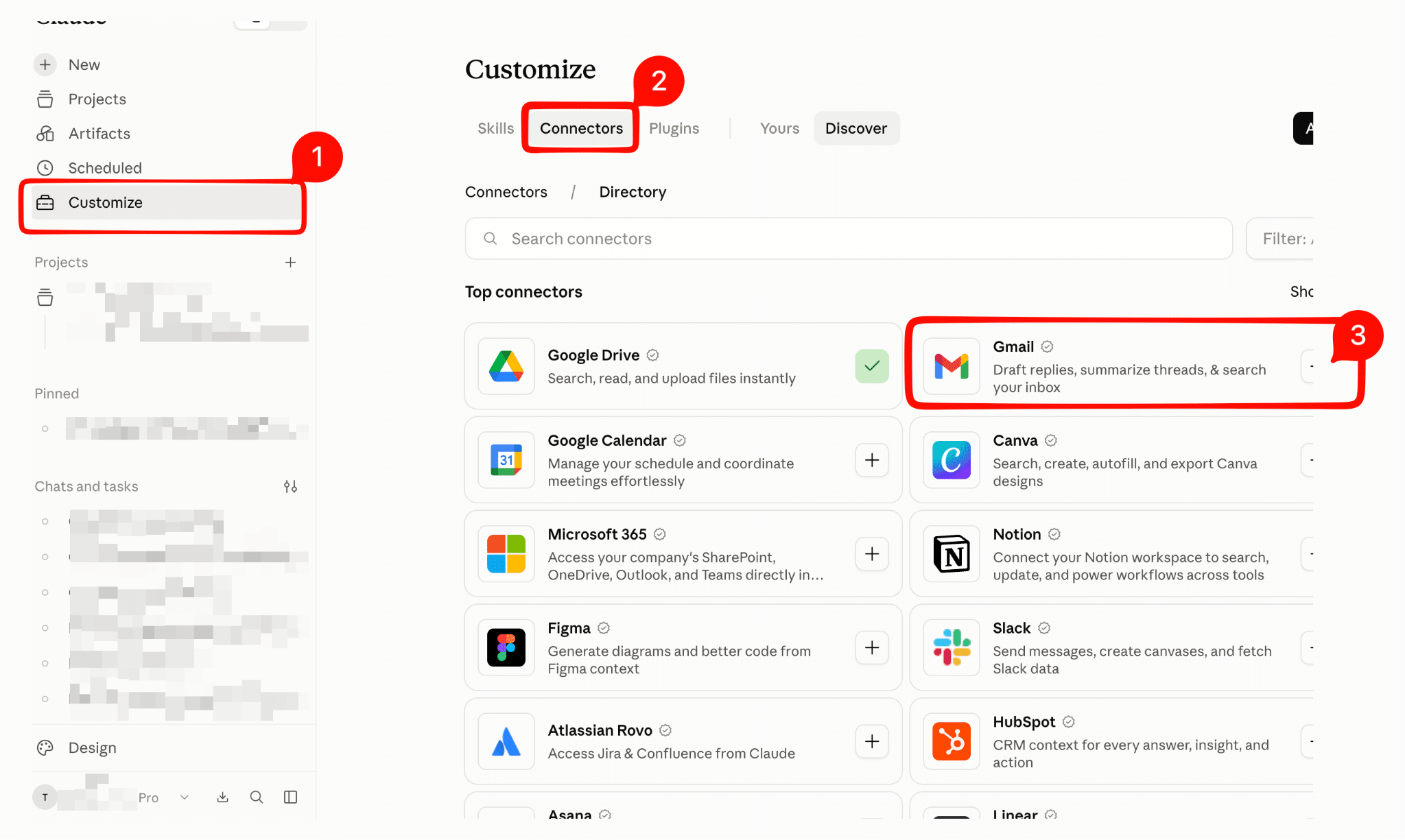
- Connect the tools you need. Go to Customize > Connectors, select +, and choose the tools you want to connect. Add one to start, and connect more later as needed.
- Once connected, start a Cowork session. Open Claude, select Cowork in the message box and describe the task you want Claude to complete. Give it the relevant context, resources, instructions and limits, then review its work before you use, save or send anything.
Claude Cowork Accounting Examples
Example 1: Sort Client Emails and Write Replies
Use Cowork to review client emails, identify what each client needs and draft replies. To set this up, connect Gmail, point Cowork to the relevant client thread or label, and tell it what to do.
You can use this prompt:
“Find my recent emails with [client name] and tell me what they’re asking for. Then draft a reply to each, matching the tone I used earlier in the thread. Only use information from the emails. Don’t promise dates, fees or work I haven’t already agreed to. If something needs an answer you can’t find, flag it for me instead of guessing.”
Example 2: Pull and Format Data From a Connected Folder
Use Cowork to pull figures from client files into your reconciliation template, or into whatever working paper a project needs. Connect Drive, and put the month’s statements, exports, or other source files into one clearly labeled folder. Then give it detailed instructions like:
“Go through each statement in the [folder name] folder and pull the closing balance and total deposits into this reconciliation template, with one row per account. Use only the figures in the files and don’t estimate anything. If a number is unclear or a file won’t open, leave the cell blank and list it for me to check.”
Example 3: Assemble a Month-End Summary for Review
Use Cowork to pull information from your client’s connected files and prepare a first draft of a month-end summary. Connect Google Drive or another supported source where you keep the client’s financial information, then prompt Claude to create the summary:
See an example prompt:
“Draft a month-end summary for [client name] using the files in this folder. Include total income, total expenses and the three or four biggest changes since last month. Write in plain English for my review. Flag anything that looks unusual or any information that appears to be missing. Don’t add or calculate any figure that isn’t already in the files.”
Standardize Your Accounting Workflows With Skills
If you find yourself giving Claude the same instructions repeatedly, turn them into a Skill. These are reusable instructions and resources that teach Claude how to handle a specific task or workflow, including the steps to follow, standards to apply and expected output. Claude can load the relevant Skill when you give it a matching task, and you can combine multiple Skills when needed.
Anthropic provides ready-made finance skills you can add, like “Finance”, which covers journal entries, reconciliation, financial statements, and variance analysis. Just install them and start using. Or if you want to create a custom Skill for your firm, here’s how.
How to Create a Custom Skill
You don’t need to know how to code to create a Skill. Claude lets you create custom Skills using plain-language instructions, and you can also upload a Skill you’ve created yourself.
Don’t just build any skill; start with an accounting process your team performs frequently and already has clear standards for. This can include expense categorization, reconciliation review checklist, client email templates, and month-end reporting.
Here’s the difference a Skill makes. For instance, ask Claude to categorize a batch of expenses with no Skill, and it sorts them the generic way, based on what’s typical.
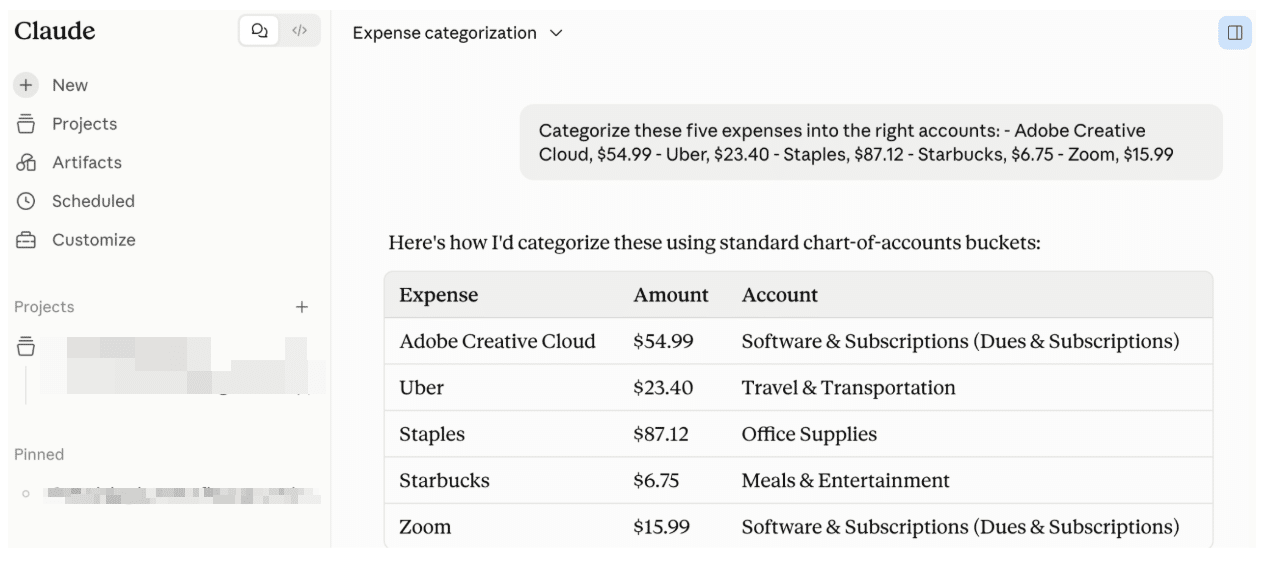
Upload and apply this Skill:
Create a skill called “Firm Expense Categorization” that categorizes client expenses using these rules:
- Code all software and app subscriptions to “Software & Subscriptions.”
- Code rideshare and taxi charges as “Travel” only if a business purpose is noted; otherwise flag them to ask whether it was business or personal.
- Treat coffee shop and restaurant charges as the owner’s personal draw unless a client meeting is named, then flag for confirmation.
- For anything unclear, flag it and ask rather than guessing. Output a table with three columns: expense, account, and any flag or question.
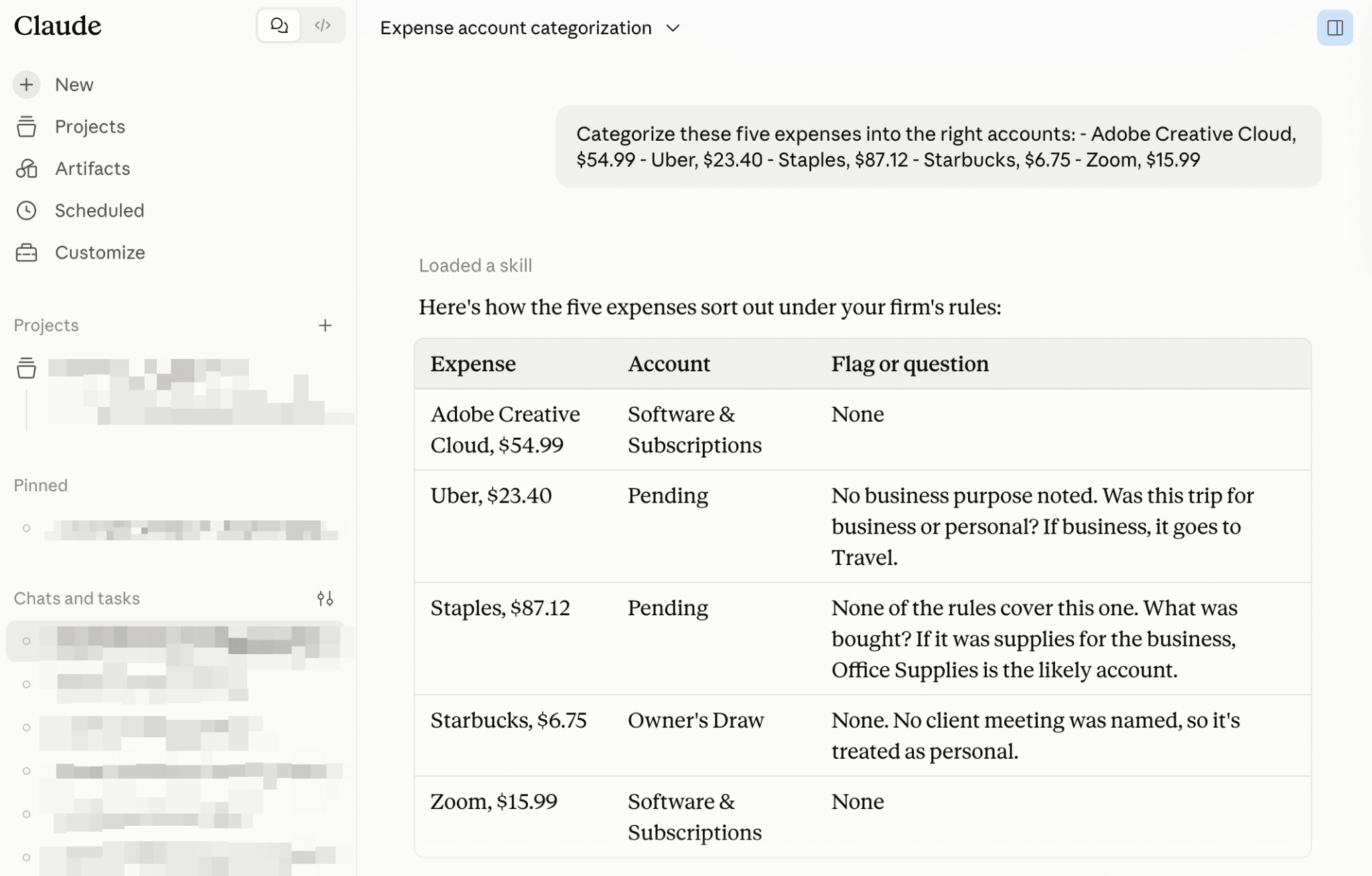
Then ask Claude to categorize the same expenses, and it’ll give a more personalized output, matching how your team actually codes expenses.
Can Claude Do Bookkeeping?
Yes, but only as an assistant.
Claude can help with parts of the bookkeeping process such as categorizing transactions, reviewing expenses against your firm’s rules, summarizing financial reports, drafting reconciliation notes and flagging unusual or duplicate transactions.
But it can’t replace your bookkeeping system or act as an autonomous bookkeeper. It also can’t handle complex judgment calls (that’s what a human is for).
Use AI to gather, analyze and organize information, but a human should make the final judgement.
So here’s the guideline to keep in mind when using Claude or any other AI tool for bookkeeping: AI assists with the work, a bookkeeping system holds the books, and a human reviews and signs off on the output.
Is Claude Better Than ChatGPT for Accounting?
There’s no single winner. Claude and ChatGPT are general-purpose AI assistants that can support accounting work.
The right choice depends on what you want to do with it, the tools your firm already uses, and what your team prefers to work in.
Here’s how they compare:
| Criterion | Claude | ChatGPT |
|---|---|---|
| Long-document work | Has a larger context window, so it works well with large files. | Can still handle large documents even though it doesn’t have as much context. |
| Spreadsheets and data analysis | Can analyze spreadsheets, work with data and create files and other outputs. | Strong for data analysis, including running Python to clean data, perform calculations and create charts. |
| Writing and summarization | Good for writing first drafts and summarizing. | Good for writing first drafts and summarizing. |
| Research and citations | Can access the internet and provide sources. Verify every link and citation. | Can access the internet and provide sources. Verify every link and citation. |
| Reusable instructions | Skills let you package repeatable instructions and resources for Claude. | Custom GPTs, Projects and company knowledge can provide reusable context and instructions. |
| Agentic desktop work | Cowork can handle multi-step work and interact with files and connected tools. | ChatGPT Work and agent features can handle multi-step tasks across supported environments. |
| Business connectors | Connectors can link Claude to accounting and finance tools like QuickBooks, PayPal, and Xero. | Apps connect ChatGPT to accounting and finance tools like QuickBooks, PayPal, and Stripe. |
| Admin controls | Admin controls available on Team and Enterprise plans. | Admin controls available on Business and Enterprise plans. |
| Privacy and retention terms | On Team and Enterprise, your data isn’t used for training by default. Consumer plans can be used for training unless you opt out. | Business and Enterprise data isn’t used for training by default. |
| Cost | Free tier available. Paid plans start at $20/month. | Free tier available. ChatGPT Go starts at $8/month, while Plus starts at $20/month. |
Common Mistakes Firms Make With Claude
Claude accounting can help your firm work faster and reduce repetitive work, but only if you put basic controls around how your team uses it. Here are some common mistakes to avoid.
- Posting AI output without review: Claude can be wrong but still present an output confidently. Always review AI-generated work before using it.
- Skipping source dates & jurisdiction: When you ask Claude to research or analyze something during tax prep, specify the relevant tax year, reporting period and jurisdiction. Then verify the answer against current authoritative sources.
- Granting Cowork overly broad permissions: Give Cowork only the access it needs for the task. Start with the minimum required permissions and expand only when necessary.
- Installing untrusted Skills: Create your own Skills or use the ready-made ones from Claude. Don’t upload one from an untrusted source, because it can negatively affect your output.
- Letting everyone create their own firm standards: Set one approved process for recurring work instead of letting every team member create their own version to avoid inconsistent work quality. Document your firm’s preferred process in your prompts, Skills or SOPs, then make sure everyone uses the same standard.
- Feeding it messy source data and trusting the result: Claude works from what you give it. Feed it wrong or incomplete data, and it returns a convincing but incorrect result. Clean your data first before giving it to Claude.
- Pasting sensitive client information into prompts: Never paste sensitive data into Claude. If a task doesn’t require identifying information, remove it and use sanitized or dummy data instead.
Claude is one option, but it’s worth seeing how general assistants stack up against tools built for the work. This roundup of AI software for accounting firms covers the purpose-built alternatives.
Pair Claude With a System Built for Your Firm
Claude is a useful tool for accounting firms, especially for data analysis, long-document work, research support and first drafts. But some tasks are specific to accounting workflows, and for those, it makes more sense to use AI directly in the system where your firm already manages its work. As Blake Oliver, CPA, says, “The block we have right now is that these tools just don’t have access to all of that context.”
That’s where a system like Financial Cents comes in. This is an accounting practice management software firms use to stay on top of operations and deadlines. It has AI features that perform specific tasks inside that same system, so you switch between fewer tools and the output already has the context it needs (no unnecessary copying and pasting). Here are some of the AI features built for accounting firms:
The AI File Renaming Agent
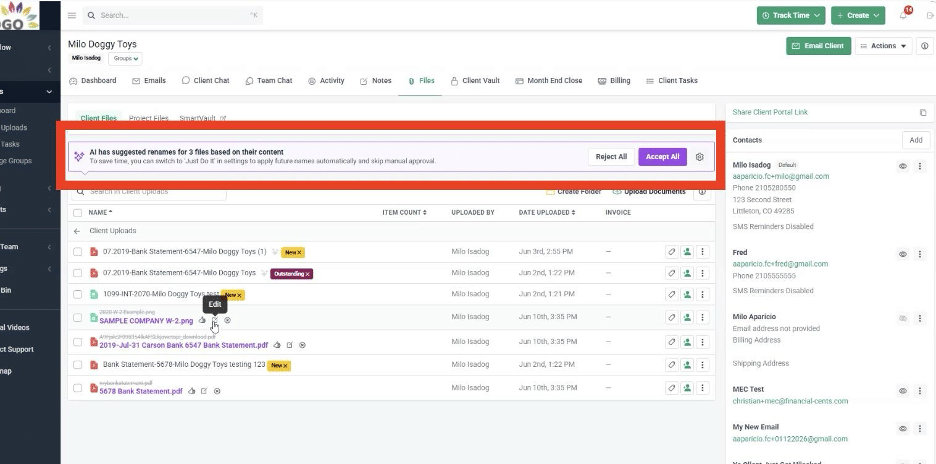
Reads client-uploaded files, identifies details such as the date, document type, account and client, and renames them according to your firm’s naming convention. It can rename files automatically or ask for approval when needed.
The AI File Validator
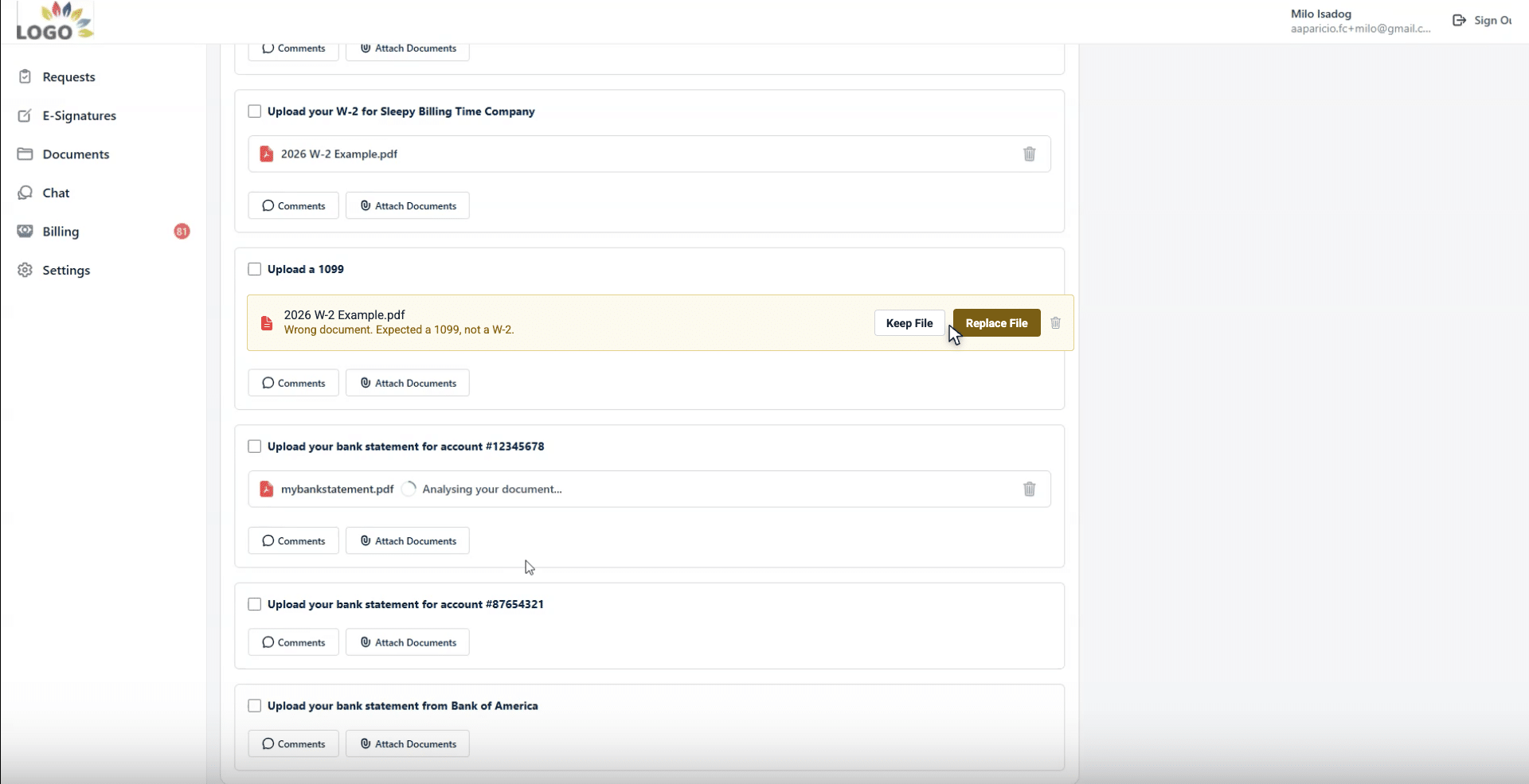
Checks uploaded files against the task requirements, accounting period and client details. If a client uploads the wrong year, bank or document, it can alert them to the issue so they can correct it.
AI-Assisted Client Email Drafting
Drafts client emails inside the client’s record, using the relevant client and workflow context. You can review the draft and save the best ones as templates.
AI-Generated Workflow Checklist Templates
Generates a workflow checklist from a prompt that you can then customize to your firm’s process. You can create and manage the workflow directly in Financial Cents instead of toggling between multiple tools (which 88% of firms want less of).
Note: This doesn’t mean you should never use Claude—it has its own place in your firm’s AI toolkit. But for accounting-specific workflows, Financial Cents puts AI directly where your team manages client files, requests, communication, and deadlines, so it can work with the context already in your workflow and move work faster. You can also assign ownership, set deadlines and build review steps around the work.
Want to get started with Financial Cents AI agents? Get your free 14-day trial.
Frequently Asked Questions (FAQs)

Abdullah Almsaeed is the co-founder and CTO of Financial Cents. With more than 18 years in software development, he leads the team building Financial Cents' workflow, automation, and AI features for accounting and bookkeeping firms.
Share this article