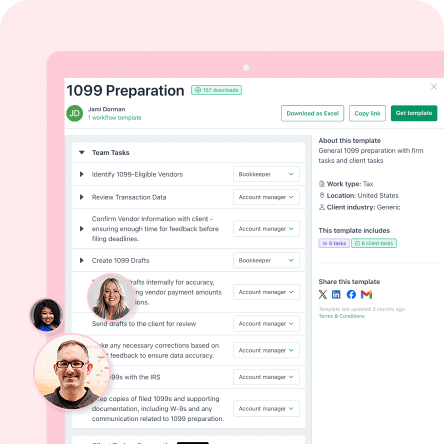
Cloud accounting is no longer the novelty it once was. More accounting firms than ever are using it. A Wolters Kluwer survey found that firms are adopting cloud-based tools at the highest rate in recent years, and 71% of these cloud-based practices saw increased profits, compared with 55% of firms overall.
But using cloud accounting software and running a cloud practice aren’t the same thing. A firm can run QuickBooks Online for the books and still track deadlines in spreadsheets, request documents over email, and store files in local folders. That is a lot of manual work, and it costs the firm much of the value the cloud is supposed to deliver.
To get the most out of the cloud, you need more than a single accounting tool. And that’s what we cover in this article. You’ll learn what cloud accounting is, how it works, its advantages and disadvantages, and the connected two-layer stack you need instead.
TL;DR
- Cloud accounting is accounting software and financial data hosted online and accessed through the internet.
- The top benefits it offers are remote access, easier collaboration, and automatic updates and maintenance.
- The top risks are security threats, internet or provider outages, and recurring costs.
- Cloud accounting is for accounting firms and businesses that want accessible, connected financial systems. To get the full value, run a two-layer stack: cloud software for the books, and cloud practice-management software for the workflow.
What Is Cloud Accounting?
Cloud accounting is the use of internet-based accounting software to store, manage, and access financial data online rather than keeping the records on a local computer or server. The software is hosted on remote servers and maintained by the provider, so users can access their accounts through a web browser or app from any device with an internet connection.
Cloud accounting software supports financial tasks such as bookkeeping, invoicing, accounts payable and receivable, bank reconciliation, and financial reporting. Because the data is stored online, authorized users can work from the same records at the same time, and the data updates automatically, making it easier for accountants, bookkeepers, and clients to collaborate remotely.
Cloud vs. Traditional Accounting: What’s the Difference?
Hosting and Access
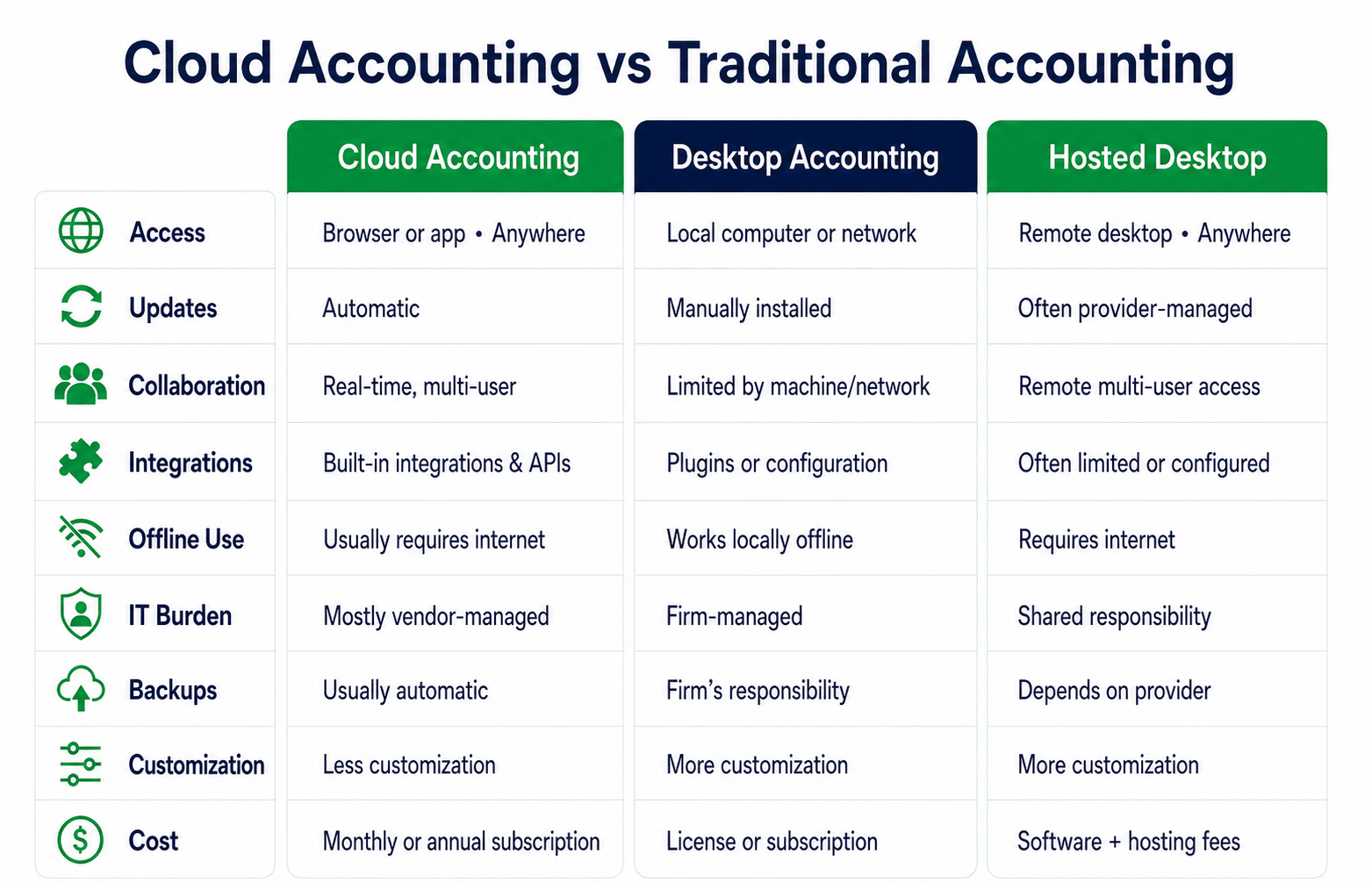
In cloud accounting, the provider hosts the data and software, and users access it through a web browser or app from any device, with no need to install the accounting application locally.
Traditional accounting, on the other hand, can be either desktop or hosted. With desktop, you install the software on a specific computer, and that computer or a local network holds the data, so you can only access it from that machine or devices connected to the same local network.
With a hosted desktop, the software runs on a remote server that you connect to from anywhere over the internet, via a remote desktop environment. Hosted desktop is often mistaken for cloud-native software, but it typically runs a traditional desktop application on a remote server that users access remotely, rather than software designed specifically for browser-based use.
Software Updates
With cloud, the provider automates the software centrally for everyone so you don’t need to download or do anything to access the latest version. You get it automatically. That’s not the case with desktop accounting. Here you need to download and install updates yourself. With hosted desktop, the provider often handles software updates, though this depends on the arrangement.
Collaboration Capabilities
Cloud accounting allows multiple users to work within the same online system and access the same data simultaneously, regardless of their location, making team collaboration easier.
But desktop makes collaboration harder, since access is tied to the local machine or network. Users either share the file one at a time or buy a license for each seat on the network, and either way they can’t work from anywhere the way using the cloud allows. And multiple users of a hosted desktop can access the same desktop application remotely, but they’re still working with a traditional desktop application rather than a browser-based cloud application.
Integrations
Cloud software connects with other online business tools through built-in integrations and APIs. While integration for desktop can require additional software, plugins, or configuration and may be limited by what the desktop application supports. The same goes for hosted desktop systems.
Offline Capability
Cloud accounting and hosted desktop also generally require an internet connection because the application and current data are accessed online. Some cloud platforms may offer limited offline functionality, but the full system is designed for online use. But users can access desktop applications without an internet connection because the software runs locally, although online features and integrations may not work offline.
IT Burden
The burden of handling the underlying infrastructure, software maintenance, and much of the technical upkeep rests on the vendors for cloud. But it’s the opposite for Desktop. The business is responsible for the maintenance of the software and service. A hosted desktop is somewhere in the middle. The provider is in charge of the service infrastructure, but users still have to manage desktop applications, configuration, and licenses.
Backups
Cloud providers typically back up your data automatically as part of the service. With desktop, backing up the data is the firm’s responsibility. For hosted desktop, it depends on the provider. Some offer automatic backups, while others require customers to manage additional backups themselves.
Customization
Cloud platforms don’t offer as much customization as Desktop and Hosted Desktop, but there’s less infrastructure to manage and easier access.
Cost Model
Cloud typically uses a subscription, paid monthly or annually. Desktop was traditionally sold with a one-time license, though many modern desktop products now use subscriptions instead. Hosted desktop usually adds recurring hosting fees on top of the software license.
Read: Moving from Office to Cloud Accounting
How Cloud Accounting Works
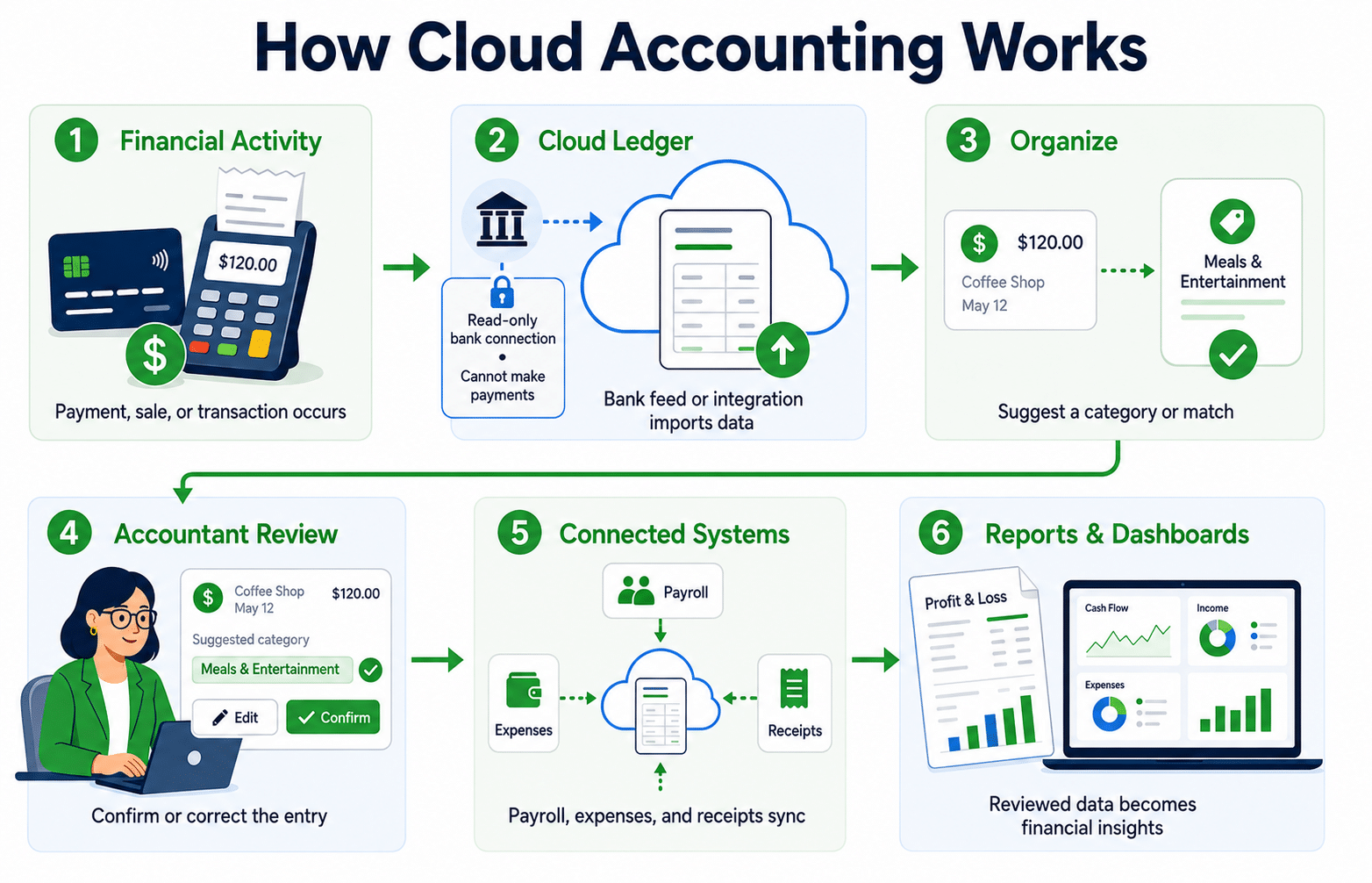
In practice, a transaction typically moves through several stages:
- The financial activity occurs. A payment clears the bank, a sale is recorded through a point-of-sale system, or another financial transaction takes place.
- The data enters the cloud ledger. A bank feed or another integration imports the transaction into the cloud ledger. Depending on the bank and connection, bank feeds may update about once a day. These connections are generally read-only, so the accounting software can retrieve transaction data but can’t make payments from the connected bank account.
- The system organizes the transaction. The software may suggest a category or match based on the transaction and previous activity.
- The accountant reviews it. The accountant checks the suggested matches and confirms or changes the entry.
- Connected systems use the data. Payroll software can send wage data to the accounting system, while expense platforms can send transactions and receipts. Reporting tools can then use ledger data to produce financial reports.
- Reporting tools use the data. Once the entries are reviewed and reconciled, reporting tools turn the ledger data into financial statements and dashboards.
Running across all of these steps is your accounting firm’s workflow. A cloud ledger gives the firm online access to financial records, but it doesn’t manage the firm’s broader client work and processes. That coordinating layer sits outside the ledger, which is where the two-layer stack comes in.
The Two-Layer Stack Firms Need: Cloud Accounting Tools + Practice Management Software
Instead of a fragmented process where you use cloud accounting tools but still manage other tasks manually, run a two-layer stack that consists of cloud accounting software and cloud accounting practice-management software. The first manages the financial records and books. The second manages your firm and your processes, including clients, workflows, deadlines, documents and team responsibilities.
Here’s what that looks like:
| Layer | What it does | Examples |
|---|---|---|
| Cloud accounting software | Manages the financial records, transactions, reconciliations, invoicing and reporting | QuickBooks, Xero, Zoho Books, FreshBooks, Wave, Oracle NetSuite, and SAP. |
| Cloud accounting practice management software | Manages workflows, deadlines, task ownership, client requests, documents and team collaboration | Financial Cents, Canopy, Karbon |
The two layers work together. Your cloud accounting software remains the source of truth for the client’s financial data, while practice-management software allows you to run your firm efficiently and stay on top of all work. It also integrates with other tools to build a connected stack so your team can manage client work without stitching everything together manually.
Read: Risks of storing client data in spreadsheet
The Benefits of Cloud Accounting for Accounting Firms
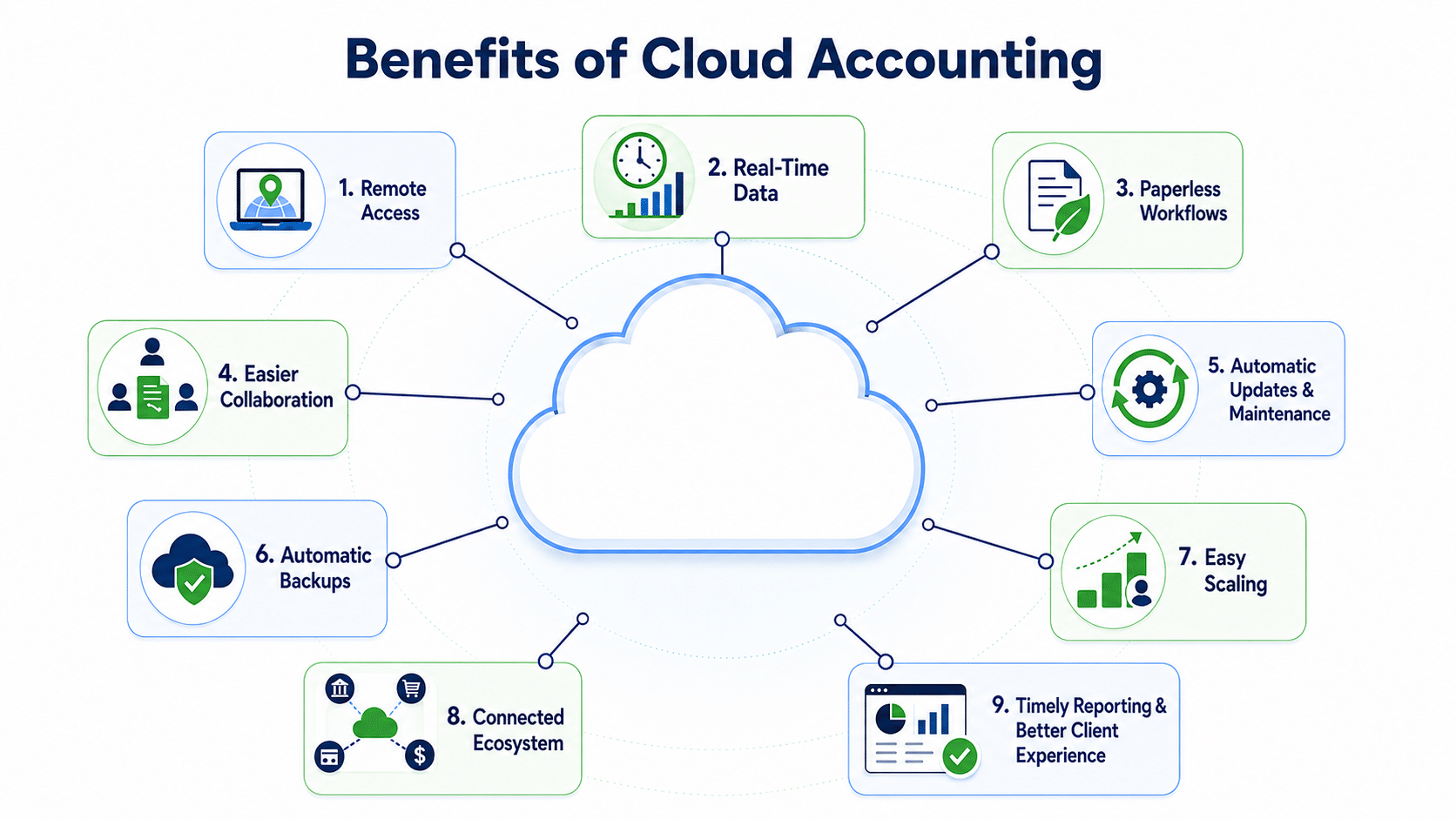
Using cloud accounting offers so many benefits for your firm. Here are some of them:
Remote Access
Cloud accounting lets you and your team access and work on clients’ books virtually from anywhere in the world. You don’t all have to physically be in the same location. One team member can prepare the books in San Francisco, and another in Europe can review the books. Though for this to work well, you need a good and stable internet connection and multiple seats with the right permissions (for your team).
For a deeper look at making this work, see can accountants work from home? guide.
Access to Real-Time Data
The system updates data in real time so everyone works from the latest numbers rather than an outdated file. They also don’t have to wait for someone to send a copy. However, this only holds if other essential apps are integrated and bank feeds are connected.
Going Paperless
Cloud accounting makes it easier for your firm to go paperless. It replaces paper documents and physical file transfers with digital records. For instance, instead of asking a client to print and deliver receipts, they can easily upload digital copies to their client portal where you can access them at will. Of course, you’ll need practice management software with digital document storage and a secure accounting client portal to collect, organize and store documents.
Collaborate More Easily With Clients and Your Team
You and your team can access and work in the same systems, communicate with each other, and see task updates without having to constantly exchange files or emails. A client can provide access to their books, upload supporting documents, and answer questions while your team works on the same client file remotely. Users need appropriate permissions to view task updates and communicate.
Automatic Updates, Backups, & Maintenance
You don’t have to worry about backing up files, updating and maintaining your software. Cloud accounting takes care of all of that for you, unlike traditional systems. So when the accounting platform releases a new feature or update, for example, you can access it without installing anything. But it’s advisable to still keep an eye on important product changes and understand your provider’s backup and recovery policies.
Get Automatic Backups and Scale More Easily
Cloud systems make it easier for a growing firm to add more users or seats by just paying extra or upgrading your subscription. You don’t have to buy and maintain additional servers. The exact limits and costs depend on the provider and plan.
Build a Connected Ecosystem
Cloud accounting can connect with other online accounting tools, so you don’t have to move information manually between systems. This saves time you would have otherwise spent on data entry and allows you to focus on higher-value services. 70% of firms manually re-enter data between tools at least a few times per week, according to the Financial Cents 2026 Bookkeeping Firm Tech Stack Report. This costs time and makes them less efficient.
Deliver More Timely Reporting and Advice
With real-time data, you can produce accurate, timely reports for clients and advise them better. Though, this depends on the books being complete, clean, and reconciled first.
Improve the Client Experience
Overall, cloud accounting, especially when paired with top accounting practice management software, gives the client a better experience. The ledger gives clients real-time access to their numbers, while the practice-management layer lets them upload documents to a portal, see what you need from them, and track their work, with less back and forth than email. This works best when the system is genuinely easy for the client to use.
The Risks and Downsides of Cloud Accounting
Data Security and Breach Risk
Firms hold clients’ sensitive financial and personal information, which makes them a target for hackers. And so if the security of the cloud accounting platform is not strong, it could breach or expose this information. A 2024 survey of accounting professionals found that 15% had experienced a security breach, with 9% of those breaches attributed to cloud server hacks. And this security breach causes reputational damage as well as financial damage (with 11% of respondents experiencing losses between $500,000 and $999,999).
Reduce this risk by choosing providers with strong cybersecurity controls for accounting firms, encryption and independent audits like SOC 2, and implement internal measures like role-based access, multifactor authentication, and training team members.
Internet Dependency
Cloud accounting depends on an internet connection, which can be a problem if there’s an outage or you’re in a location with limited connectivity. It means you won’t be able to work until the internet is restored. So it’s important to have reliable internet and backup for outages.
Third-Party and Provider Risk
Even with a working internet connection, you’re still at the mercy of the other third-party providers you’re connected to. A problem or disruption with one of them can affect you and halt your work till they’re back online. That’s why, before choosing software, check their uptime history and how fast they resolve issues and don’t rely on a single critical integration that could severely disrupt your operations if there’s a failure.
Data Ownership
Your data is stored with your vendor, and migrating software can sometimes be difficult if the vendor restricts data export. Data shows that 77% of SaaS buyers don’t have explicit data portability protections. This means you either lose all your past data when switching or spend a lot of time and back and forth trying to fix the problem.
So before signing a contract, confirm what you’re allowed to export and in what format, read the terms on who owns the data, and, if possible, test the exports to be sure you can use them in another system.
Subscription Cost Creep
Cloud accounting replaces a large one-time software fee with a subscription, but those fees add up as you add seats, features, and storage. And it’s even more expensive with many tools. The Bookkeeping Firm Tech Stack Report found that 41% of firms cite too many subscriptions or high costs as a problem, and 88% want to run on four tools or fewer.
Review your accounting firm tech stack annually, consolidate overlapping tools, and look beyond the base fee to understand what scaling will cost.
“If you start to have too many apps you start to have more security issues. The more logins, the more data you have out there, the more the possibilities are for intrusions. Rationalizing your tech stack can really help with security issues,” says Kellie Parks, FCPB.
Here’s a look at what accounting practice management software costs across top options.
Compliance and Data-Residency
Cloud accounting can add compliance considerations when client data is stored or processed by a provider in another jurisdiction. Canadian firms, for example, can generally use foreign service providers under PIPEDA, but remain accountable for the information and need to understand how and where it is processed. So check where the provider stores and processes data, review its privacy and data-processing terms, understand applicable regulations and client contractual requirements, and choose a provider with appropriate regional data-storage options when required.
Backup and Retention Assumptions
Cloud providers back up data, but that doesn’t guarantee it will be available to you when you need it. Backup frequency, retention periods, and recovery options vary by provider, and they might not give you a complete, long-term copy. Check the provider’s backup and retention policies, learn how far back you can restore and what happens when records are deleted, or an account ends, and consider keeping your own independent backup.
Cloud Accounting Best Practices
- Choose reputable software that is secure and reliable. Check customer reviews and their G2 & Capterra ratings.
- Do your part to keep the software safe. Turn on two-factor authentication and give users only the access they need. Review permissions regularly, especially when someone changes roles or leaves the firm.
- Keep a written information security plan (WISP). For tax preparers, this isn’t optional. Under the FTC Safeguards Rule, firms that handle taxpayer data must maintain a WISP documenting how the firm protects client data, manages access, responds to security incidents, evaluates vendors and handles sensitive information.
- Standardize your chart of accounts to make reviewing and closing the books consistent and fast, regardless of who’s working it.
- Perform regular reconciliations so it doesn’t pile up, and you’re not rushing to meet deadlines at the end of the month.
- Keep a data-backup and export policy so you always have access to your records, even if the provider doesn’t retain them as long as you expect or suffers an outage.
- Review your stack annually to identify duplicate tools, unnecessary subscriptions, and unreliable integrations.
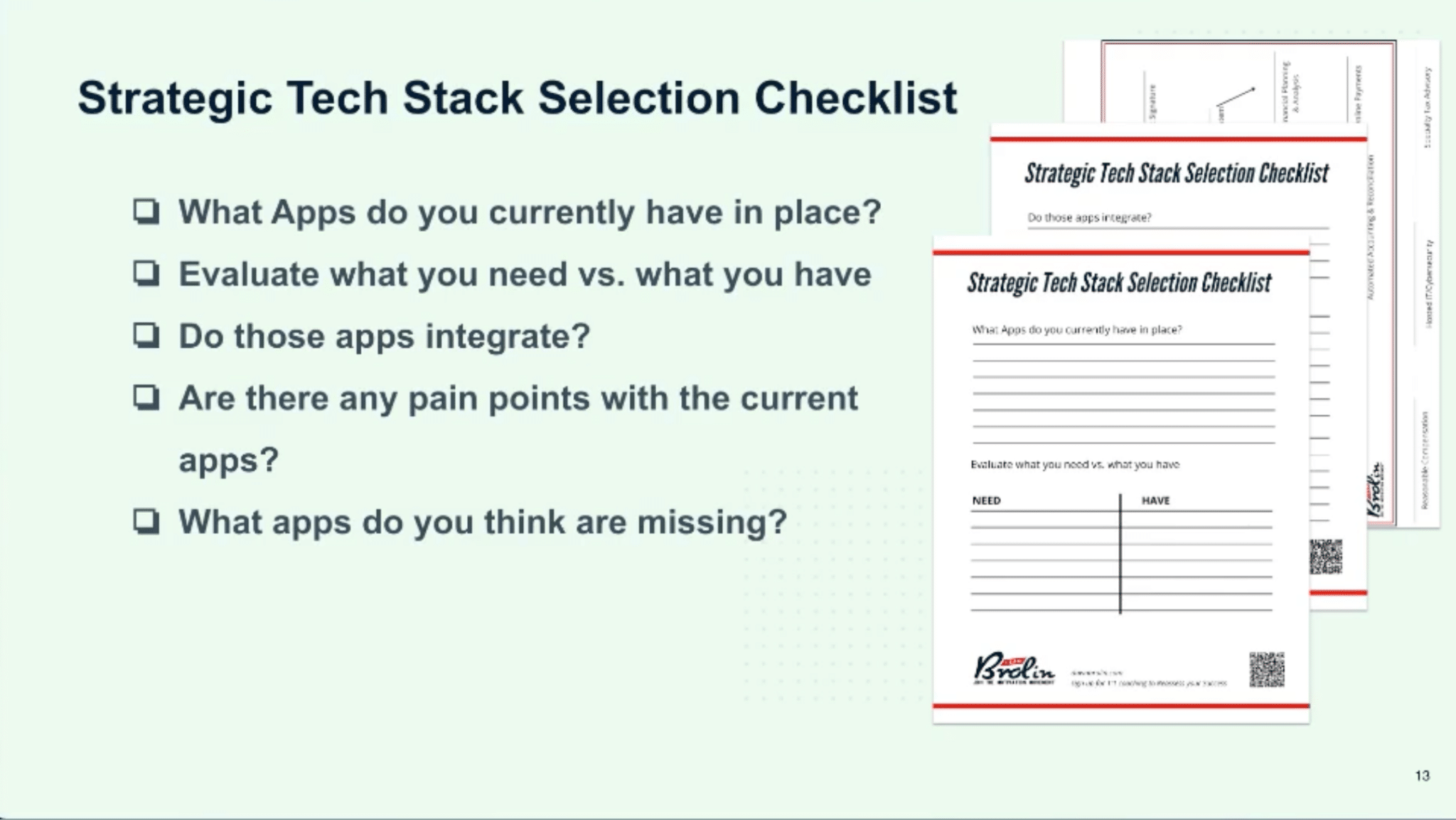
Here’s a tech stack checklist you can use by Dawn Brolin, CPA, CFE:
How Financial Cents Supports a Cloud Accounting Firm
Financial Cents is the second layer of the two-layer you need. It doesn’t replace the first layer, i.e the cloud accounting tool, but rather it manages the work around it by automating some parts and organizing others.
For instance, if QBO or Xero holds the books, Financial Cents handles who reviews exceptions, which client item is missing, what is due, and whether the work is complete.
Here’s how it works:
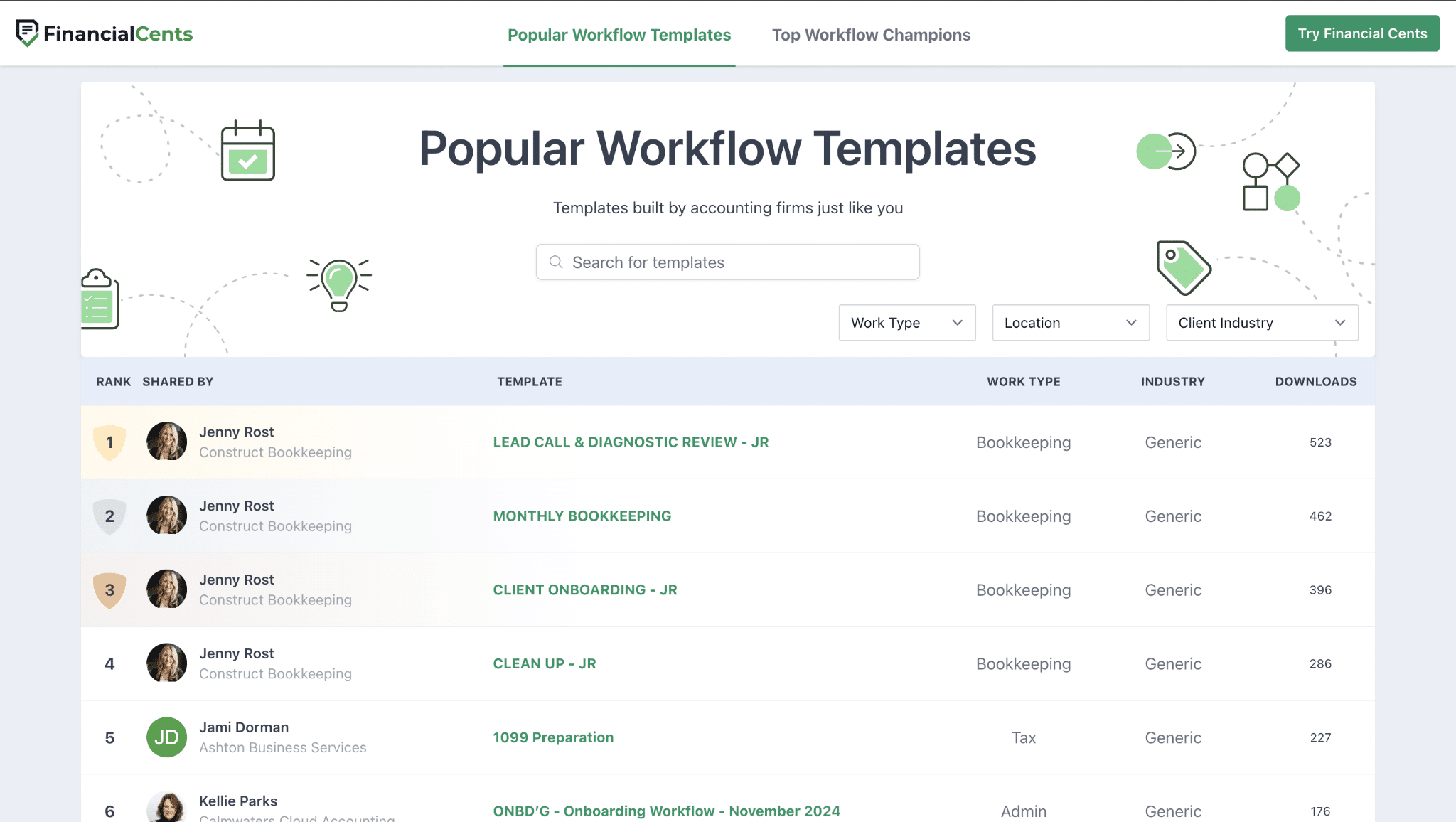
- Recurring workflow templates: Turn your workflow into templates and store them in Financial Cents for future use. Or use any of the 400+ free templates in our template library.
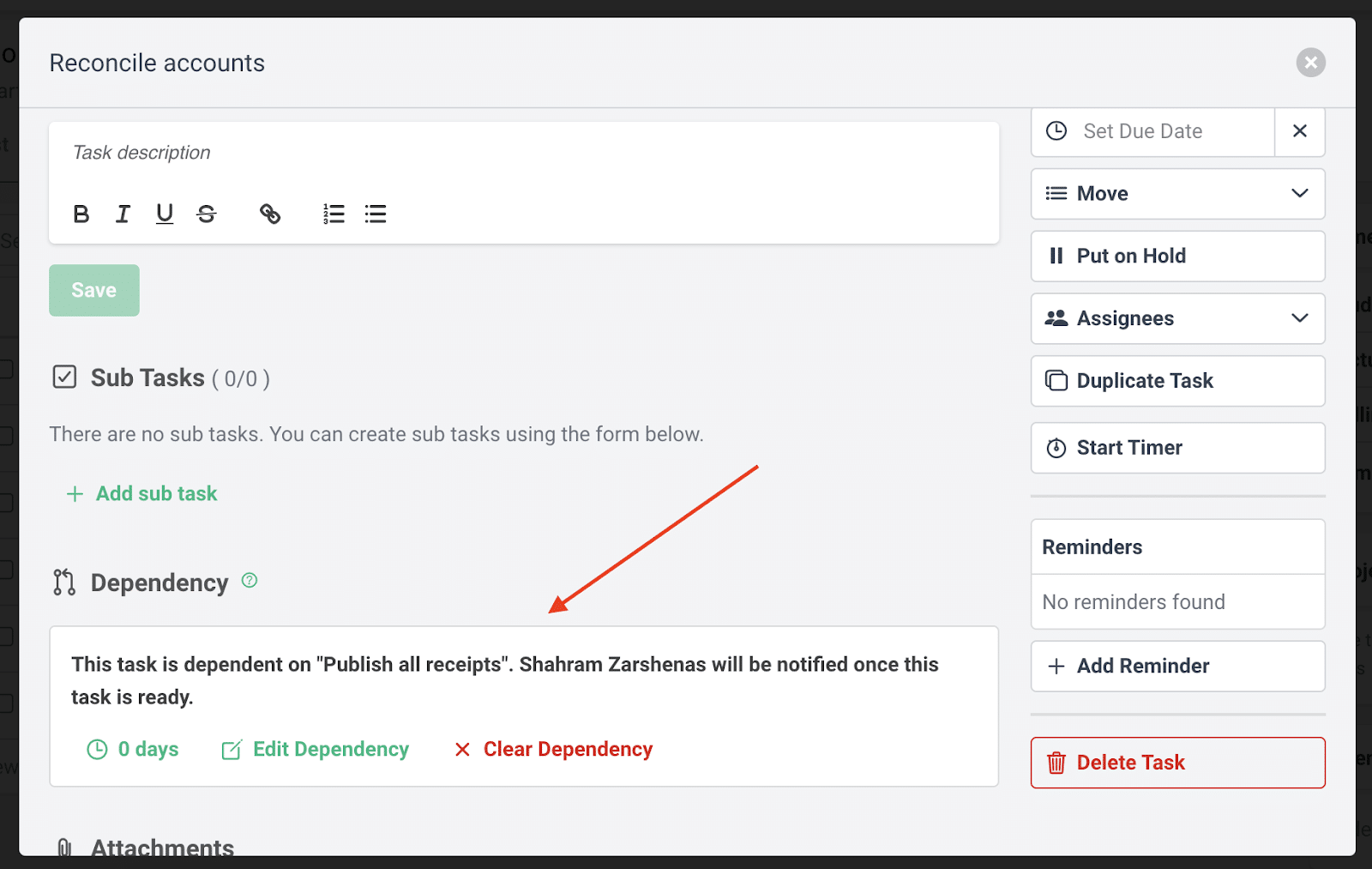
- Task ownership and dependencies: Assign a team member for each step and use dependencies so team members can only start work when the previous step is completed. It’s one of the features Jessica Wong, Finance Director, Fiscally Professional Corporation, loves about Financial Cents: “It’s exciting to have dependent tasks pop up automatically once something else gets done. We love that because it makes sure nothing slips through the cracks.”
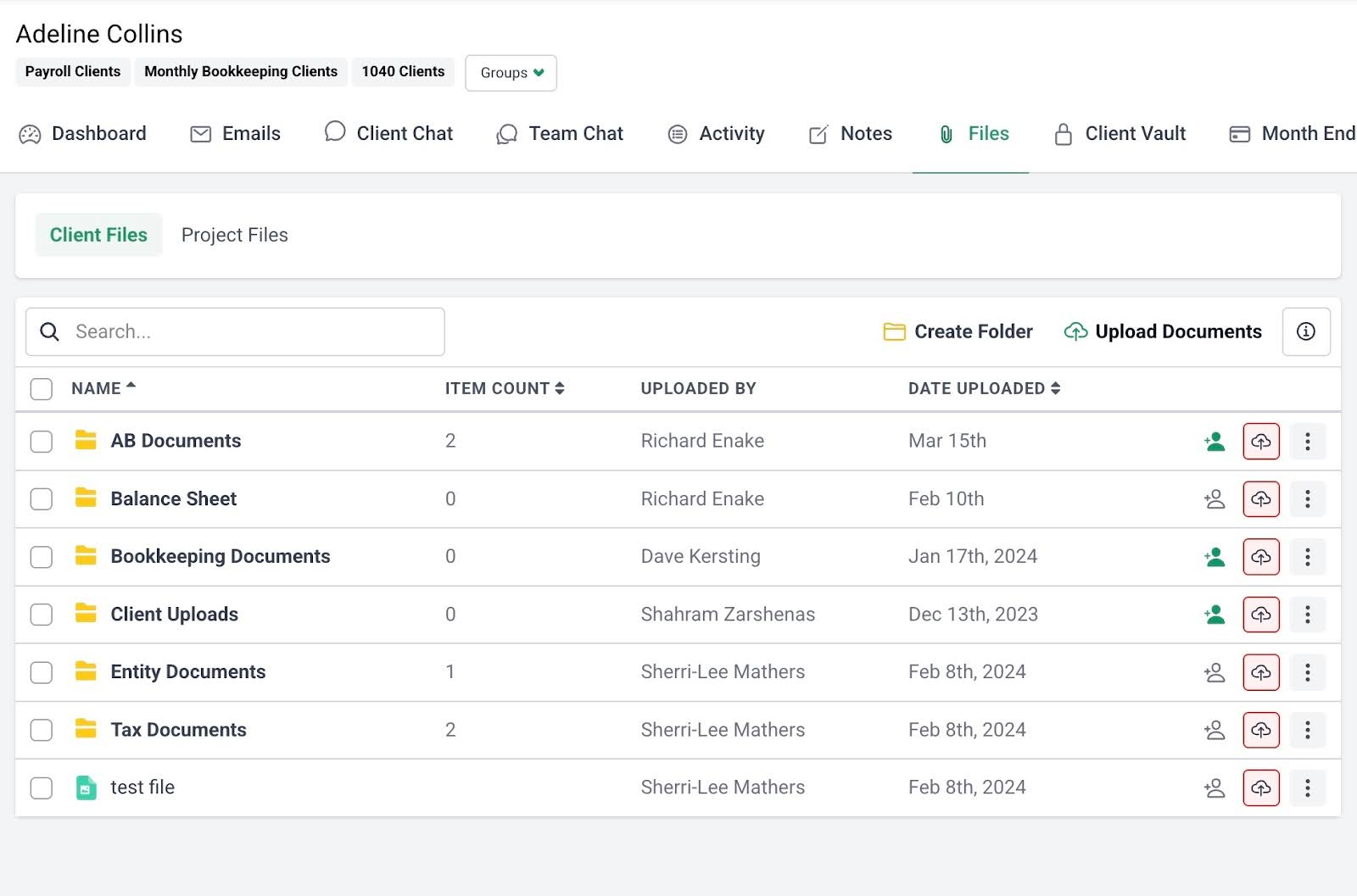
- Client requests and reminders: Request documents from clients, then automate email or SMS reminders until they fulfill your request.
- Secure portal and document management system for accounting firms: Give clients a central place to upload, access, and share documents, while keeping client requests and communication connected to the work. No disjointed email threads or lost messages again.
- Integrations: Connect Financial Cents with other tools like Google Drive, OneDrive, Zapier, QuickBooks Online, SmartVault, Ignition, and Anchor so you can easily move data and work between systems.
- Capacity management: See how many hours each team member has worked, identify overloaded staff, and rebalance work before deadlines slip.
- Reporting: Get insights on revenue and profitability, realization, time tracking, budget, capacity, utilization and other operational metrics so you can make data-driven decisions.
Start a free 14-day trial of Financial Cents
Frequently Asked Questions (FAQs)

Abdullah Almsaeed is the co-founder and CTO of Financial Cents. With more than 18 years in software development, he leads the team building Financial Cents' workflow, automation, and AI features for accounting and bookkeeping firms.
Share this article