
Every accounting firm owner knows the pain of getting documents from clients. You send a request, wait weeks for a reply, and follow up again and again. When the files finally arrive, they’re named scandoc_001.pdf and img_1234.jpg, and half are for the wrong year or the wrong account. Then someone on your team has to spend an afternoon renaming, checking, and filing them before anyone can use them.
As such, it’s no surprise that getting documents from clients is the top workflow issue accounting firms face, according to Financial Cents’ 2025 State of Accounting Workflow and Automation Report. In fact, the 816 firm owners surveyed ranked it as a pain point even higher than manual administrative tasks.
Accounting document automation fixes much of this. Beyond using optical character recognition (OCR) to extract text from documents, firms can automate the entire process, from requesting files and checking their contents to renaming and organizing them. This makes document collection and management faster and takes pressure off your team.
We share 10 accounting document processes you can automate, explain how they work and show you which ones to prioritize first.
TL;DR
- Accounting document automation reduces manual work involved in requesting, collecting, checking, organizing and processing client documents.
- The biggest time savings come from automating requests and reminders, since getting documents from clients is the top workflow issue firms face according to Financial Cents’ report.
- Financial Cents’ AI agents can read each client upload to check that it matches the request, rename it to your firm’s convention, and file a copy in the right client folder.
- Document automation for accounting firms works best when everything, from requests to uploads, happens in the same tool.
What Is Accounting Document Automation?
Accounting document automation uses software and AI to reduce the manual work involved in requesting, collecting, verifying, organizing, and processing documents.
Instead of sending every reminder, checking every upload, renaming files and moving them into the right folders by hand, you can let software handle those steps.
Why Manual Document Handling Breaks Down
Handling documents manually may work when you have only a few clients. But as your firm grows, the volume of requests, uploads and follow-ups increases, making it harder to keep everything organized and on schedule. Here are five places where it breaks down.
Chasing Emails That Get Ignored
Clients get busy and may not respond to document requests promptly. Your team then has to send follow-up emails, track outstanding requests and remember when to contact each client again. Doing this manually across dozens of clients takes time away from other work and makes it easier to overlook a follow-up.
Inconsistent File Names That Make Documents Hard to Find
Clients often upload files with generic names, and this creates a lot of work for your team, as you then have to open each file to see what it is and rename it properly. Otherwise, it’ll be difficult to find a specific file months later.
Wrong or Incomplete Uploads Discovered Too Late
A client might upload a bank statement for the wrong month, leave out a page or send an incomplete set of tax documents. If you’re handling uploads manually, you probably can’t check every file as it arrives, and only discover the problem when you need the document. This causes delays and can affect deadlines, as you then have to pause the work and contact the client again.
Files Dropped in the Wrong Folder
When you handle documents manually, you can accidentally save a file in the wrong client folder or project. This makes it harder for teammates to find the document when they need it and increases the risk of someone working with the wrong file.
Reviewer Time Spent on Clerical Checks
If your bookkeepers or reviewers spend more time checking documents instead of the books or returns, that’s not a good use of their time and expertise. This leaves less time for the substantive reviews and advisory work they’re there to do.
10 Accounting Document Processes You Can Automate
1. Recurring Document Requests
One of the first processes you should automate is document requests. If your firm handles monthly bookkeeping, quarterly reviews or annual tax returns, you probably request many of the same documents from the same clients repeatedly. Building each request list from scratch takes time and makes it easier to miss something important, so it just makes sense to automate it.
You can do this by building reusable workflow templates that list the documents required for each engagement, then saving them in a place everyone can easily find and use. For example, a monthly bookkeeping template might request bank statements and payroll summaries for a specific month, while an annual tax preparation template might request W-2s, 1099s and other relevant tax documents.
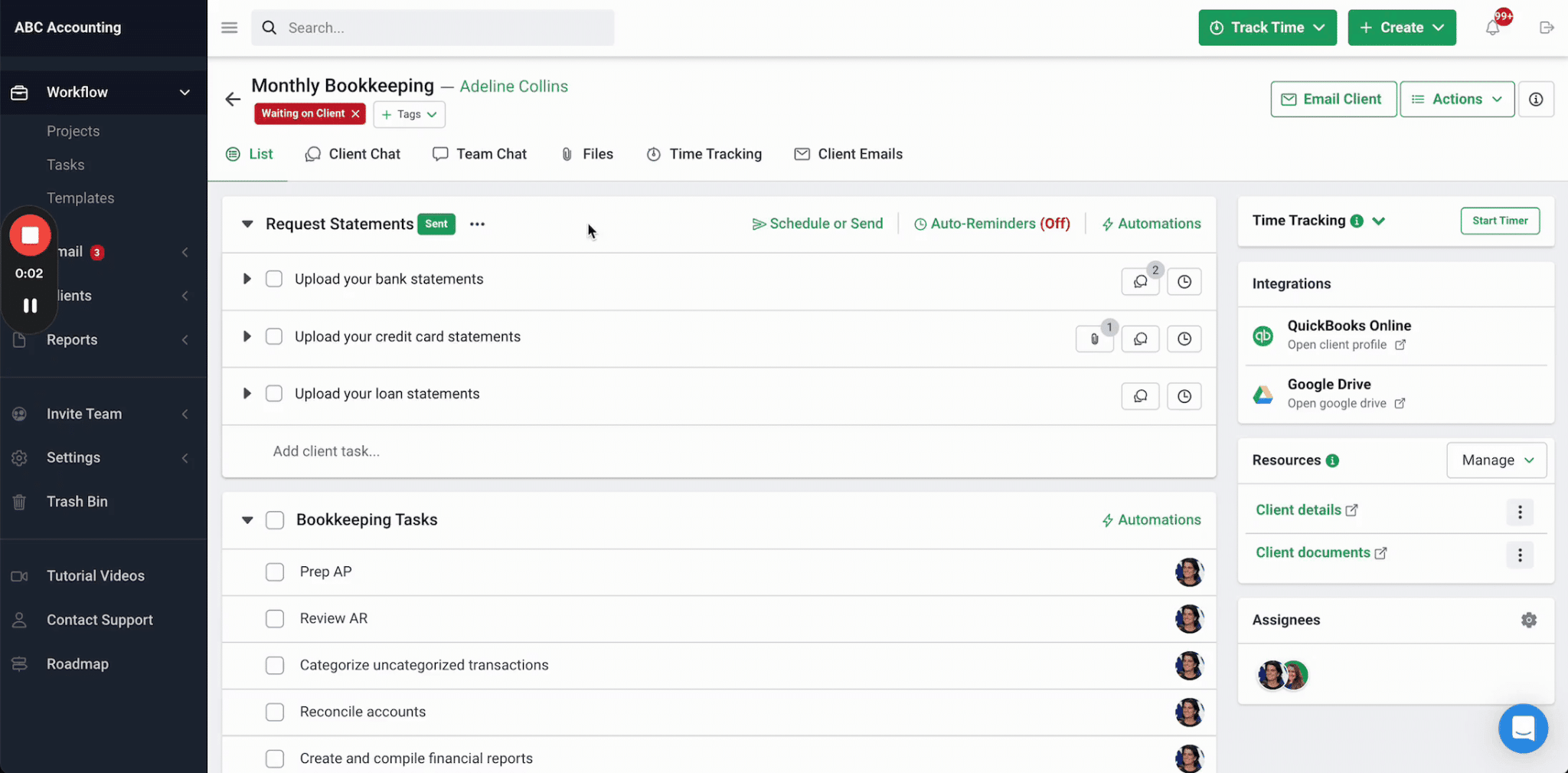
Take it one step further by creating the templates in Financial Cents, then adding client tasks to the template, and scheduling them for a specific date. When the project recurs, the system can send the requests on schedule without requiring someone to create and send them manually. You can also configure requests to go out only after an earlier project section is complete.
Remember to make each request specific. State the required period, account or institution, and due date rather than asking clients to just “send the documents.” Clear instructions increase the chances of you getting a faster response.
2. Follow-Up Reminders for Outstanding Items
Many clients need a follow-up or two before they send everything. Instead of managing these requests in a spreadsheet or relying on memory, set up an automated reminder schedule that fits your accounting workflow.
For example, you might send the first reminder a few days after the initial request, another as the deadline approaches, and flag overdue requests for a team member to follow up personally.
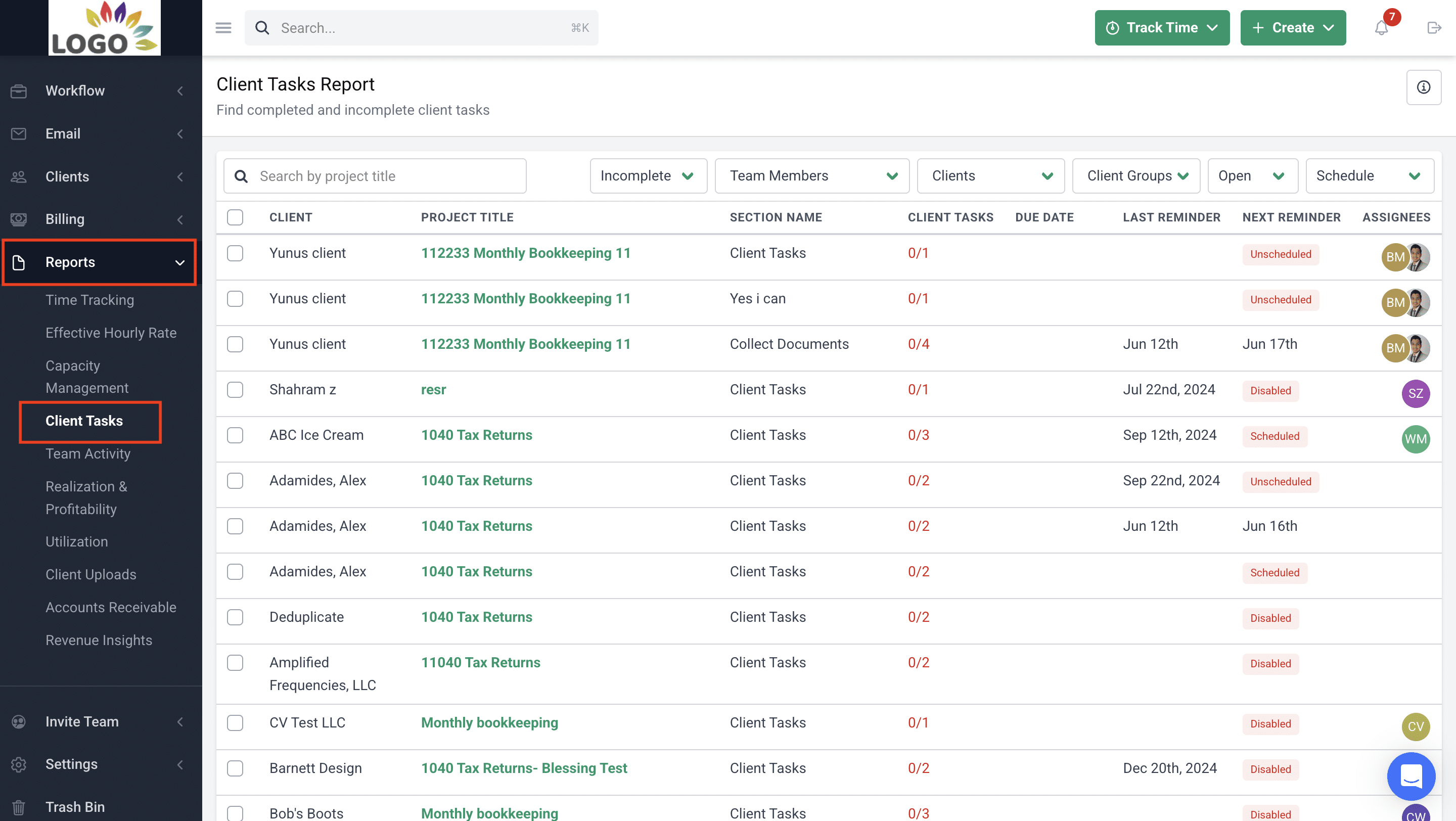
With Financial Cents, you can enable automatic reminders for client task requests. It allows you to customize the body of the email notification, choose how often they go out, and the system sends email and SMS reminders until the client completes the request list, then stops.
You can also track outstanding requests through the Client Tasks Report, making it easier to identify overdue items that need staff attention.
3. Intake and Linking Uploads to the Right Request
Client uploads should go straight to the project they belong to, not a general folder or inbox. Otherwise, your team has to open each file to work out which client sent it and which task it’s for.
You can reduce this extra work by asking clients to upload documents directly against the request they’re completing. For example, when a client uploads a March bank statement to the March bookkeeping project, the file stays attached to that specific task alongside all instructions and context.
Your team can then see what the client submitted without searching through email threads or trying to match files to the right project. As Isaac Perdomo, Co-Founder of Opzer, says:
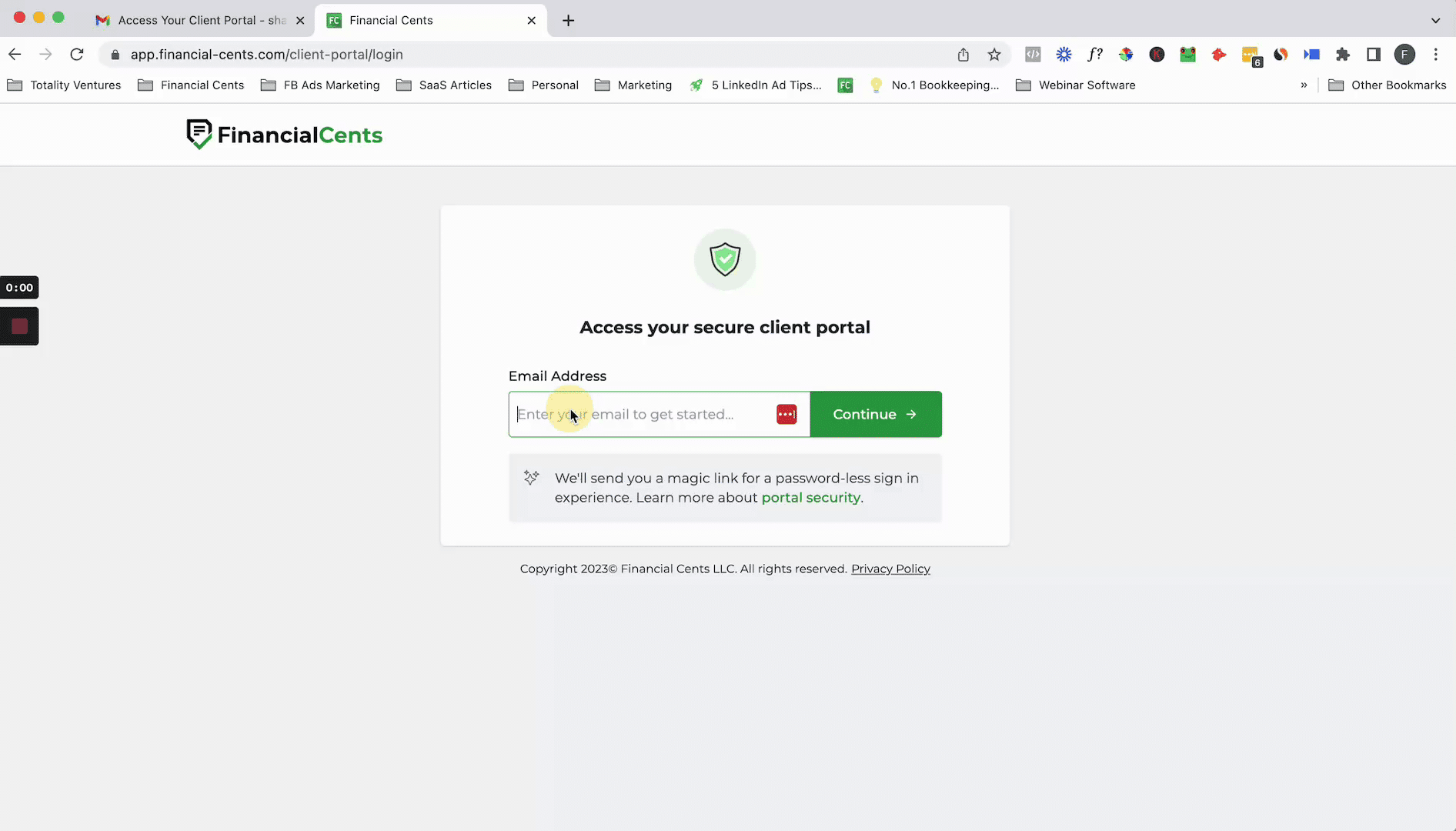
Financial Cents supports this through Client Tasks and its client portal. You can create document requests within the relevant project, add clear instructions and due dates, then send clients a link to access their requests.
Clients don’t need a username or password to access the portal; they just need to type in their email address and click the Access Your Secure Portal button in the email sent to them to log in:
4. Checking Whether an Uploaded File Matches the Request
Clients don’t always upload the document you asked for. You might request a September bank statement and receive one from August, or ask for a statement from Chase and get one from another bank.
If you don’t catch these mistakes at upload, it may not be until you’re ready to start work that you discover it. And it’ll potentially delay the project because you have to contact the client again and wait for the correct file.
Financial Cents’ AI File Validator helps you catch these issues during intake. It compares the uploaded document’s contents with the relevant request, project and client context, then flags likely mismatches like wrong accounting period, document type, account, or financial institution.
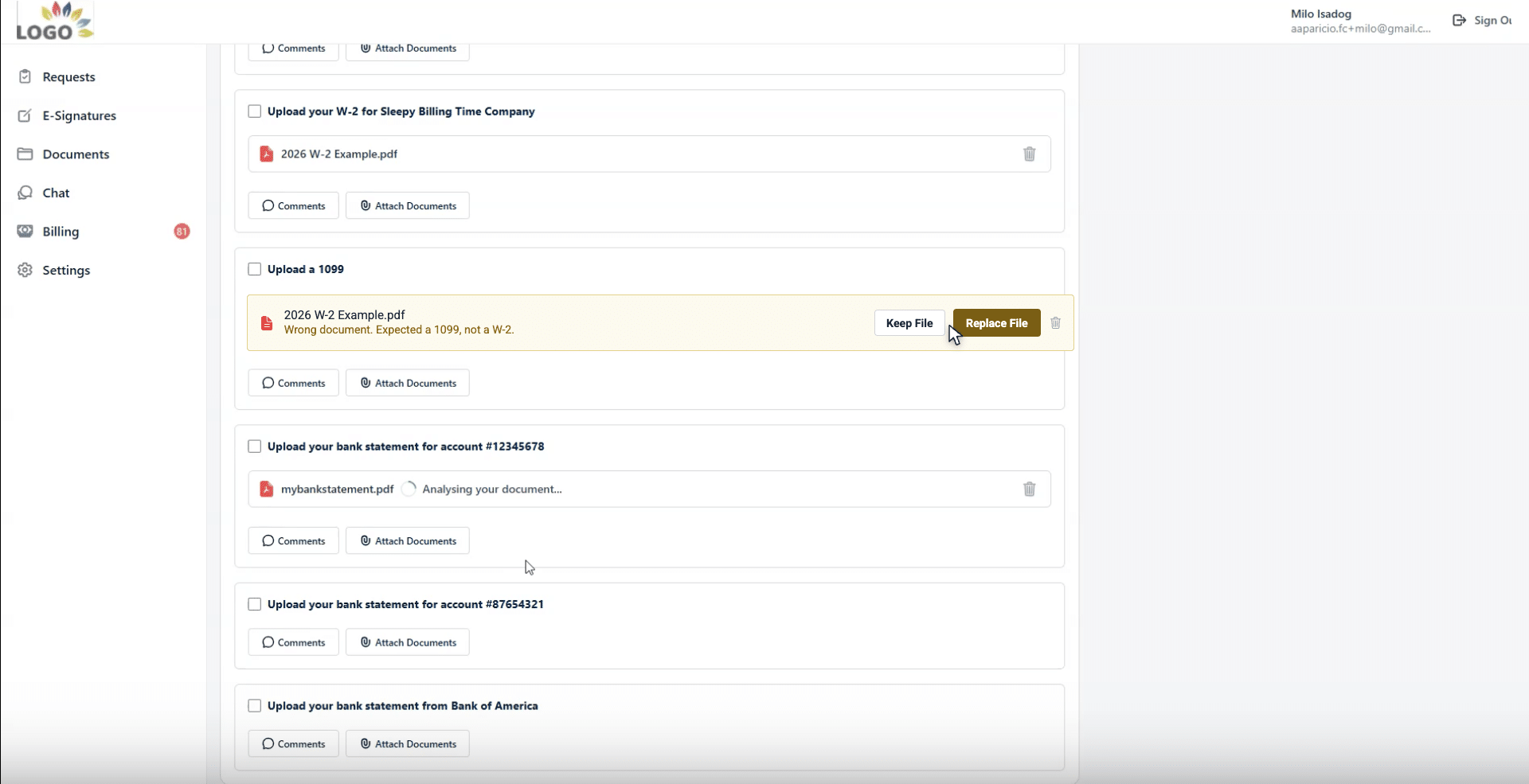
The validator only flags a file when it’s highly confident something is wrong. If it can’t tell, it stays quiet. Clients can override a flag if they believe the document is correct, and your team can see the override for full context.
However, you still need to review all files, even unflagged ones, for authenticity and correctness. The validator only checks that it’s the same document requested for, not that it’s legitimate or its figures are correct.
Behind the scenes, this relies on AI document classification, which identifies what a file is from its contents rather than its filename.
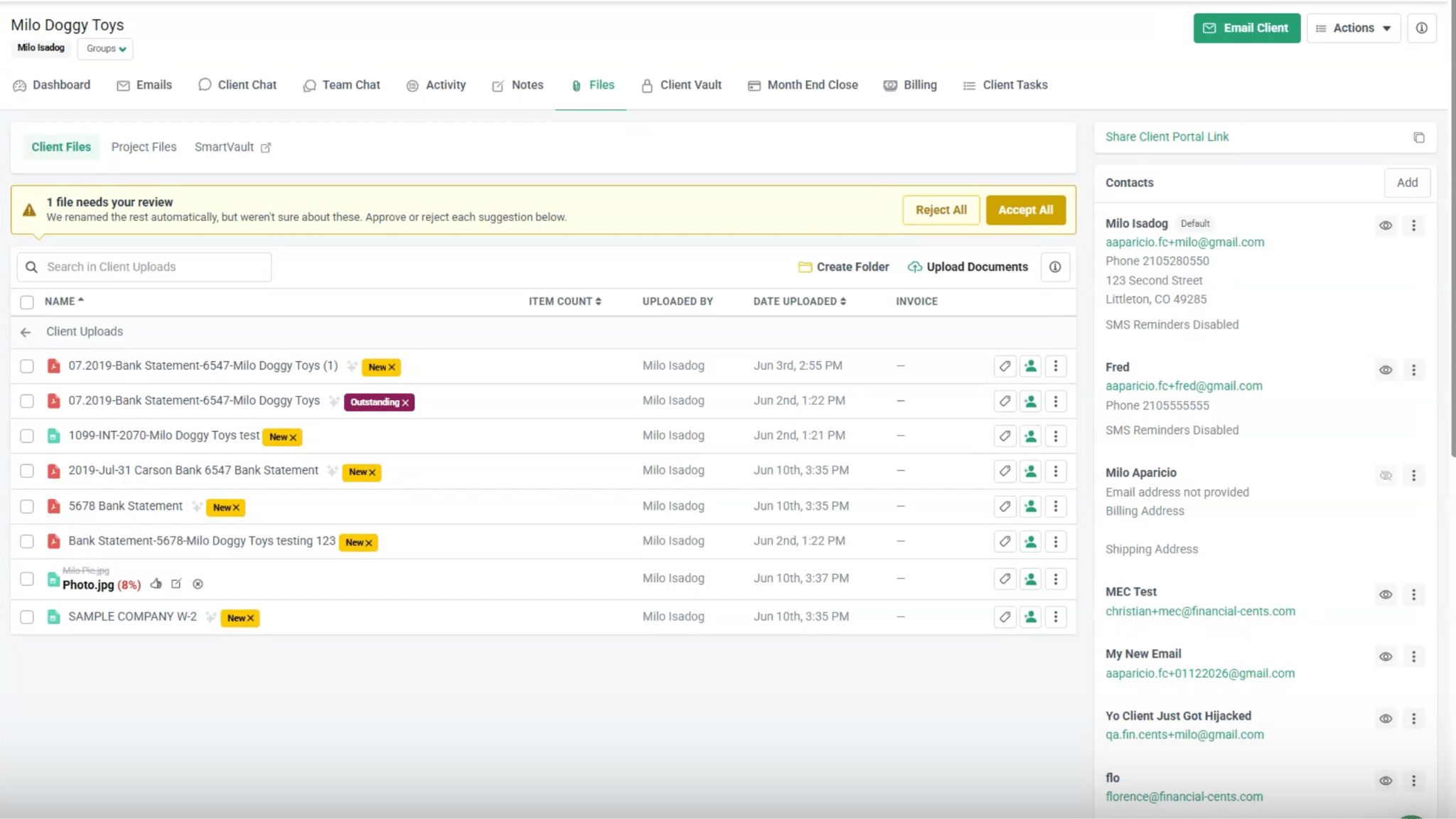
5. Renaming Files to Follow a Consistent Convention
A consistent naming convention makes files easier to identify and retrieve when you receive files like scan_001.pdf, IMG_4471.pdf or statement_final.pdf. For example, per your firm’s naming convention, a bank statement dated March 2026 could be named 2026-03-Bank-Statement.pdf. With this, team members can recognize the document without opening it first.
With the accounting AI File Renaming agent, you can configure it to follow your preferred naming convention, then choose how much autonomy you want to give it:
- Always Ask: The agent suggests a filename, and your team has to approve, edit or reject it before applying the change.
- Just Do It: The agent renames files automatically when it has sufficient confidence. If confidence is low, it flags the suggestion for review instead.
Note: Avoid including full bank account numbers or other sensitive information in filenames. A partial account identifier is enough and can help distinguish accounts without exposing unnecessary financial details.
If you also need to rename files outside your practice management platform, such as legacy folders or files on your desktop, compare the best AI file renaming tools for accounting firms.
6. Routing Files Into the Correct Client Folder
Renaming a document makes it easier to identify, but your team still needs to store it in the right place. If staff must open files individually and move them into the appropriate folders, accounting document management and organization can remain a time-consuming task.
Financial Cents has an AI File organizer for accountants that uses the document’s content and context to identify the right folder and store it there. So when a client uploads a file through a Client Task, the agent can file a copy in the appropriate existing folder for that same client. The original file stays attached to the task, so your team can still access it alongside the request.
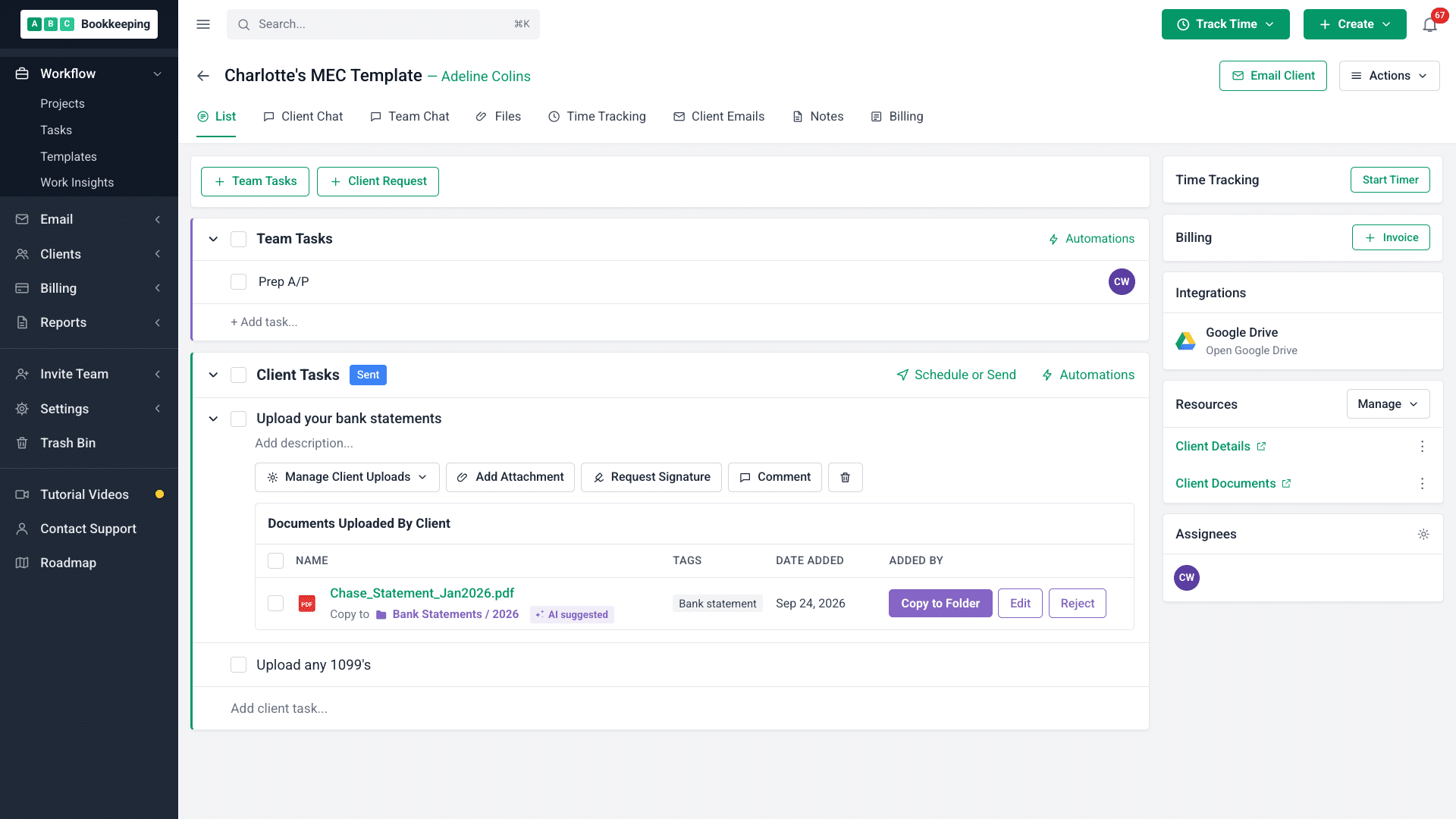
Like the AI file renaming agent, you can either give it total control with the Just Do It mode or review every folder suggestion with the Always Ask mode.
Note: The agent selects from existing folders; it doesn’t create new folders or reorganize your document library. Before enabling automatic filing, make sure your client folders have clear names and that the right team members have access to them.
7. Synchronizing Documents With Cloud Storage
Many firms store client files in Google Drive or OneDrive while managing their work in top practice management systems. Without a connection between these systems, staff may have to download files from one platform and upload them to another. This creates extra work and can leave you with multiple copies of the same document.
Connecting your cloud storage to your practice management software keeps files accessible in both places and reduces manual file transfers.
Financial Cents offers two-way syncing with Google Drive and OneDrive or SharePoint. Once you connect your account and configure the relevant folders, anytime you add, edit, or delete a file in one system, the change appears in the other.
You can also configure Financial Cents to create a corresponding folder in your connected storage when you add a new client.
Before enabling sync, check your team’s access permissions and confirm that each client maps to the correct folder in OneDrive or SharePoint.

8. Automating Staff Notifications and Workflow Handoffs
How do you notify team members once document collection is done and it’s time to move to the next stage of the project? You can either send them an email or message internally or take the more efficient method and automate status changes and handoffs.
For example, once a client submits all the documents required for tax preparation, the assigned preparer should see that the intake stage is ready for review. The preparer can then check the files, follow up on missing information, and move the work forward without monitoring every client task or messaging people.
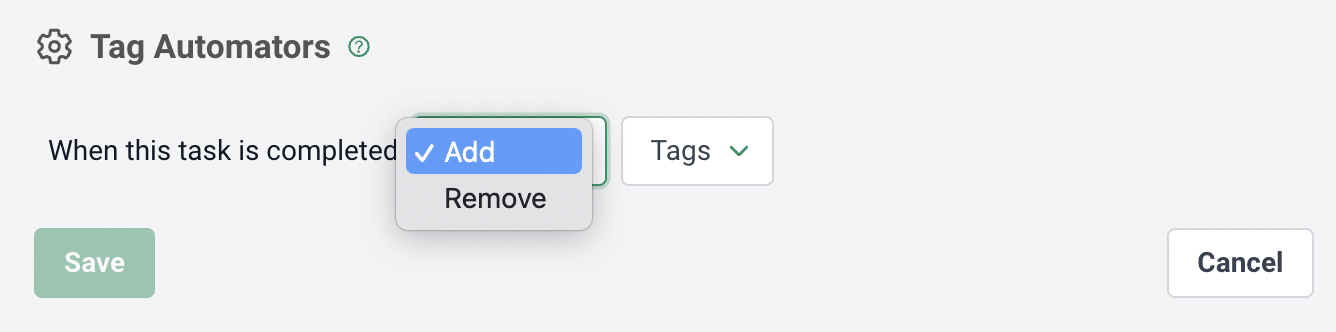
In Financial Cents, you can use tag automators to update the project status automatically based on configured tags. When you send client tasks, the project’s status automatically changes to “Waiting on client info.” Once the client completes the request list, you can set it to remove that tag. You can also add other tags like “in review” to reflect the stage of the project.
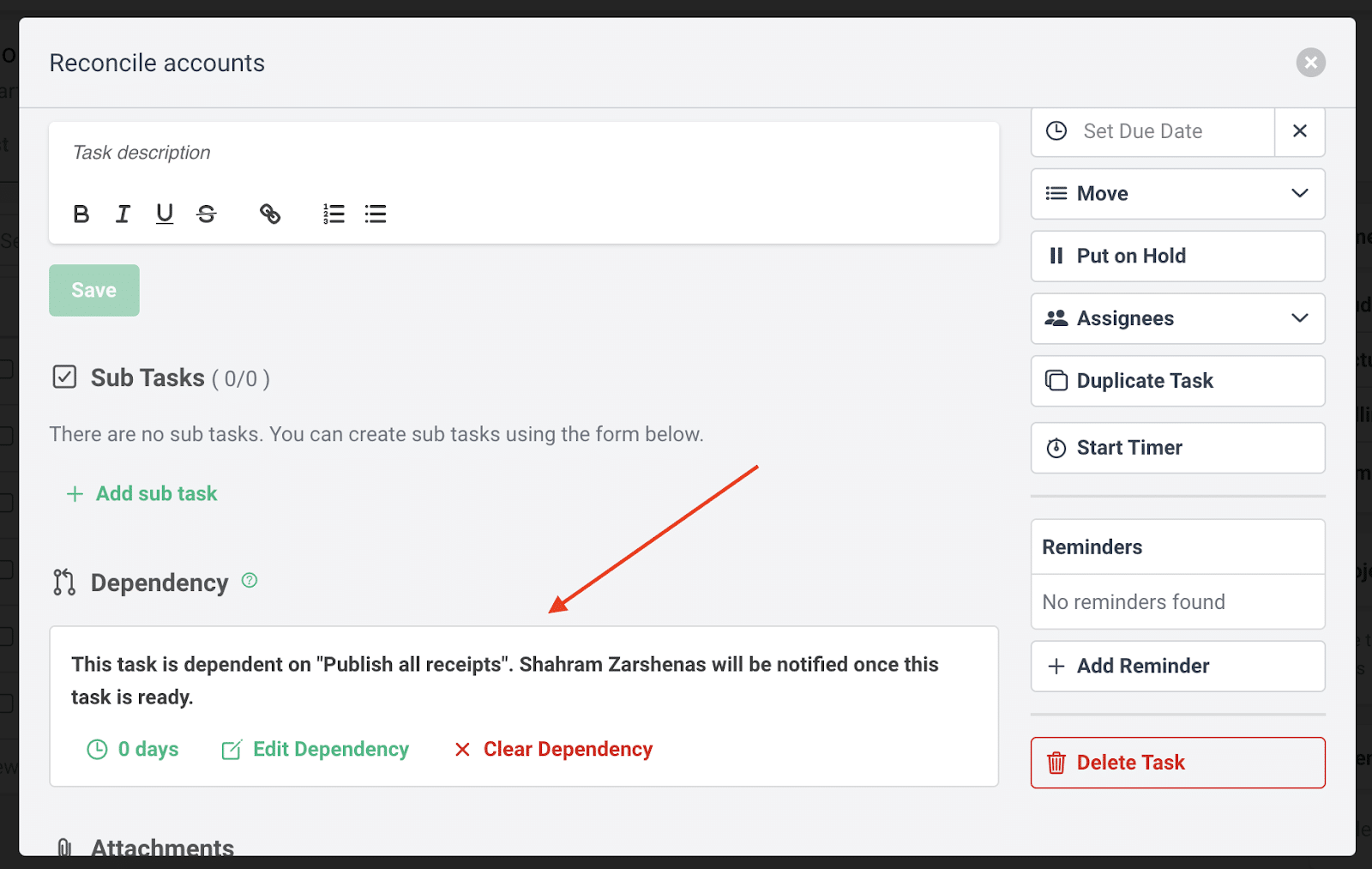
You can also set up task dependencies so the next task starts only after the required work is complete. For example, you can make a preparer’s review task depend on the completion of the document collection stage. Once that stage is done, the preparer gets notified that it’s their turn.
“Financial Cents is great at alerting to things. It alerts when it’s your turn to work on the project,” says Jenna Rodriguez, CPA. “There are plenty of alerts, so you know what’s going on without having to dig through your work project pile in your workflow software,” she continues.
9. Extracting Data From Receipts, Invoices, and Statements
Another document process you can automate is pulling key details from receipts, invoices and bank statements. This saves the effort of manually entering each vendor name, transaction date, and amount into the books.
OCR and specialist data extraction tools can read document contents and convert relevant information into structured fields. Say your firm receives an invoice on March 12, 2026, for $450. The extraction tool identifies the vendor, date and amount and prepares those fields for review or transfer into the ledger.
You still need to verify the extracted information against the original before using it, but it reduces manual entry and saves time significantly.
10. Preparing Standard Client Documents From Templates
Accounting firms often prepare similar documents for multiple clients, like engagement letters, invoices and financial reports. Creating each document from scratch takes time and can lead to inconsistent formatting or outdated information.
That’s why you should create reusable templates instead and populate them with approved information, such as the client’s name, business details, service scope, fees and reporting period. For example, your firm can use an engagement letter template for monthly bookkeeping, then update each copy with the client’s agreed scope, billing terms and start date.
Financial Cents offers over 400 free workflow templates for processes such as monthly bookkeeping, client onboarding and annual tax preparation, so the steps around each document are standardized too. For engagement letters, you can use engagement letters and proposal templates inside the software. You can also create and store your own templates in the software, so your team can access and reuse them.
Stelle Anderson, Owner of Infinite Accounting Solutions, loves the template library. She says:
Read: How to Collect Documents From Accounting Clients
Human Review Matters Now More Than Ever
AI accounting can reduce manual document work, but it can still make mistakes, especially with unclear, incomplete, or unusual documents, so check its output before you rely on it. The Financial Cents’ State of AI in bookkeeping & accounting report found that 90% of professionals agree human judgment matters more, not less, in this AI era. Only 19% trust AI output enough to use it with limited review.
What to Automate First: A Prioritization Framework
Not sure what to automate first? Start with tasks that your team repeats across multiple clients, spends significant time on and often gets wrong. “Every automation should tie back to one of three outcomes: either giving you time back, reducing errors, or expanding your margins,” explains Isaac Perdomo, Co-Founder of Opzer.
Automate document requests and reminders first, then portal uploads tied to tasks, then AI renaming, validation, and routing in review mode.
Here’s a prioritization framework you can use:
- Document requests and reminders: Start here because firms request documents from almost every client and automating this process helps your team spend less time chasing outstanding files.
- Portal uploads tied to tasks: Ask clients to upload files through portal tasks so each document stays linked to the relevant request. This reduces the time your team spends searching through emails for the right files.
- AI file renaming in review mode: Next, use AI features for accounting firms to automate file naming, but start in Always Ask mode so your team can review each suggestion and get used to how the AI agent works.
- AI file validation: Then use the file validator to flag uploaded files that may not match the requested document type, period or client context.
- AI file routing: Add AI File Routing to file a copy of each client upload in the right folder. Keep it in Always Ask mode at first, too.
Common Mistakes With Document Automation for Accounting Firms
Here are some mistakes firms make when automating their document processes.
Automating a Messy Process
If your workflow is inconsistent, with different naming conventions from person to person or no set order of steps, clean it up before you automate it. Accounting Automation follows whatever process you give it, so a disorganized process produces disorganized results, only at scale. Standardize and document your workflow first, then automate it.
Turning on Auto Mode Too Early
Letting AI act on its own saves the most time, but you shouldn’t enable it too early. Start in review mode, where your team checks each suggestion, and watch how well the tool performs the task. Once you can verify it works well, then you can turn on auto mode.
Sending Too Many Reminders to Clients
Too frequent reminders can annoy clients and make them less likely to pay attention to your messages. So space reminders out and make sure they stop when clients complete their requests. For overdue requests, have staff follow up personally and explain.
Making It Hard for Clients to Adopt
If the accounting document management software is too hard to use, clients won’t use it, which defeats the purpose. So choose a tool like Financial Cents that doesn’t require a username and password and is easy for clients to use.
Manage All Document Processing Automation in Financial Cents
Instead of using separate tools to request documents, send reminders, and validate, rename, and route files, you can handle every process in a single tool like Financial Cents.
This software brings each document step to the client’s project, so your team doesn’t have to jump between tools or pay for several subscriptions.
You can create document request lists, send automated reminders, collect files through client tasks, and use AI agents to rename, validate and route uploaded documents (at no extra cost!). Your team can also create and access workflow templates in the same platform.
And document workflow automation is only part of what Financial Cents offers. It is an all-in-one accounting practice management software that also allows you to manage recurring workflows, collaborate with clients and staff, track time, run reports and monitor team capacity. These features help your firm stay organized and meet deadlines.
As Kim Ritter, Owner of Ritter’s Tax & Accounting Services, says:
Want to see how Financial Cents can help your firm manage document workflows? Book a Free Demo or Start your free 14-day trial and explore the features for yourself.
Frequently Asked Questions (FAQs)

Abdullah Almsaeed is the co-founder and CTO of Financial Cents. With more than 18 years in software development, he leads the team building Financial Cents' workflow, automation, and AI features for accounting and bookkeeping firms.
Share this article