Resolving uncategorized expenses can be tedious for bookkeepers.
You have to review each transaction, determine what it was for, follow up with clients for missing details, and assign it to the correct account. The more clients and uncategorized expenses you manage, the longer this takes. And you need to resolve them before you can close the books. Otherwise, they can distort the profit and loss (P&L) statement, affect the client’s decisions, and create problems during tax filing.
A consistent process can make this work easier. It helps you identify uncategorized expenses, get the information you need from clients, resolve transactions accurately, and prevent the same issues from recurring.
In this guide, you’ll learn how to build that process so you can resolve uncategorized expenses and close your clients’ books faster.
TL;DR
- Uncategorized Expense in QuickBooks Online holds expense transactions that haven’t been assigned to the appropriate expense account.
- Common reasons why transactions land there include missing transaction details, unfamiliar vendors, an incomplete chart of accounts, and bank feeds without a rule.
- To find uncategorized expenses, check the Chart of Accounts, Profit and Loss report, Transaction Detail by Account report, and bank transactions awaiting review.
- To fix them, confirm what each transaction represents, gather missing information from clients, assign the correct account, and document significant changes. Use the Reclassify Transactions tool to update transactions in bulk.
- To prevent them from recurring, maintain a clean chart of accounts, review bank rules, ask clients questions monthly, and document categorization guidelines.
- Financial Cents’ Month-End Close helps accounting firms review uncategorized expenses, collect client answers and supporting documents, track outstanding questions, and sync approved changes with QuickBooks Online.
What Is an Uncategorized Expense?
An uncategorized expense is a business expense that hasn’t been assigned to the appropriate expense account, such as meals, travel, software, or rent.
QuickBooks Online creates the Uncategorized Expense account automatically and uses it as a holding account until you assign each transaction to the correct expense account.
For example, you might find a $250 credit card transaction in a client’s books with no description or receipt. Without more information, you can’t determine whether the expense belongs under software, office supplies, travel, or another account. You’ll need to check the transaction details or ask the client for more information before you can categorize it correctly.
QuickBooks Online uses similar holding accounts for other transaction types: Uncategorized Income for unexplained deposits and Uncategorized Asset for some imported items. The same find, fix, and prevent process in this guide applies to all three.
Why Expenses Become Uncategorized
Expenses usually become uncategorized when QuickBooks can’t match a transaction to a bank rule, an existing account, or a known vendor pattern, or when the transaction lacks the details needed to classify it.
Here are some reasons why certain transactions become uncategorized and how you can address them.
Bank Feed Imports Without a Rule or Match
When a transaction comes in through a bank feed and doesn’t match an existing bank rule or transaction, QuickBooks may not assign an account automatically. You then need to review and categorize the expense manually.
Control: Create bank rules for the client’s recurring transactions, review them regularly, and update as needed.
Missing or Messy Chart of Accounts
If the chart of accounts has no account that fits a transaction, or has too many overlapping accounts, you may struggle to categorize transactions consistently.
Control: Review each client’s chart of accounts and clarify account names, remove unnecessary duplicates, and ensure the existing accounts cover the client’s business activities. Avoid creating new accounts when an existing one fits.
Transaction Had No Receipt or Context
When an expense has a vague description and no receipt, it’s hard to tell what was purchased, so you can’t categorize it with confidence.
Control: Establish a process for clients to submit receipts and record transaction details promptly. They can also use receipt capture tools that use optical character recognition (OCR) and AI to help extract information from uploaded receipts and reduce manual data entry.
Business Spending You Can’t See
Clients may pay business expenses with cash, personal cards, or accounts that your firm can’t access. These transactions won’t appear in the connected business bank feeds, leaving you without the information you need to record them in the books.
Control: Agree with the client on how they’ll report business spending from cash or personal cards, and ask about these transactions as part of each month-end close.
New Vendors and Unfamiliar Transactions
A transaction from an unfamiliar vendor may not match an existing bank rule or previous categorization pattern, so QuickBooks doesn’t know which account to suggest.
Control: Review new vendors during each month-end close, and create bank rules for the ones that will recur.
Personal and Business Spending Is Mixed
When clients use the same account or card for personal and business purchases, you may not be able to determine which transactions belong in the business books from the bank description alone. Personal purchases can also end up incorrectly recorded as business expenses.
Control: Encourage the client to keep separate business accounts, and flag mixed transactions for client review instead of guessing.
A Transaction Description Changed
Bank rules often rely on transaction descriptions or bank text to identify recurring activity. If a vendor or bank changes the text, an existing rule may no longer recognize the transaction, leaving it in the review queue.
Control: Set rules using consistent details in the transaction description where possible. If a vendor changes its description and transactions stop matching the rule, review and update the rule conditions as needed.
Why Uncategorized Expenses Are a Problem
When expenses remain uncategorized, expense accounts may understate spending, making it harder for clients to assess their profitability. They may also make decisions about budgets, spending, or growth based on incomplete financial information.
Uncategorized expenses can complicate tax preparation. If you overlook a transaction or classify it incorrectly, you may miss a legitimate deduction or report expenses inaccurately. However, assigning a transaction to an expense account doesn’t automatically make it tax-deductible. You still need supporting documentation and must apply the relevant tax rules.
For your firm, if uncategorized expenses accumulate over time, they make reconciliations and month-end close more time-consuming.
How to Find Uncategorized Expenses in QuickBooks Online
There are a few ways to find an uncategorized expense in QuickBooks Online (QBO): review the Chart of Accounts, run a P&L report, run a Transaction Detail by Account report, check the bank feed, and use the Reclassify Transactions tool.
Method 1: Review the Chart of Accounts
Use this method to find transactions already recorded in the Uncategorized Expense account.
- Sign in to your QBO account.
- Click Accounting on the left-hand navigation menu, then select Chart of Accounts.
- Scroll or use the search bar to find the Uncategorized Expense account.
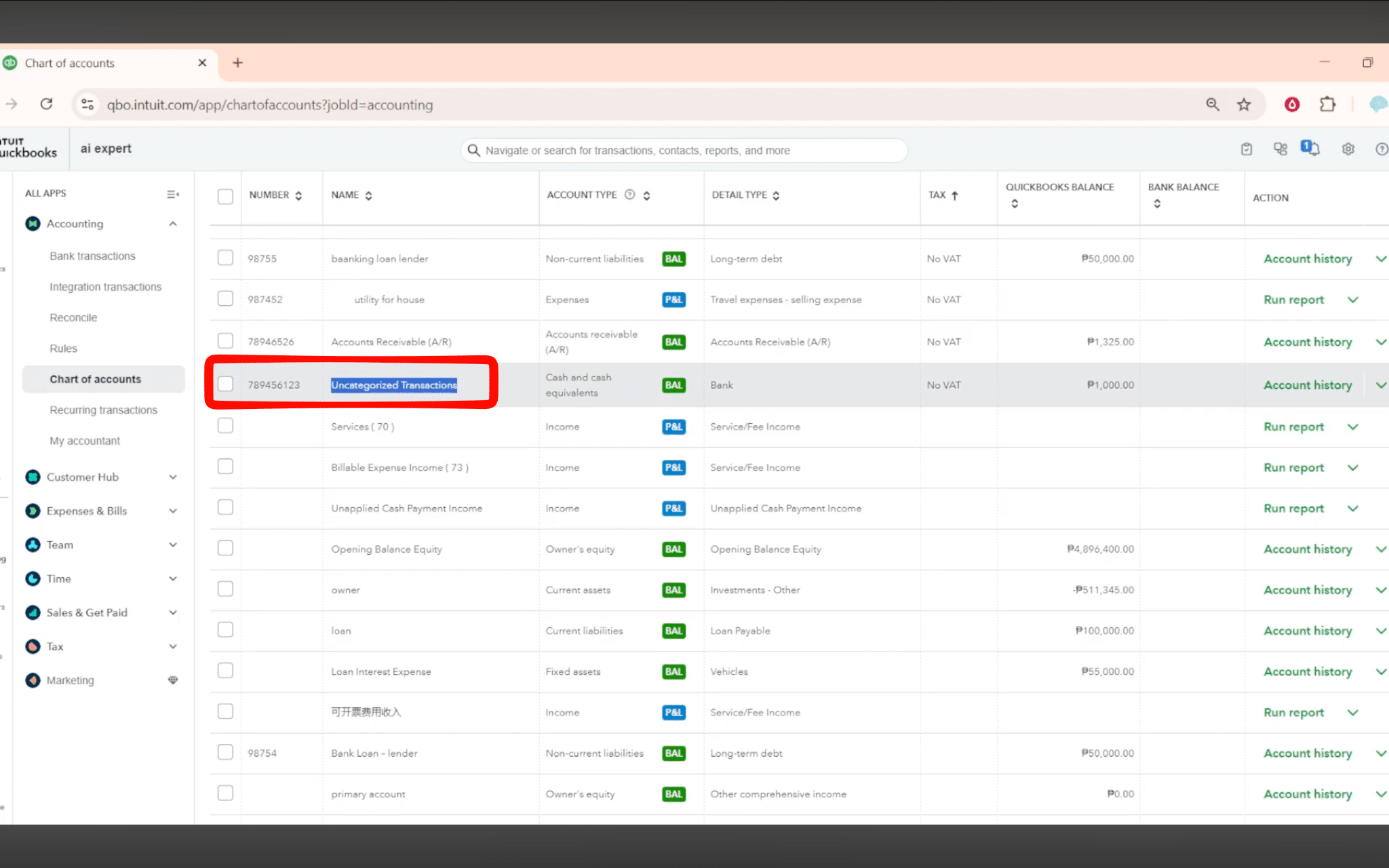
- Click Run Report next to the account to see all uncategorized transactions sitting there, and click any transaction to see more details.
Method 2: Run a P&L Report
The P&L report shows the amount recorded in the Uncategorized Expense account for a selected period.
- Go to Reports and open Standard Reports on the left-hand menu.
- Search for Profit and Loss and open the report.
- Set the report period to the date range you want to review, and select the appropriate accounting method: cash or accrual.
- Run the report and look down the expense list for Uncategorized Expense.
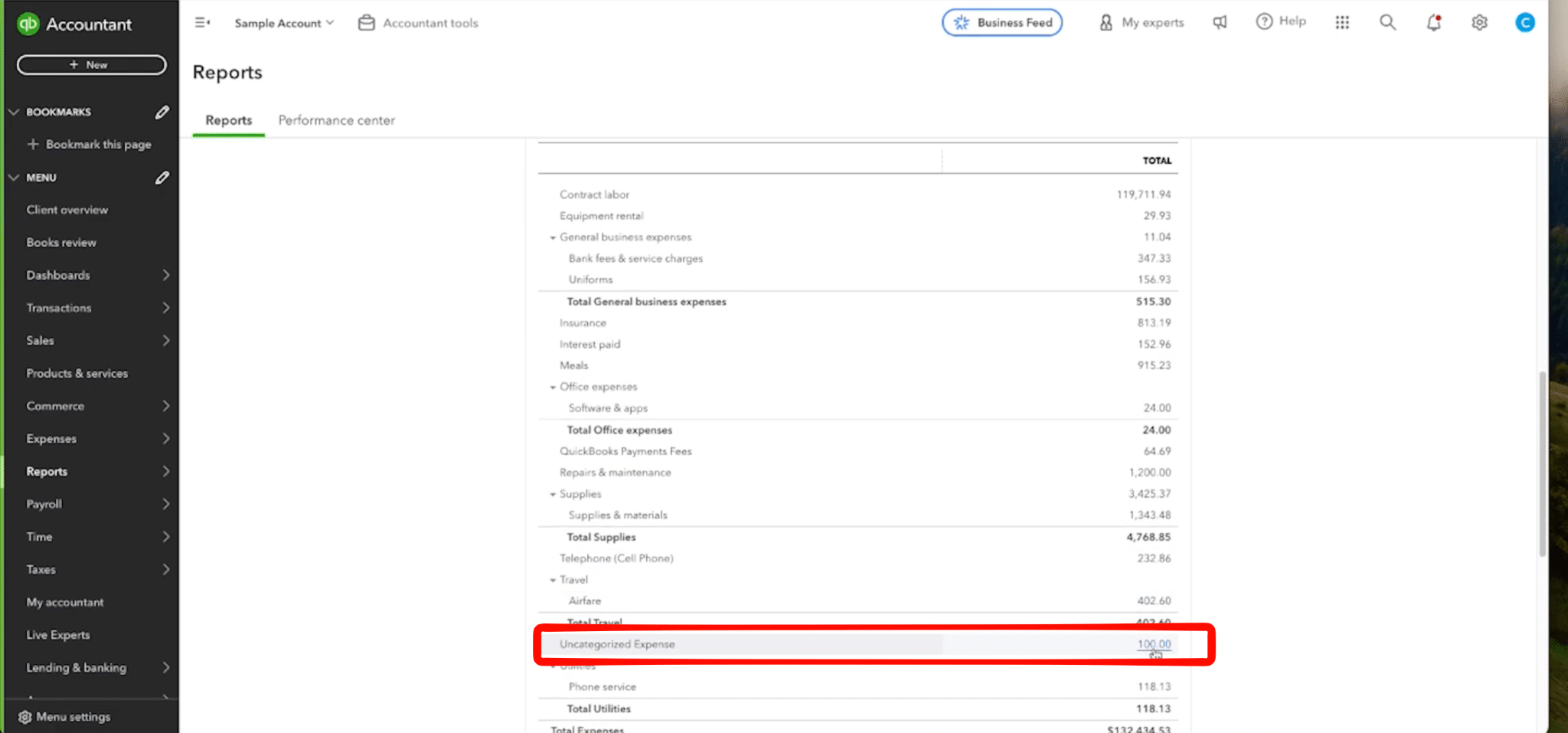
- Select the amount next to it to drill down into the full list of transactions.
Method 3: Run a Transaction Detail by Account Report
Use this report when you need a more complete list to investigate or export.
- Go to Reports, then Standard Reports, and search for Transaction Detail by Account.
- Set the date range you want to review.
- Select Customize and filter the report by the Uncategorized Expense account. Depending on the report layout, you may need to use the Distribution Account filter.
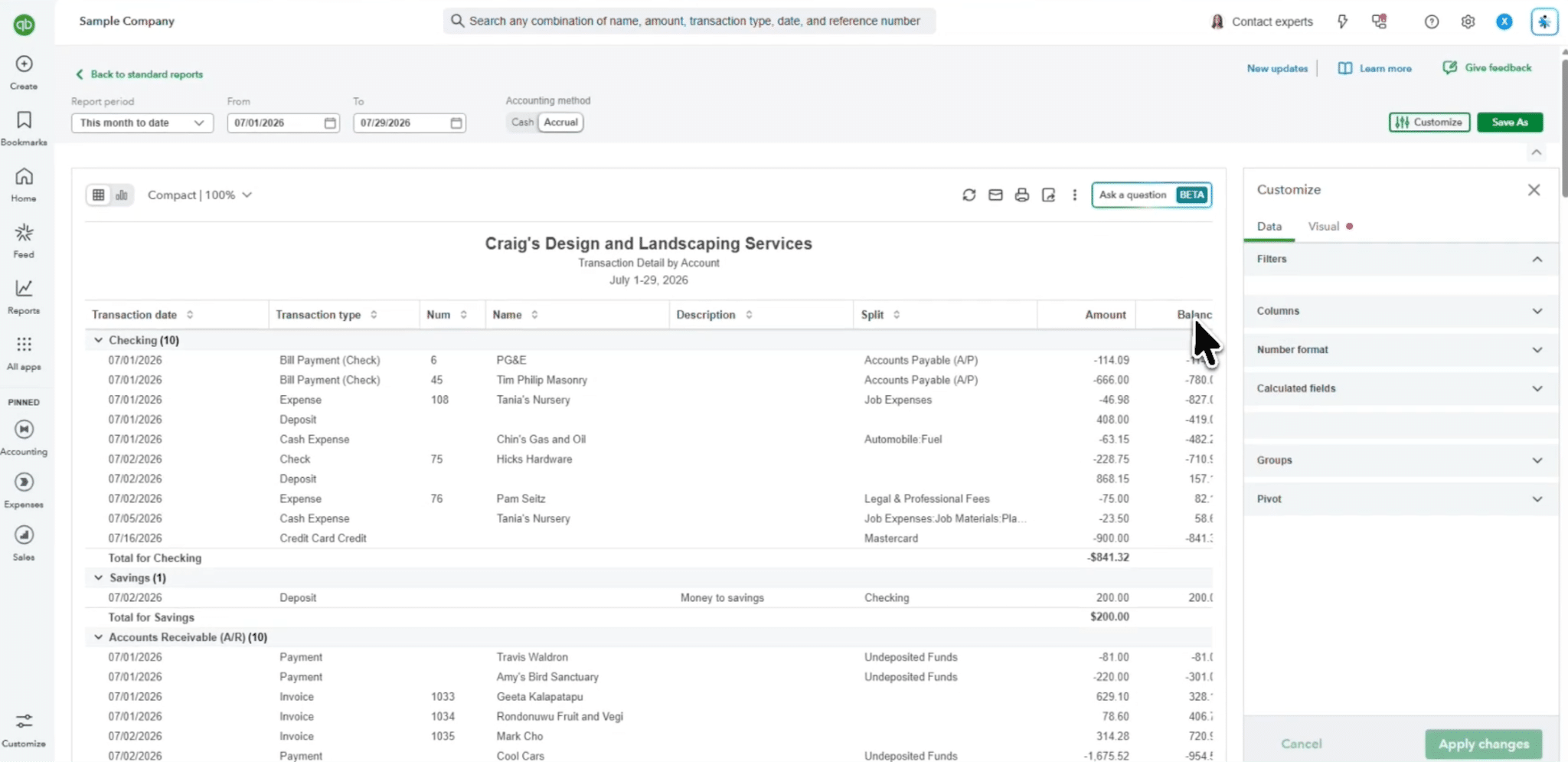
- Run the report and review the results.
Method 4: Check the Bank Feed
The bank-feed review queue can reveal transactions that need a category or a match.
- Go to All apps → Accounting → Bank transactions.
- Select the relevant bank or credit card account. You’ll see all the transactions QuickBooks downloaded from your bank, but they aren’t in QuickBooks yet and haven’t been posted.
- Select the Pending tab, and you’ll see all downloaded transactions along with the option to post transactions if the category is correct.
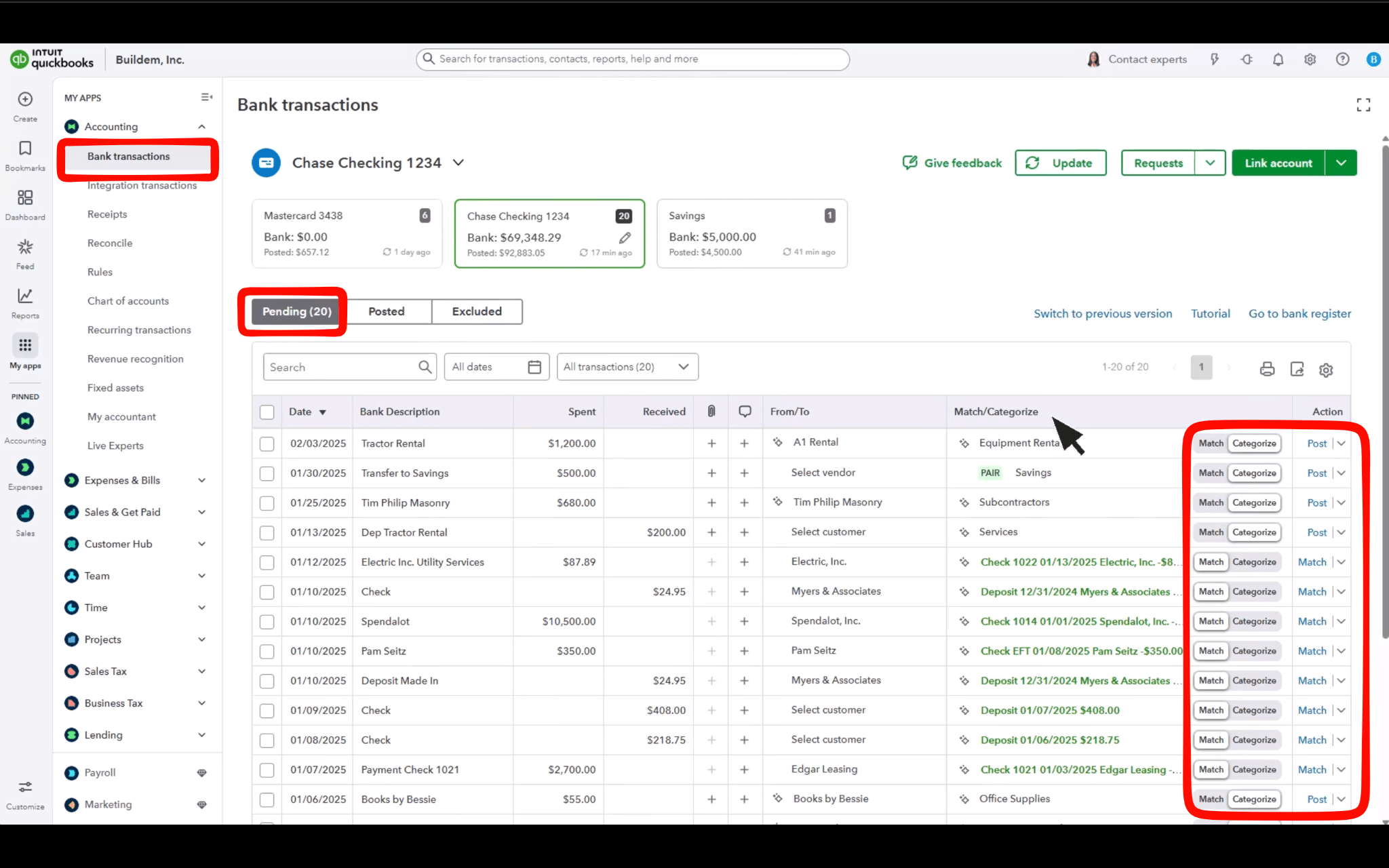
- Look for transactions that lack a suitable category or match, or that have incorrect suggested categories.
Method 5: Use the Reclassify Transactions Tool
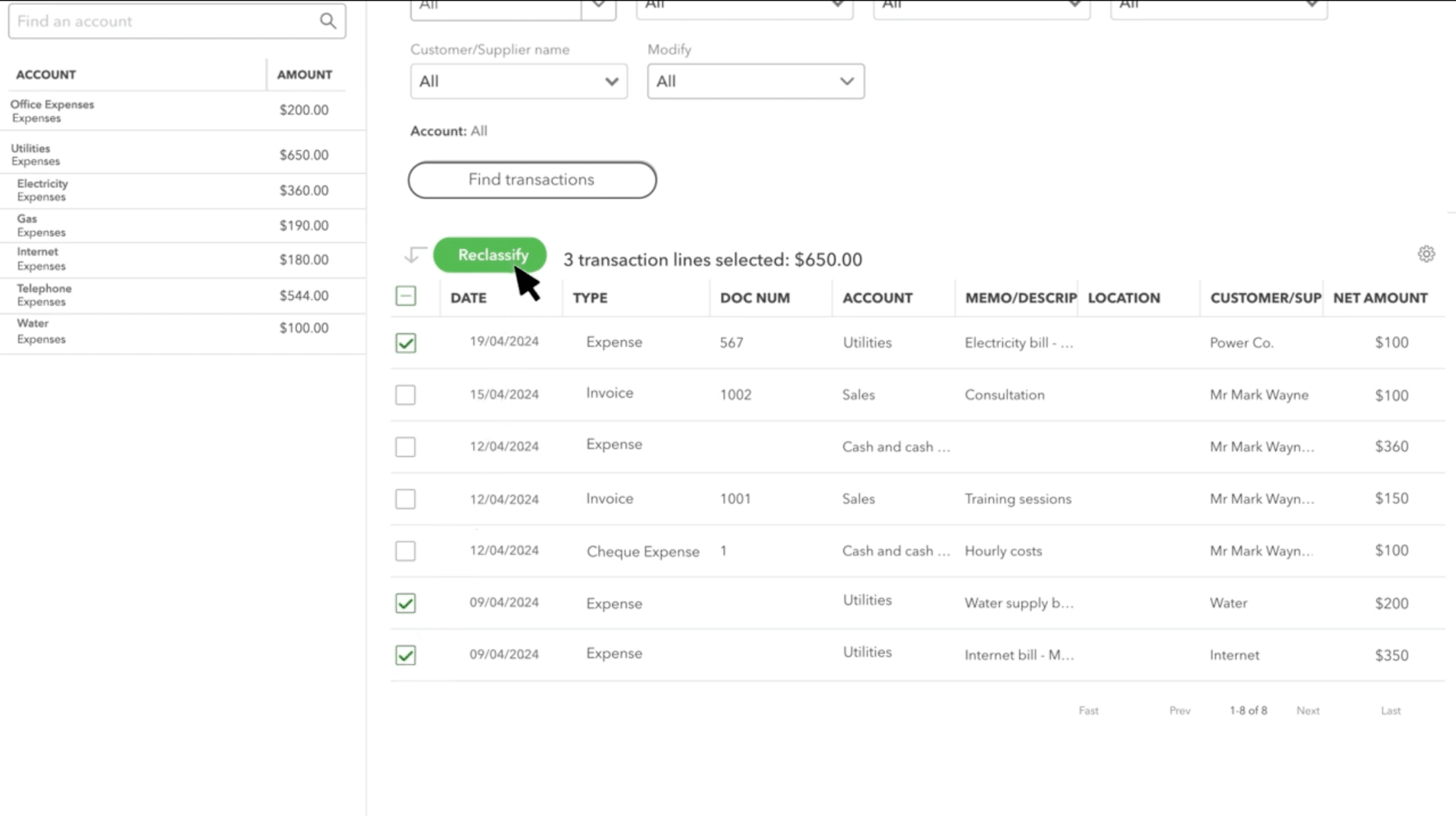
If you work in QuickBooks Online Accountant or QuickBooks Online Advanced, you can use the Reclassify Transactions tool to identify and correct eligible transactions assigned to the wrong accounts. You can also use it to move multiple transactions at once.
- Open the client’s company, go to Accountant Tools, and select Reclassify Transactions.
- Select Profit and Loss as the account type, then choose Uncategorized Expense from the account list.
- Select Find Transactions to display eligible transactions.
- Review the list. You’ll recategorize confirmed transactions in batches in the next section.
Note: Before making any change, export your current transaction lists. This gives you a record of where the bookkeeping cleanup started, so you can use it as a reference if you need to undo a change later or show the client what you fixed. Track:
- Review period: The start and end dates you checked.
- Accounting method: Cash or accrual for reports where the option applies.
- Transaction count: How many items need review.
- Total amount: The total value of those items.
- Source: Which report, account, or bank-feed view each item came from.
After cleanup, use the same date range and reporting basis to check the results. Compare the remaining transaction count and total amount with your starting figures to see what changed.
Read: Bookkeeping automation examples
How to Fix Uncategorized Expenses in QuickBooks (Step by Step)
Once you’ve identified uncategorized expenses in a client’s books, the next step is to fix them. This means confirming what each transaction represents, assigning it to the correct account, and documenting your decisions. Here’s how that works:
Step 1: Pull the Full List of Uncategorized Expenses
Use any of the methods outlined above to find uncategorized expenses. You can export recorded transactions to Excel to sort and track them in a spreadsheet, or work directly in QuickBooks.
Step 2: Sort Transactions by Confidence Level
Go through the list and sort each transaction into one of three groups:
- High confidence: You know exactly what expense this is and can put it in the right category confidently.
- Medium confidence: You have a good guess of what the expense is but would like to confirm before you assign it a category.
- Low confidence: You have no idea what the expense is for and need more information from the client.
Step 3: Determine the Type of Transaction
Before assigning an expense account, establish what the transaction represents. Not every payment leaving a client’s bank account is an expense.
So review the transaction description, amount, date, bank or credit card account, and any linked records. When necessary, check the general ledger and relevant bank or credit card statements.
Step 4: Gather Missing Evidence for Unclear Items
For medium- and low-confidence transactions, look for the supporting information you need to assign their category.
Check receipts, invoices, bills, purchase records, email correspondence, and bank statements. If those records don’t answer your question, ask the client for the missing information. But do this before you have to close the books.
Step 5: Recategorize to the Correct Existing Account
Once you’ve confirmed what each transaction represents, update its category in QuickBooks.
For multiple transactions, use the Reclassify Transactions tool to move several transactions to a new account at once. Select the transactions, choose the new account, and apply. Use batches only for transactions you’ve confirmed belong in the same account.
Step 6: Set Up Bank Rules to Prevent Repeat Errors
For any recurring transaction you fixed, create a bank rule so QuickBooks categorizes it automatically next time.
Base each rule on details that reliably identify the intended transactions, such as a specific payee and a consistent part of the description. Before saving the rule, check that its conditions distinguish those transactions from unrelated purchases. For example, a rule that categorizes every transaction containing a broad vendor name may misclassify purchases that require different treatment.
Step 7: Document Your Categorization Decisions
Record the reason for each significant decision in a file. Note the transaction, the account you chose, why you chose it, and where the answer came from (a receipt, the client, an invoice, etc.).
This record helps other team members understand why you made the change, supports consistent categorization across reporting periods, and gives your firm a clear audit trail.
Step 8: Review the Results and Reconcile Affected Accounts
Once you’ve made the changes, review the affected accounts and rerun the relevant reports for the same period you used at the start.
First, check the Uncategorized Expense account to confirm that the transactions you resolved no longer remain there.
Next, rerun the P&L report and compare the affected expense accounts with your original report. Confirm that the changes make sense and that you haven’t moved transactions into unrelated categories. Review the balance sheet too if you corrected transfers, loan payments, credit card payments, or other balance-sheet transactions.
Finally, if your review revealed discrepancies or required changes to recorded transactions, reconcile the affected bank and credit card accounts against their statements. (For a full reset of a client file, follow a comprehensive QuickBooks cleanup instead.) Record the final transaction count and dollar value, then compare them with your starting figures, using the same reporting period and basis.
Step 9: Get Approval Before Changing Closed or Filed Periods
If a transaction falls in a period your firm has already closed or that you used to prepare financial statements or tax returns, don’t update the category right away. It can affect previously reported income, expenses, balances, or tax information. Instead, determine whether the correction affects anything and, if it does, explain it to the client and get their approval first. Then make the correction and rerun any affected reports.
Read: Top bookkeeping practice management software
How to Prevent Uncategorized Expenses
Maintain a Clean Chart of Accounts
A well-organized chart of accounts helps your team categorize transactions consistently. Keep each client’s chart of accounts standard for their business type and update it as needed.
Remove or merge accounts that overlap, clarify confusing account names, and set a rule for who can add new accounts and when. Also avoid creating a new account every time you encounter an unfamiliar transaction. Check whether an existing account fits before adding another one.
Set Up and Review Bank Rules
Create bank rules for recurring transactions so they don’t reach the uncategorized expense stage. For example, if a client pays the same software subscription each month, a rule can assign those transactions to the appropriate software expense account.
Review rules periodically to confirm they still work as intended. Update them when vendor descriptions change, and make sure they’re not so broad that they accidentally categorize unrelated transactions.
Categorize Transactions and Ask Client Questions Monthly
Review uncategorized expenses every month and ask the client about anything you can’t resolve. If you wait months, the client is less likely to remember what each charge was for, and the list becomes harder for them to work through. Make categorization and client questions a standard step in your month-end close process.
Review New Accounts and Vendors During the Close
New accounts and vendors can introduce categorization errors if your team doesn’t review them promptly. A newly created expense account might duplicate an existing account, while a new vendor might need a different category from the vendors your team already recognizes.
Document Categorization Conventions
Create clear guidelines for how your team categorizes common transactions across client files. Document which accounts to use for recurring expenses, how to handle transfers and credit card payments, when to request client clarification, and which transactions require approval from a senior team member.
Keep these guidelines accessible to everyone who works on the client’s books. When a new team member takes over a client, they should be able to follow the same conventions on their own.
Read: Bookkeeping task management tips
The Hard Part: Getting Answers From Clients
Once you know what a transaction represents, updating its category is usually straightforward. The challenge is getting the information you need to categorize it correctly. Clients may not respond to questions promptly, so you have to send multiple reminders and wait for answers before you can finish reviewing transactions and closing the books.
This is a common problem for accounting firms.
In fact, chasing down clients for information is the biggest workflow challenge firms faced in 2024, according to The State of Accounting Workflow and Automation report.
That’s why you need a repeatable process to get clients to send information on time and resolve transactions efficiently. In this process:
- Batch related questions and send them to clients at once instead of sending separate messages.
- Send questions about transactions each month rather than letting them accumulate until year-end or another reporting deadline.
- Give clients a simple, secure way to answer questions and share supporting documents in one place.
Financial Cents, an accounting practice management software, also helps firms manage this process within their existing workflow with its Month-End Close feature.
Just share a flagged transaction with a question through the secure Financial Cents client portal, which clients can access through a secure link without creating or remembering a password. Then they provide their answer or upload supporting documents.
Their responses appear alongside your original questions in the same workspace, giving your team one place to review answers, identify outstanding questions, and approve resolved transactions. Once you approve the corrections, Financial Cents can sync the updated transaction information to QBO. This keeps the review process organized without relying on scattered email threads.
Systematize the Cleanup and Client Follow-Up with Financial Cents
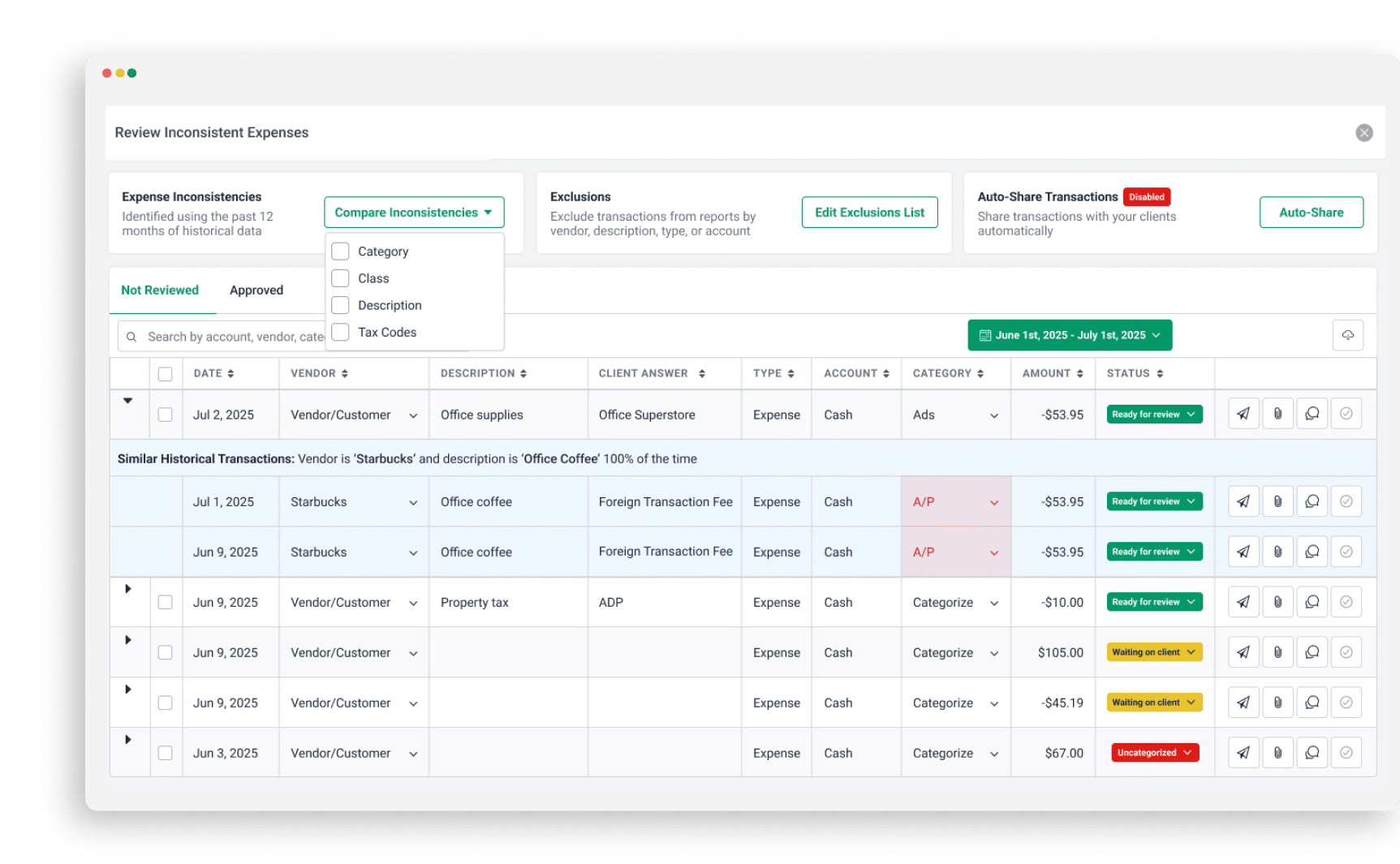
Financial Cents’ month-end close software for accountants helps accounting firms identify uncategorized expenses and transactions, collect missing information from clients, correct transactions, and sync approved changes to QuickBooks Online, all within one system.
Steve Libhart, Founder of Numbers Matter LLC, describes how the feature makes his transaction categorization process more efficient.
Here’s how Financial Cents helps your team manage uncategorized transactions and expenses:
- Identify transactions that need attention: The Transaction Review feature automatically flags uncategorized expenses from QBO so you don’t have to search manually.
- Batch transaction reviews and client questions: Review multiple expenses in one place and send clients a batch of questions instead of contacting them about each expense separately. Clients can respond through the portal and attach receipts or other supporting documents.
- Correct transactions and sync approved changes: Edit transaction categories directly in Financial Cents and apply updates to multiple transactions. Once you approve the changes, Financial Cents syncs them to QBO.
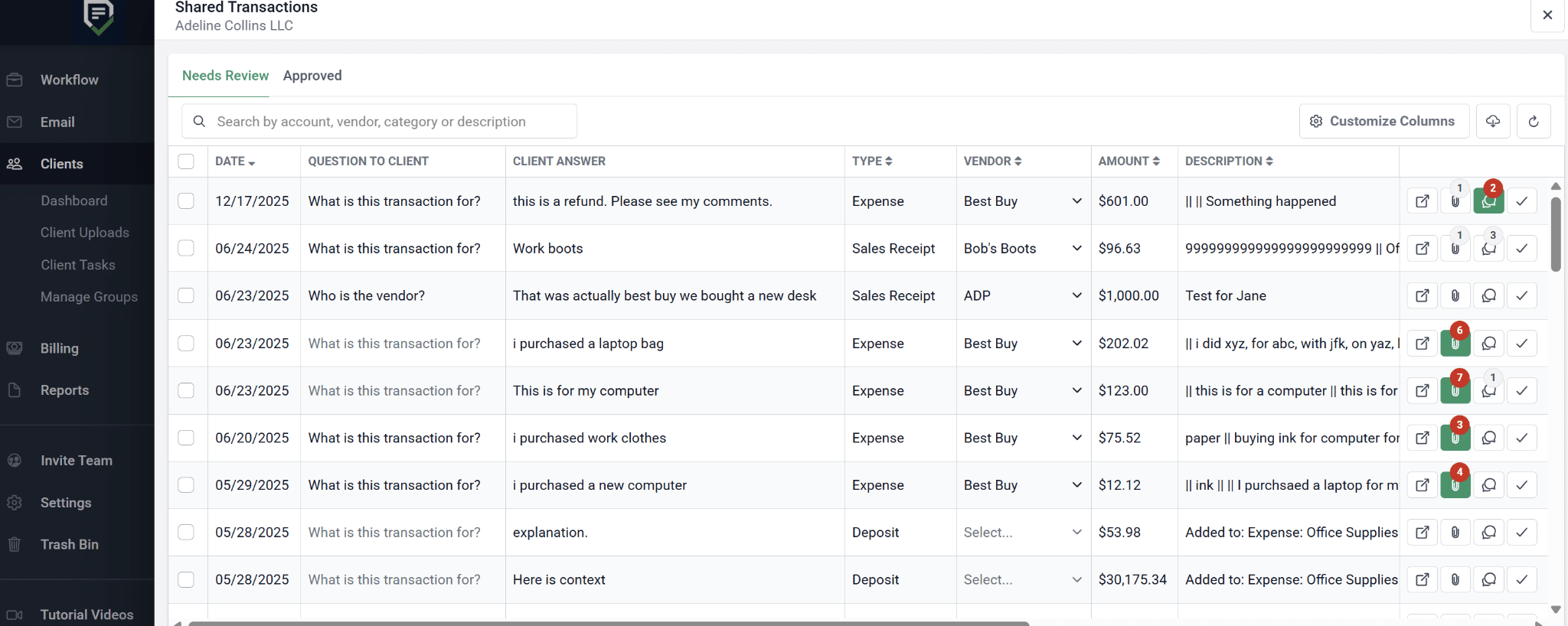
- Track client responses and review status: The Shared Transactions report shows the questions you’ve sent, the client’s responses, and which expenses still need review. Your team can use this view to follow up on outstanding questions and approve resolved expenses.
Month-End Close is a paid add-on available with any Financial Cents plan. It costs $5 per client per month and integrates with QBO.
Frequently Asked Questions (FAQs)
Share this article: