
The month-end close is one of the clearest tests of a firm’s operational efficiency. The challenge isn’t knowing what needs to be done. It’s making sure every step happens in the right order, for every client, every month.
QuickBooks Online provides the tools needed to reconcile accounts, review transactions, make adjusting entries, and so on. But as your client list grows, keeping every close on track becomes an operational challenge. A missed reconciliation, unresolved transaction, or unauthorized change to a previously closed period creates errors, delays reporting, and undermines confidence in the financial statements.
Without a standardized process, teams end up relying on manual task tracking, scattered spreadsheets, and repeated client follow-ups to keep each close moving.
No wonder that the State of Accounting Workflow & Automation Report found that getting client documents and answers was the biggest workflow challenge accounting firms faced in 2025. More than 53% of firms also spent over five hours a week scheduling and assigning recurring work before automating it. That makes the month-end close a natural candidate for workflow automation.
In this guide, we’ll walk you through a complete month-end close process in QuickBooks Online, from pre-close preparation to transaction review and locking the books. You’ll also get a free checklist to standardize the process and the best practices to automate manual month-end tasks across your client base.
TL;DR
- Closing the books in QuickBooks Online involves more than setting a closing date.
- A complete month-end close means reconciling accounts, reviewing transactions and balance sheet activity, checking AR and AP, recording necessary adjustments, reviewing financial statements, completing sign-off, locking the period, and documenting follow-ups.
- For firms managing multiple clients, the accounting work is only part of the challenge. QBO stores the accounting data and performs the underlying bookkeeping and reconciliation; Financial Cents provides the month-end close workflow layer for organizing, assigning, reviewing, and tracking that work across clients.
- Together, they give firms both a reliable accounting record and a repeatable process for getting each client’s books closed.
What Does It Mean to “Close the Books” in QuickBooks Online?
Closing the books means completing the accounting work for a defined period, reviewing the results for accuracy and completeness, and then preventing unauthorized changes to the books for that period.
The close process ensures that every transaction recorded during that timeframe is accurate, categorized correctly, and fully reconciled against bank statements and official subledgers.
There is no single button that magically completes a month-end close in QuickBooks Online (QBO). The close is a process, while the “Close the Books” setting is a control you use at the end of that process.
Month-End Close vs. Year-End Close
Month-end and year-end closes follow many of the same principles, but they serve different purposes.
Month-end close is the recurring process of making sure a month’s financial activity is complete and accurate. It gives the business reliable financial information throughout the year and creates a consistent starting point for the following month.
Performing a thorough month-end close prevents year-end tax preparation from turning into an overwhelming cleanup project.
Year-end accounting close is a more comprehensive process that prepares the books for the new fiscal year and, where applicable, tax and financial reporting. It involves additional adjustments, year-end accruals, depreciation, inventory procedures, equity reviews, tax-related entries, and coordination with the tax preparer or auditor.
One way to think of it is that month-end close keeps the books current; year-end close prepares them for the next accounting year and the reporting that follows.
For most firms, a well-run year-end close starts with well-run monthly closes because there is less cleanup to do at year-end if accounts are reconciled, transactions are reviewed, and issues are resolved consistently throughout the year.
A year-end close happens once a year at the end of the client’s fiscal cycle. Its objective is to prepare the final ledger for tax filing and financial audits.
Before You Close: The Month-End Close Prep
The month-end close preparation may feel like extra work, but it makes the actual close more predictable.
1. Confirm the Accounting Basis and Reporting Period
The accounting basis determines how your team evaluates the timing of revenue and expenses to make sure activity is recorded in the period it belongs to.
Once that is done, proceed to confirm the reporting period itself. Make sure the date filters on your QBO reports match that exact period so transactions from an earlier or later month don’t accidentally enter the review.
2. Set the Close Target
Establish a target for when the books should be completed and reviewed. Some firms use a fixed deadline for the prior month’s books to be closed.
A defined target gives your team a consistent benchmark for measuring how efficiently each client’s close is progressing.
3. Gather Client Documents
Collecting all the documents you need for the close upfront reduces mid-close delays and gives your team the evidence needed to reconcile accounts.
4. Establish Materiality and Review Thresholds
This is where you define what requires additional review before the close can be approved. Your firm may already have a materiality policy, or you may establish client-specific thresholds based on the engagement.
5. Define the Document Cutoff and Escalation Path
Set a firm deadline for clients to provide the documents and answers needed to complete the close. Alongside that cutoff, define when and how your team will follow up if critical information is still missing.
A clear escalation path saves your team from endlessly chasing the same information.
6. List Every Balance-Sheet Account
Create a complete list of the client’s balance-sheet accounts and determine how each account should be reviewed and supported during the close. This ensures that no balance carries forward without an appropriate review.
7. Confirm QuickBooks Online Permissions
Make sure each person has the access required for their role. No one should have more access than necessary.
This is especially important for firms managing multiple QBO files. Differences in user permissions can prevent a team member from completing a task, delay the close, or give users access to controls they don’t need.
8. Preserve Prior Reconciliation Reports
Export and save the previous month’s finalized QBO reconciliation reports and supporting documentation according to your firm’s record-retention policy. If your firm uses a practice or accounting document management system, store them there so the team can easily retrieve them for future closes and reviews.
9. Follow a Supported Adjusting-Entry Policy
Define how adjusting journal entries will be created, reviewed, documented, and approved.
Each adjustment should give another team member enough context to understand what changed, why it was necessary, which reporting period it affects, how the amount was calculated, and who prepared and reviewed it.
Step-by-Step: How to Close the Books in QuickBooks Online
The specific procedures will vary by client, but the following sequence provides a repeatable framework for completing a monthly close in QuickBooks Online.
Step 1: Reconcile Bank, Credit Card, Loan, and Petty Cash Accounts to Their Statements
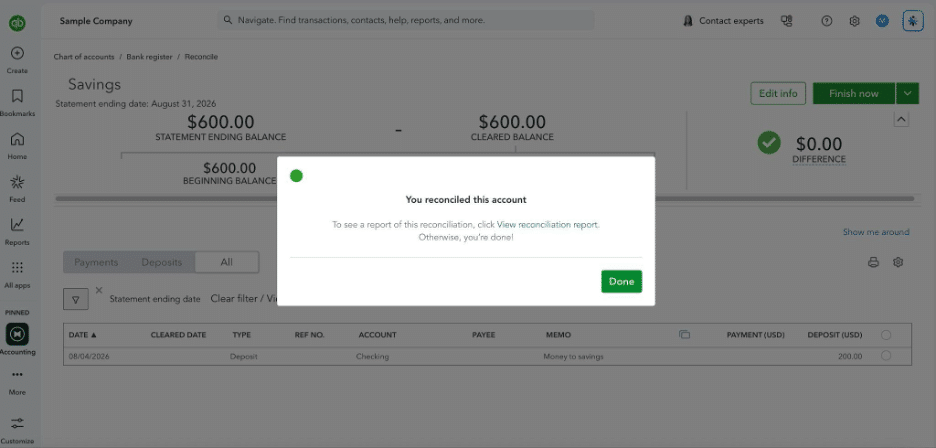
Start by reconciling each account that has an external statement or other supporting record.
For bank and credit-card accounts, compare the transactions in QuickBooks Online with the institution’s statement for the period. For loans, compare the QBO balance and transactions with the lender’s statement or amortization schedule. For petty cash, compare the recorded balance with the physical cash count or supporting records.
Verify that the reconciled ending balances agree with the statement balance. If there are any discrepancies, investigate and document them. Don’t force the reconciliation to balance.
After each reconciliation, confirm:
- The balance is supported by the relevant statement or record.
- The reconciliation has been reviewed according to your firm’s process.
To Do This in QBO
- Click the Gear icon in the top right corner and select Reconcile.
- Select the Account: Choose the specific bank, credit card, loan, or asset account from the dropdown list.
- Verify Beginning Balance.
- Type in the Ending Balance and Ending Date exactly as printed on your statement.
- Click Start Reconciling to open the matching screen.
- Match and Clear.
- Once the “Difference” field at the top reads $0.00, click Finish now.
Pro Tip: Track All Reconciliations in Your Workflow Tool
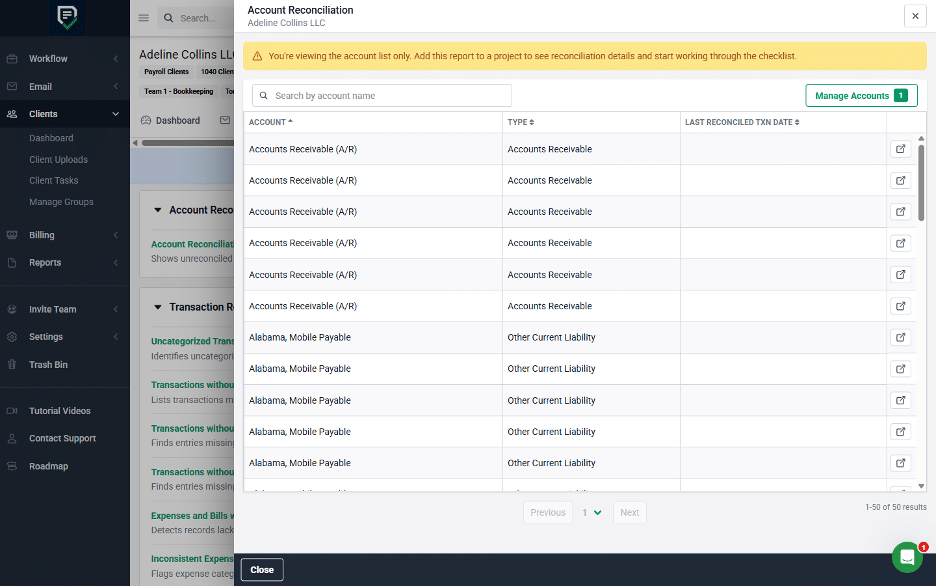
Use the Financial Cents Month-End Close Account Reconciliation Report for a quick way to see the status of all reconciliations without opening each client’s QBO file.
The report brings all accounts that require reconciliation into one view and shows the last reconciliation date and number of unreconciled transactions for each account.
You can add the report to a project, so your team can record the date of reconciliation and staff responsible for it inside Financial Cents.
You can also use the Manage Accounts button to include or exclude particular accounts or account types to keep your view focused.
Step 2: Review and Clean Up Transaction Detail
This is where you review the underlying transaction activity for errors, incomplete information, and unusual activity.
You’re looking for:
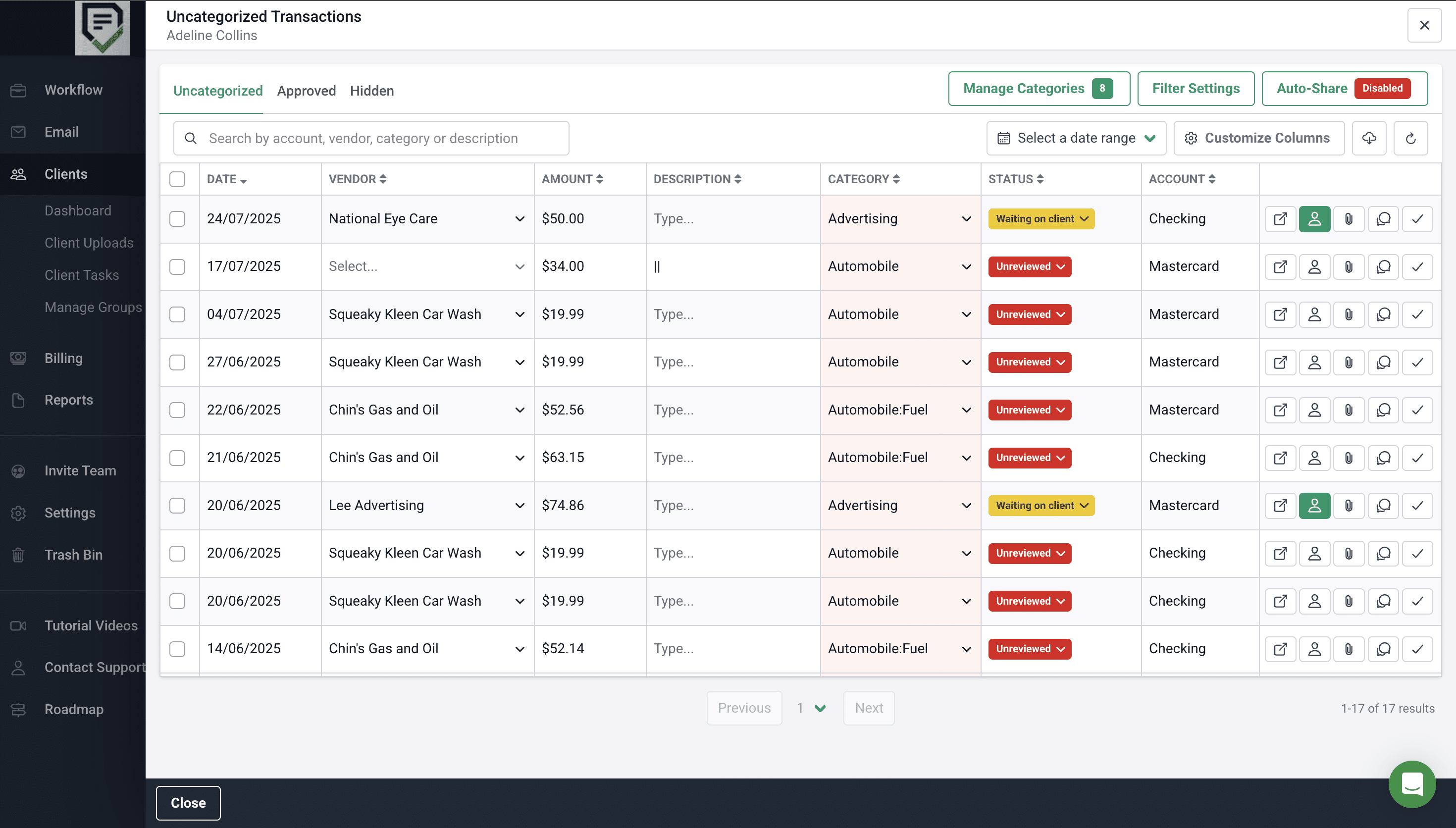
- Uncategorized transactions
- Transactions without payees
- Duplicate transactions
- Incorrect account classifications
- Missing classes or locations, where applicable
- Expenses or bills without supporting attachments
- Transactions that appear inconsistent with the client’s normal activity
- Large or unusual transactions requiring additional review
Don’t simply categorize everything that appears in the uncategorized list. Investigate transactions you don’t recognize and obtain clarification from the client when necessary. Also, don’t assume that every unusual or large transaction is an error. Apply your firm’s review thresholds and investigate items that require further attention.
Pro Tip: Run Transaction Review Before the Close Is Done
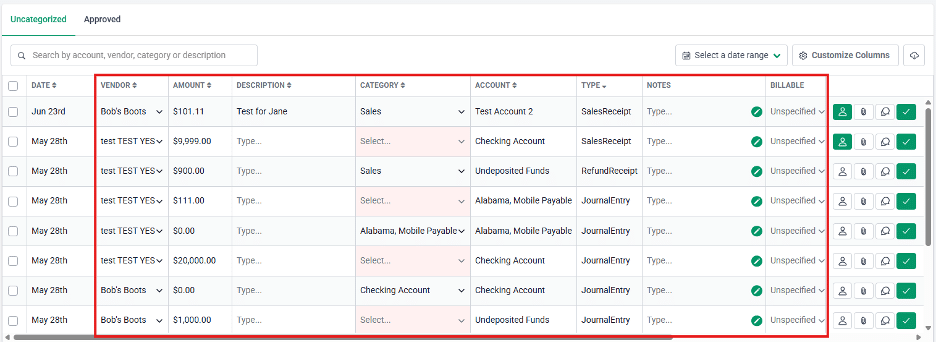
Financial Cents’ Transaction Review brings several common QuickBooks cleanup checks into a centralized view. Its report types cover Uncategorized Transactions, Transactions without Payees, Transactions without Class, Transactions without Location, Expenses and Bills without Attachments, Inconsistent Expenses, and Large Transactions.
You can make corrections in Financial Cents, use batch updates for repetitive changes, and push approved corrections back to QBO.
You can also configure the review by setting dollar thresholds for large transactions, excluding specific vendors or accounts, or defining the historical period used for inconsistency analysis.
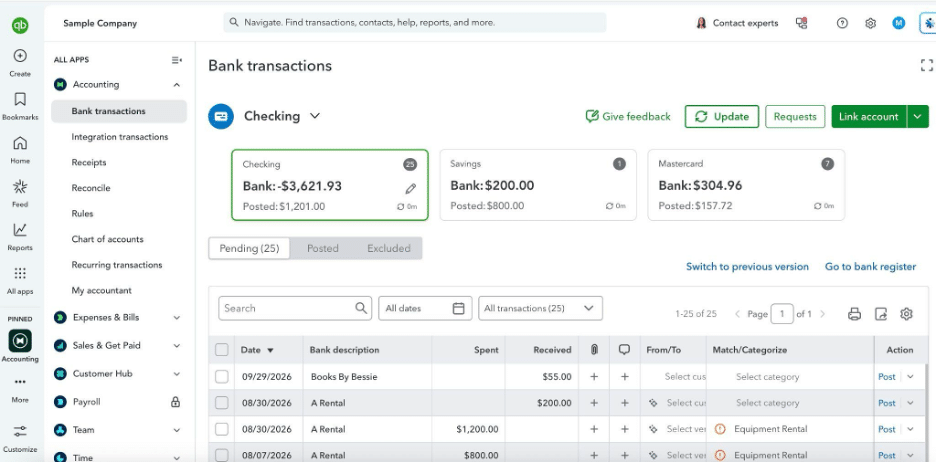
Step 3: Verify Revenue and Cash Receipts
Verify that revenue for the period is complete, accurately classified, and recorded in the appropriate period.
Compare recorded income with available supporting information, such as sales reports, invoices, point-of-sale reports, or other client records. Investigate deposits that are without an obvious source and confirm that expected receipts have been recorded appropriately.
For accrual-basis clients, pay particular attention to the timing of revenue recognition rather than simply matching deposits to revenue. Cash received during the month may relate to invoices from an earlier period, while revenue earned during the month may not yet be collected.
Also review clearing and payment-processing accounts. In Undeposited Funds (or Payments to Deposit), confirm that payments have been properly included in bank deposits and investigate any remaining balance that doesn’t have a clear explanation.
For clients using payment processors such as Stripe or PayPal, verify that deposits, gross sales, and processing fees are recorded correctly. Where appropriate, record gross revenue separately from merchant processing fees rather than recording only the net deposit as income.
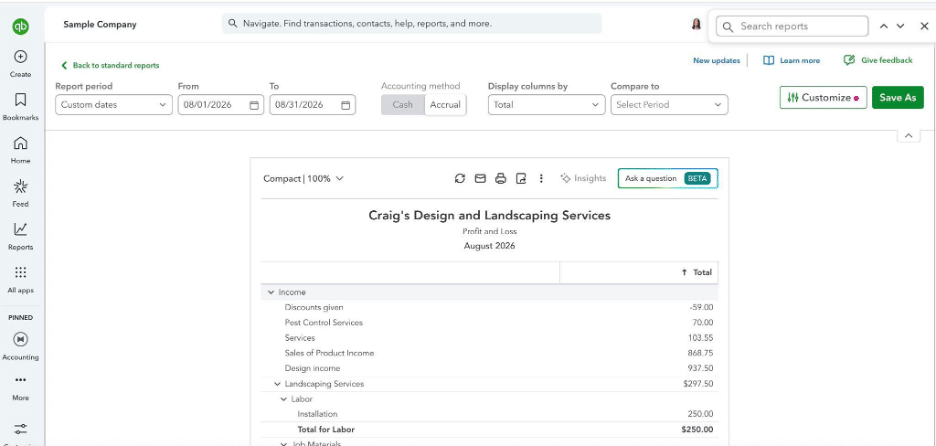
Step 4: Review Accounts Receivable
Review the accounts receivable balance and aging report to make sure outstanding customer balances are complete, properly recorded, and reasonably collectible.
Check for:
- Old or significantly overdue invoices
- Credits that need to be applied
- Duplicate or incorrectly recorded invoices
- Customer payments that have not been matched correctly
- Uncollectible balances that may require an approved write-off
- Revenue or receivables recorded in the wrong period
For material outstanding balances, determine whether the client needs to follow up with the customer or whether an accounting adjustment is appropriate. Document the rationale for any write-offs or other adjustments according to your firm’s policies.
Pro Tip: Keep Client Questions Connected to the Transaction
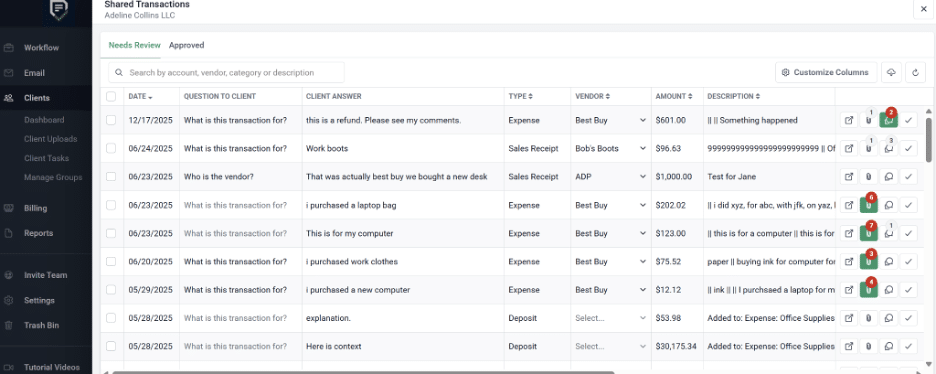
When the close depends on a client identifying an unfamiliar deposit or explaining an outstanding transaction, Financial Cents lets you send a question directly from the transaction review screen using the Notes/Memo field.
The client receives and responds to the request through the Client Portal, and the response and supporting documentation then return to the same workspace.
The Shared Transactions Report gives your team a centralized view of transactions shared with the client, separated into Needs Review and Approved tabs. Automated reminders can also help follow up on unanswered requests.
Step 5: Review Expenses and Accounts Payable
Next, review expenses and accounts payable to make sure costs are recorded in the correct period, classified appropriately, and supported by the underlying documentation.
Check:
- AP aging
- Unpaid bills
- Bills recorded after the reporting period
- Expenses that may belong to the month being closed
- Duplicate bills or expenses
- Unusual or unusually large expenses
- Vendor balances that don’t appear reasonable
For accrual-basis clients, make sure expenses are recognized in the appropriate period even if the related bill or payment has not yet been recorded.
Also review newly created vendors and accounts. New entries can introduce classification errors or create additional compliance work if they’re not reviewed when they’re added.
Pro Tip: Track Newly Added Vendors and Accounts Alongside Your Workflow
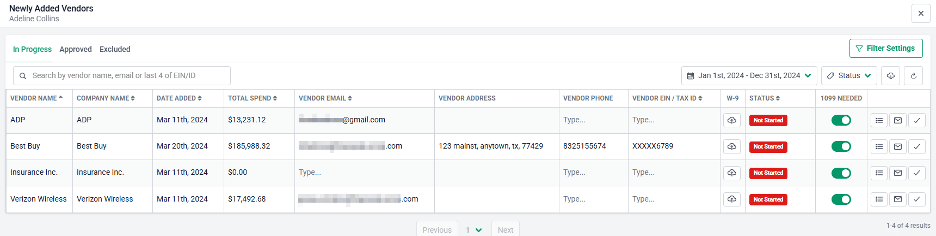
Financial Cents’ Newly Added Vendors and Newly Added Accounts reports surface vendors and chart-of-accounts entries created in QBO during the close period.
Newly Added Vendors displays information such as contact details, year-to-date spend, W-9 status, and 1099 tracking settings. This allows the team to identify missing W-9s and address 1099-related issues before year-end.
Newly Added Accounts helps identify accounts recently added to QBO that may have been assigned an inappropriate account type or detail type. Account Type and Detail Type can be edited in Financial Cents and synced back to QBO after approval.
Both reports provide In Progress, Approved, and Excluded views, which give the team a way to track what still needs attention and what has already been reviewed.
For firms closing multiple clients, this creates a repeatable review point for changes to the vendor list and chart of accounts; two areas that can easily be overlooked when the team is working through dozens of individual QBO files.
Step 6: Review Payroll and Statutory Accounts
Verify that payroll activity has been recorded completely, accurately, and in the correct period. Cross-reference your external payroll reports (such as Gusto or ADP) with the QBO general ledger.
Confirm that relevant gross wages, employer payroll taxes, employee-related liabilities, benefit deductions, and applicable tax withholdings have been recorded correctly.
Then review the related liability accounts and remittances. Investigate balances that don’t agree with the supporting payroll or tax records, and confirm that amounts already remitted have been posted correctly.
A liability account does not necessarily need to have a zero balance at month-end; an outstanding balance may be appropriate when an amount has been accrued but not yet paid.
For accrual-basis clients, also check whether payroll earned during the period but paid afterward requires an accrual or other period-end adjustment.
Pro Tip: Don’t Leave 1099 and W-9 Work Until Year-End
If your firm handles 1099-related bookkeeping, monthly close is a good opportunity to catch missing vendor information before January.
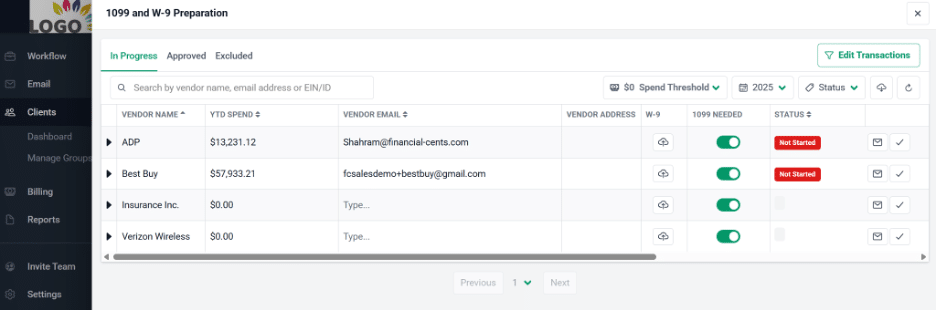
Financial Cents’ 1099 and W-9 Preparation Report pulls vendor information from QBO and lets teams review vendors by transaction type and account.
You can also exclude credit-card transactions where appropriate, request W-9s from vendors or clients, send configurable reminders, and sync updated vendor information back to QBO.
Treating W-9 collection and 1099 review as a recurring monthly check turns a year-end scramble into a small item on each month’s close checklist.
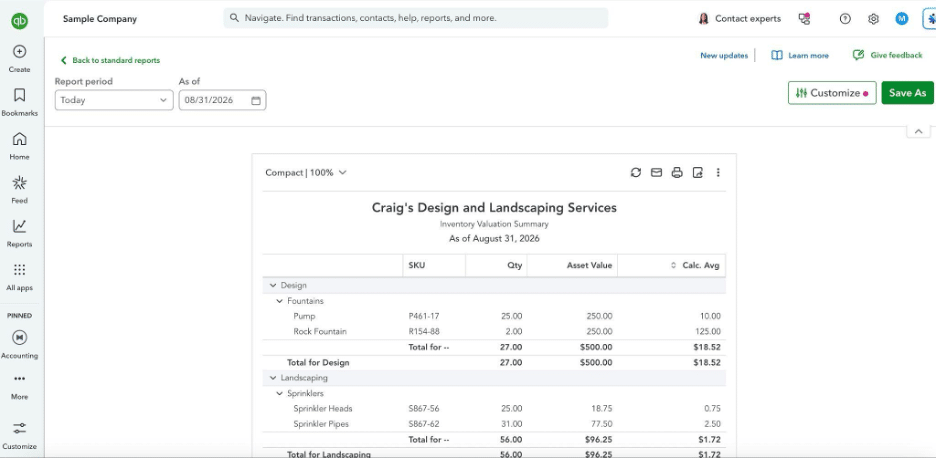
Step 7: Reconcile the Remaining Balance Sheet Accounts
Don’t stop once the bank accounts reconcile. Every material balance-sheet account should have a reasonable, supportable balance at month-end.
Review the remaining accounts that haven’t already been addressed, such as:
- Inventory
- Prepaid expenses
- Fixed assets
- Accrued liabilities
- Loans and other debt
- Deferred revenue
- Intercompany balances
- Equity accounts
The appropriate review depends on the account. A prepaid expense may require an amortization schedule; a loan should tie to a lender statement or amortization schedule; and a fixed-asset account may require you to review additions, disposals, and depreciation.
Step 8: Book and Document Adjusting Entries
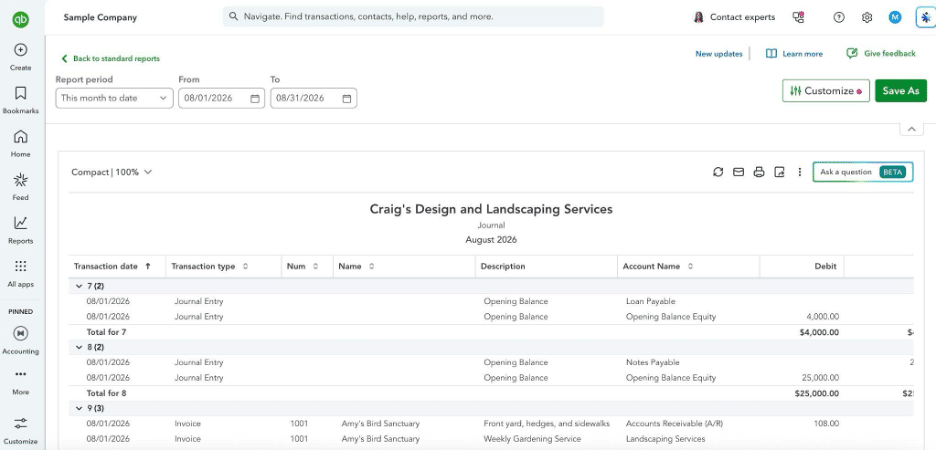
Once you’ve identified items that require a period-end adjustment, record the necessary journal entries.
Common month-end adjustments include:
- Accrued expenses
- Prepaid expense amortization
- Depreciation
- Payroll accruals
- Revenue or expense cutoffs
- Loan interest
- Inventory adjustments
- Owner draws or contributions, where applicable
Each entry should include a memo and appropriate supporting documentation showing what was adjusted, why the adjustment was necessary, how the amount was calculated, and which reporting period it affects.
Adjusting entries should follow your firm’s review and approval policy. Don’t use journal entries simply to force an account to reconcile. If a balance doesn’t tie, investigate the underlying difference and document the resolution.
Step 9: Review Financial Statements and Analytics
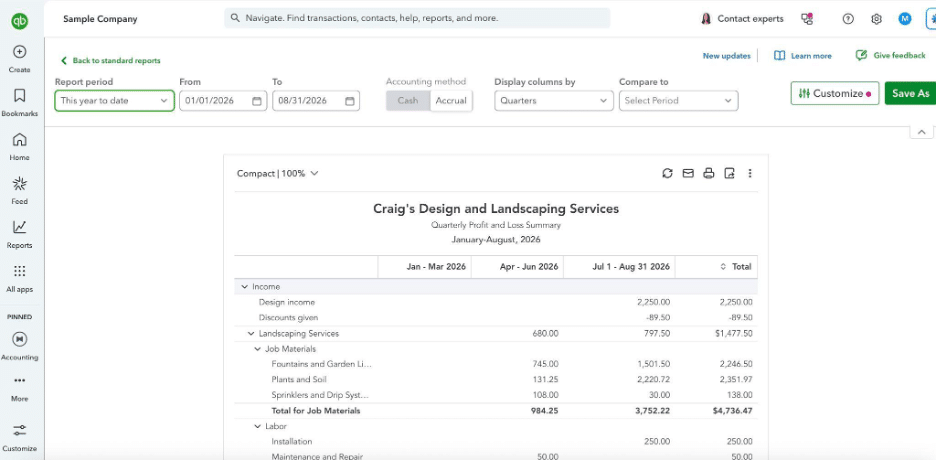
This is where you, the reviewer, should ask whether the financial story makes sense (beyond the individual transactions).
At minimum, review the profit and loss statement, balance sheet, and statement of cash flows, when applicable to the engagement.
Compare the current month with prior periods and investigate significant or unexpected changes. Look out for:
- Unexpected revenue or expense movements
- Large changes in gross margin
- Unexpected or unusual balance-sheet balances
- Accounts that suddenly appear or disappear
- Unusually high or low cash balances
- Significant changes in receivables or payables
- Transactions or account activity that don’t make sense in the context of the business
Don’t limit the review to identifying large dollar changes. A relatively small transaction can still be significant if it represents an unusual activity, an incorrect classification, or something inconsistent with how the business normally operates.
Coming Soon in Financial Cents
Financial Cents practice management software has Quality Control Reports planned for its Month-End Close feature. The roadmap includes review tools for the P&L, Balance Sheet, Statement of Cash Flows, AP Aging, and AR Aging, to bring more of the final review of the financial statements into the same workflow.
Step 10: Complete Reviewer Sign-off and Deliver Client Reports
Before considering the close complete, have the designated reviewer work through the remaining exceptions and sign off according to your firm’s review policy.
This is to confirm that:
- Required reconciliations are complete
- Outstanding issues have been resolved or documented
- Adjusting entries have been reviewed
- Financial statements have been reviewed
- Client questions have been answered or appropriately escalated
- Required supporting documentation is attached
- Follow-up items have an owner and due date
Once the reviewer is satisfied, deliver the agreed-upon reports to the client.
Pro Tip: Turn the Close into a Recurring Workflow
If you’re closing books for multiple clients, it’ll help to add the Financial Cents’ Month-End Close reports to recurring project templates to enable firms to assign close sections to specific team members and track completion and due dates.
You can add the complete Month-End Close section through:
Team Tasks → Month End Close Section (or add individual reports to an existing project using + Add to Project).
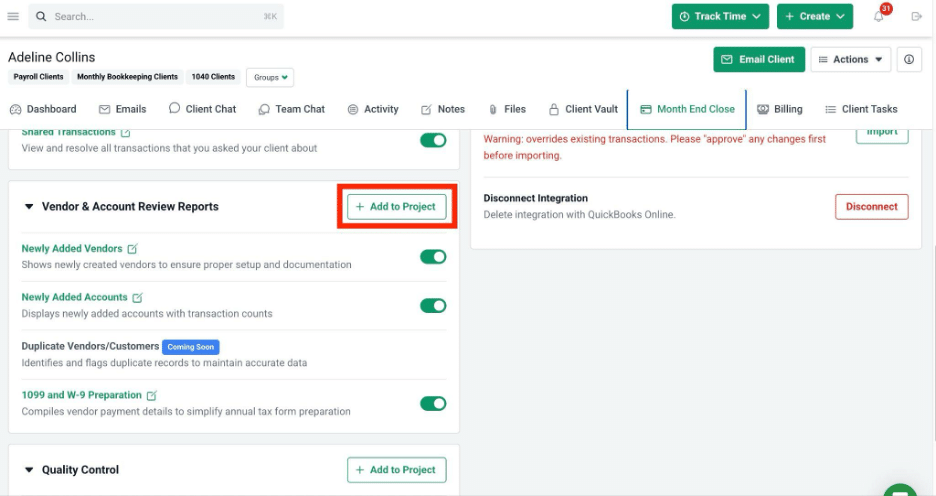
Report links display live counts of items requiring action directly on the task, giving practice managers a quick view of where each close stands without opening every sub-report.
Firms can also run smaller reviews during the month rather than waiting until the final few days. Catching transaction and documentation issues earlier can reduce the volume of cleanup left for the final close.
For firms managing dozens of clients, this creates a centralized alternative to manually tracking close progress across spreadsheets and separate systems.
Step 11: Set the Closing Date and Password in QuickBooks Online
Only lock the period after the accounting work, review, and sign-off are complete. The closing date helps prevent users from accidentally changing transactions in a period that has already been finalized.
To Do This in QBO
- Click Settings and select Account and settings.
- Select the Advanced tab.
- In the Accounting section, click Edit.
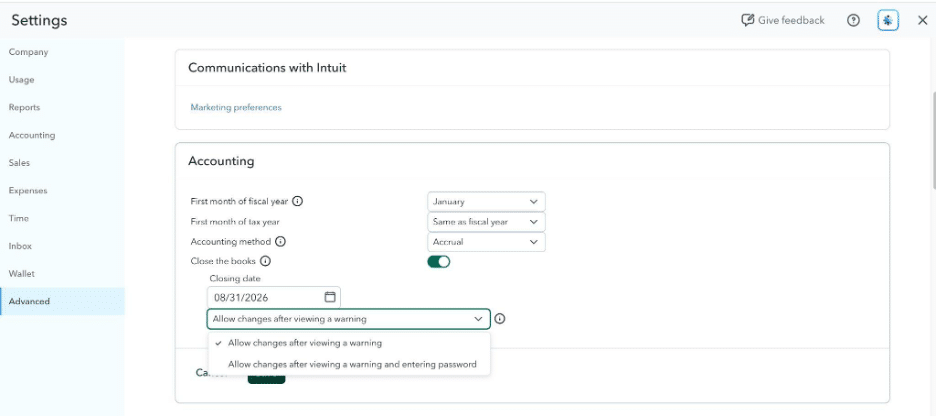
- Turn on Close the books.
- Enter the Closing date for the period you’ve completed.
- Select the option that requires users to view a warning and enter a password before making changes to a closed period.
- Click Save, then Done.
Step 12: Document the Close and Flag Follow-Ups
Conclude the close by documenting what was completed and identifying anything that needs attention in the next period.
Most firms will record:
- The period closed
- The date the close was completed
- Who prepared the work
- Who reviewed it
- Significant adjusting entries
- Outstanding issues and their status
- Client questions that remain unresolved
- Items to investigate during the next close
Document any open items with a clear owner and next action so they don’t get lost when the team moves on to the following month.
Pro Tip: Make the Workflow Part of the Documentation
Financial Cents’ project-based Month-End Close structure keeps review activity connected to the close workflow. Its MEC reports can record items that were reviewed, approved, or excluded, while the Approved views in reports such as Transaction Review, Newly Added Vendors, Newly Added Accounts, and Shared Transactions provide a record of what the team addressed.
Keeping this information within the workflow gives firms a consistent history to refer to when necessary.
How to Edit or Reopen a Closed Period (and Track Changes)
Locking a period in QuickBooks Online doesn’t make the period permanently unchangeable. If anything, it only makes any subsequent change a deliberate exception to the completed close.
Editing the Closing Date
Here’s how you can reopen the period to make the necessary corrections:
- Click the Settings icon.
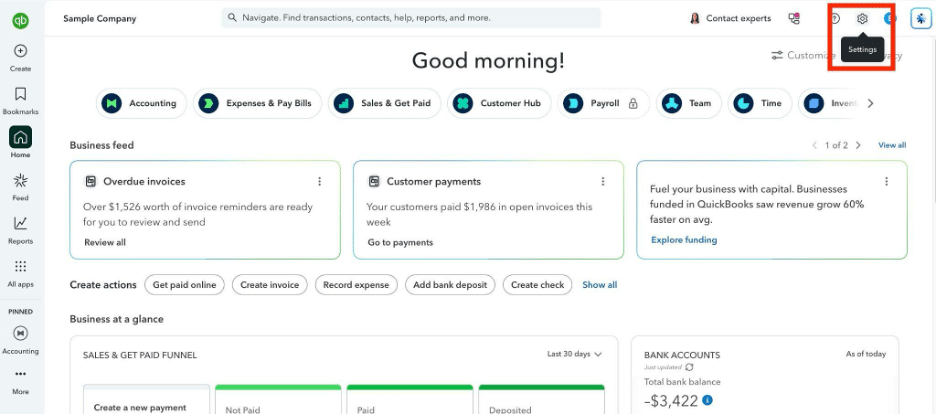
- Select Account and settings.
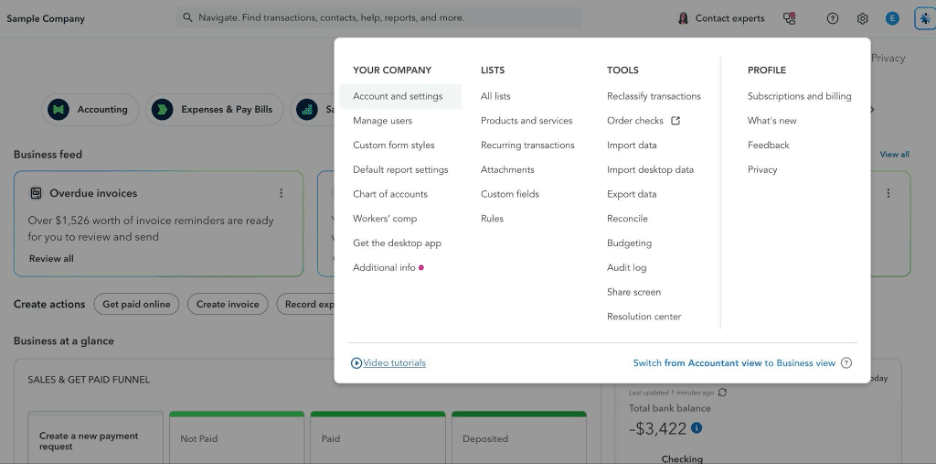
- Open the Advanced tab.
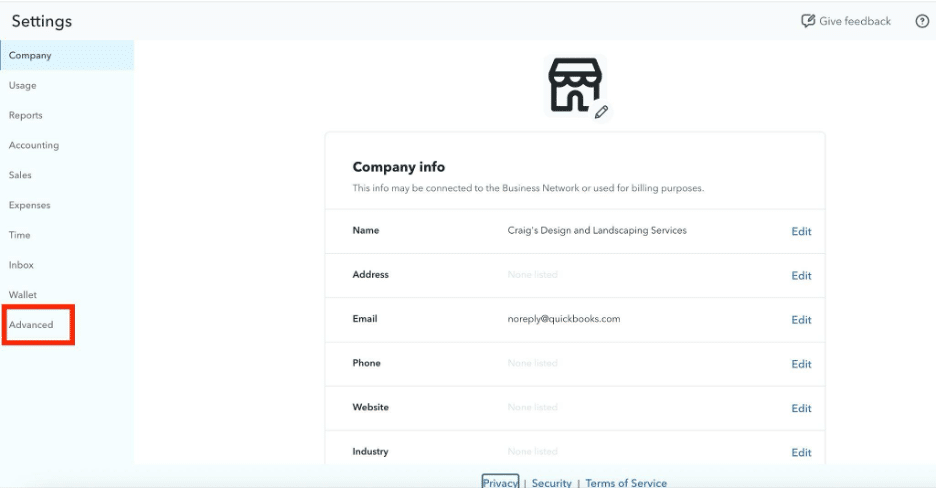
- In the Accounting section, click Edit.
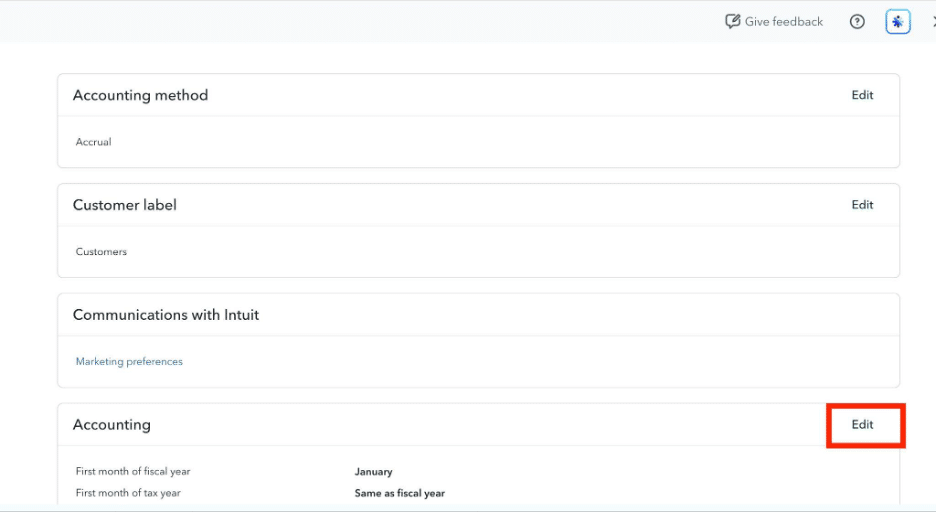
- Locate the Close the books setting.
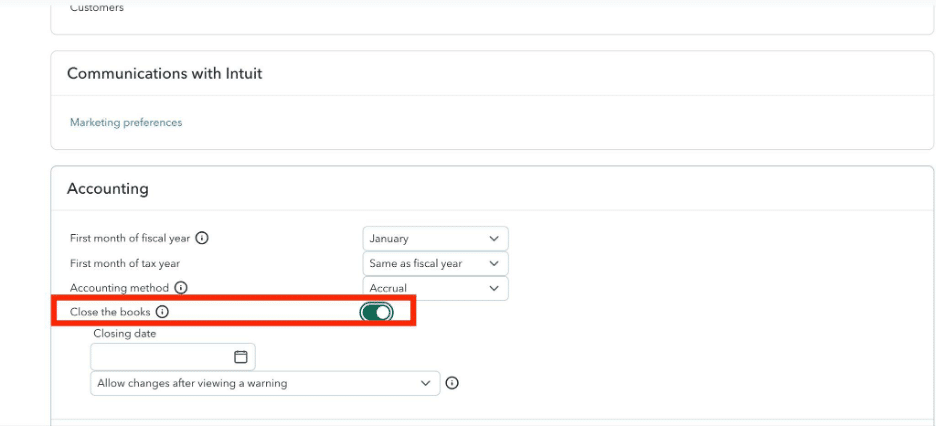
- To change the lock date, update the Closing date field.
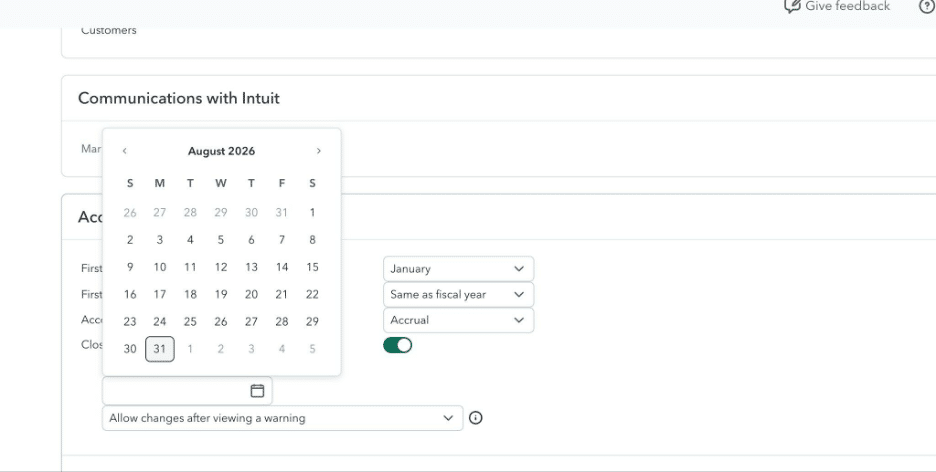
- If the period needs to be fully reopened, turn the “Close the books” off.
- Click Save, then Done.
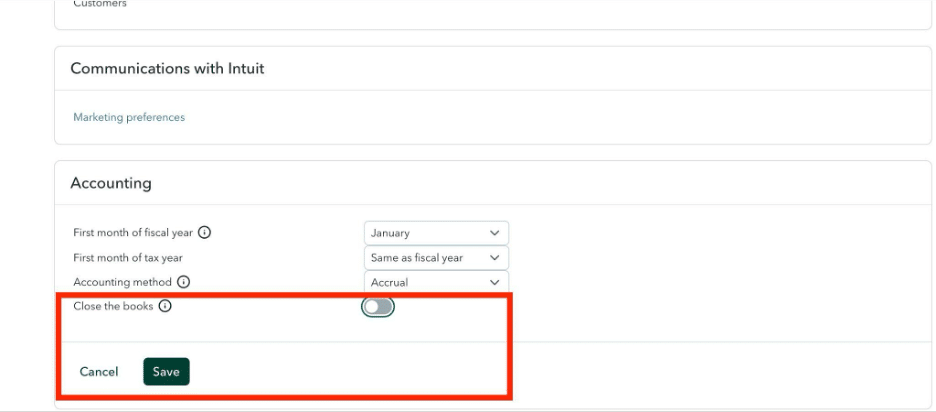
Once the correction has been made and reviewed, restore the appropriate closing date and password protection.
What Happens If Someone Changes a Transaction in a Closed Period
A post-close change affects financial information that has already been reviewed or reported: Previously reconciled accounts, historical financial reports, and tax reporting may all be affected.
If a change affects a period for which a tax return has already been prepared or filed, consult the appropriate tax professional to determine whether additional action is required.
If a change is necessary, document at least:
- What transaction was changed
- The original and revised information
- Why the change was necessary
- Who made the change
- When it was made
- Who reviewed or approved the exception
- Whether previously issued financial statements or tax filings were affected
After the correction, rerun any affected reconciliations and reports and determine whether the period needs to be reviewed again before restoring the closing-date protection.
Use the QBO Audit Log and Closing Date Exception Report to Track Changes
QuickBooks Online’s Audit Log helps you investigate changes made to the company file, including who made a change and when.
- Go to Settings.
- Select Audit Log.
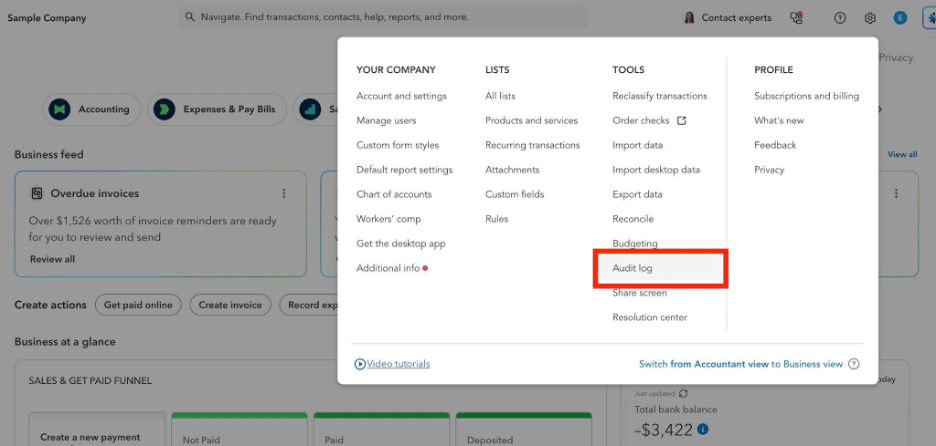
- Use the available filters to narrow the activity by date, user, or type of change.
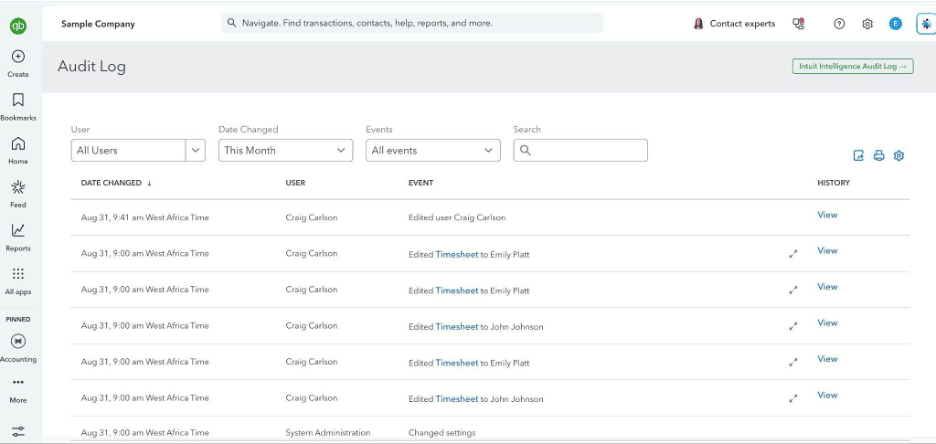
If a closed-period transaction is changed, use the Audit Log to identify the activity and determine whether the change requires additional review.
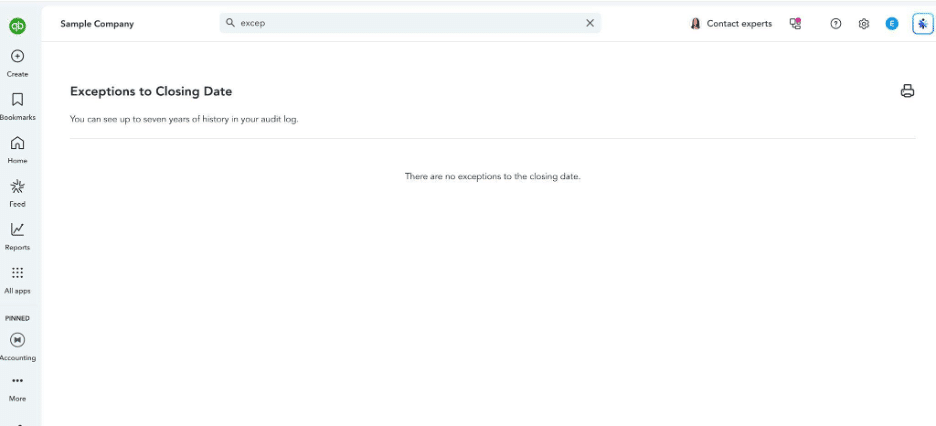
Does your QBO version include a Closing Date Exception Report? Use it to identify changes affecting transactions in a closed period.
Your Month-End Close Checklist (Free Download)
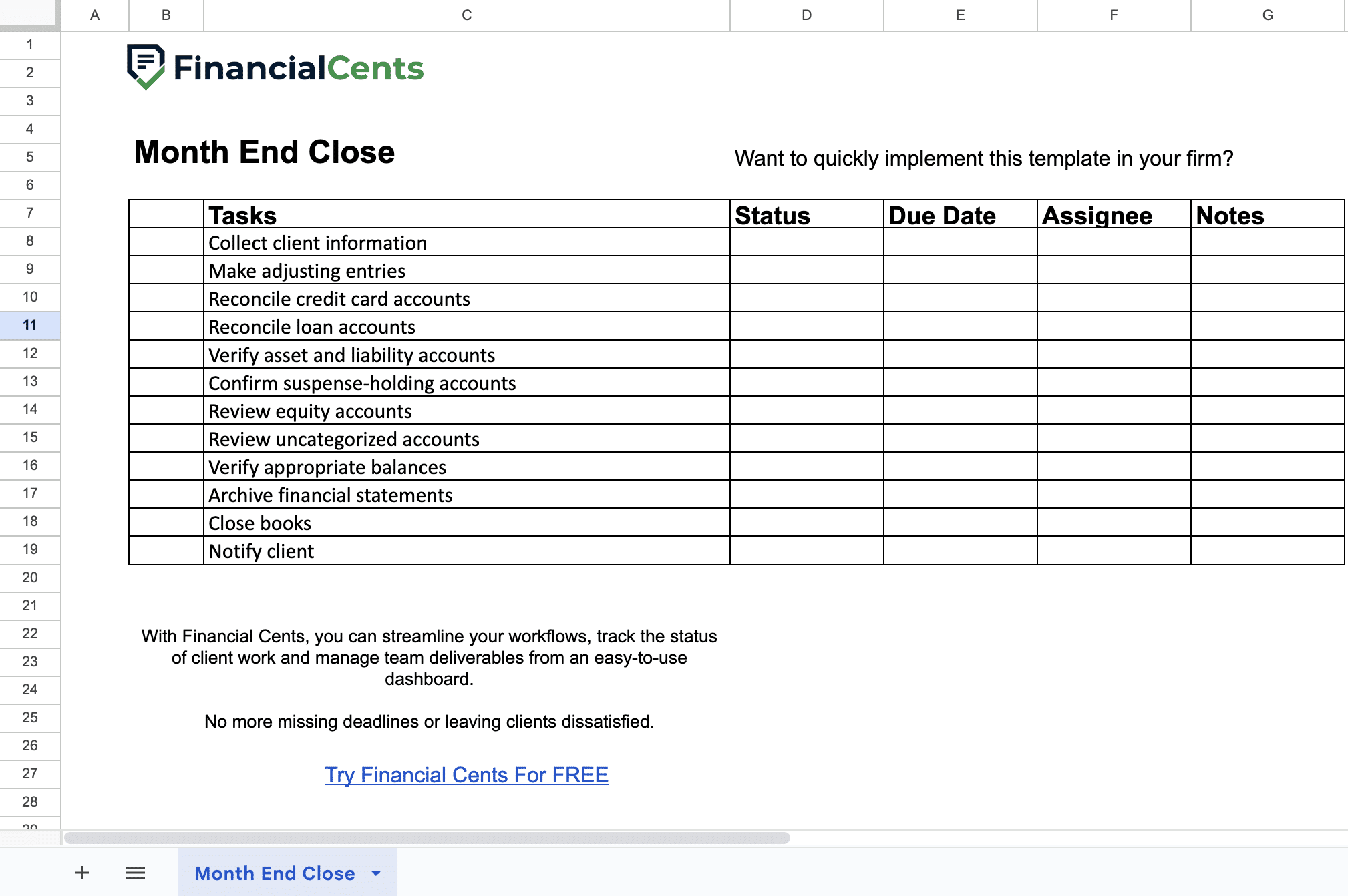
When a month-end process must be repeated across multiple clients every month, your team will need a checklist that enables them to work through every close project without relying on memory.
We’ve created a free month-end close checklist you can download and adapt to your firm’s process to improve consistency.
The checklist breaks the close into clear, actionable steps and gives your team a simple way to track:
- Close tasks: Organize the process from document collection and transaction review through reconciliation, financial-statement review, and final sign-off.
- Task status: See which steps are in progress, completed, or still require attention.
- Assigned responsibilities: Designate who is responsible for preparing, reviewing, and approving each step.
- Due dates: Set internal deadlines that keep the close on track for client delivery.
- Notes and exceptions: Record client-specific procedures, unusual items, and follow-ups that need attention.
You can customize the checklist to reflect your firm’s accounting policies, client requirements, and close deadlines.
A spreadsheet checklist can provide the initial structure, but it may become difficult to manage as your firm adds more clients, employees, dependencies, and review levels. At that stage, the best month-end close software can help your team turn the checklist into a recurring, assignable workflow with automated reminders and real-time status tracking.
Common Month-End Close Mistakes (and How to Avoid Them)
A month-end close could go wrong even when every transaction appears to be flowing into QuickBooks Online. These common practices are the culprits.
Treating the Dashboard or Bank Feed as Proof of Completeness
A QBO bank feed showing “All caught up” or a green checkmark tells you that QBO has processed the transactions currently available through the connected feed. That does not mean that the books are complete.
It’s possible that some transactions were duplicated, incorrectly categorized, or experienced feed connection issues that kept some transactions from showing up as expected.
Practical Fix: Treat the bank feed as an input to the bookkeeping process, not evidence that the close is complete. Review the transaction details, reconcile the account against the external bank or credit-card statement, and investigate unusual or missing activity before signing off.
Adding Rather Than Matching Transactions
Adding a bank-feed transaction when the corresponding invoice, sales receipt, or bill payment has already been recorded in QBO creates duplicate income or expense activity and can distort the financial statements.
Practical Fix: Train your team to look for a match before adding a transaction. If QBO doesn’t automatically suggest one, use Find Match to search existing transactions by amount, date range, or check number.
Only add or categorize the transaction when you’ve confirmed that no existing transaction represents the same activity.
Reconciling Only the Bank Accounts
A bank account can reconcile perfectly while the client’s loan, credit card, prepaid expense, fixed asset, payroll liability, or other balance-sheet accounts contain errors.
A successful bank reconciliation confirms that the bank account has been reconciled to its statement. It does not establish that the rest of the balance sheet is accurate or supported.
Practical Fix: Build a balance-sheet review schedule into every month-end close. For each material account, define the appropriate supporting evidence and review procedure, then investigate and document any unexplained differences.
Forgetting to Set a Closing Password
A closing date without password protection provides less control over changes made to a finalized period. Depending on the QBO settings, team members and clients may be able to acknowledge a warning and go ahead to make changes to transactions dated within the closed period.
Practical Fix: Review the current QBO Close the Books settings and enable the available password protection when your firm’s workflow requires tighter control over post-close changes.
Sharing the Closing Password Too Broadly
The closing password is most useful when access to it is limited to the people authorized to approve or make post-close changes. Sharing it broadly reduces the control’s effectiveness and makes it harder to establish accountability when a closed-period transaction is changed.
Practical Fix: Restrict the closing password to appropriate firm personnel, such as designated reviewers or approvers, and establish an exception process for legitimate post-close corrections.
If a junior team member or client needs to make a change to a closed period, they should submit the correction for review and authorization.
Inconsistent Processes Across Staff and Clients
Every preparer shouldn’t have their own version of the month-end close. When one preparer reconciles every material balance-sheet account, and another reconciles only the bank accounts, the quality of the close can vary from one client to another.
Practical Fix: Create a standard close template with required procedures, assigned roles, deadlines, and review criteria.
Not Documenting the Close
A clean set of financial statements shows where the books ended, but not how the team got there.
Without documenting the context, the team will have to retrace the previous close to understand an unresolved issue.
Practical Fix: Document the close as you perform it. At minimum, retain appropriate evidence of reconciliations completed, significant adjustments and their supporting documentation, client questions and responses, outstanding items and their owners, reviewer comments and sign-off, and post-close exceptions.
How Modern Firms Close Every Client’s Books On Time
Modern firms like Capovario and Numbers Matter LLC connect their accounting and accounting workflow software to reduce the time and mental effort required to manage recurring month-end closes.
For these firms, QuickBooks Online is the system of record for accounting data, while Financial Cents coordinates the work required to close those books. QBO shows transactions, balances, reconciliations, and financial statements. Financial Cents addresses the operational questions around them: Who owns the work? What’s blocking the close? Which client is waiting on information? Has the reviewer signed off?
Financial Cents makes the process easier to manage by:
Standardizing the Close with Recurring Templates
Financial Cents lets firms create recurring close templates with standardized procedures, deadlines, assignees, and review requirements for every client, from document collection through reconciliation and final sign-off.
Firms can customize individual templates when a client’s circumstances require it without rebuilding the process every month.
This standardization has helped Numbers Matter LLC after founder Steve Libhart moved away from managing monthly closes across Excel, Word, ClickUp, and Notion. He described the impact of the integrated Month-End Close workflow in Financial Cents this way:
Making Dependencies and Task Ownership Visible
A close is a chain of dependent tasks. A preparer may need a client’s answer before resolving a transaction, while a reviewer can’t sign off until material reconciliations are complete.
Financial Cents lets firms assign tasks to specific team members, set due dates, and establish dependencies to make it easier for everyone to see who owns each step and what’s holding up the next one.
That visibility also helps separate preparation from review, so managers can see whether work is merely completed or has actually been reviewed and approved.
Automating Client Requests and Reminders
Client responsiveness is one of the biggest sources of delays in month-end close. A missing bank statement, unexplained deposit, or unanswered question can leave otherwise completed work waiting on one person.
Financial Cents’ automated client requests and reminders give firms a structured way to collect missing information and track outstanding responses within the workflow.
Keeping Client Responses in Context with the Client Portal
The goal isn’t simply to get a response. It’s to get the right information back to the right person without losing the context of the original request.
Financial Cents’ Client Portal gives clients a dedicated place to upload documents and respond to requests. Requests and questions are connected to the transaction being reviewed. This keeps the client’s response and supporting documentation close to the issue that prompted it.
Enabling Review of QBO Exceptions and Reconciliations Inside the Workflow
Financial Cents’ Month-End Close feature connects to QBO and brings common review activities into the close workflow. Its Transaction Review reports surface issues such as uncategorized transactions, missing payees, missing classes or locations, unsupported expenses, inconsistent expenses, and large transactions.
No more tracking exceptions in a separate accounting spreadsheet. Teams can work through them as part of the close.
Similarly, the Account Reconciliation Report shows accounts requiring attention, their last reconciliation date, and unreconciled transaction counts. Teams can record who completed a reconciliation and when, giving reviewers a consolidated view without opening QBO files individually.
For Dave Kersting, owner of Capovario, that consolidated view addresses one of the most frustrating parts of reviewing multiple client files: jumping between screens to determine whether everything has been reconciled.
With Financial Cents, Kersting says his team can bring “every single bank, every single credit card, every single balance sheet item” into one place. That gives him a clearer view as a reviewer while also showing his team what remains to be done.
“This helps me as the reviewer, but it also helps the team know what they have left,” Kersting says.
Giving Managers Visibility into Close Status
With the close being standardized and connected to the underlying accounting work, managers can see what is complete, what’s blocked, and what still requires attention without chasing individual team members for updates.
That’s especially valuable when a firm has dozens of client closings to work on, as it’s difficult for a manager to monitor every QBO file, spreadsheet, and email thread individually.
Turn Your Month-End Close into a Repeatable Process
Closing the books in QuickBooks Online is more than setting a closing date. A complete close means reconciling accounts, reviewing transactions, resolving exceptions, reviewing financial statements, recording adjustments, completing sign-off, and protecting the finalized period.
None of this is particularly difficult. The challenge is that you can’t make every client respond on your timeline or make every set of books behave the same way. What you can control (or standardize) is how your firm handles those differences. A repeatable close process gives your team clear ownership and review responsibilities while making it easier to see what’s complete, what’s blocked, and what still needs attention.
That’s where bookkeeping practice management software like Financial Cents complements QBO: QuickBooks Online handles the accounting; Financial Cents coordinates the work around it.
To see how Financial Cents’ workflow and Month-End Close features work alongside QuickBooks Online, click here to book a demo.
FAQs

The Financial Cents Editorial Team creates practical guides, templates, and resources for accounting, bookkeeping, and tax firms, drawing on our in-house experts and the firm owners we work with.
Share this article