Getting clients to send requested files and information is already the biggest workflow challenge for accounting firms, according to the 2025 State of Accounting Workflow and Automation Report. The lack of an integrated email system just makes a bad situation worse. That is, the problem doesn’t end even after the client has granted your request.
You must have experienced this: a client grants the email request your firm has been waiting for and even adds a new request to the thread. The staff member who receives it downloads the attachment, saves it to their local drive, and moves on to the next task.
The new request is never assigned to anyone. No one else on the team can see the conversation. Days or weeks later, the client follows up, and it took your team searching individual inboxes to realize that the request had been sitting idle in that inbox all along.
It’s easy to blame that workflow failure on your team’s email volume, but that is not necessarily the issue. This happens when your email operates separately from your accounting firm practice management software.
In that case, it’s usually difficult to associate client communication with the client records, engagements, and the staff member responsible for attending to it.
The 2026 Firm Tech Stack Report confirms it: we spoke to 261 firm owners and found that only one in three firms has a unified view of their client work, and nearly half of firm leaders also aren’t confident that nothing is falling through the cracks.
In this guide, we’ll explain what email integration should mean for an accounting firm, the capabilities to look for, and the six best accounting practice management software platforms for connecting client communication to the work your firm needs to get done.
TL;DR
- Email integration connects client communication to the client records, tasks, projects, and workflows where your firm manages its work.
- There are three main approaches:
- A native inbox that brings email into the practice management platform.
- Two-way Gmail or Outlook sync that connects your existing email workflow to the platform.
- Forwarding/BCC-to-log, which captures selected messages without syncing the entire inbox.
- Financial Cents is the best overall choice for small and mid-sized firms that want email tightly connected to client records, projects, owners, deadlines, and workflows, with a client portal in the same system.
- Karbon is a strong choice for larger, email-heavy firms that need native email, triage, and team collaboration. TaxDome is a strong option for tax-focused firms that want email connected to a broader client portal, document management, billing, and workflow automation.
- How to choose: Test each platform with a real client workflow, from receiving an email and capturing the conversation to assigning the work, setting a deadline, finding the message later, and handing the work to another team member.
← Scroll to see more →
| Software | Email Approach | Best For |
|---|---|---|
| Financial Cents | Gmail/Outlook + focused inbox + email-to-work | Small and mid-sized firms wanting email connected to workflow |
| TaxDome | Email + client portal + client record | Firms wanting portal-centered client management |
| Karbon | Native email + triage + workflow | Larger, collaborative firms with high email volume |
| Canopy | Email + client management + portal | Tax and accounting firms wanting an integrated platform |
| Double (Formerly Keeper) | Email connected to bookkeeping workflows | Bookkeeping firms managing recurring client work |
| Jetpack Workflow | Limited email integration + strong workflow | Firms prioritizing recurring work and deadlines |
What Does “Email Integration” Mean in Practice Management Software?
Email integration in practice management software means the ability to connect your firm’s email server(usually Gmail and Outlook) to the platform where you manage client work and other aspects of your firm. That is so that client communications are no longer stored in individual personal inboxes alone.
Instead, all relevant email activity is captured alongside the client and project they relate to so other team members can access the conversation in the context of the work and client engagement.
The Types of Email Integration (and why the difference matters)
The common types of email integrations include:
a. Native inbox built into the platform
With a native inbox, the practice management platform provides its own centralized workspace for managing email alongside client work. Your staff can read, send, and manage accounting client communication from the same environment where they manage projects, tasks, and client records.
This type of integration provides the greatest level of centralization and visibility because client conversations are pulled into the workflow and accounting CRM sections of the practice management platform.
b. Two-way sync with Gmail/Outlook
The two-way email sync option connects your existing Gmail or Outlook account to your practice management system, allowing your team to communicate with clients in the email app or the practice management interface.
The two systems exchange relevant email activity, so whatever actions you take in Gmail or Outlook will reflect in the practice management app and vice versa.
c. Forwarding/BCC-to-log
The forwarding and BCC-to-log method takes a simpler approach to email integration. The practice management tool gives you a designated email address where staff can forward relevant incoming messages to that address or BCC it when sending client emails to log the conversation against the appropriate client or project.
With this system, firms can keep using Gmail or Outlook exactly as they do today without setting up a full mailbox integration.
The trade-off, however, is manual effort and inconsistency. Staff have to remember to forward incoming emails or add the designated address to the BCC field when replying. If someone forgets, that part of the conversation remains in their individual inbox and may be invisible to the rest of the team.
Why the Difference Matters
These three approaches solve related problems, but they don’t provide the same level of connection between communication and work.
A forwarding/BCC-to-log integration primarily helps you record important client conversations in your practice management system. A two-way sync connects your existing Gmail or Outlook workflow to the practice management system and syncs email activity in both directions. A native inbox brings email management directly into the practice management workspace for staff to manage communication alongside client records, tasks, and workflows.
The right choice depends on how your firm works today and how you expect that workflow to evolve.
Why Integrated Email Matters to Accounting Firms
Operational Bottlenecks
An email that is disconnected from practice management software breeds deep operational inefficiencies, the most common being:
- Scattered Instructions & Approvals
With emails spread across each staffer’s inbox, a client may approve a change in scope, request an additional deliverable, or confirm that a document is ready, but other staff members won’t know that the request was made, who should act on it, or whether it has been completed.
- Seasonal Unreliability
Without a centralized way to organize and track clients’ conversations with the firm, a surge in message volume during peak tax season will make client conversations, requests, and follow-ups more difficult to track. Clients may have to follow up repeatedly to get an answer.
- Private Knowledge Silos
Past agreements, previous requests, or ongoing issues will also be confined to the inboxes that receive them, which makes it harder for others to step in, make informed decisions, or take over the work when needed.
- Absence Bottlenecks
Client communication can stall when the staff member managing it is unavailable. Work will also be paused until the original staff member returns, which creates unnecessary delays for both the firm and the client.
- Version Control & Security Vulnerabilities
When documents are exchanged back and forth as email attachments, multiple copies will end up in different inboxes, downloads folders, or shared drives. That creates confusion over which file the team should use.
Plus, these sensitive tax and financial documents in all these places will increase the firm’s vulnerability to cyberattacks.
- Disguised Task Lists
Using an inbox as a to-do list makes client requests visible to the person who received them alone, while hiding ownership, progress, and upcoming deadlines from the rest of the firm.
Operational Benefits
The operational benefits of integrating your email provider into your practice management include:
- Faster Triage
The integration enables client questions, engagement approval, or document submission to be routed into the appropriate accounting workflow instead of sitting in an individual inbox waiting for someone to remember what needs to happen next.
- Shared Client Context
When client communication is connected to the client record or engagement, the conversation becomes part of a shared client history that authorized team members can access to see what the client has asked for and understand the status of all requests instantly.
- Email-to-Task Conversion
Integrated email enables staff to convert the email into a task with an owner and due date, and add it to the firm’s workflow.
- Response Accountability and Automated Reminders
If a client hasn’t responded to a document request, the integrated email system can automatically send a follow-up email after a predefined period.
- Continuity During Staff Change
Integrated email ensures that a client relationship doesn’t lose its history because an employee goes on vacation, changes roles, or leaves the firm. It allows another authorized team member to pick up where the previous employee left off.
- Fewer App Switches
If your team has to read an email in Outlook, save an attachment to another system, create a task somewhere else, and then update the client record in a practice management platform, every handoff creates another opportunity for information to be entered incorrectly or missed altogether.
Integrated email reduces those handoffs by bringing communication closer to the workflow where the work is managed.
The 6 Best Accounting Practice Management Software with Email Integration
1. Financial Cents
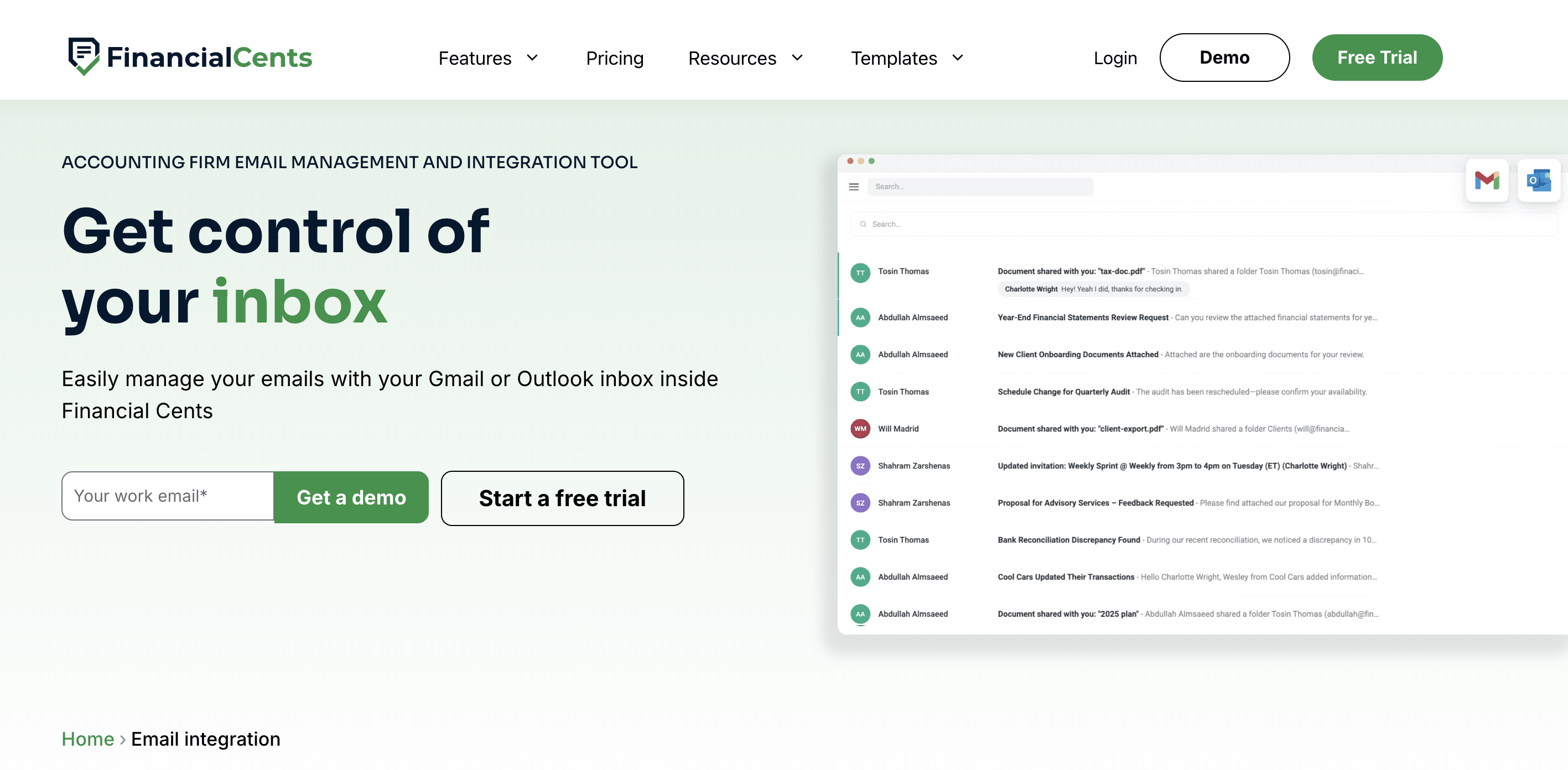
Financial Cents is an all-in-one accounting practice management platform designed primarily for small and midsize accounting and bookkeeping firms that want to manage email communication and client work in one place.
Its email integration connects Gmail and Outlook with the workflows, client records, and projects your team already manages in Financial Cents.
Email Integration Feature
Financial Cents has a two-way sync with Gmail and Microsoft Outlook to auto-sync email activity with your existing email app. Any action your team takes on an email (such as sending, reading, deleting, archiving, or replying) in Financial Cents is reflected in the connected email account and vice versa.
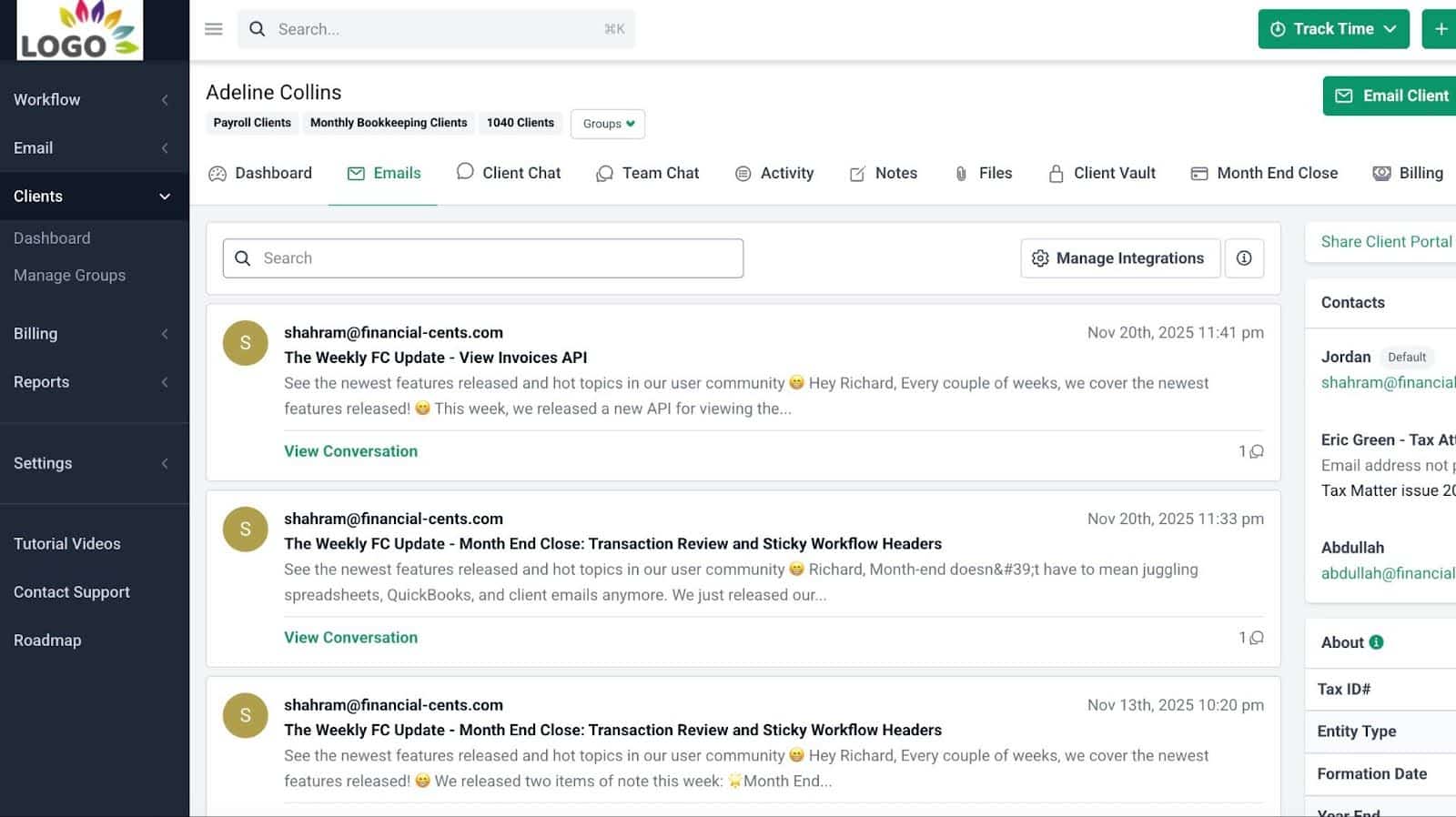
Financial Cents also creates a focused view of client communication within the client profile, where incoming and outgoing emails are logged to the corresponding client record and project.
By default, every team member can connect their existing email account to Financial Cents to bring relevant client communication into the platform. They can only see the emails sent to them. But the owner, manager, or admin has access to the email audit trail and can view all client emails to the firm through any team member’s email.
For any staff to see emails sent to the firm or other team members, the owner or admin will have to give them the necessary permission.
How Email Connects to Workflow
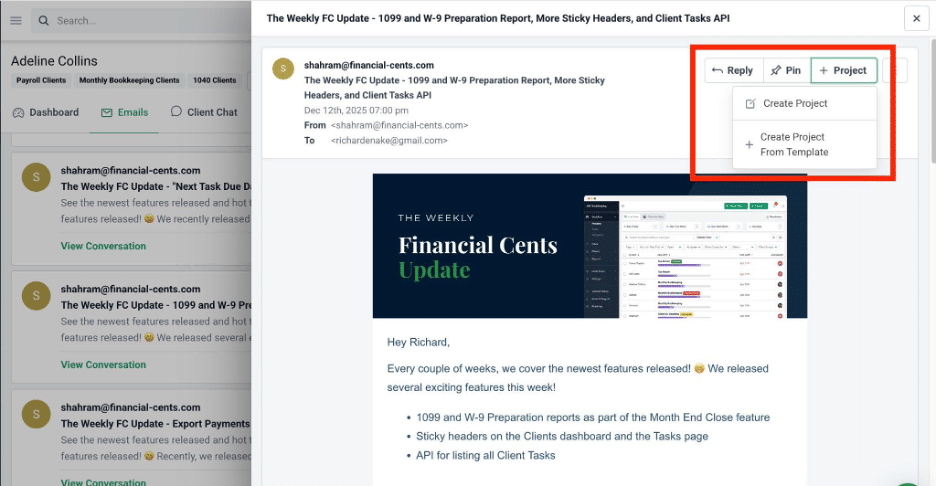
Financial Cents allows staff to convert an incoming email into a new work item (and add an assignee and due date) with a single click. They can also pin emails to an existing project to preserve the original context alongside the work.
Team members can also collaborate (through internal comments and @mentions on client emails) on client emails. This keeps internal discussion connected to the client communication and separate from the client-facing thread.
Once your client completes the task your team requested (such as document upload, E-signature, additional information, etc.), relevant team members receive an automated email to help them move the work forward on schedule.
Then there is the auto-update email. Depending on your predefined setting, Financial Cents notifies your clients when a task or section of tasks is completed. This email could give them an invite to schedule a meeting, a link to your accounting document management system, or communicate any other further steps you want them to take.
Broader practice-management capabilities include
- Workflow management and automation
- CRM
- Passwordless client portal
- Document management
- Time tracking and billing
- Capacity management
- Month-End Close
- Financial Cents AI
Pros
- Two-way integration
- Connects client email with client records and active work
- Email-to-project/workflow capability
Cons
- Not a triage queue
- Supports Gmail and Outlook only
- Deleting an email in Financial Cents deletes it both ways
Best For
Financial Cents’ integrated email features are specifically designed for firm owners who want to eliminate private inbox silos, capture team-wide context, and filter out unnecessary administrative efforts using a focused inbox.
Pricing
Financial Cents annual plans are available at:
- Solo: $19/month per user
- Team: $49/month per user
- Scale: $69/month per user
Rating & Reviews
Financial Cents has a rating of:
2. TaxDome
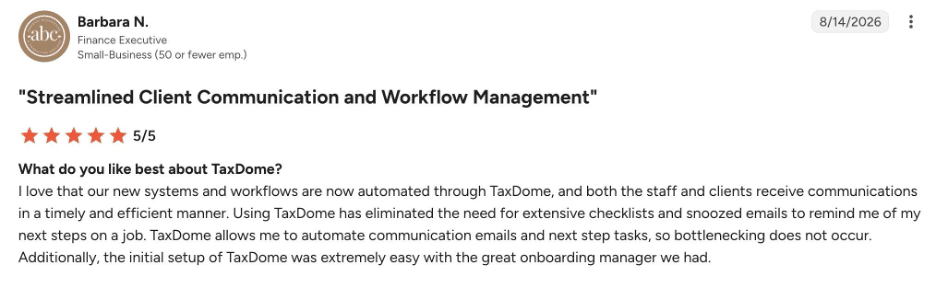
TaxDome is a practice management platform built around client portals, document exchange, workflow automation, and billing.
While it offers full 2-way Gmail and Outlook sync, its design is essentially more portal-centric than email-centric, which makes it particularly suited for tax and accounting practices that want email communications to drive automated pipeline stages.
Email Integration Feature
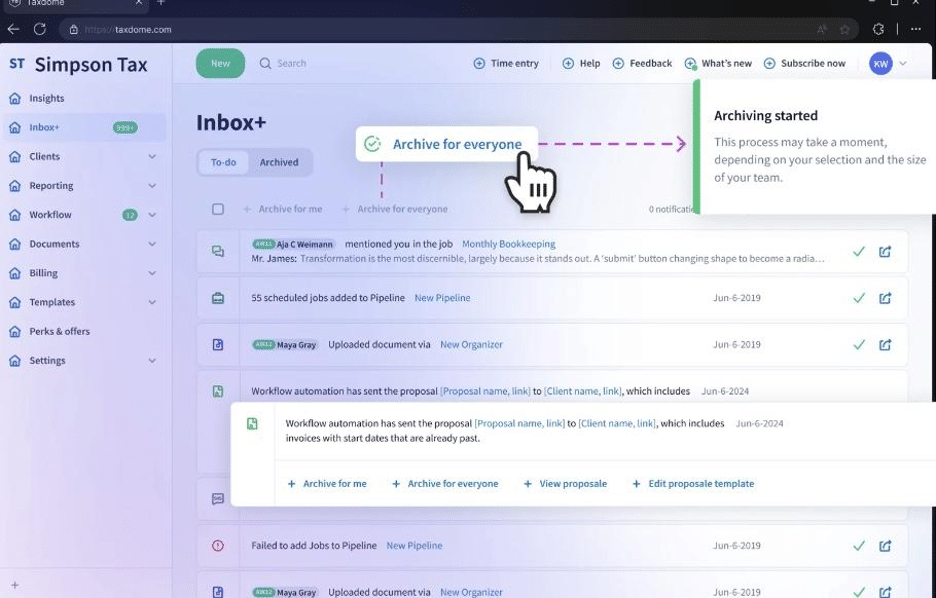
TaxDome connects Gmail and Outlook with its client management environment to associate relevant email conversations with the appropriate client record.
Since the client conversations are accessible through the client’s record, other team members can review the communication history when an engagement is reassigned or the original staff member is unavailable.
TaxDome also supports shared communication workflows through features such as team mailboxes or firm email addresses, depending on the firm’s setup.
How Email Connects to Workflow
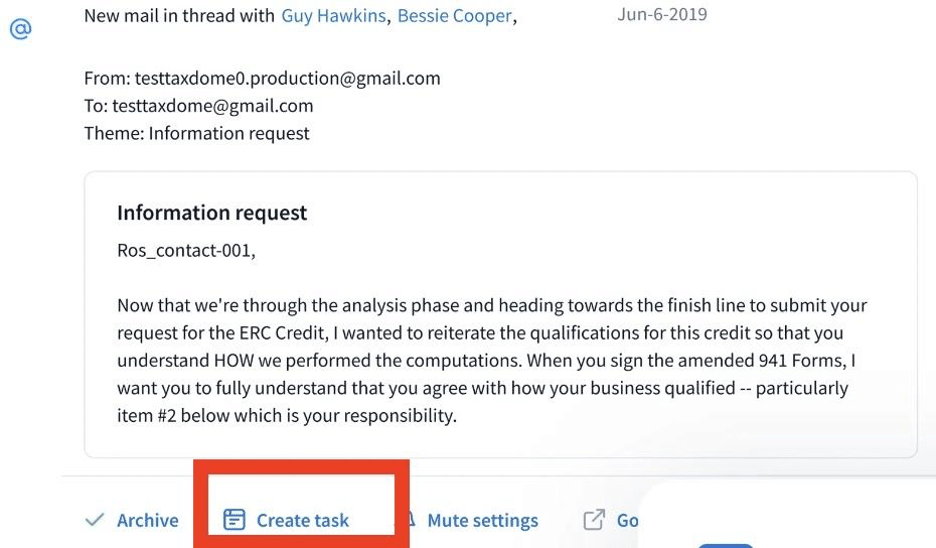
Incoming email activity or client responses in TaxDome can automatically take a project into the next stage of your custom workflow pipeline.
As emails trigger pipeline stage movements, the system automatically generates follow-up tasks and assigns them to specific team members with assigned due dates.
Broader Practice-Management Capabilities Include
- Workflow automation
- Document management
- Tax organizers
- Reporting
Pros
- Email integrated with client records
- Pipeline automation
- Deep automation features across tax preparation and client intake
Cons
- More portal-centric than email-centric
- Can feel broader than what a small and mid-sized firm needs
- Longer setup process
Best For
Tax and accounting firms with structured, repeatable workflows that want to use email activity to automatically trigger client outreach, stage updates, and internal task assignments.
Pricing
TaxDome’s Three-Year Plan is available at:
- Essentials: $700/year per seat
- Pro: $900/year per seat
- Business: $1,100/year per seat
Rating & Reviews
TaxDome has a rating of 4.7/5 on both Capterra and G2.
Related:
For a detailed side-by-side breakdown, see Financial Cents vs Taxdome
Discover the top 10 taxdome competitors
3. Karbon
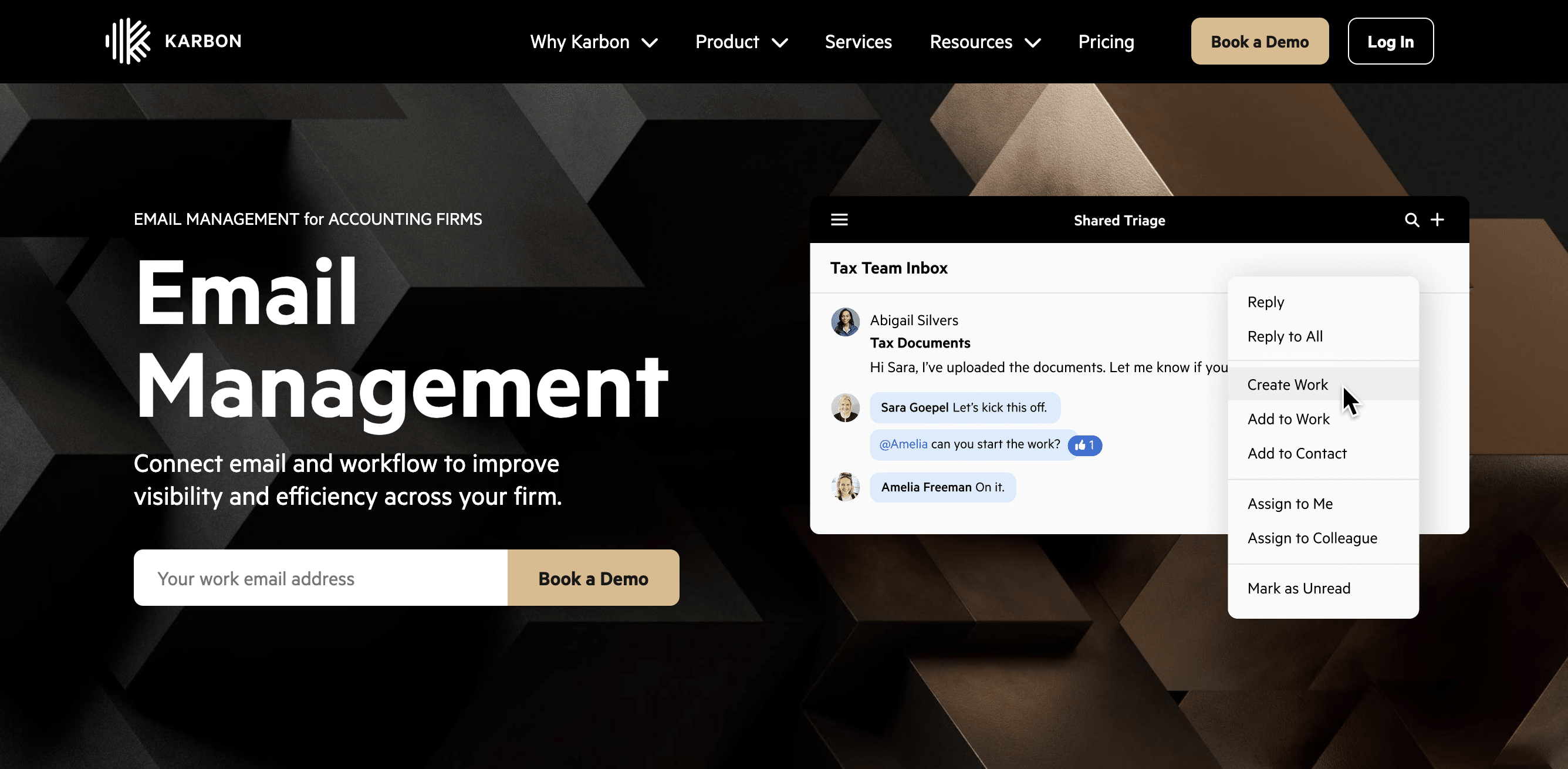
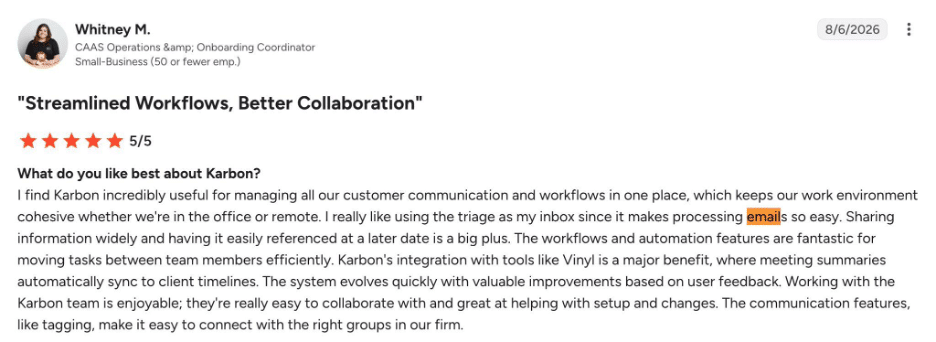
Karbon is an enterprise-grade practice management platform built on the idea that email is not a separate application, but the central engine of a firm’s operational workspace.
Arguably the industry benchmark for email integration, its deep email integration transforms incoming client communications directly into visible, collaborative team workflows.
Email Integration Feature
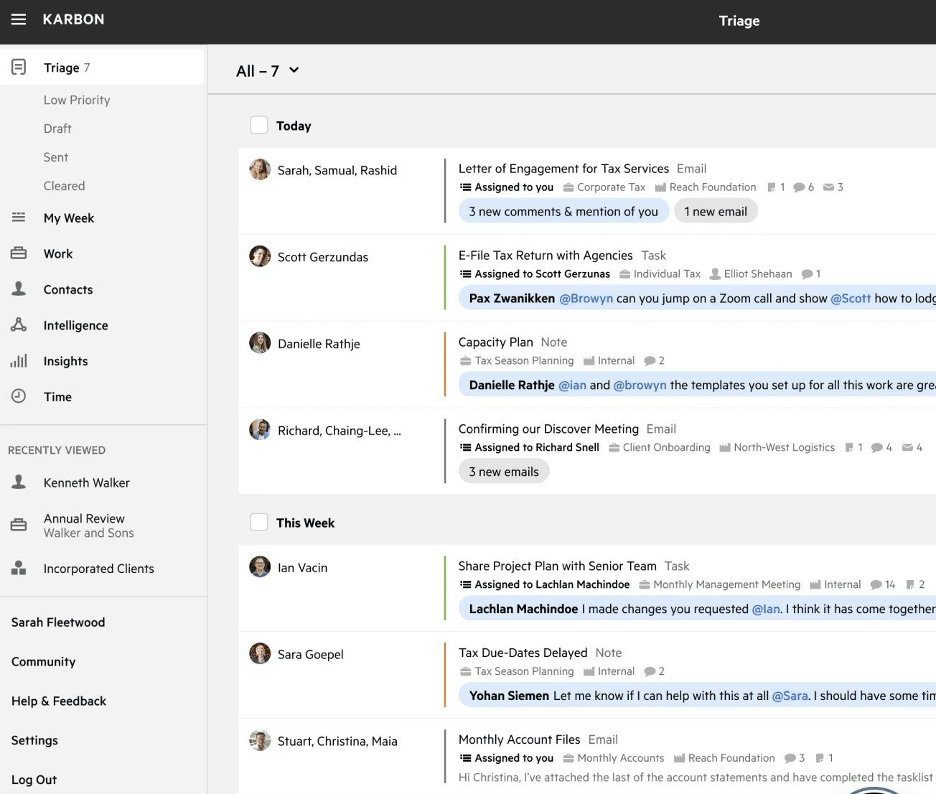
Karbon offers the Triage feature, a native shared inbox environment designed to replace standalone email clients for day-to-day firm operations.
It connects directly with Microsoft 365 and Google Workspace, so incoming emails land in a centralized feed where staff read, assign, delegate, and categorize messages.
Every client email automatically logs to the corresponding client file or work order, which grants authorized team members real-time access to the complete communication history.
How Email Connects to Workflow
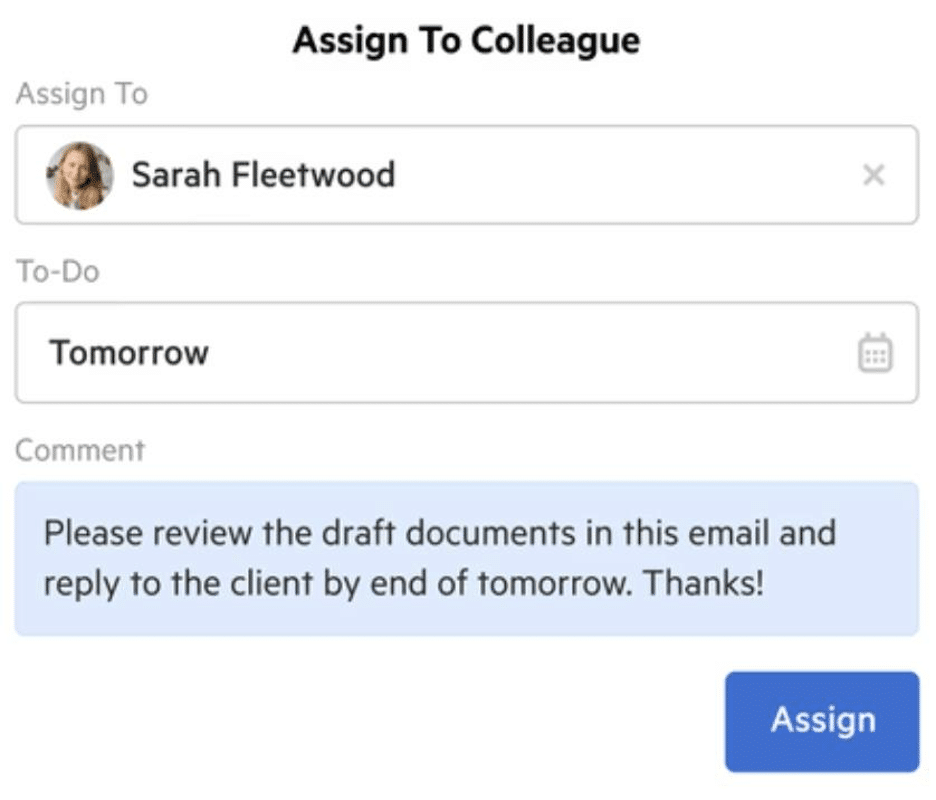
Staff can convert any email into a new work item, an assigned task, or attach it directly to an open project.
Emails can be assigned to specific colleagues with clear status tags (e.g., In Progress, Waiting on Client) to remove the message from the primary feed once actioned.
Broader practice-management capabilities include
- Workflow Automation
- Client management
- Capacity management
- Time tracking
- Reporting
Pros
- Native email and triage experience
- Strong team visibility
- Scales exceptionally well for larger multi-tier teams
Cons
- More complex than many other practice management platforms
- Can feel like overkill for a small firm
- Steep onboarding curve requiring a shift in how staff manage email
Best For
Medium-to-large accounting firms and growing multi-user teams where high email volumes, complex staff handoffs, and distributed workloads make inbox management an operational priority.
Pricing
Karbon’s annual plans are available at:
- Team: $59/month per user
- Business: $89/month per user
- Enterprise: Custom quote
Rating & Review
Karbon has a rating of:
Related
For a detailed side-by-side breakdown, see Karbon vs Financial Cents
Discover the best Karbon alternatives to consider
4. Canopy
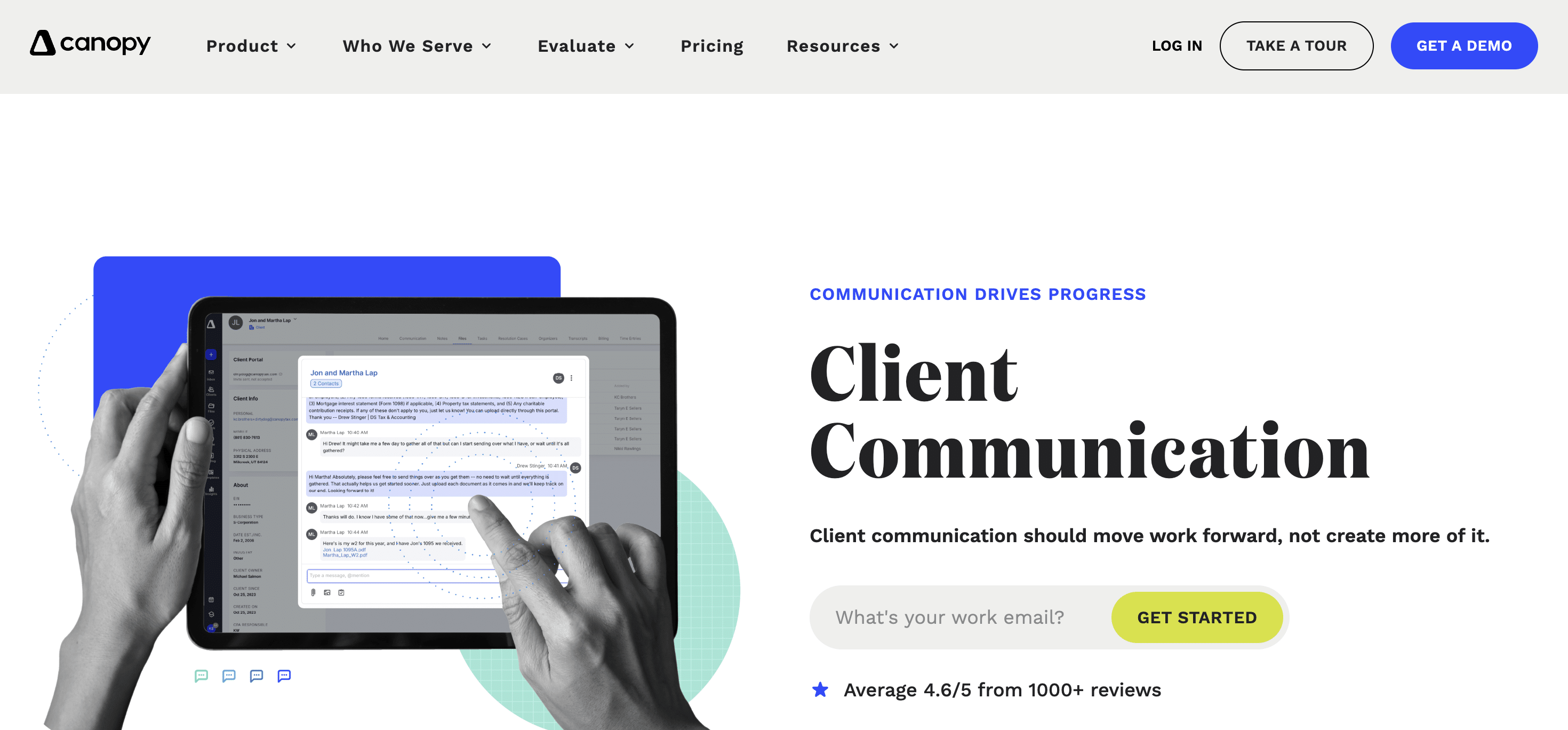
Canopy is a practice management platform built specifically for accounting and tax professionals. It brings client communication, workflow, document management, billing, and client collaboration into a single system.
It provides a way to keep communication alongside the related documents, tasks, and engagement.
Email Integration Feature
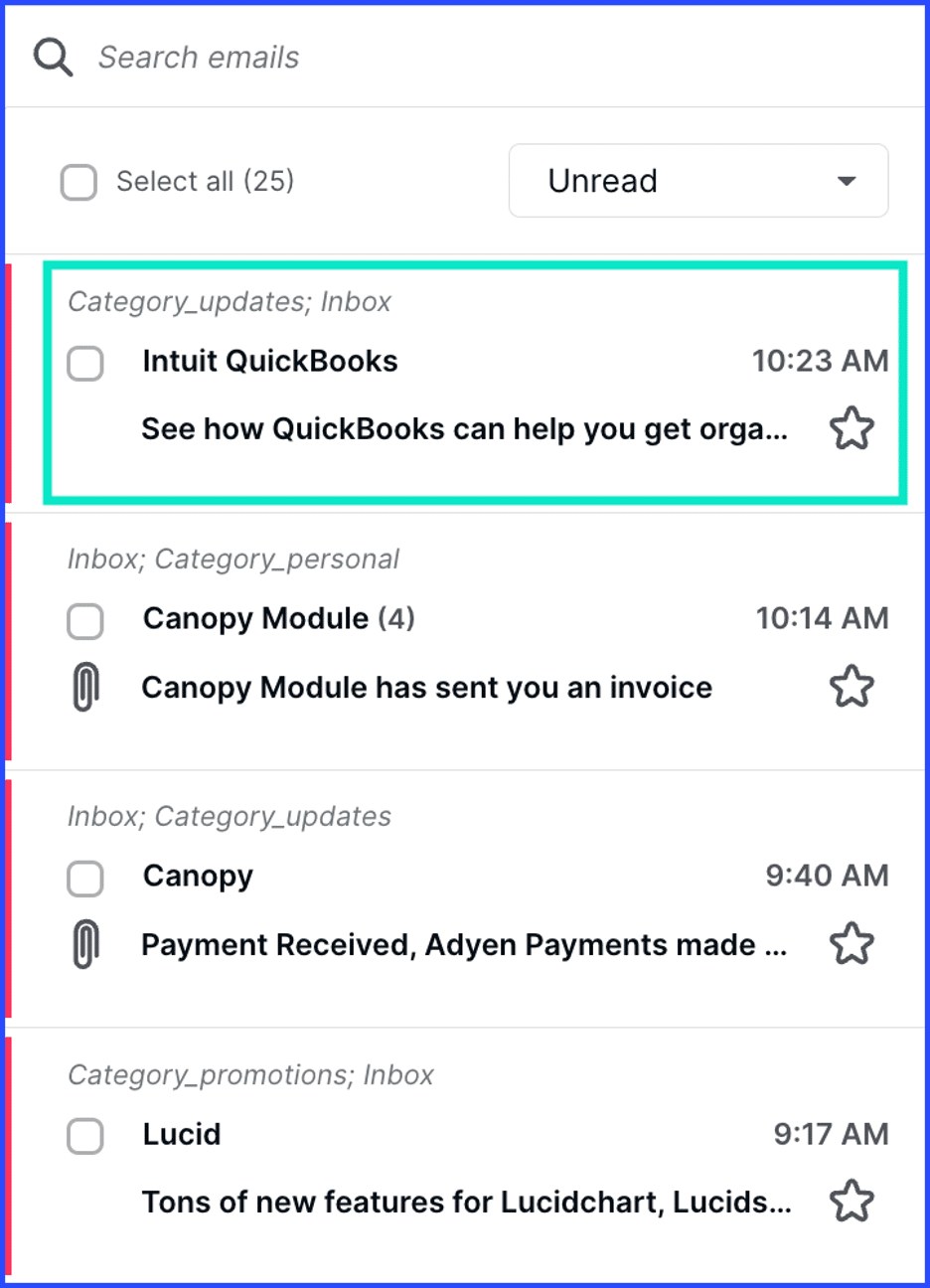
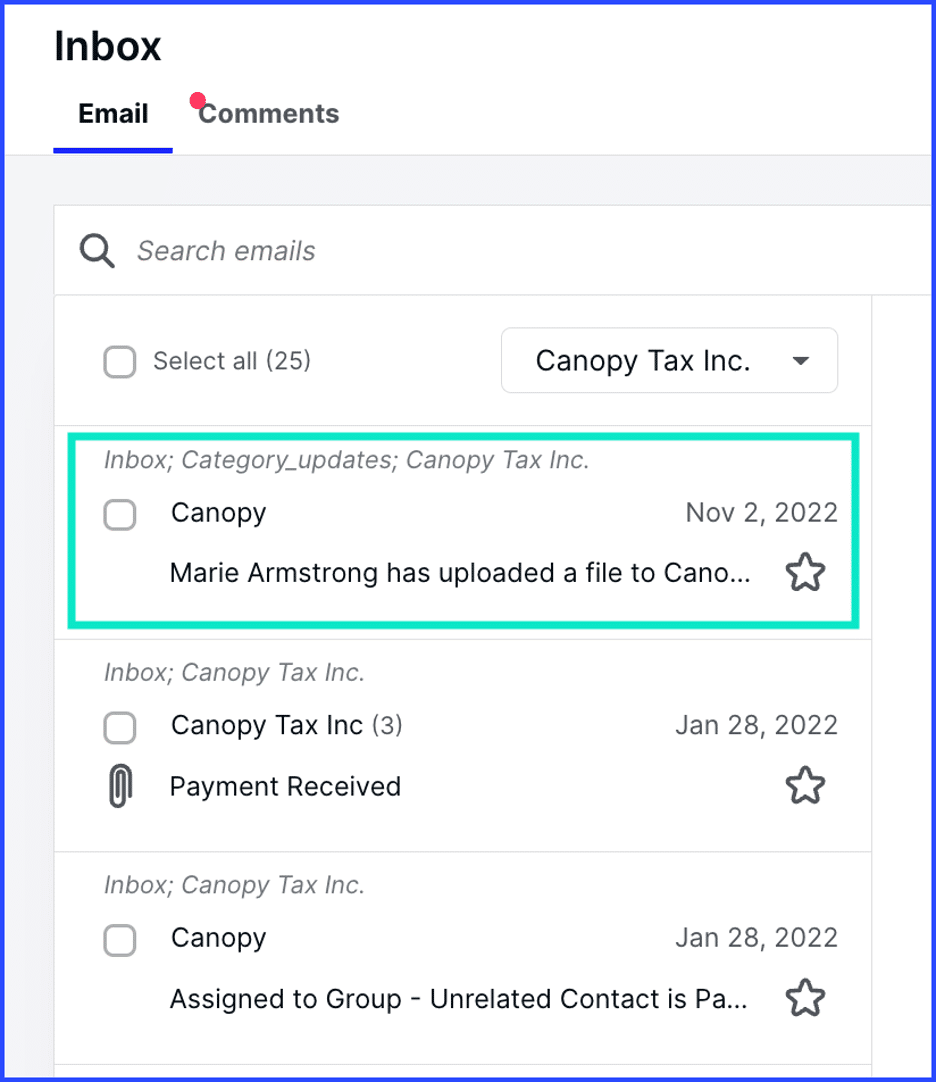
Canopy provides email integration that allows firms to connect client conversations with their work and the CRM in Canopy. Incoming and outgoing emails are indexed directly on the client’s timeline.
Canopy is optimized for Google Workspace and Microsoft 365 (including calendar sync), but it also supports standard IMAP/SMTP connections and Yahoo.
How Email Connects to Workflow
Staff can turn an incoming client email into an actionable task or attach it directly to an active workflow project.
Email attachments can be saved straight from the message thread into Canopy’s structured document management system without manual downloading and re-uploading.
Broader practice-management capabilities include
- Workflow automation
- Client management
- Document management
- Tax resolution tools
Pros
- Strong document and client management
- Client portal
- Workflow automation
Cons
- Broader functionality requires more implementation time
- No native triage queue
- Only primary and secondary (spouse) contact email addresses map automatically to the main client Communications tab
Best For
Tax and accounting firms that want accessible client communication history alongside client management, document organization, and strong file management.
Pricing
Canopy’s annual plans are available at:
- Standard: $74/month per user
- Plus: $109/month per user
- Premium: $149/ month per user
- Enterprise: custom pricing
Rating and Review
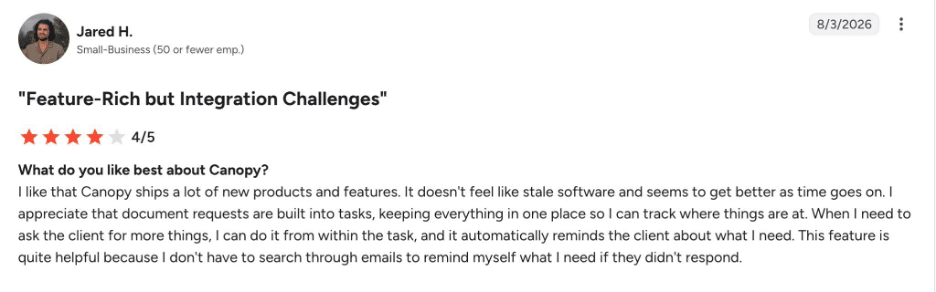
Canopy has a rating of:
Related:
For a detailed side-by-side breakdown, see Financial Cents vs Canopy
Discover the best Canopy alternatives to explore
5. Double
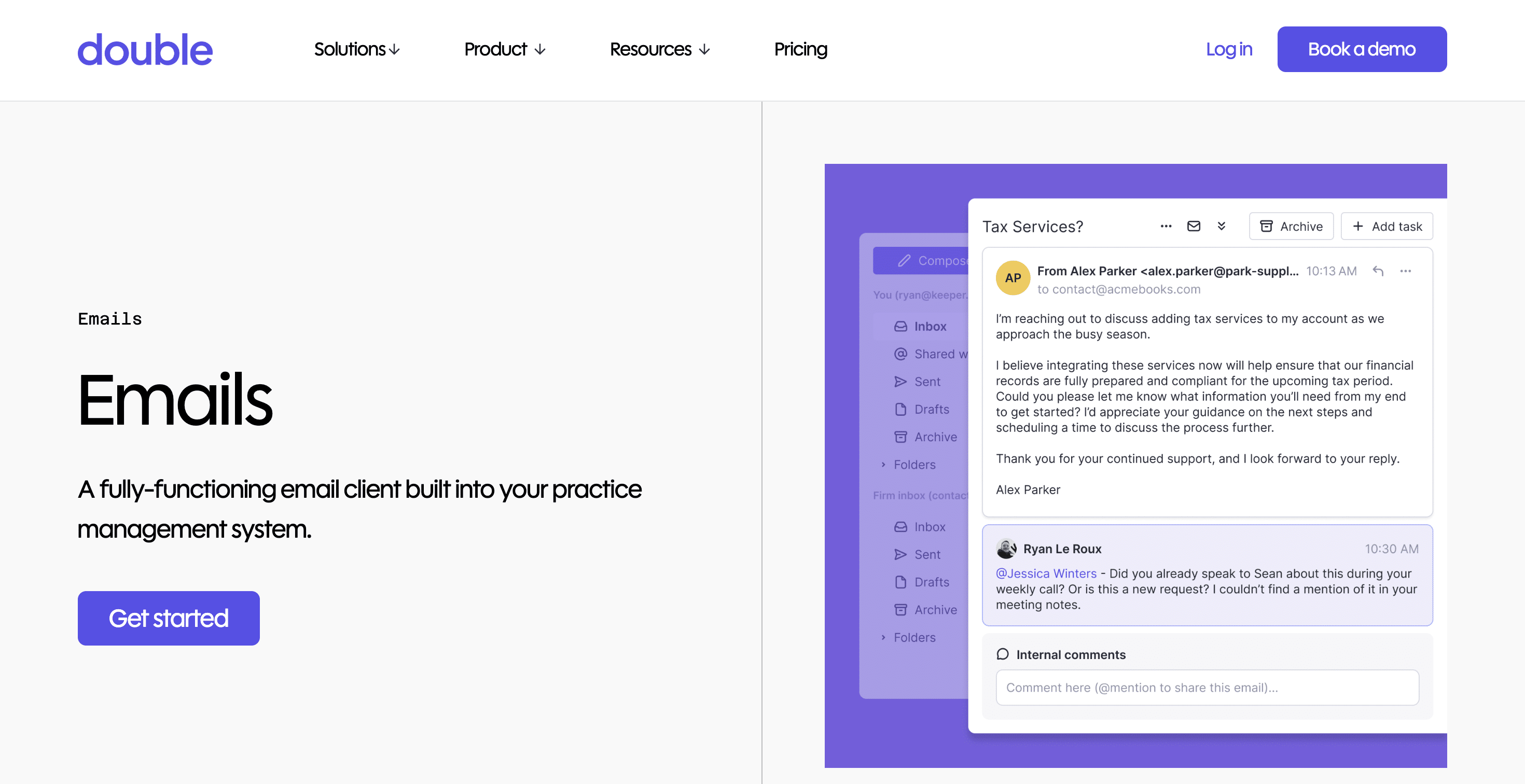
Double (formerly Keeper) approaches communication differently than general practice management systems.
Its email capabilities, which is an add-on, are built to streamline client inquiry management, portal engagement, and transaction-level questions during the month-end close.
Email Integration Feature
Transaction-level questions (uncategorized expenses, missing receipts, 1099 details) can be sent via automated, schedule-driven email notifications that link clients directly to their custom portal.
Firms can schedule recurring, automated follow-up emails for outstanding client questions to keep close tasks on track.
How Email Connects to Workflow
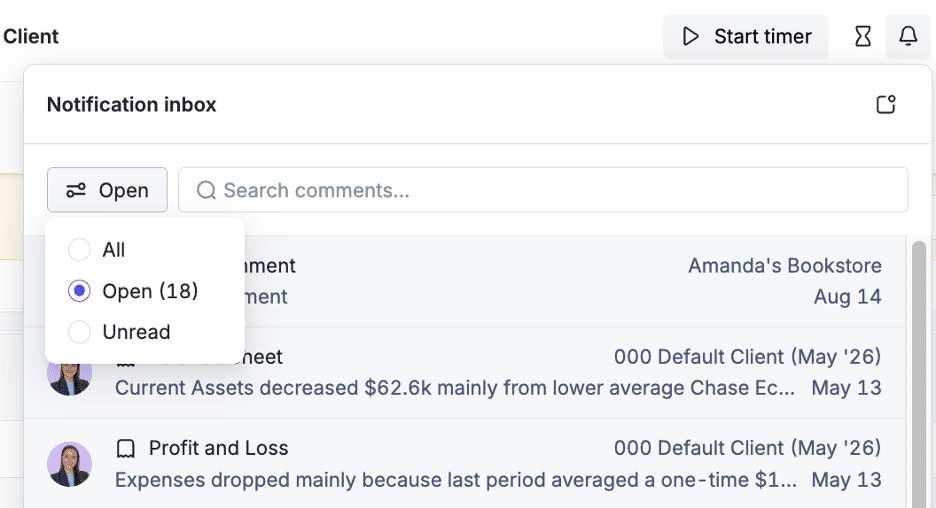
When a client request comes through email, it can be brought into the firm’s workflow so the team can understand what needs to happen and where the work stands.
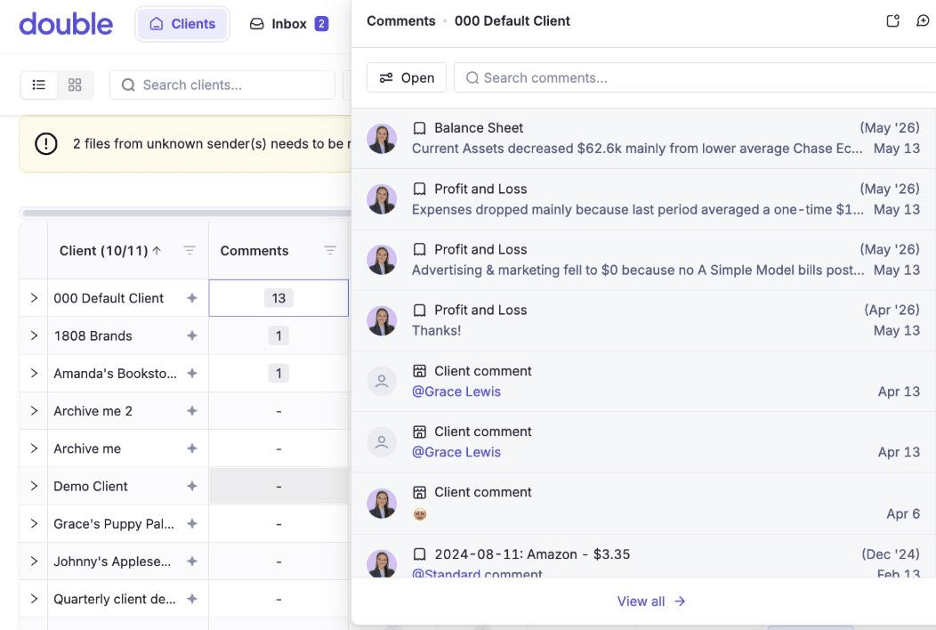
Double connects to the client’s QuickBooks Online or Xero ledger to identify issues such as uncategorized transactions or missing information. The system can then generate a client-facing email or portal request, with the client’s response feeding back into the relevant bookkeeping task without requiring manual data entry.
Broader practice-management capabilities include
- AI Bank Feeds
- AI Transactions
- 1099 Management
- Receipts
- Accruals
Pros
- Strong focus on recurring bookkeeping workflows
- Efficiency for month-end close workflows
- Auto-links client questions directly to specific ledger transactions
Cons
- Email add-on at $10/team member per month drives up the cost.
- Email capabilities are less central
- Has fewer email features than larger all-in-one platforms
Best For
Bookkeeping practices and accounting firms who want to streamline client inquiries and follow-ups specifically around transaction coding, missing receipts, and month-end closes.
Pricing
Double’s email feature is an add-on $10/per connected team email / per month. Its pricing plans are available at:
- Standard: $10/month per client
- Plus: $25/month per client
- Scale: $50/month per client
Rating & Review
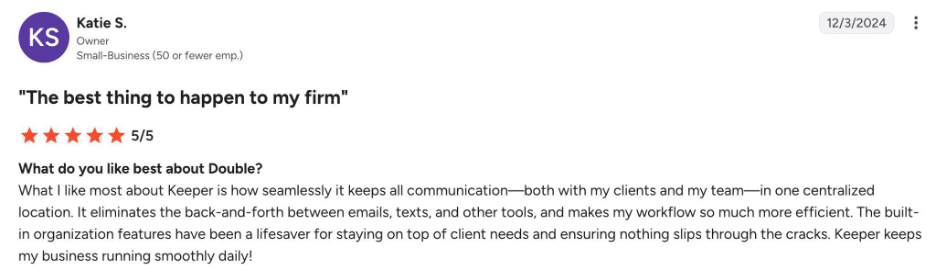
Double has a rating of:
Related:
For a detailed side-by-side breakdown, see Double (Formerly keeper) vs Financial Cents
Discover the best Double alternatives for bookkeeping firms
6. Jetpack Workflow

Jetpack Workflow is a workflow management platform built primarily for tracking recurring jobs, managing team workloads, and ensuring no client deadlines slip through the cracks.
Compared to heavier, inbox-centric solutions, Jetpack Workflow treats email as a supporting notification tool rather than a central environment for daily client triage or task execution.
Email Integration Feature
Jetpack Workflow allows users to connect their Google Workspace or Microsoft Outlook accounts to send outbound emails directly from within Jetpack Workflow.
Sent messages route through the user’s authentic email address and appear in their standard “Sent” folder.
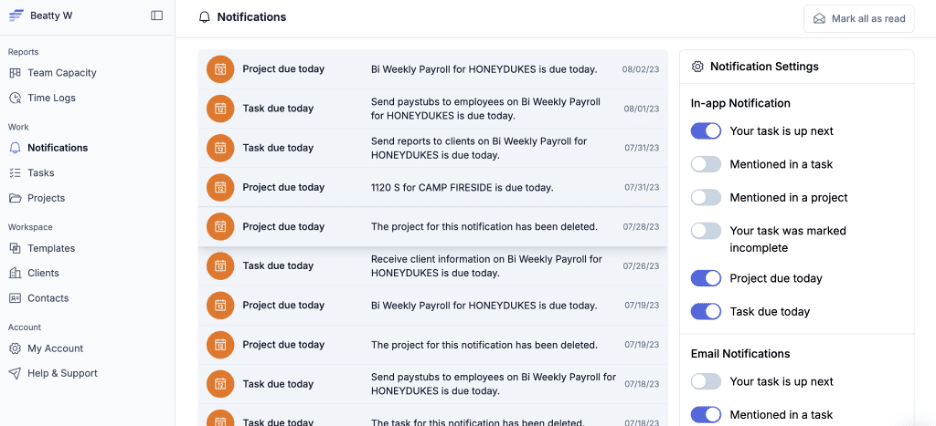
Jetpack keeps a basic record of outbound emails sent through the system attached to the client record.
How Email Connects to Workflow
Jetpack uses email to automatically send outbound reminders and document requests based on active job schedules or stage triggers.
Sent emails include links to secure task checklists or document upload portals to drive client actions back into the relevant job board without cluttering staff inboxes.
Email serves as a notification tool that alerts internal team members when tasks change status, deadlines approach, or client documents are uploaded.
Broader practice-management capabilities include
- Recurring workflows
- Workflow templates
- Time tracking
- Reporting
Pros
- Excellent for recurring work
- Clear task and deadline tracking
- Fast setup with low technical complexity
Cons
- Less of an email-first experience
- Lacks a native 2-way email sync or built-in triage inbox
- Requires external tools (or manual notes) to maintain full client email history
Best For
Accounting and bookkeeping firms that need straightforward, job-focused deadline and workload management, and view email integration as a supporting capability rather than the central operational hub of their practice software.
Pricing
Jetpack Workflow’s annual plans are available at:
- Starter: $40/month per user
- Premium: $50/month per user
Rating & Review
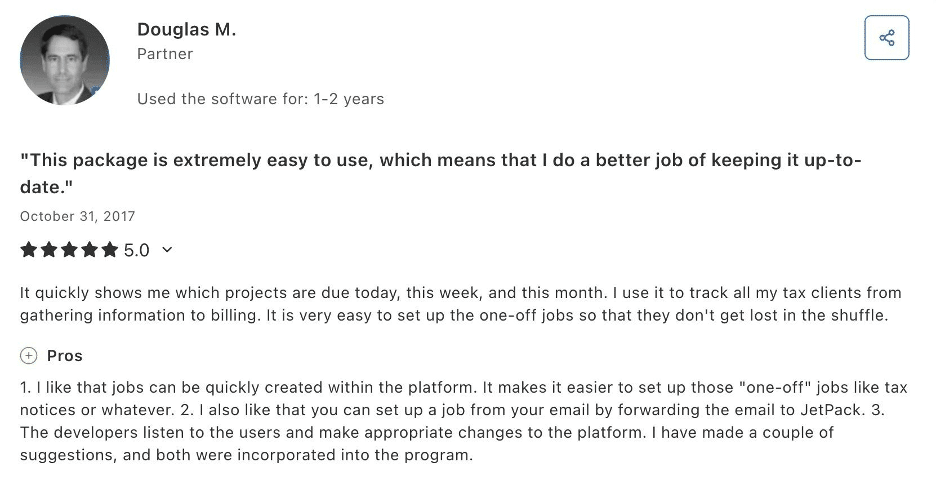
Jetpack Workflow has a rating of:
Related:
The Top Jetpack Workflow Alternatives for Modern Firms
What to Look for in Practice Management Software with Email Integration
Whether your integrated email system identifies the right client, connects the conversation to active work, assigns responsibility, and preserves team visibility depends on the following practice management features:
I. Supported Email Service Providers
The depth of an email integration doesn’t matter if it doesn’t work properly with the email platform your firm already uses.
Gmail and Outlook are among the most common options, but support can vary significantly between platforms. A practice management system may support both providers while offering different capabilities for each.
To Test This: Send a test email through the integration using your firm’s email provider (include formatting, attachments, and a client-specific subject line). Then confirm that the message is accessible, and the conversation is associated with the client record or project.
II. True Two-Way Sync
Beyond having a copy of the email in both apps, a true two-way sync allows relevant email activity to flow between your email provider and the practice management platform. This includes sending and receiving messages and synchronizing actions such as read status, archiving, or deletion.
To Test This: Open a client email inside the practice management platform and mark it as read. Then open your standard Gmail or Outlook app and check whether the message’s status has updated there as well. Test the reverse direction too.
III. Client Matching
The practice management software should be able to associate incoming and outgoing emails with the correct client or project automatically.
To Test This: Have a staff member send an email to a client from their email account and send a reply from the client back to the practice management tool. Open the client’s profile in the practice manager and confirm that both messages appear on the correct communication timeline.
IV. Email-to-Task/Project Creation
This feature allows users to turn an incoming client email into an active task in the practice management system. It ensures that the email is part of your firm’s work management system rather than another task list employees have to monitor separately.
To Test This: Select a mock client request email and use the integration to create a task. Assign it to a team member and add a due date. Then confirm that the task is accessible from the accounting workflow tool and the person doing the work has the full context.
V. Shared Visibility and Permission Controls
Relevant client conversations should be accessible to everyone who needs them. At the same time, granular user permissions let you control who can view, send, or manage client communication based on their role and responsibilities.
To Test This: Restrict a junior staff member’s access to a designated client’s communication. Have the client send an email, then ask a junior staff member (without access) to log in and confirm that the conversation is not accessible to them. Next, check with an authorized admin manager or team member and verify that they can access the communication as intended.
VI. Multiple/Shared Inbox Support
Vendors use the “shared inbox” label to describe different email capabilities, and those differences matter when deciding how your firm wants to manage client communication.
For one platform, it might mean a shared client history, where multiple authorized team members can see conversations associated with a client. For another, it might mean a team triage queue, where incoming messages are routed to a shared workspace and team members can then claim, assign, respond to, or resolve messages from there.
In other cases, it may mean delegated access to another user’s mailbox, where a manager or designated backup staff can access a colleague’s inbox when that person is unavailable.
To Test This: Have a client email your firm’s generic address. Check whether the message enters a shared queue, whether a teammate can assign it to another user, and whether that assignment appears on the recipient’s dashboard. Then test whether every team member retains the appropriate access level.
VII. Ability to Attach/Pin a Message to Active Work
Look for the ability to attach, pin, or associate a specific email thread with an active engagement.
This capability ensures that no staff is forced to search through an entire client history to understand why a task exists. It also helps to prevent important information from getting lost as a client conversation grows.
To Test This: Open a complex tax preparation project, find a relevant client email containing an instruction or clarification, and pin or attach it to the project. Then have a separate team member open the project and verify that they can access the relevant email thread.
VIII. Search Across Email
A strong email integration should make relevant client conversations easy to find even when a staff member doesn’t remember where it landed. The top systems allow this through the ability to search by email content, sender or recipient details, subject lines, dates, and other metadata.
To Test This: Run a global search using an obscure phrase from a test client email (such as “1099-NEC delay correction). Check whether the platform quickly surfaces the correct client thread.
IX. Email Templates
Accounting email templates make recurring client communication faster and consistent. These templates can be personalized with merge fields or dynamic client information, such as the client’s name, engagement, deadline, or outstanding request.
To Test This: Create a template for Missing Tax Documents, see if the message can be edited, and send it to a test client. Verify that the system correctly inserts the client’s name and any relevant details about their outstanding documents.
X. Security
Most importantly, evaluate the platform’s security controls considering the sensitivity of the data involved in accounting client communication.
Look for controls such as encryption, role-based access permissions, strong authentication, audit trails, secure data storage, and relevant security attestations or certifications.
You should also understand how the platform handles email attachments, who can access client correspondence, and whether access is automatically revoked when an employee leaves the firm.
To Test This: Ask the vendor for its current security documentation and verify that the product uses secure authentication. If the platform supports Google or Microsoft sign-in, confirm that the login flow takes you to the provider’s legitimate authentication domain rather than asking you to enter credentials into an unfamiliar third-party page.
Email, Portal, or Both? A Practical Communication Policy
Email integration solves a major client communication problem, but it doesn’t mean every client interaction should happen through email. An accounting client portal offers a different advantage: it gives firms a secure and structured place to manage documents, approvals, and engagement-specific requests.
Every security-conscious firm must establish a communication policy that tells their staff which channel to use for which type of interaction. That prevents employees from defaulting to whichever channel is most convenient.
Use email for simple updates and low-risk coordination
Email is useful for quick questions, scheduling, deadline reminders, and other communication that don’t require structured tracking or sensitive accounting document exchange.
A client asking whether a meeting can be rescheduled doesn’t need to become a portal interaction. The message is simple, doesn’t require formal approval or document exchange, and doesn’t need to become part of an ongoing workflow.
Use the client portal for structured or sensitive work
A client portal’s security architecture makes it the right channel for sensitive documents, tax organizers, formal approvals, and information that needs to remain securely connected to a specific engagement.
The portal gives the client a designated place to upload a file and the firm a corresponding record of what was requested and received. Similarly, when a client needs to approve a proposal, accounting engagement letter, or scope change, a structured workflow in the portal provides a clear, centralized record of what was approved and when.
For a deeper comparison of these channels, see our guide to Accounting Client Portals vs. Email.
Use internal comments for internal conversations
Team discussions, task delegation, review notes, questions between preparers, and other internal collaboration can live alongside the relevant task, project, or client record, invisible to the client.
This helps to prevent accidental disclosure and gives staff a dedicated place to discuss the work without overwhelming the client.
The Best Practice Management Software Connects Both Channels
Using different channels doesn’t mean your firm needs to maintain three disconnected communication systems.
The best accounting practice management software lets clients use the channel that makes sense for the interaction while giving your team one connected view of the work behind those conversations.
A client might email a quick question, upload a tax document through the portal, and receive a portal notification when the firm needs additional information. Internally, the team can access the question in the emails section of the CRM and discuss the request with the comments they can attach to the engagement. Each interaction happens in the appropriate channel while remaining connected to the underlying client work.
Channel Decision Matrix
| Message/Request Type | Primary Channel | Why This Channel Fits |
|---|---|---|
| Document Request (W-2, Bank Stmt) | Client Portal | Ensures AES-256 encryption, auto-stores files on client timeline, and enables automated follow-up reminders. |
| Tax Organizer/ Intake Form | Client Portal | Protects sensitive PII/SSN data, tracks completion status, and provides audit trails. |
| Deadline Update/ Quick Note | Simple, low-risk update requiring fast visibility without requiring portal authentication. | |
| Scope Change/ Out-of-Scope Work | Client Portal | Creates a clear, long-term record of client authorization for billing and scope changes. |
| Urgent Clarification (Tax Return) | Client Portal (or Email) | Portal keeps context tied to the specific return/work item; email provides immediate attention for urgent workflow issues. |
| Internal Review Note | Internal Comments | Keeps internal staff discussions, peer review feedback, and internal instructions private. |
| Invoice/Proposal/ Agreement | Client Portal | Links directly to e-signatures, automated payment processing, and audit logs. |
Turn Client Email Into Visible, Accountable Work
Accounting firms that want to transform their email from a hidden to-do list into structured, trackable work always find Financial Cents to be all they need to make their practice management tool a single source of all client communication.
Financial Cents connects Gmail and Outlook emails to the client records and projects your team is already managing, which has reduced the need to switch between multiple accounting applications for many firms.
The focused inbox gives staff a central view of all client communication, while team members can pin messages to active work to keep the client communication history visible. That way, no one will ask a client for information already provided.
The ability to move a client request from an email thread into a work item with an assignee, due date, and workflow context has helped Kim Ritter to prevent the last-minute rush and, potentially, embarrassment of forgetting a client request in an individual thread.
The Right Email Integration Keeps Work Moving Smoothly
Managing client communication through disconnected individual inboxes is a major barrier to scaling an accounting firm. When important requests, documents, and decisions are tied to one employee’s inbox, it is harder for the rest of the team to know what’s happening.
To fix that and centralize client interactions, start by deciding what type of email integration your firm actually needs. Is it a deeply embedded native inbox, a two-way Gmail or Outlook sync, or are you fine with a basic system that simply captures emails in your practice management system?
For an accounting firm, it is always best to prioritize software that provides team-wide visibility and automatically connects client communication to the right client record and work.
Most importantly, don’t take a vendor’s marketing promises for it. Test your multi-step workflows in a live demo: send a client email, attach a document, create a task, assign an owner, and see if another team member can pick up the work without manual input.
Ready to see what email-connected workflow looks like in practice? Start your free trial or book a demo with Financial Cents, and see how your firm can keep client communication connected to the work that follows.
Frequently Asked Questions
An email integration, such as two-way Gmail or Outlook sync, connects the practice management platform to the firm’s existing email tool. Staff can continue using Gmail or Outlook while relevant email activity is synchronized with the practice management system.
Security should be evaluated at the platform level rather than assumed from the words “email integration.”
However, don’t assume that every integration preserves every email automatically. Before an employee leaves, firms should understand how the platform handles their mailbox, client conversations, attachments, permissions, and account deactivation.
Share this article: